

Docs directory
Table of contents
How to Configure Open-Source ESC Parameters from a Computer
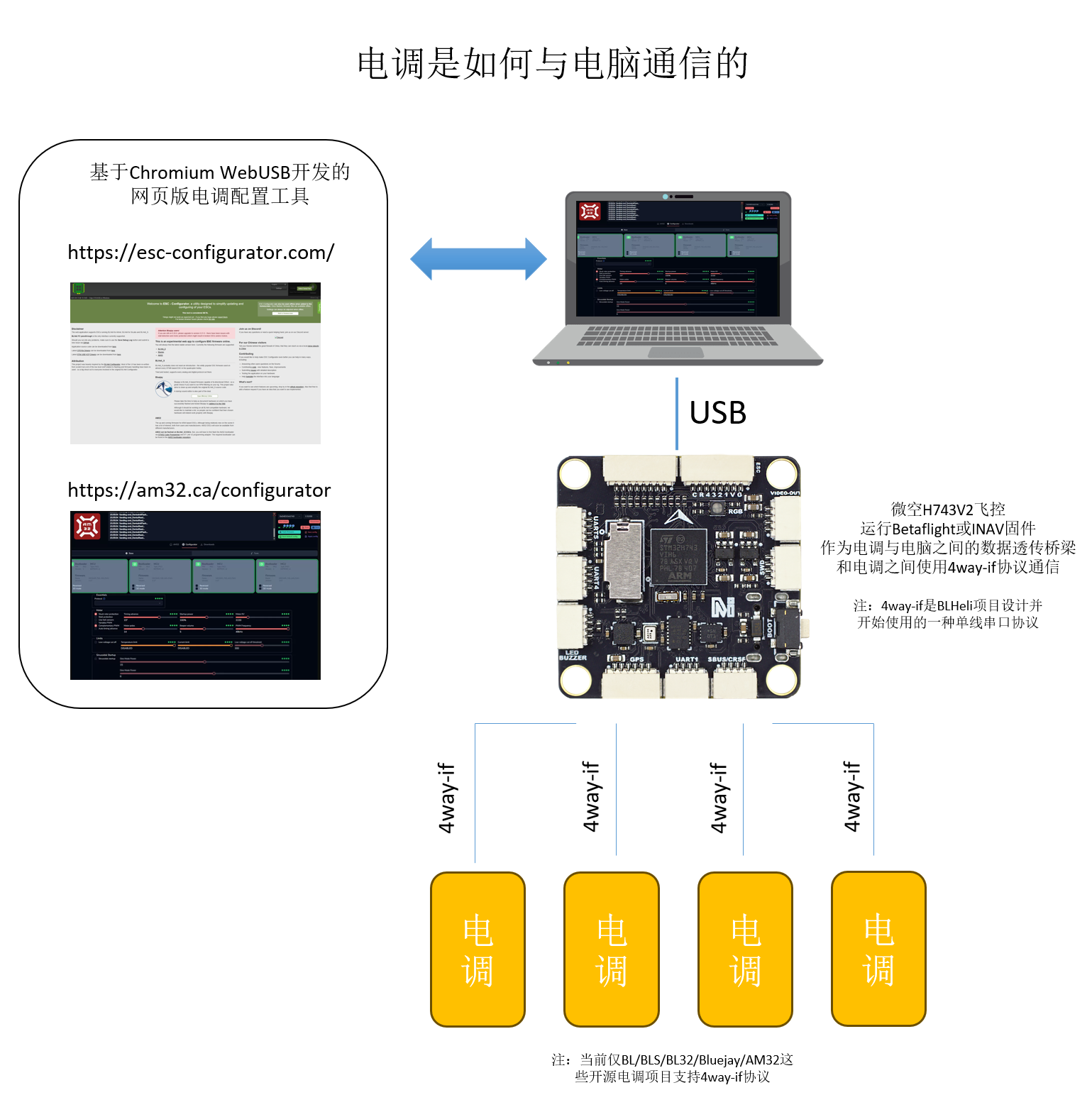
How It Works
Procedure
Install Flight Controller Firmware
A flight controller running Betaflight or INAV firmware is required as a communication bridge between the ESC and the computer. First check whether the current flight-controller firmware is Betaflight or INAV. If it is not, install the required firmware before continuing. See the following guide for the flashing procedure: https://micoair.cn/en/docs/flight-controller/flight-controller-firmware-tutorial-ardupilot-px4-betaflight-inav
Configure the Flight Controller
Betaflight firmware requires no additional configuration. For INAV firmware, enable motor outputs first because they are disabled by default.
Connect the Flight Controller and ESC
When using a MicoAir743-AIO-35A or MicoAir743v2-AIO-45A AIO flight-controller/ESC board, simply connect the AIO board to the computer with a USB cable.
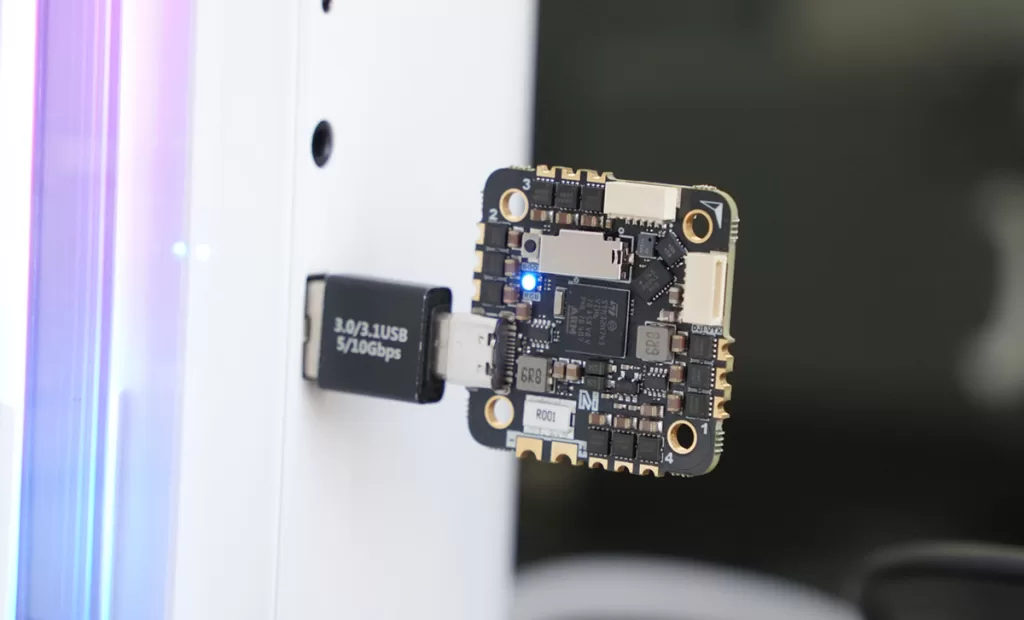
When using a MicoAir743/743V2 flight controller with a separate 4-in-1 ESC, connect the flight controller to the ESC first. Power the ESC from a battery, then connect the flight controller to the computer with a USB cable.
Connect to the ESC with a Web Tool
The following two browser-based ESC configuration tools are recommended:
-
https://esc-configurator.com/ — supports BLS, Bluejay, and AM32 ESC firmware
-
https://am32.ca/configurator — dedicated to AM32 firmware
The following example uses AM32 ESC firmware.
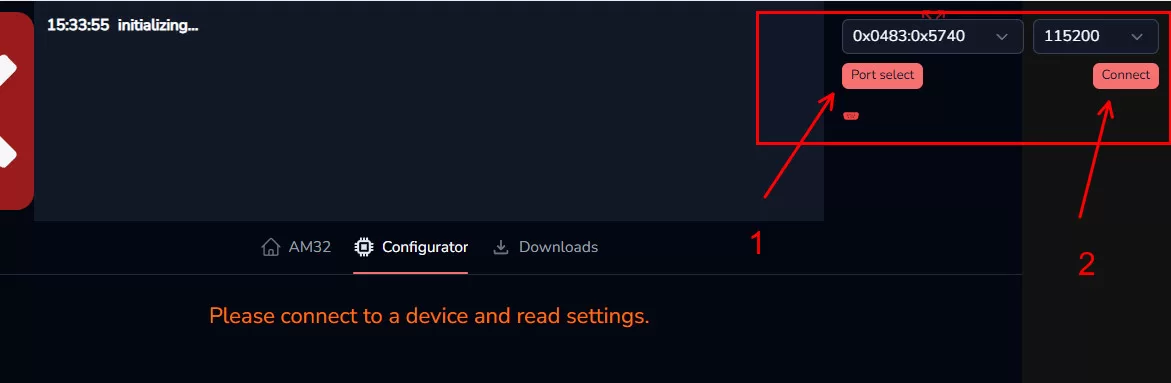
- Open https://am32.ca/configurator in a browser. Only Chromium-based browsers such as Chrome and Edge are supported.
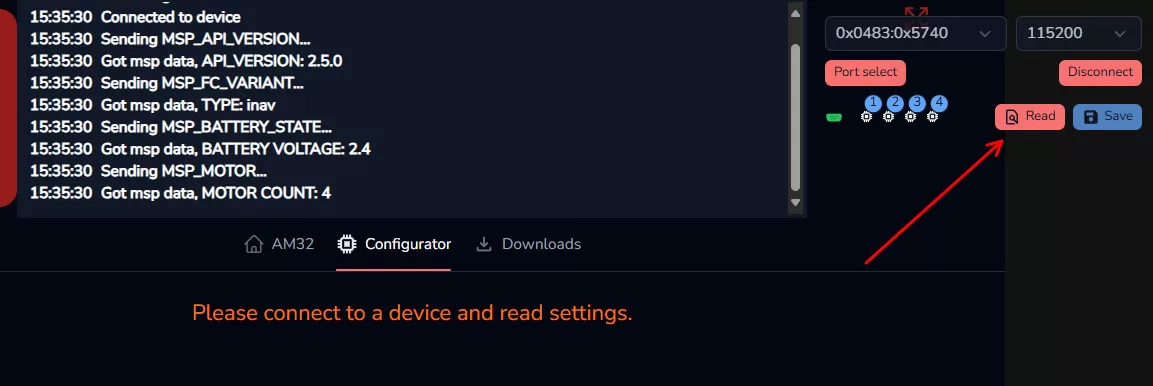
- Click Port select in the upper-right corner, choose the correct flight-controller port, and click Connect.
- After the connection is established, click Read to retrieve the settings from all four ESCs.
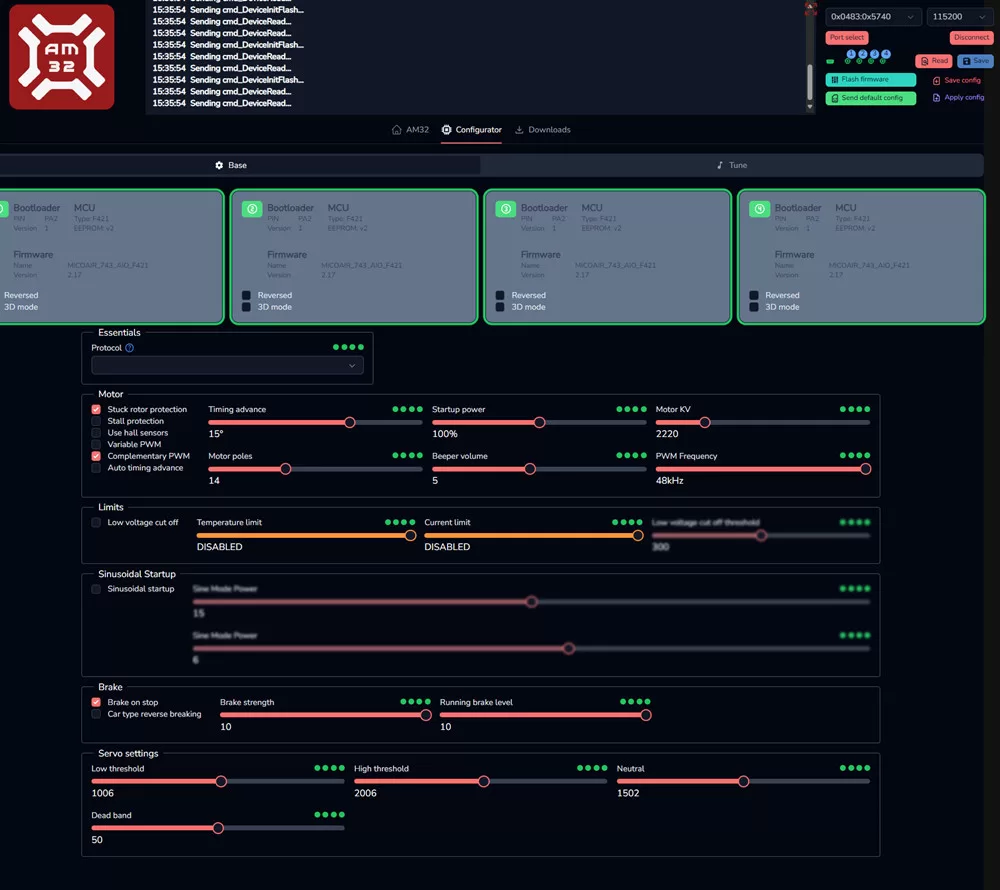
Configure ESC Parameters
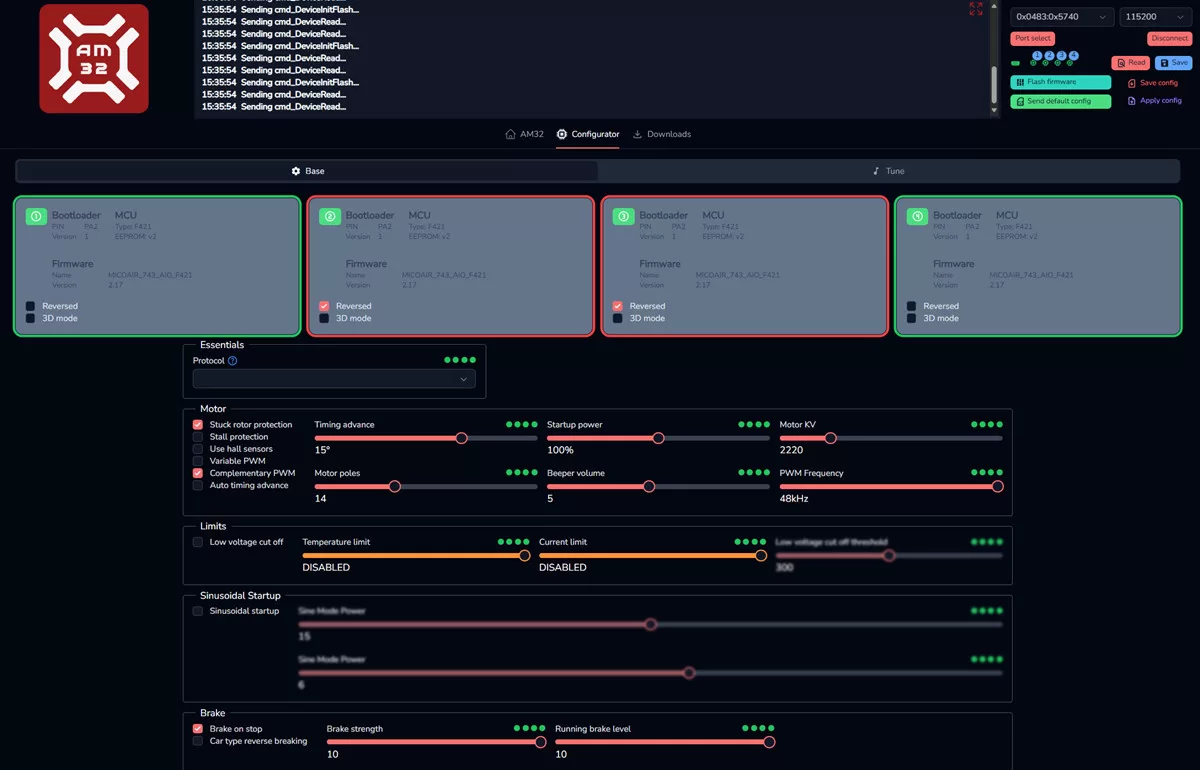
- Click the selection box to select every ESC. A selected ESC has a green or red border. Red indicates that its parameters have been changed but not yet saved; an unselected ESC has a gray border.
- Reverse a motor: To change the direction of one motor, select or clear Reversed for that ESC.
- Set motor KV: Use the slider in the lower-right area to set a KV value that matches the actual motor. A large mismatch may prevent the ESC from driving the motor correctly.
- Save parameters: After adjusting the required settings, confirm that the target ESCs remain selected and their borders are highlighted. Click the blue Save button in the upper-right corner to write and store the parameters on the ESCs.
Upgrade ESC Firmware
-
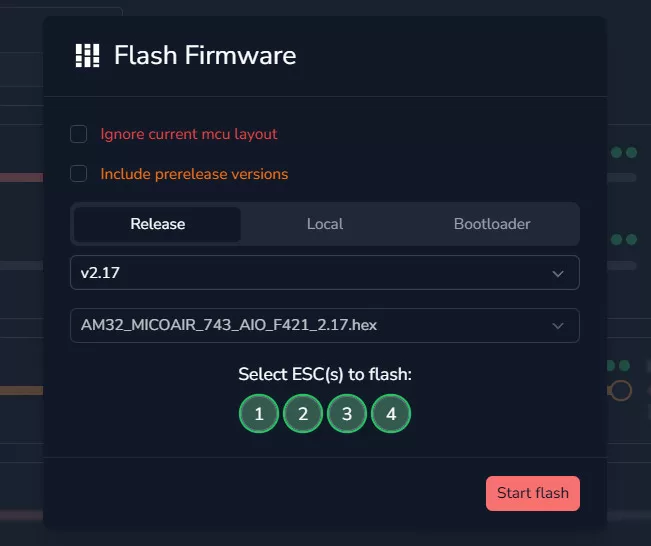
Click the green Flash Firmware button in the upper-right corner to open the firmware-upgrade dialog.
-
Select the required version from the drop-down list, for example 2.17 or 2.18. The latest version is normally recommended. Refer to the ESC manual for the correct firmware target; in most cases, the configurator detects it automatically.
-
Select the numbered ESC channels to be upgraded. Normally, all four channels can be selected together.
-
Click Start flash to begin. Flashing all four ESCs usually takes several tens of seconds. Wait until the process is complete and do not disconnect power while flashing. An interrupted update can leave an ESC inoperable and require factory recovery with a hardware programmer.