
Docs directory
Table of contents
Firmware Flashing Tutorial (ArduPilot/PX4/Betaflight/INAV)
Video tutorial: How to Flash ArduPilot, PX4, INAV, Betaflight, and Other Open-Source Firmware onto an H743 Flight Controller
Tutorial Overview
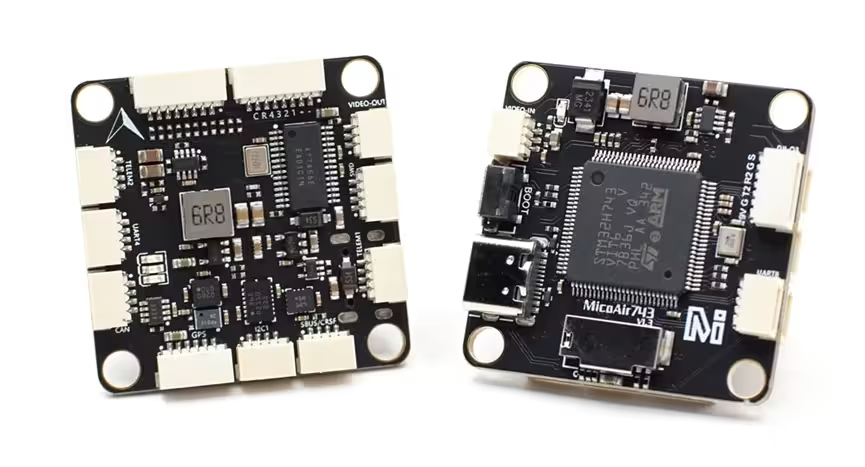
The MicoAir743 series of MicoAir flight controllers supports the following four open-source flight-control firmware platforms:
- ArduPilot
- PX4
- Betaflight
- INAV
The four firmware platforms can be changed as needed. Their flashing procedures share some common steps but also differ in several respects. Using MicoAir743 as an example, this guide explains how to flash each of the four firmware platforms. The same procedures also apply to other models, including MicoAir743v2 and MicoAir405v2.
The STM32 DFU mode is permanently stored in ROM and is not lost when application firmware is flashed. Even if the application firmware cannot start, the flight controller can still enter DFU mode and be reflashed.
Required Software Tools
| Tool | Purpose |
|---|---|
| Zadig 2.8 | Install the DFU driver |
| STM32CubeProgrammer | ST's official programming tool, used to flash the flight-controller bootloader and firmware |
| Betaflight Configurator | Configure Betaflight flight controllers and flash firmware |
| Mission Planner | ArduPilot ground station and firmware flashing |
| QGroundControl | PX4 ground station and firmware flashing |
| INAV Configurator | Configure INAV flight controllers and flash firmware |
Recommended Method: Flash ArduPilot Firmware with MicoConfigurator
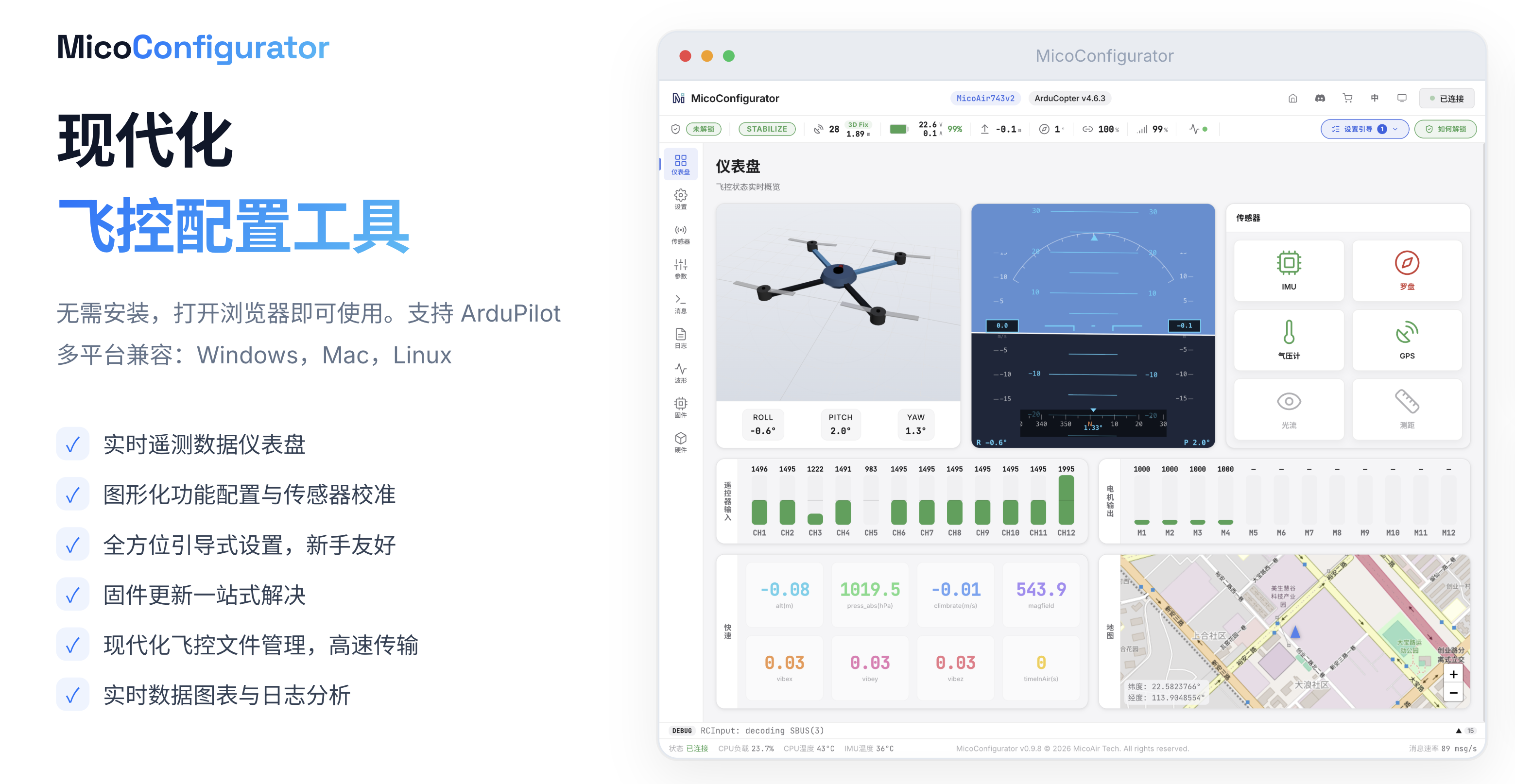
MicoConfigurator requires no installation: simply open it and start using it. It supports Windows, macOS, and Linux.
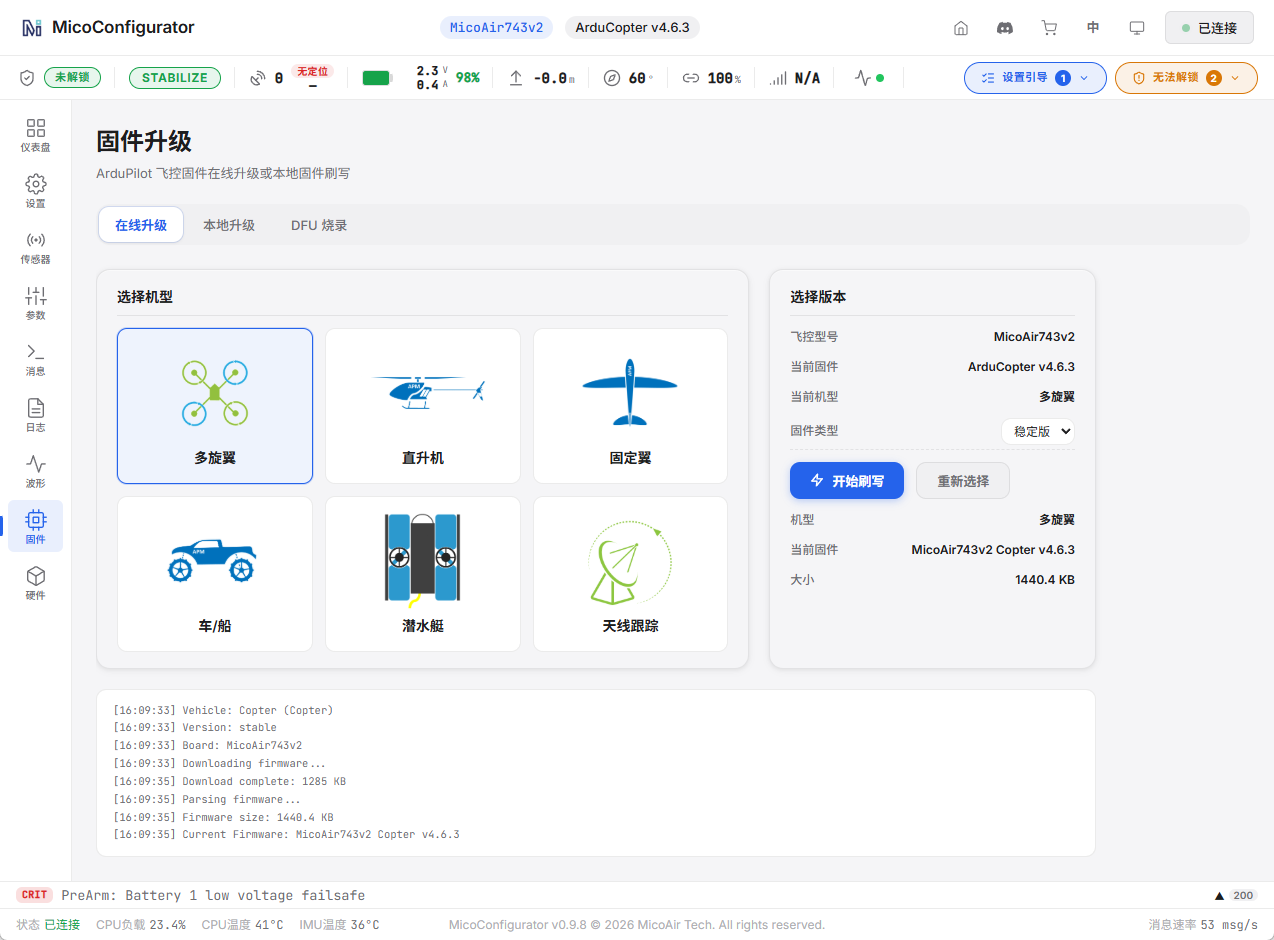
It provides online updates, local-file flashing, and DFU flashing, bringing firmware updates together in one place:
- If the flight controller is already running ArduPilot firmware, use an online update or flash a local file without any additional steps.
- If the flight controller is not currently running ArduPilot firmware, use DFU flashing. Instructions for installing the DFU driver are provided later in this guide.
- STM32CubeProgrammer does not need to be installed when using DFU flashing.
Firmware Downloads
The MicoAir repositories provide only older firmware versions. Download the latest versions from the corresponding open-source flight-control project's official website, or flash them online through the flight-controller configuration software.
| Flight controller model | Firmware repository |
|---|---|
| MicoAir743 | MicoAir743 Firmware |
| MicoAir743v2, MicoAir743v2-AIO | MicoAir743v2 Firmware |
| MicoAir405v2 | MicoAir405v2 Firmware |
| MicoAir405Mini | MicoAir405Mini Firmware |
Official ArduPilot Firmware
ArduPilot officially supports MicoAir405v2 starting with version 4.5.0, and MicoAir405Mini, MicoAir743, and MicoAir743v2 starting with version 4.6.0. Firmware for the corresponding models can be downloaded from the official ArduPilot server:
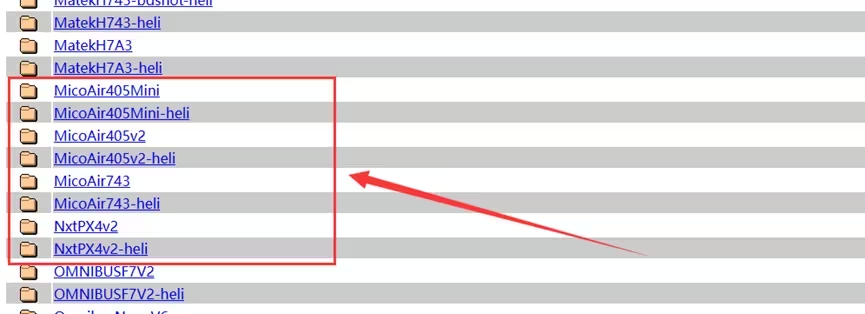
Older firmware versions can be downloaded from the MicoAir GitHub repositories or QQ groups. See the corresponding flight-controller manual for details.
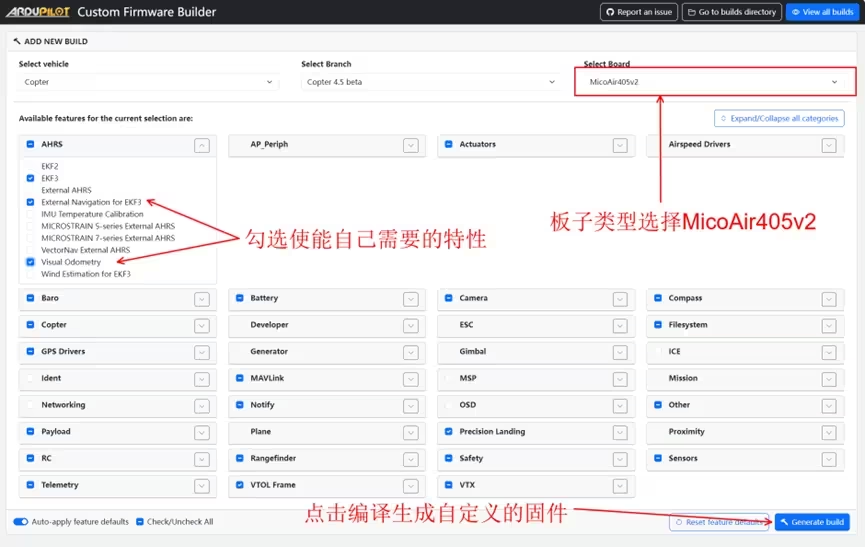
To select firmware features according to your own requirements, you can also use ArduPilot's online custom firmware service. Select the required features online, generate the firmware, and download it locally:
ArduPilot Custom Firmware Builder
Enter DFU Mode and Install the Driver
Prepare a MicoAir743 flight controller and a USB Type-C cable that supports data transfer.
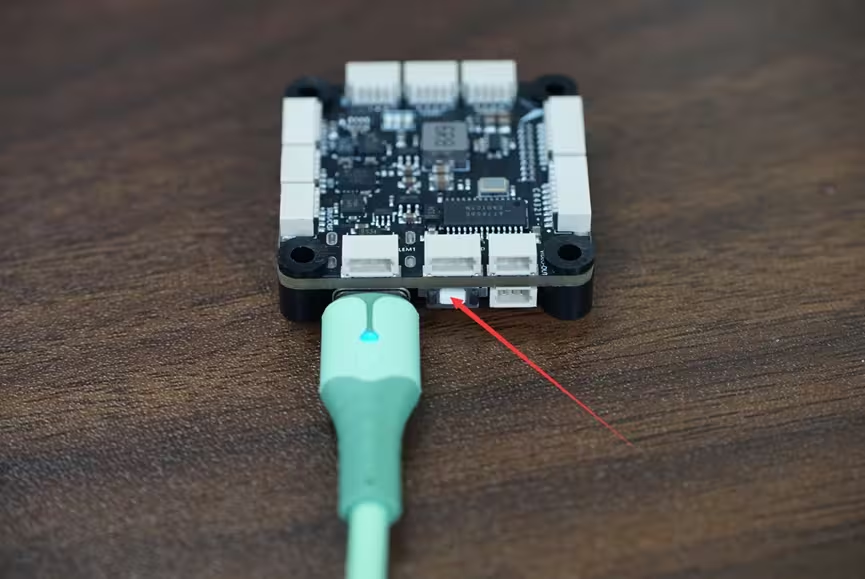
1. Put the Flight Controller into DFU Mode
- Press and hold the BOOT button next to the flight controller's USB port.
- Keep the button pressed while plugging in the USB cable and connecting it to the computer.
- Release the BOOT button approximately 2 seconds after the flight controller powers on.
2. Show All Devices in Zadig
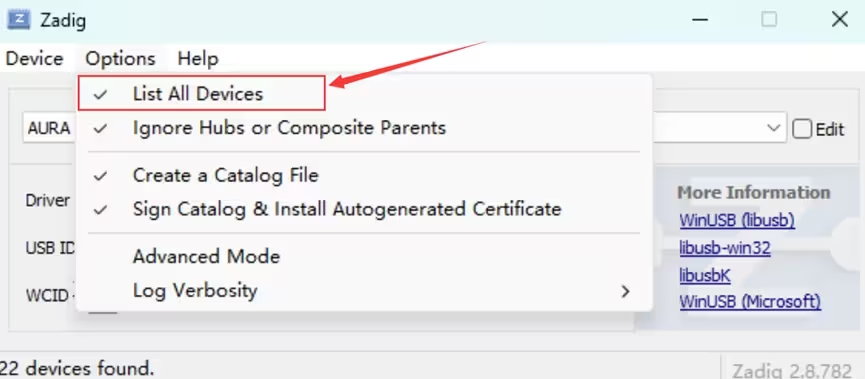
Open Zadig 2.8, open the Options menu, and select List All Devices.
3. Select the DFU Device
Open the device list and select DFU in FS Mode. If the flight controller uses an STM32F405 MCU, the device may instead appear as STM32 BOOTLOADER.
If the corresponding device does not appear in the list, check the following:
- Whether the BOOT button was held down before the USB cable was inserted.
- Whether the current USB cable supports data transfer and is working correctly.
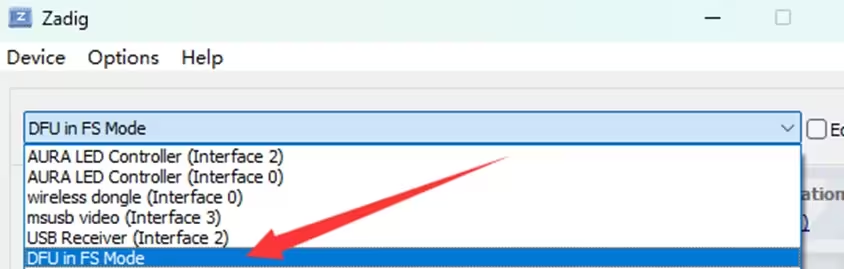
4. Install the DFU Driver
Click Install Driver to install the WinUSB driver.
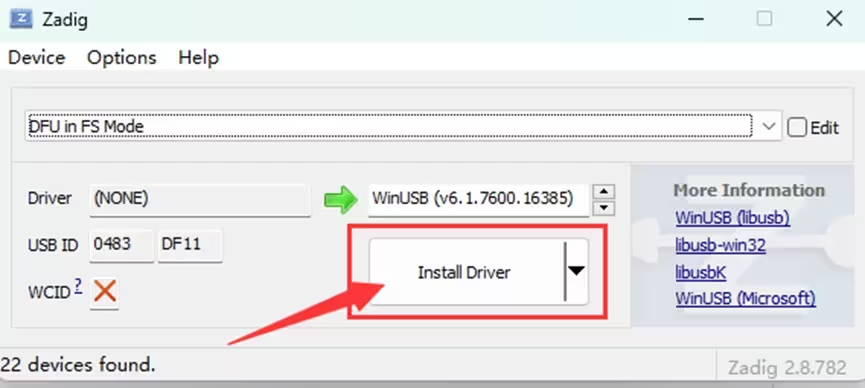
Wait for the driver installation to finish. Open Windows Device Manager. If the DFU in FS Mode device is visible, the computer has correctly recognized the flight controller in DFU mode.
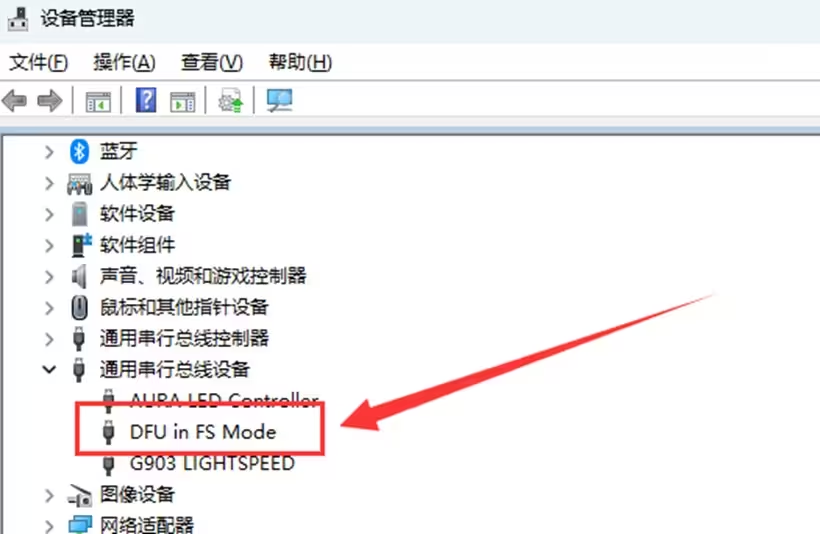
After completing the preparation above, follow the procedure below for the corresponding firmware.
Flash Betaflight Firmware
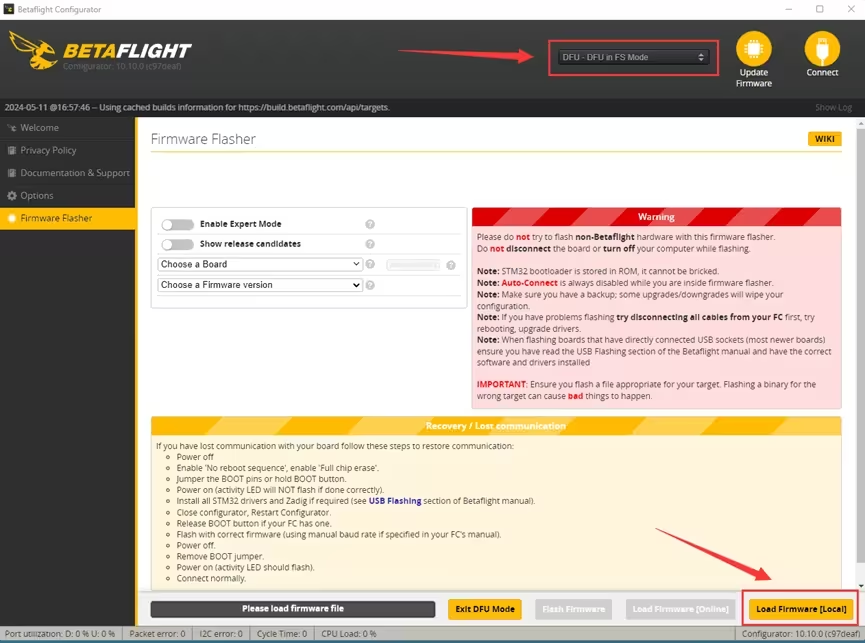
- Put the flight controller into DFU mode and open Betaflight Configurator.
- Confirm that
DFU - DFU in FS Modeappears in the upper-right corner, indicating that the flight controller has been recognized correctly. - Select
MICOAIR743from the target-board list. - Click
Load Firmware [Online]in the lower-right corner to download the online firmware. - After the download is complete, click
Flash Firmwareon the left to begin flashing.
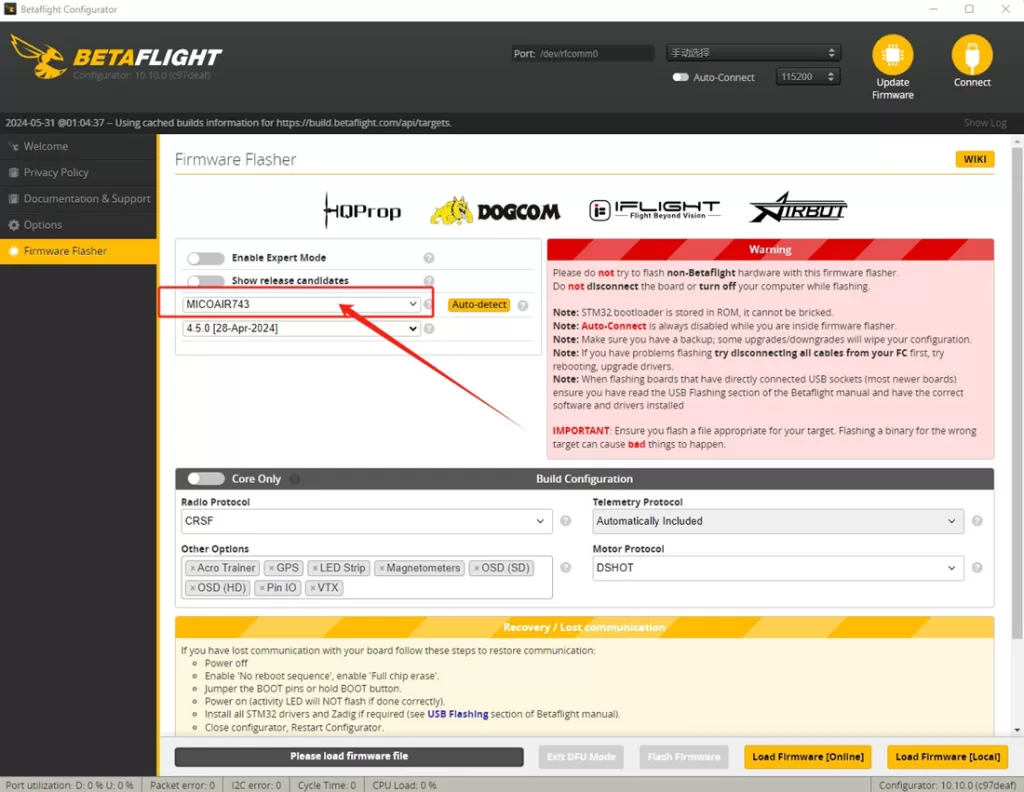
A local firmware file can also be used:
- Click
Load Firmware [Local]. - Select the Betaflight firmware file on the computer.
- Click
Flash Firmwareto write the firmware to the flight controller.

Flash INAV Firmware
INAV fixed a long-standing TF card recognition problem starting with version 8.0 RC3. Version 8.0 RC3 or later is recommended, together with INAV Configurator version 8.0.
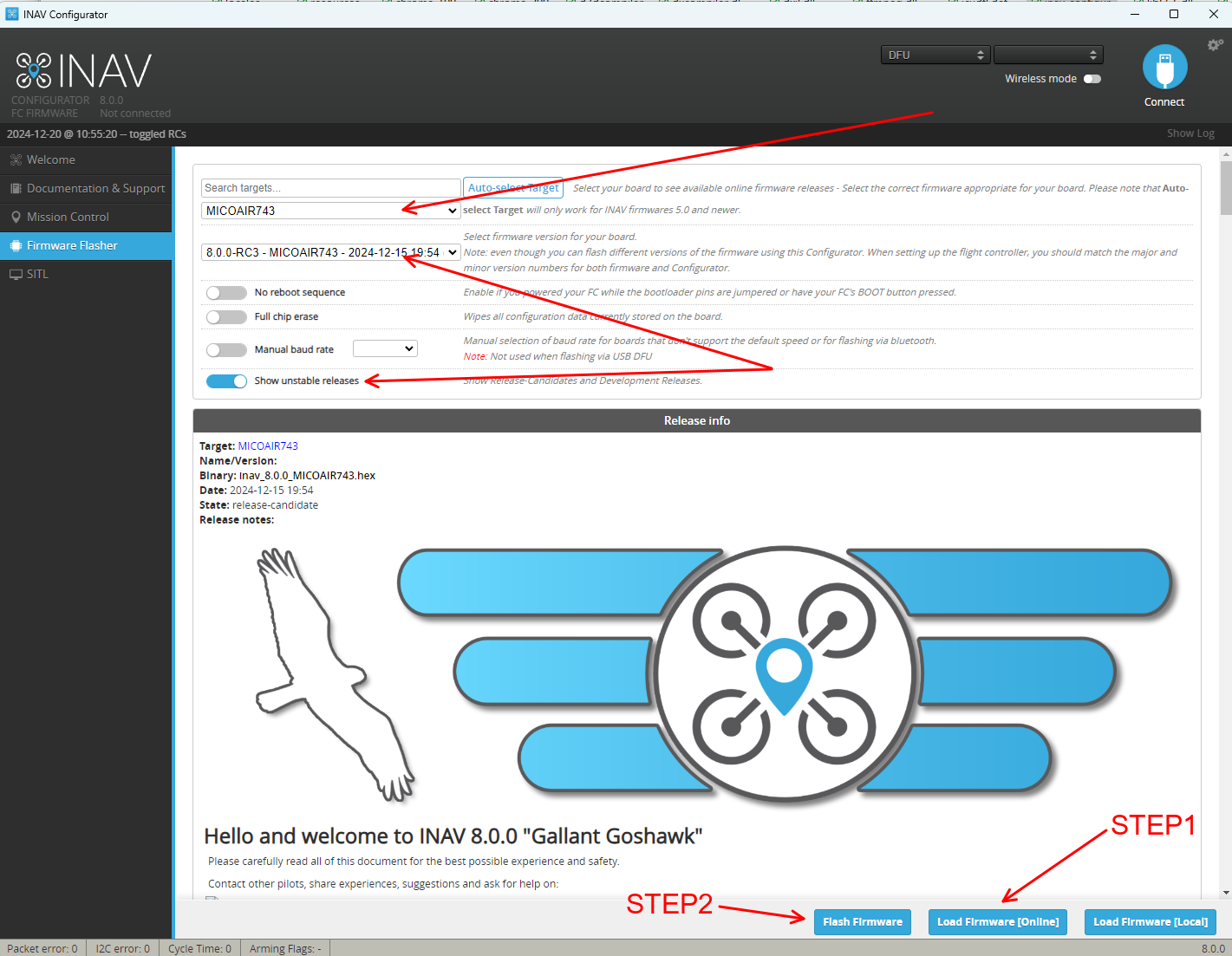
- Put the flight controller into DFU mode and open INAV Configurator.
- Confirm that
DFUappears in the upper-right corner, indicating that the flight controller has been recognized correctly. - Open the
Firmware Flasherpage. - Select the flight controller model in the upper-left corner, such as MicoAir743 or MicoAir405v2.
- Select the required firmware version from the version list.
- Click
Load Firmware [Online]to download online firmware, or clickLoad Firmware [Local]to load a local firmware file. - Click
Flash Firmwarein the lower-right corner to write the firmware to the flight controller.
Flash ArduPilot Firmware
The method used to flash ArduPilot firmware depends on the firmware currently running on the flight controller.
Case One: The Flight Controller Has Never Been Flashed, or Is Not Currently Running ArduPilot
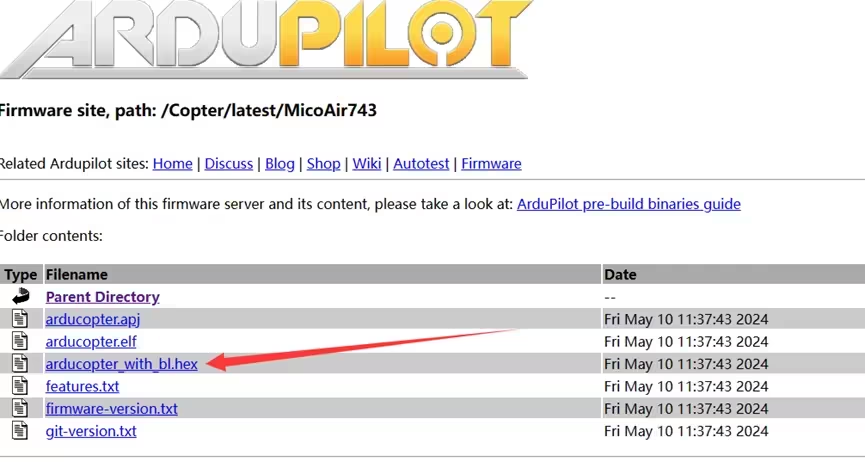
Use INAV Configurator or STM32CubeProgrammer to flash an xxx_with_bl.hex file that includes the bootloader. The flashing process may take several minutes.
1. Download the with_bl.hex Firmware
2. Flash with STM32CubeProgrammer
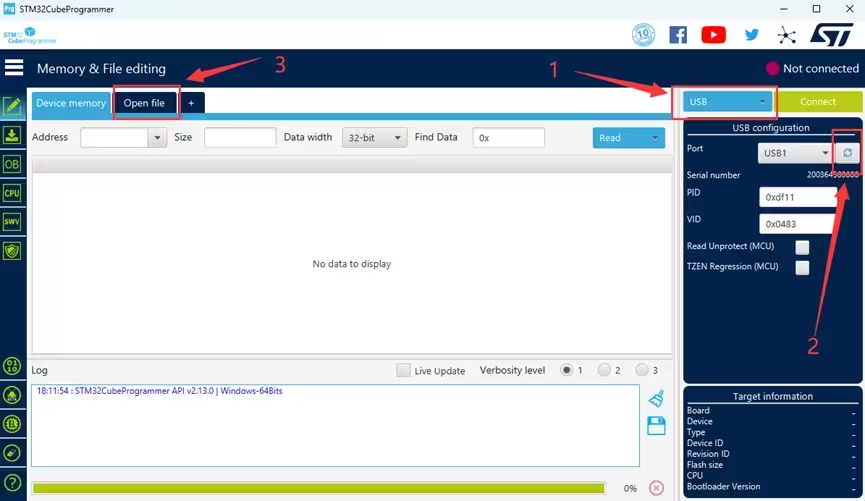
- Install and open STM32CubeProgrammer.
- Confirm that the flight controller has entered DFU mode.
- Select
USBas the connection method in the upper-right corner of the application. - Click the refresh button on the right. Under normal conditions, the application will detect
USB1. - Click
Connectto connect to the flight controller.
After connecting successfully:
- Click
Open filein the upper-left corner. - Select the local
xxx_with_bl.hexfile. - Click
Download. - Wait several minutes for flashing to finish.
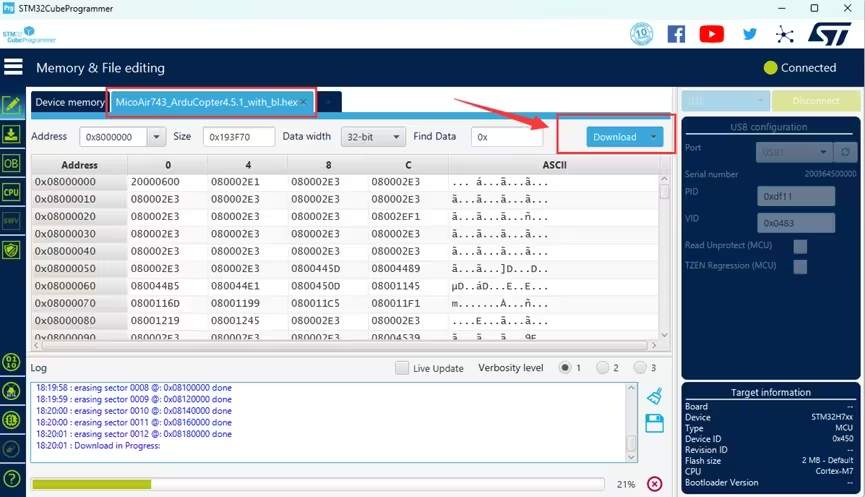
Case Two: The Flight Controller Is Already Running ArduPilot
In this case, load and flash an .apj file directly in Mission Planner.
- Disconnect the flight controller from the computer.
- Open Mission Planner and go to the
Install Firmwarepage. - Click
Load custom firmwareand select the.apjfirmware file on the computer.
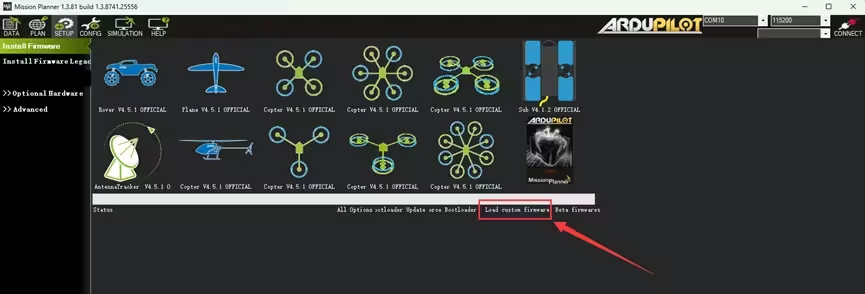
After Mission Planner reads the firmware, a dialog appears asking you to connect the flight controller after clicking OK.
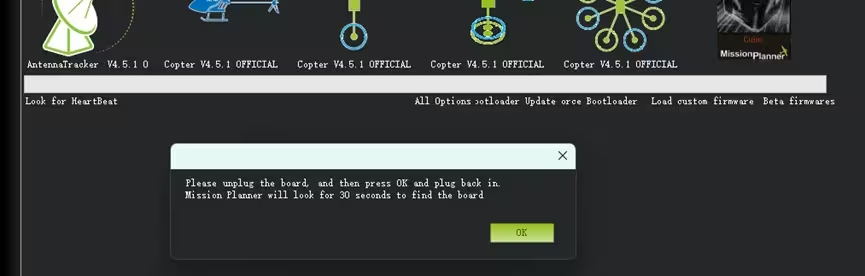
Click OK, and then connect the flight controller with a USB cable. Mission Planner automatically recognizes the flight controller and begins writing the firmware. This normally takes approximately 10 seconds.
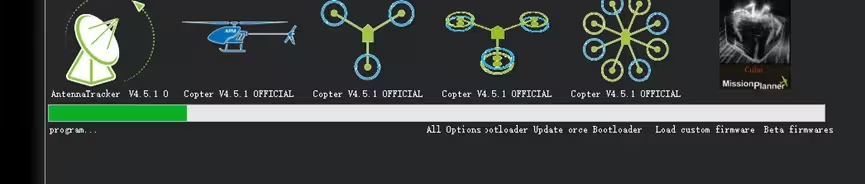
Flash PX4 Firmware
If the flight controller is not currently running PX4 firmware, flash the PX4 bootloader first.
1. Connect STM32CubeProgrammer
Put the flight controller into DFU mode, open STM32CubeProgrammer, and connect to the flight controller.
When flashing PX4 firmware for the first time, it is recommended to erase all Flash memory first: click the eraser button in the lower-left corner of the main interface.
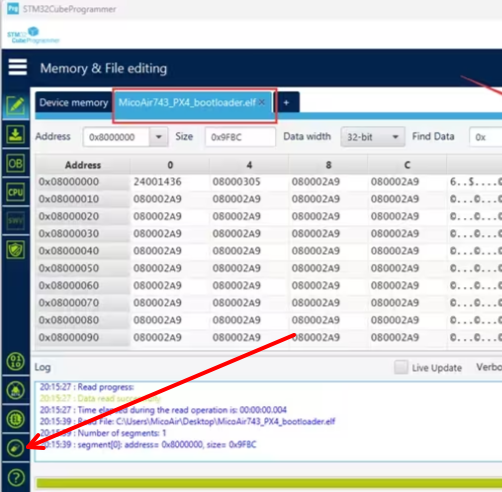
2. Flash the PX4 Bootloader
- Click
Open file. - Select the local
xxx_PX4_bootloader.elforbootloader.binfile. - Click
Downloadto begin flashing.
The path containing the
.elffile must not include Chinese characters.
The bootloader file is small, so flashing normally takes only 1–2 seconds.
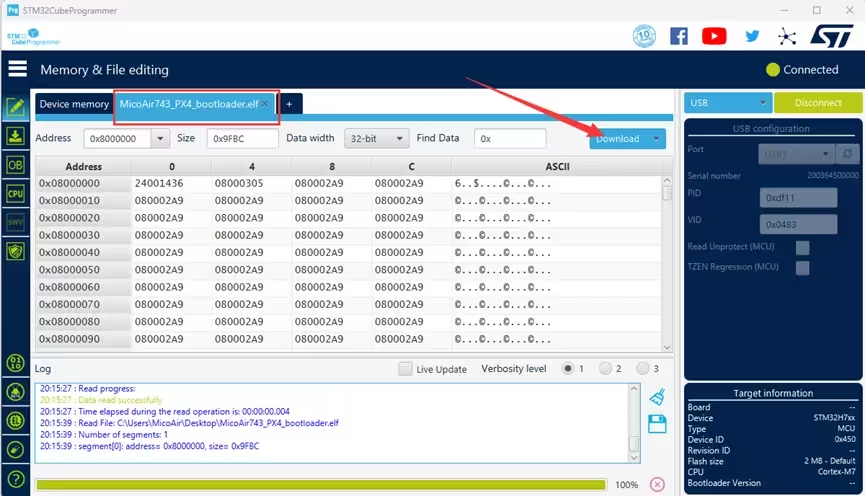
After flashing is complete, disconnect the flight controller's USB connection.
3. Flash PX4 Firmware with QGroundControl
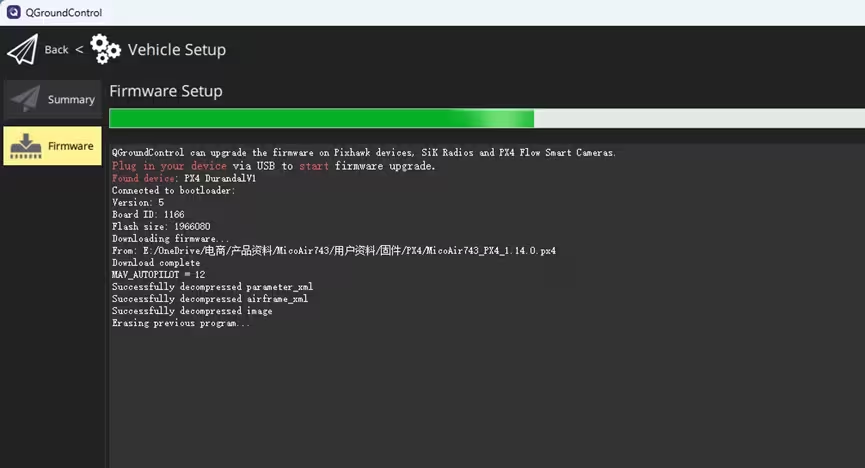
- Open QGroundControl and go to the
Firmwarepage. - Follow the on-screen prompt and connect the flight controller with a USB cable. Do not press the BOOT button at this stage.
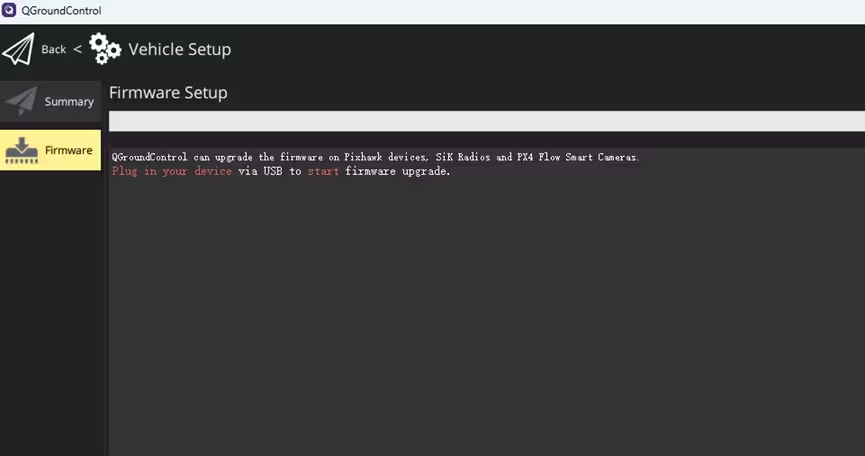
After QGroundControl recognizes the flight controller, a setup window appears:
- Select “Advanced settings.”
- Select “Custom firmware file” below it.
- Click
OK.
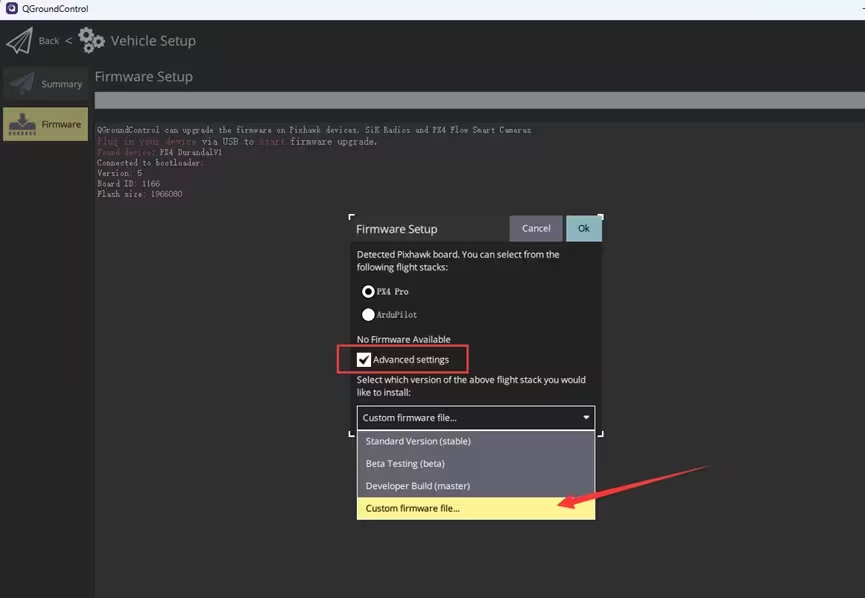
In the file-selection window, select and open the downloaded xxx.px4 firmware file. QGroundControl begins flashing, which normally takes approximately 10 seconds. When flashing is complete, the flight controller restarts automatically and QGroundControl reconnects automatically.