

Docs directory
Table of contents
Connecting a MicoAir743v2/MicoAir743-Lite to a PC over Bluetooth
Computer operating system: Windows 11 Flight controller: MicoAir743V2
Power the Flight Controller
Power the flight controller or the assembled aircraft. Check that the H743 Bluetooth power indicator is on. It is the blue LED in the lower-right corner on the back of the board; see the MicoAir743V2 interface diagram for its exact location.
If the Bluetooth power indicator is off, wait briefly after powering the flight controller and then press and hold the BOOT button for 3 seconds to enable Bluetooth power.
Connect the Computer over Bluetooth
First confirm that the computer supports Bluetooth. Most laptop computers include Bluetooth; desktop support depends on the motherboard or installed network adapter.
Open Windows 11 Settings, go to Bluetooth & devices, and enable Bluetooth.
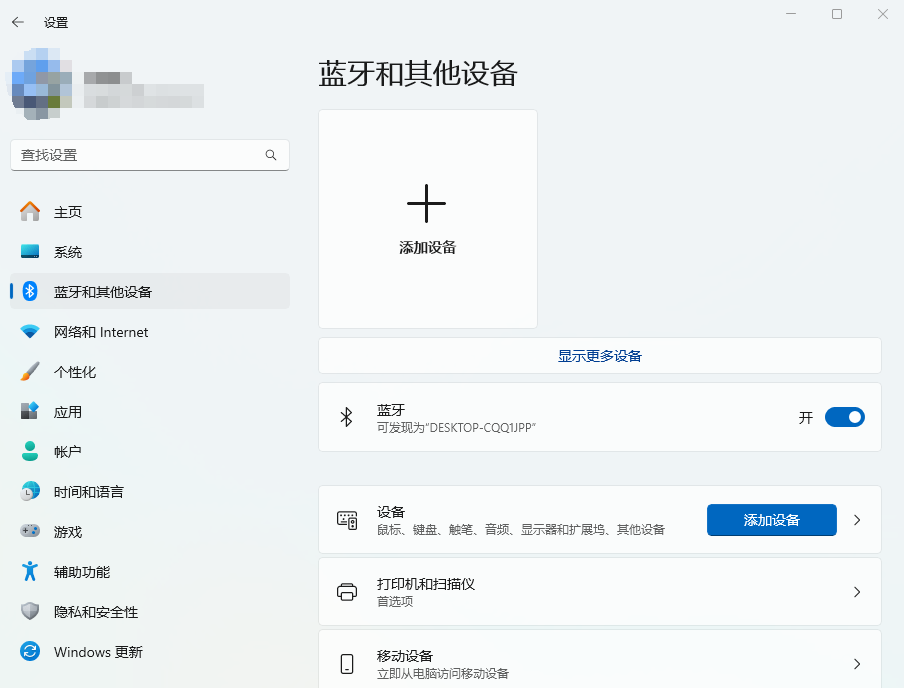
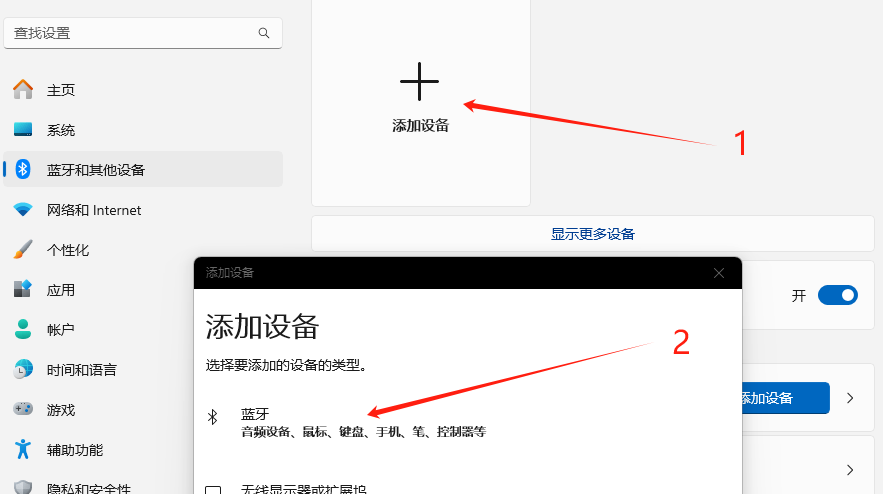
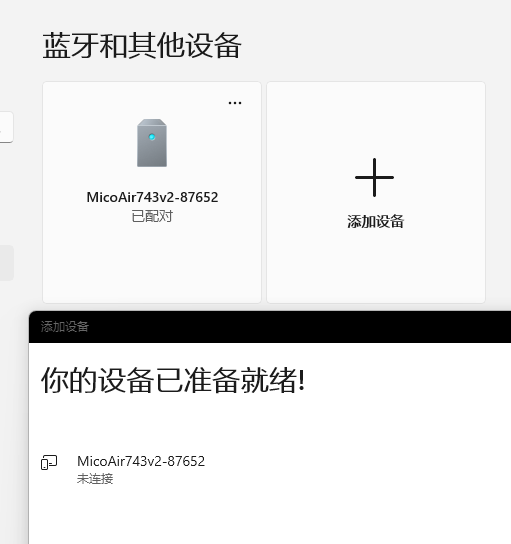
Click Add device, then select Bluetooth.
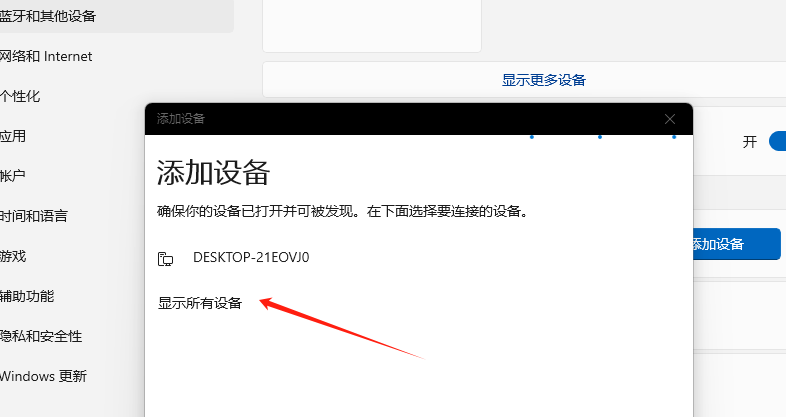
In the dialog, click Show all devices.
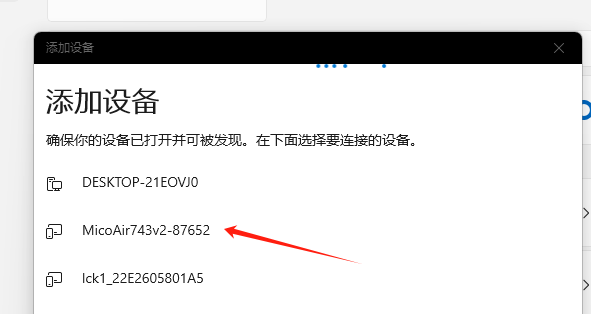
Select MicoAir743v2-xxxxxx for a MicoAir743V2 or MicoAir743Li-xxxxxx for a MicoAir743-Lite. Windows adds the flight controller as a new Bluetooth device.
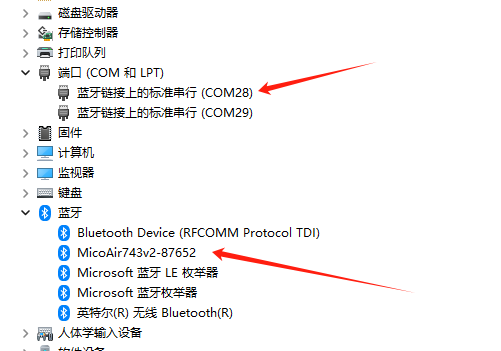
Open Windows 11 Device Manager. The MicoAir H743V2 flight controller and its assigned COM port should now appear under Bluetooth and Ports.
Flight Controller Parameters
The onboard Bluetooth module on the MicoAir743V2 operates at 115200 baud and is connected to flight-controller UART8. When the corresponding parameters are configured correctly, the flight controller can be connected and configured wirelessly over Bluetooth. The default MicoAir743V2 firmware parameters already use these settings, so no manual configuration is normally required. If a connection problem occurs, verify the UART8 parameters first.
Connect INAV Configurator — INAV Firmware
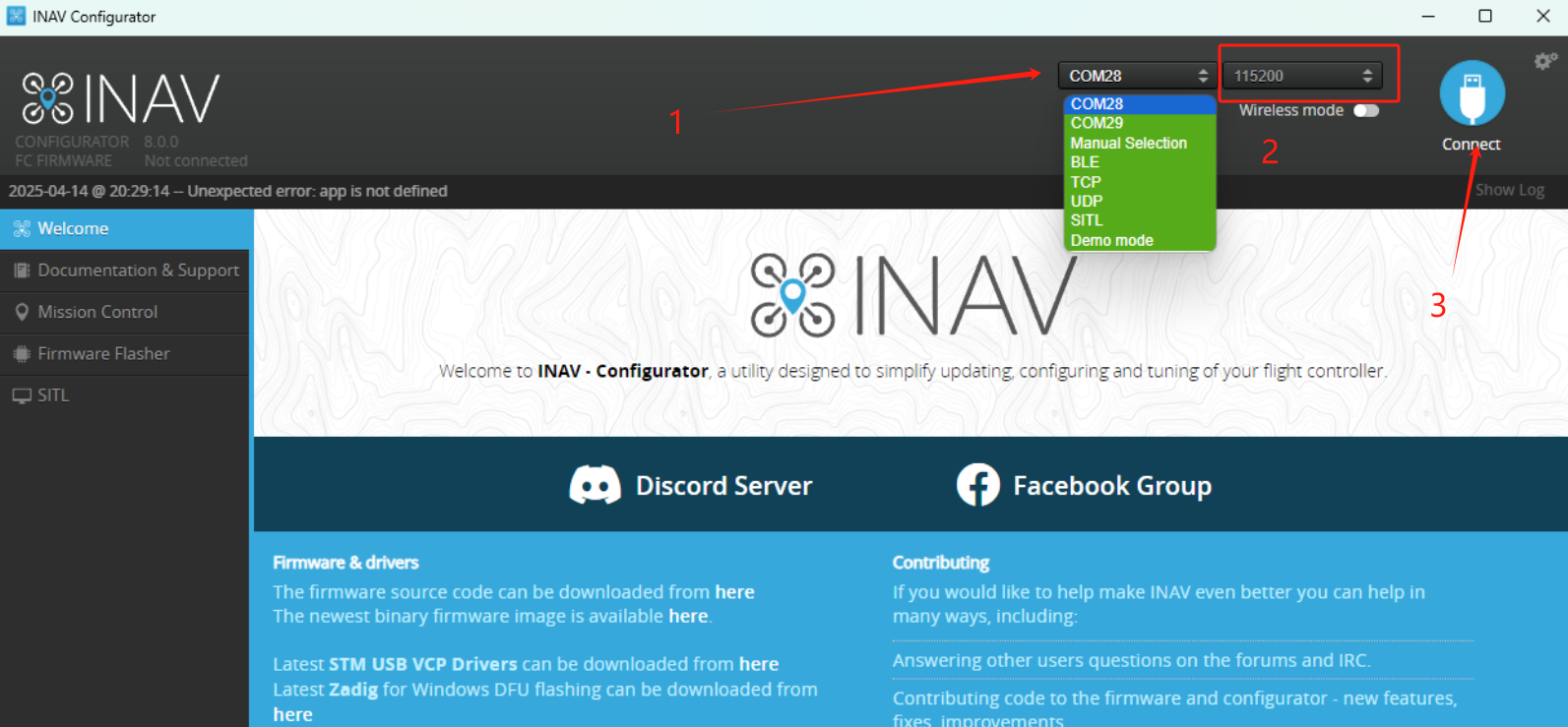
Open INAV Configurator, select the Bluetooth COM port in the upper-right corner, choose 115200 as the baud rate, and click Connect.
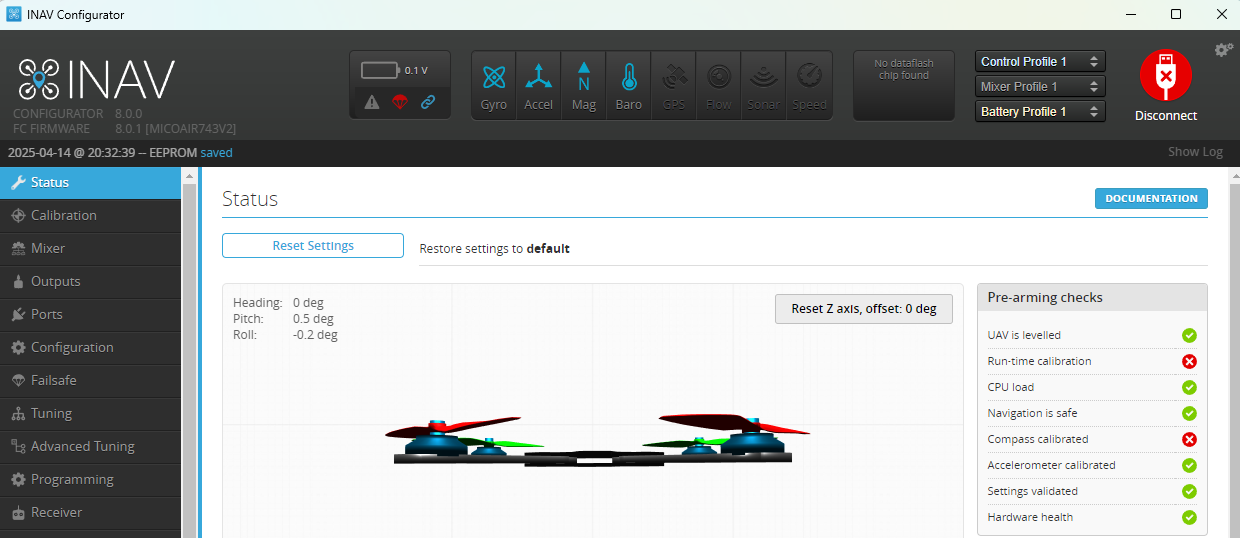
After a few seconds, INAV Configurator connects to the flight controller and refreshes the interface.
Connect Mission Planner — ArduPilot Firmware
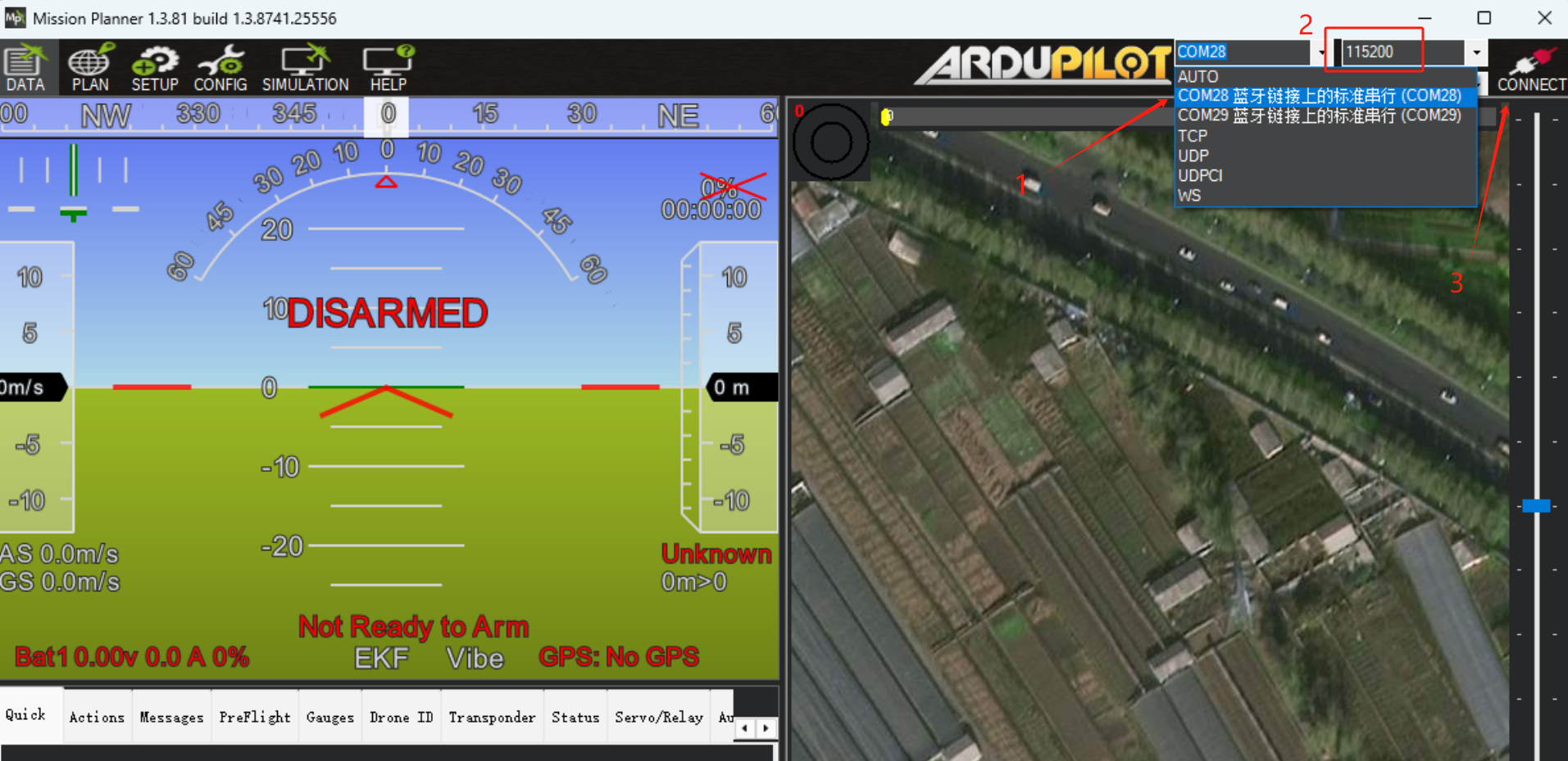
Open Mission Planner, select the Bluetooth COM port in the upper-right corner, choose 115200 as the baud rate, and click CONNECT.
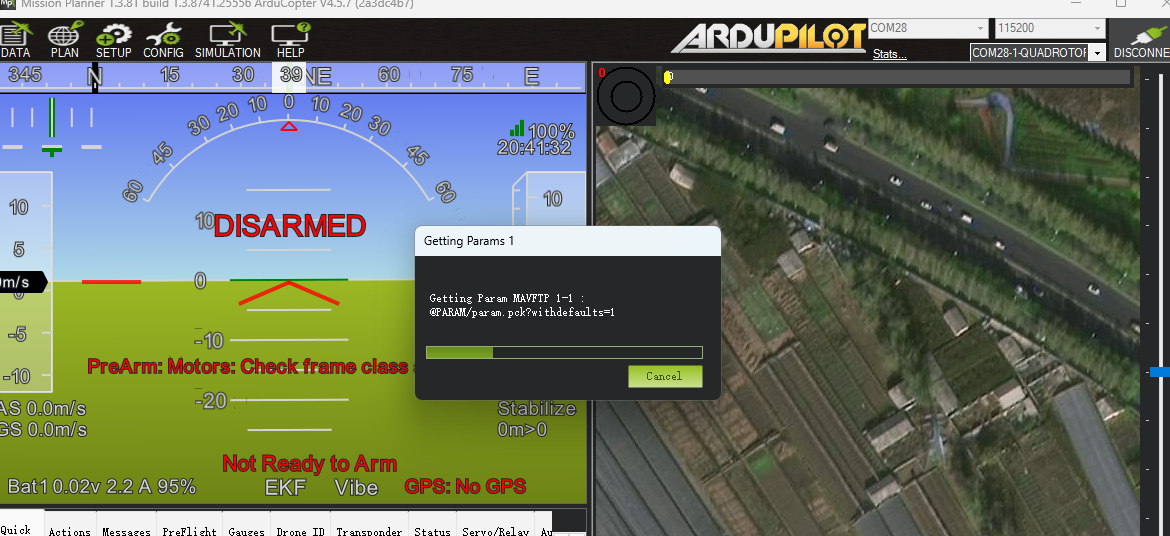
Wait a few seconds while Mission Planner connects and loads the flight-controller parameters.
Connect QGroundControl — ArduPilot/PX4 Firmware
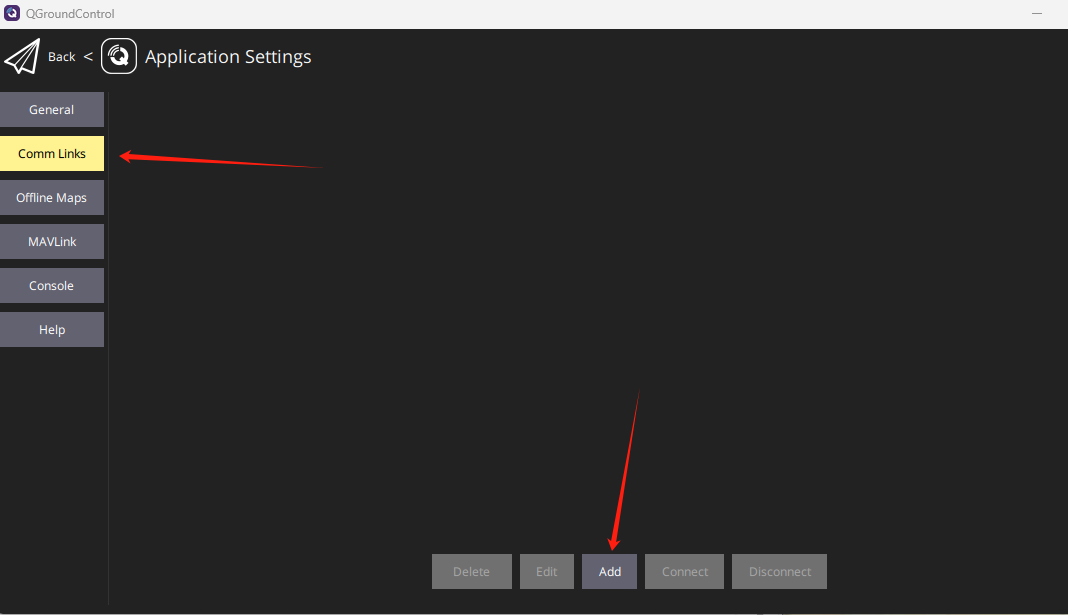
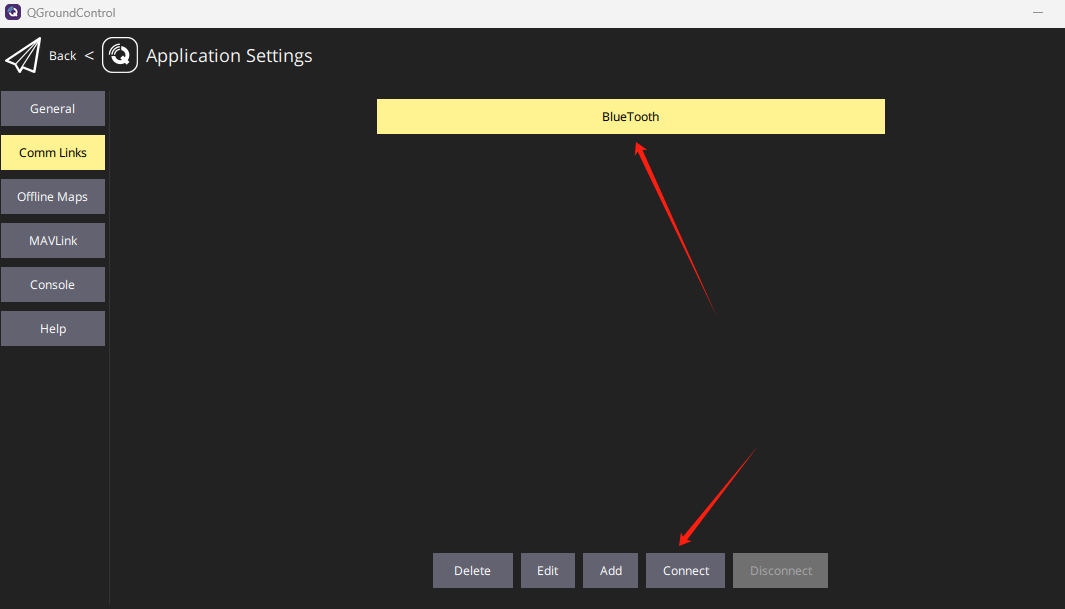
Open QGroundControl, go to Comm Links, and click Add at the bottom of the page.
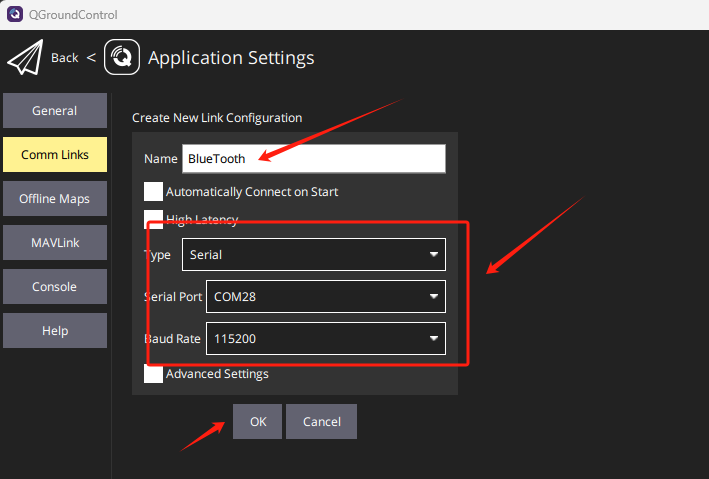
Enter a connection name, set the connection type to Serial, select the Bluetooth COM port, set the baud rate to 115200, and click OK.
Select the newly created connection and click Connect at the bottom of the page.
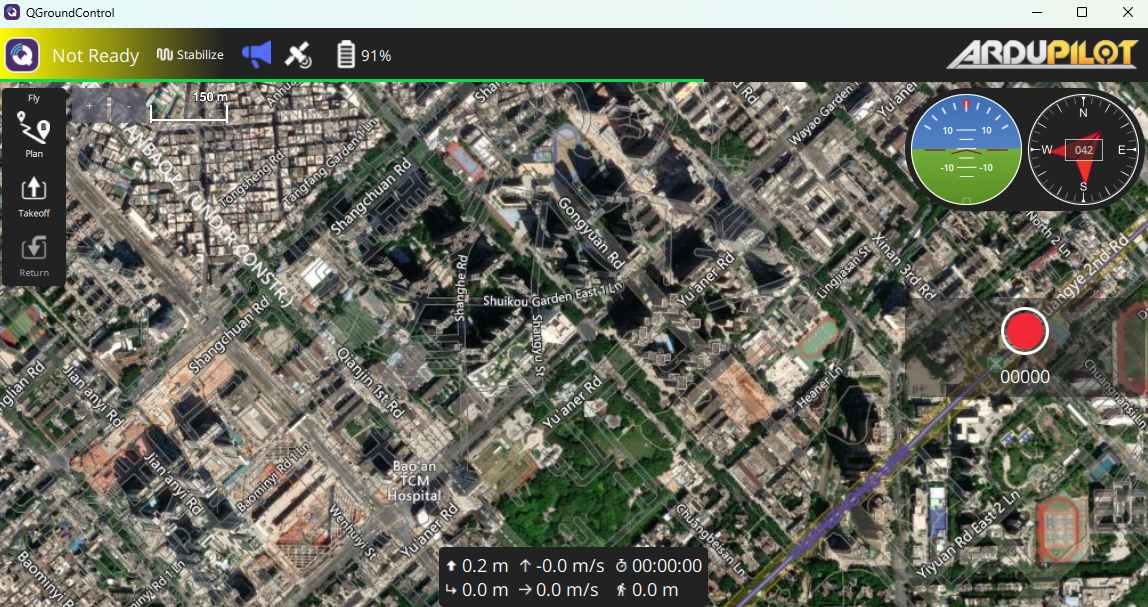
Return to the main QGroundControl page. If the connection is operating correctly, QGroundControl connects to the flight controller and loads its parameters, normally within 2–3 seconds.
Bluetooth Connection Indicator
Below the blue Bluetooth power indicator in the lower-right area on the back of the flight controller is a green Bluetooth connection-status LED. The green LED remains on while ground-station software is connected to the flight controller and turns off when the connection is closed or the ground-station application exits.
Simply pairing the flight controller in Windows 11 does not turn on the green connection-status LED.