
Docs directory
Table of contents
Configuring MicoAir Telemetry Radios for PX4
The following instructions assume the default MicoAir telemetry-radio configuration: 57600 baud, full-duplex operation, and automatic pairing at power-up. A solid green LED indicates that the two radios are linked.
Download QGroundControl from the official website
Step 1: Connect the Telemetry Radio to the Flight Controller
Connect one MicoAir telemetry radio to a telemetry port on the PX4 flight controller, normally TELEM1. Another available port, such as TELEM2 or TELEM3, may also be used because PX4 allows serial-port functions to be configured. Cross the data lines: connect telemetry-radio RX to flight-controller TX, and telemetry-radio TX to flight-controller RX.
On a Pixhawk 2.4.8 or Pixhawk 6 flight controller, the cable supplied with the telemetry radio can be connected directly.
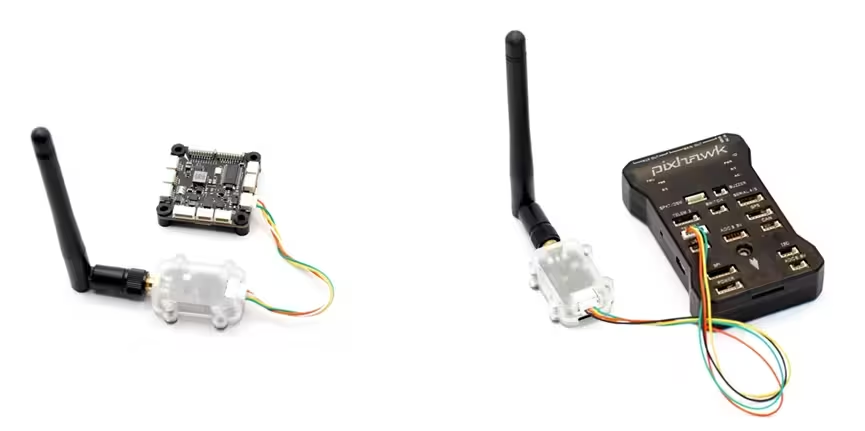
Important: The connector pinouts of the LR900 and LR24 series are different. Confirm the pinout in the relevant product manual before connecting the radio:
Step 2: Configure the Flight Controller
Connect the flight controller to the computer over USB, open QGroundControl, and connect to the flight controller.
In the parameter list, find MAVLink and configure the MAV_0 parameters:
MAV_0_CONFIG = TELEM1when the radio is connected toTELEM1MAV_0_FORWARD = DisabledMAV_0_MODE = NormalMAV_0_RATE = 1200B/s
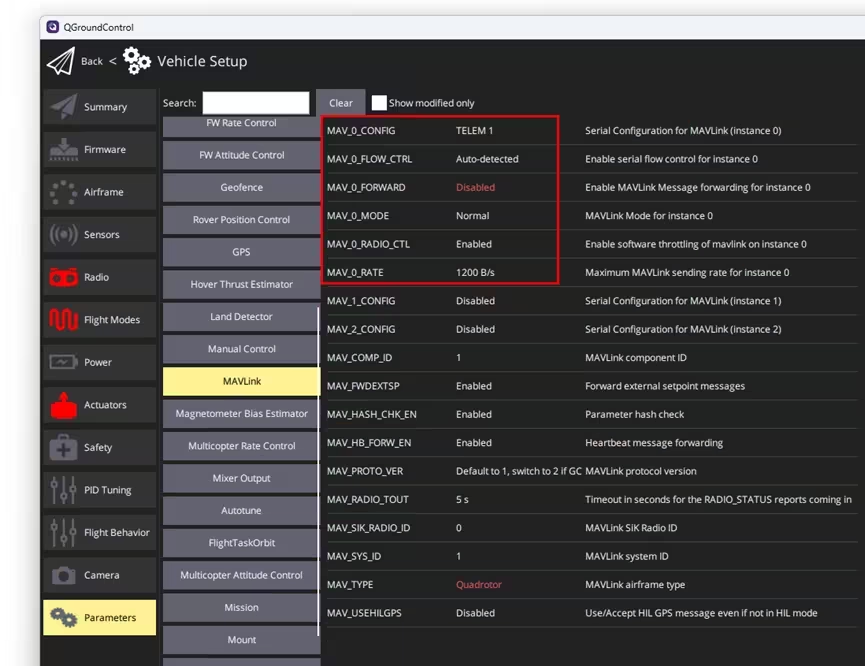
Restart the flight controller, reconnect, and open the Serial parameter page.
Set SER_TEL1_BAUD = 57600 8N1.
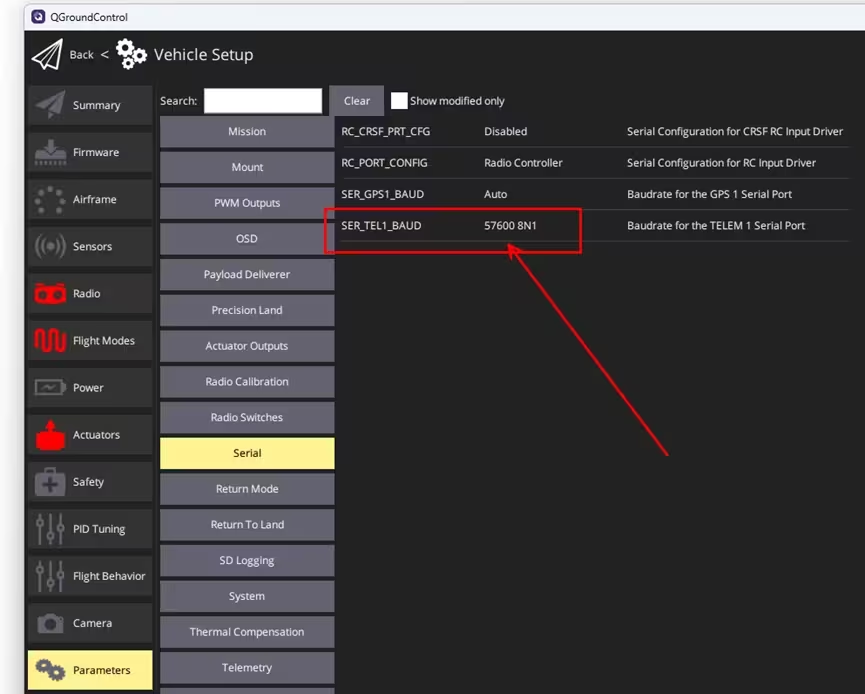
PX4 exposes baud-rate and other serial-port parameters only after the corresponding port has been assigned a function. If a PX4 parameter is absent from QGroundControl, confirm that its prerequisite function or parameter has first been enabled.
Step 3: Connect the Other Telemetry Radio to the Computer
Connect the second telemetry radio to the computer with a USB Type-C data cable. In their default configurations, MicoAir telemetry radios do not have separate air-side and ground-side roles.
A driver must be installed before first use. For CP2102 driver installation on Windows, see:
CP2102 Driver Installation Guide (Windows)
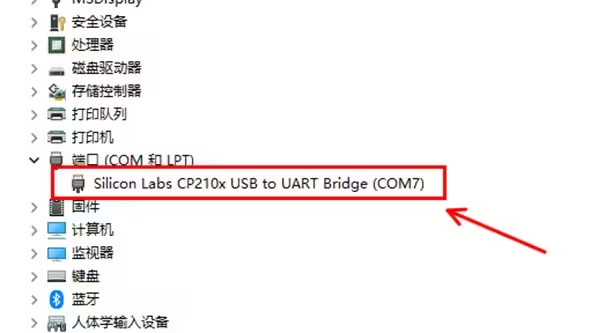
After the driver is installed, Windows Device Manager displays the CP210x device and its assigned port under Ports (COM & LPT). The example below uses COM7.
Step 4: Connect QGroundControl through the Telemetry Link
Automatic Connection
LR900-F/P and LR24-F/P telemetry radios support automatic connection in QGroundControl.
Restart QGroundControl. Under normal conditions, QGroundControl detects the radio's port and connects to the flight controller without additional configuration. Parameter loading normally completes within two to three seconds, although it can occasionally take approximately ten seconds.
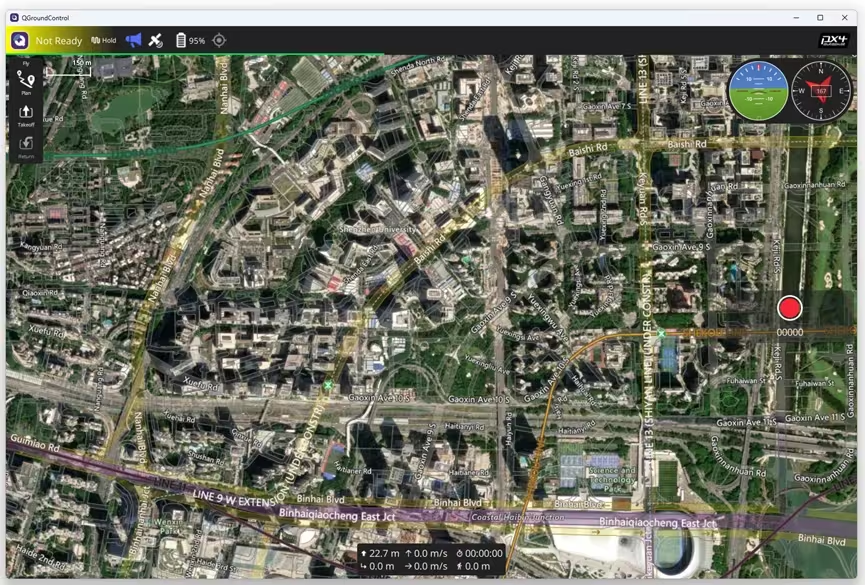
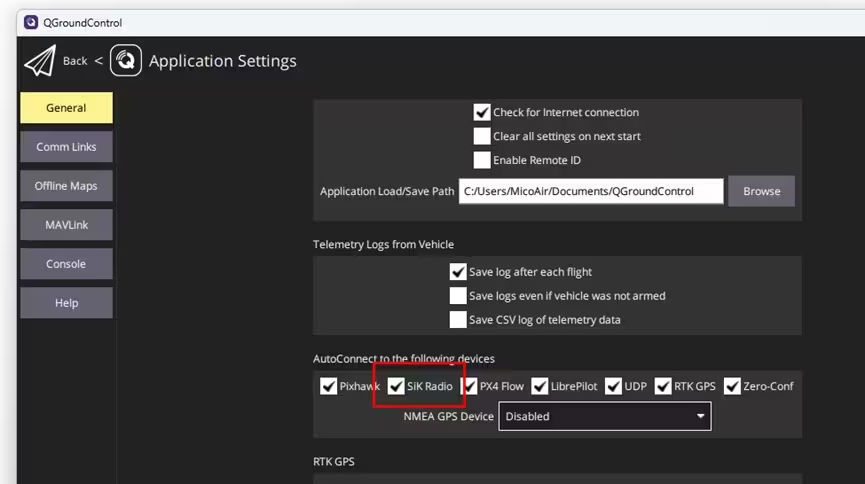
If QGroundControl does not detect the radio and connect automatically, verify that SiK Radio remains selected in the automatic-connection settings.
Manual Connection
The LR900-A requires a manually configured QGroundControl connection.
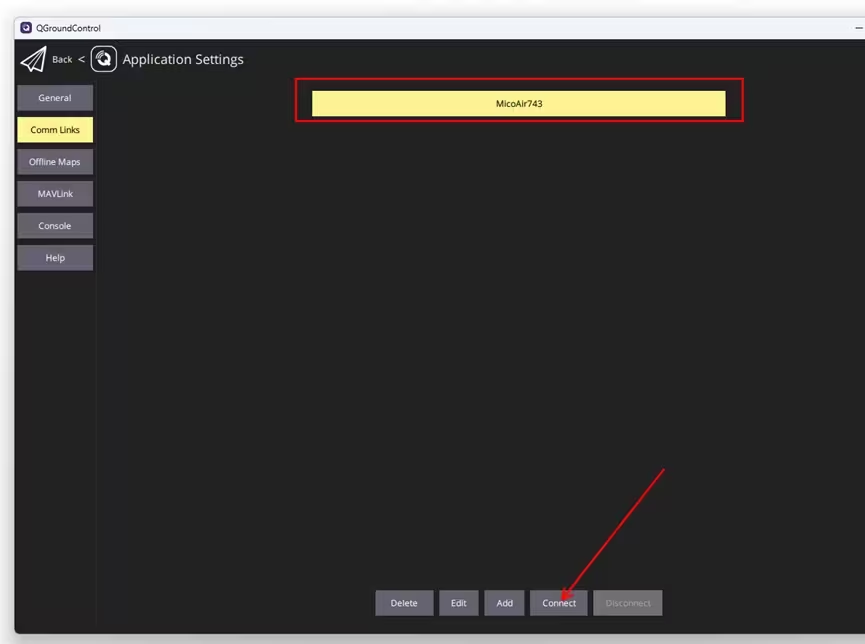
Open Application Settings → Comm Links, click Add, and edit the connection settings.
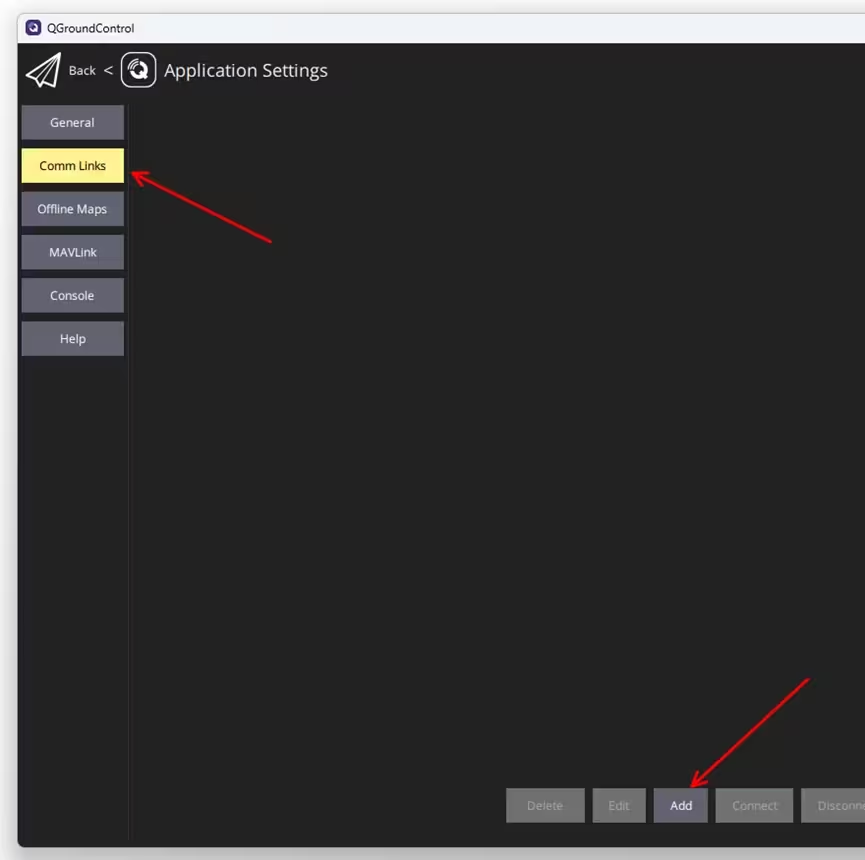
Enter a connection name, select Serial as the type, choose the telemetry radio's port, set the baud rate to the default value of 57600, and click OK.
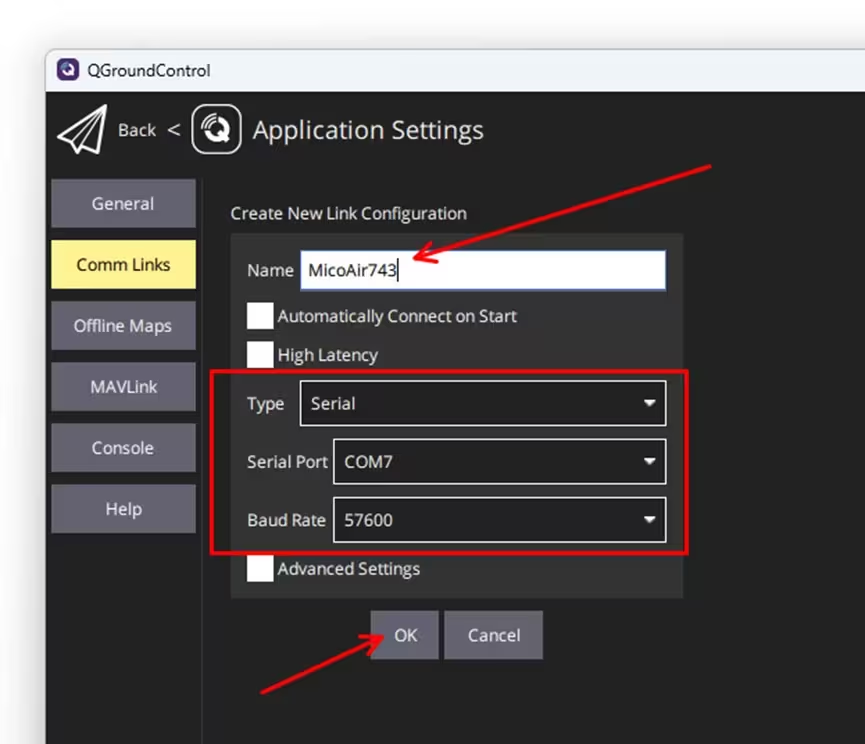
Select the connection name and click Connect. QGroundControl will then connect to the flight controller through the telemetry link.