
Docs directory
Table of contents
Configuring the Baud Rate of a u-blox GPS Module
Configuring the Baud Rate of a u-blox GPS Module
Background and Purpose
When a u-blox GPS module is moved between flight-controller firmware platforms, a baud-rate mismatch can prevent detection. For example, ArduPilot may change a GPS module to a nonstandard baud rate such as 230400, while Betaflight supports baud rates no higher than 115200. A GPS module previously used with ArduPilot may therefore be unavailable in Betaflight.
This guide explains how to use the official u-blox U-Center application to set the GPS module to 115200 baud and make the setting persistent for compatibility with Betaflight and other firmware.
Requirements
Software
U-Center
Download and install U-Center. This guide uses version 24.05.
Drivers
Install the driver required by the USB-to-TTL adapter:
Hardware
- A u-blox GPS module, such as MicoAir MG-A01, M10G-5883, or MG-902
- A USB-to-TTL serial adapter
- Connection wires: 2.54 mm Dupont wires or SH1.0 terminal wires
Hardware Connection
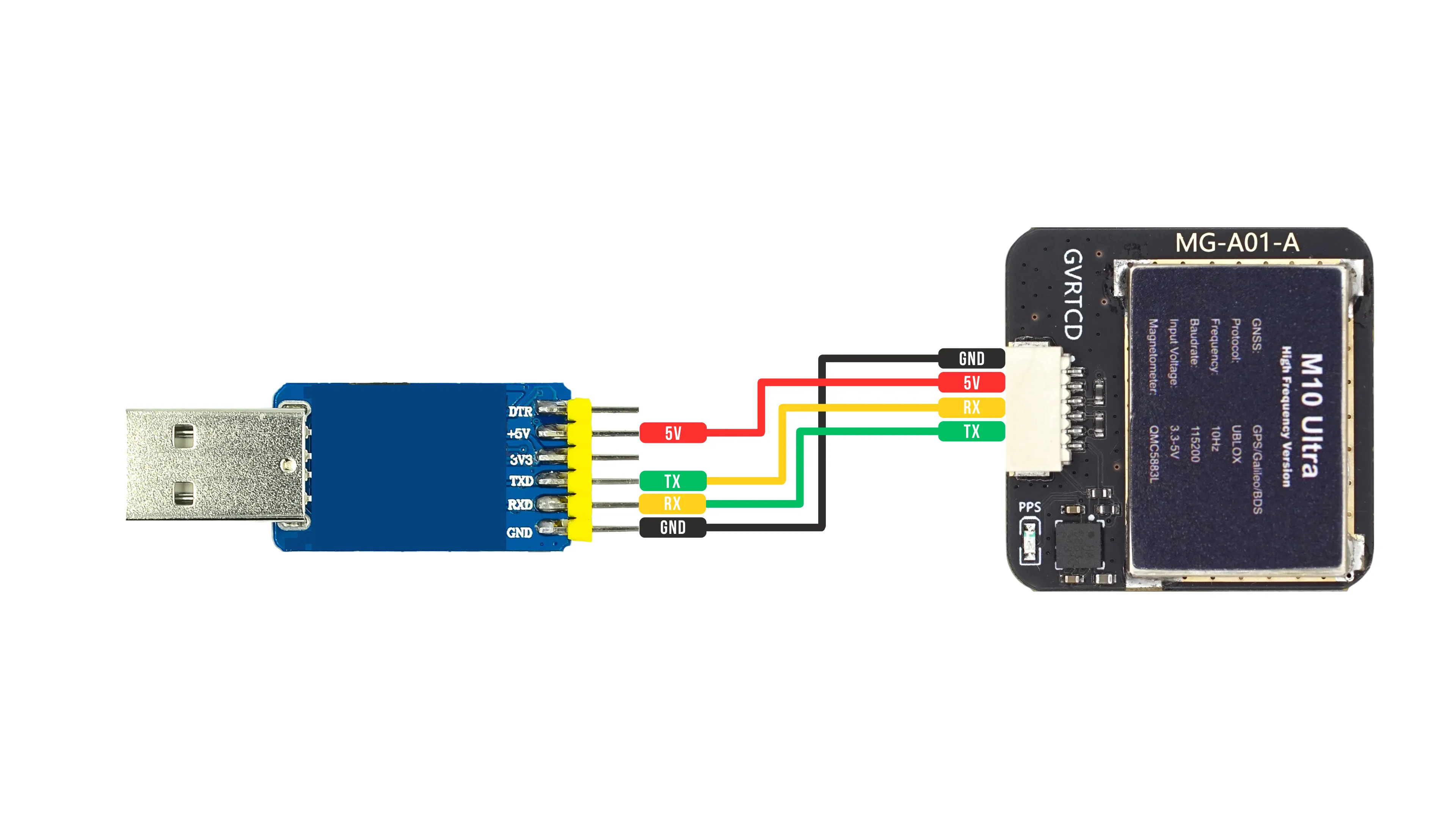
When connecting the GPS module through a USB-to-TTL adapter, cross the serial data lines:
| USB-to-TTL adapter | GPS module | Description |
|---|---|---|
| 5V | 5V | Power |
| GND | GND | Ground |
| TXD | RX | Adapter transmit to GPS receive |
| RXD | TX | Adapter receive to GPS transmit |
Wiring diagram:
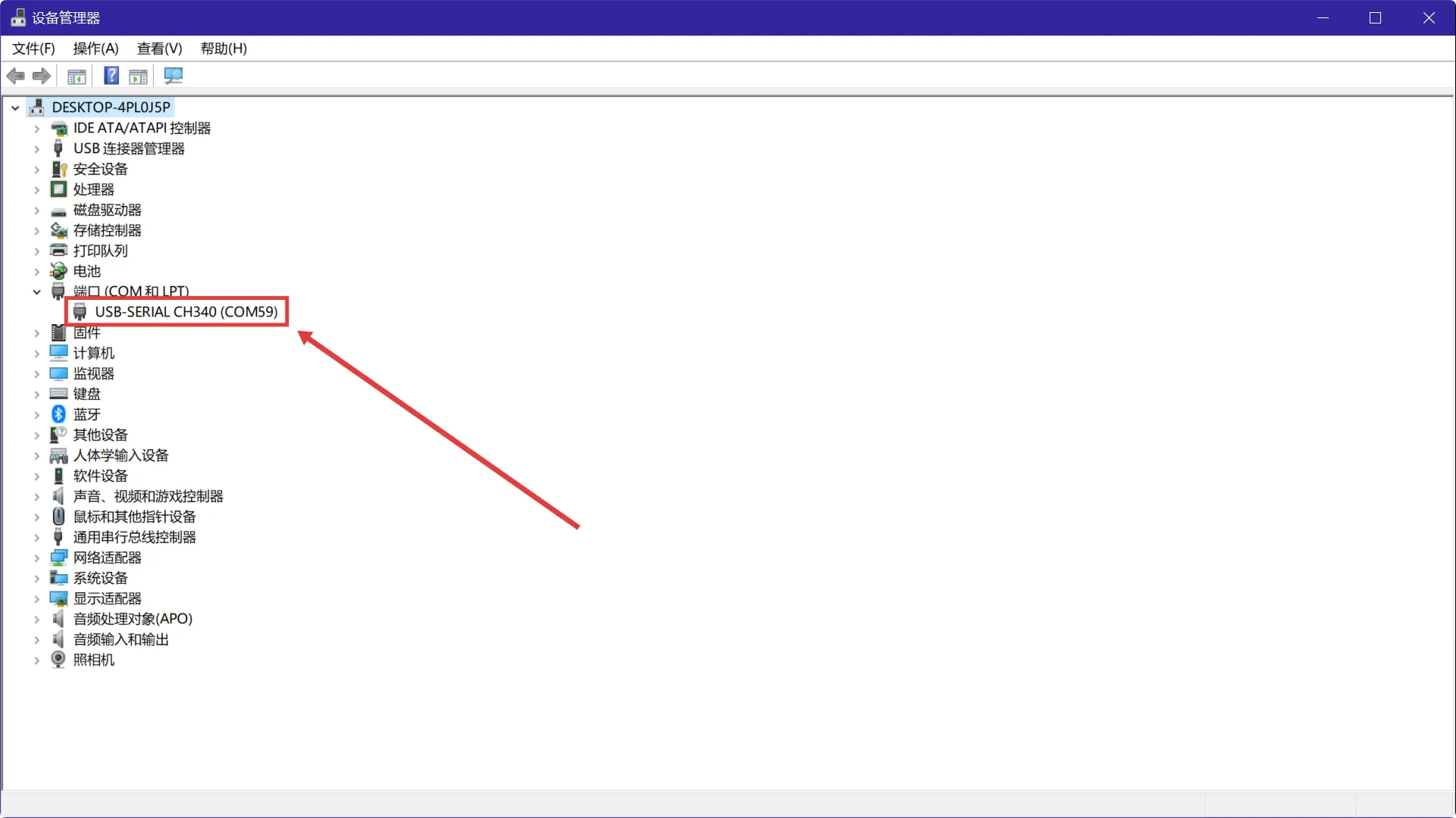
After connecting the adapter to the computer, open Windows Device Manager → Ports (COM & LPT). Confirm that the device is detected and note its COM port, such as COM59 in the following example.
Configuration Procedure
Step 1: Establish Communication
- Open U-Center.
- Select Receiver → Autobauding to enable automatic baud-rate detection.
- Select Receiver → Connection, then choose the correct COM port.
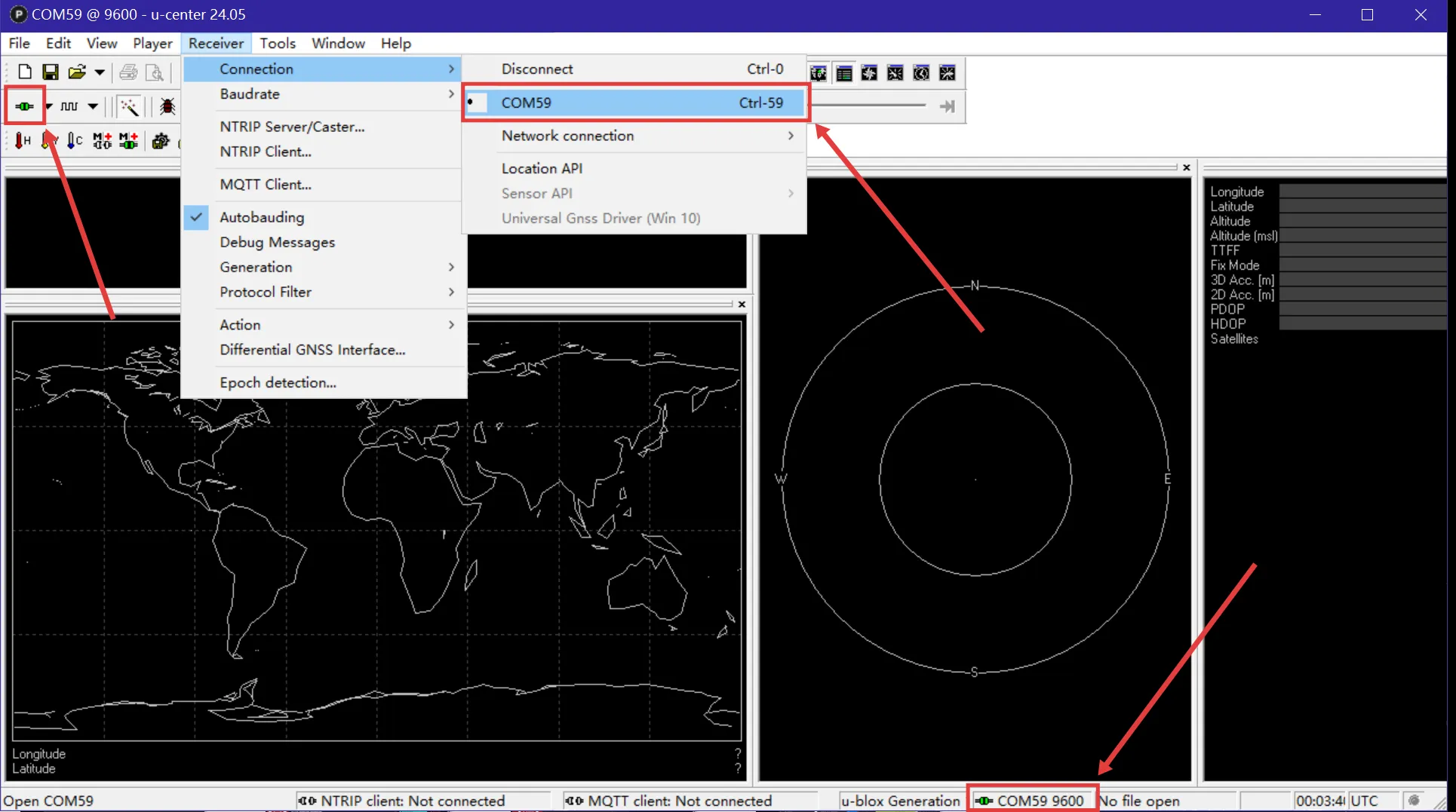
- When the connection succeeds, the status-bar indicator turns green and flashes, and U-Center displays the detected baud rate. The example shows 9600 baud.
Step 2: Read the Current Configuration
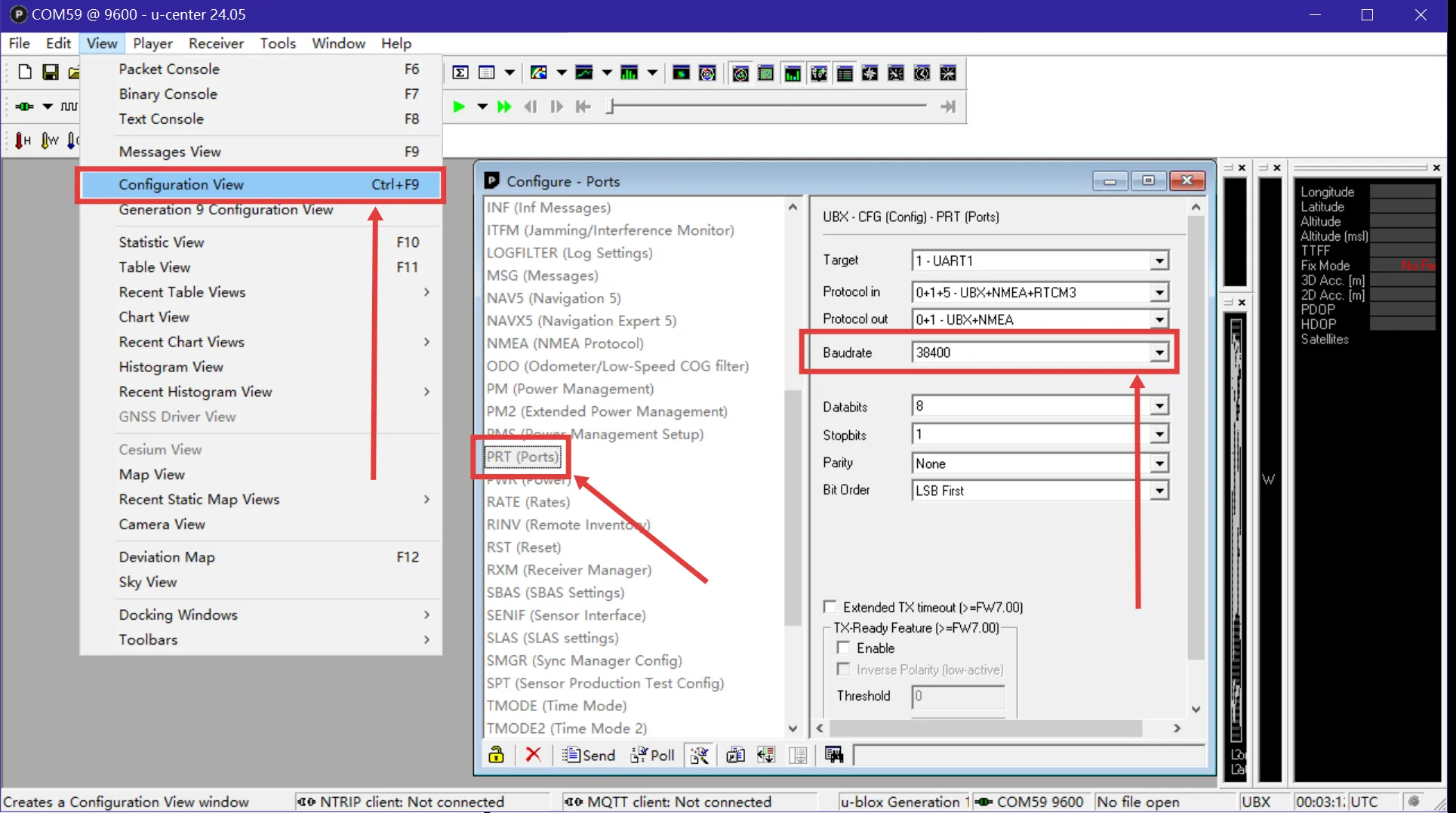
- Select View → Configuration View or press
Ctrl+F9. - Select PRT (Ports) in the left pane.
- Read and record the GPS module's current value in Baudrate, such as 38400 in the example.
Step 3: Synchronize the U-Center Baud Rate
Manually lock U-Center to the detected baud rate before changing the configuration:
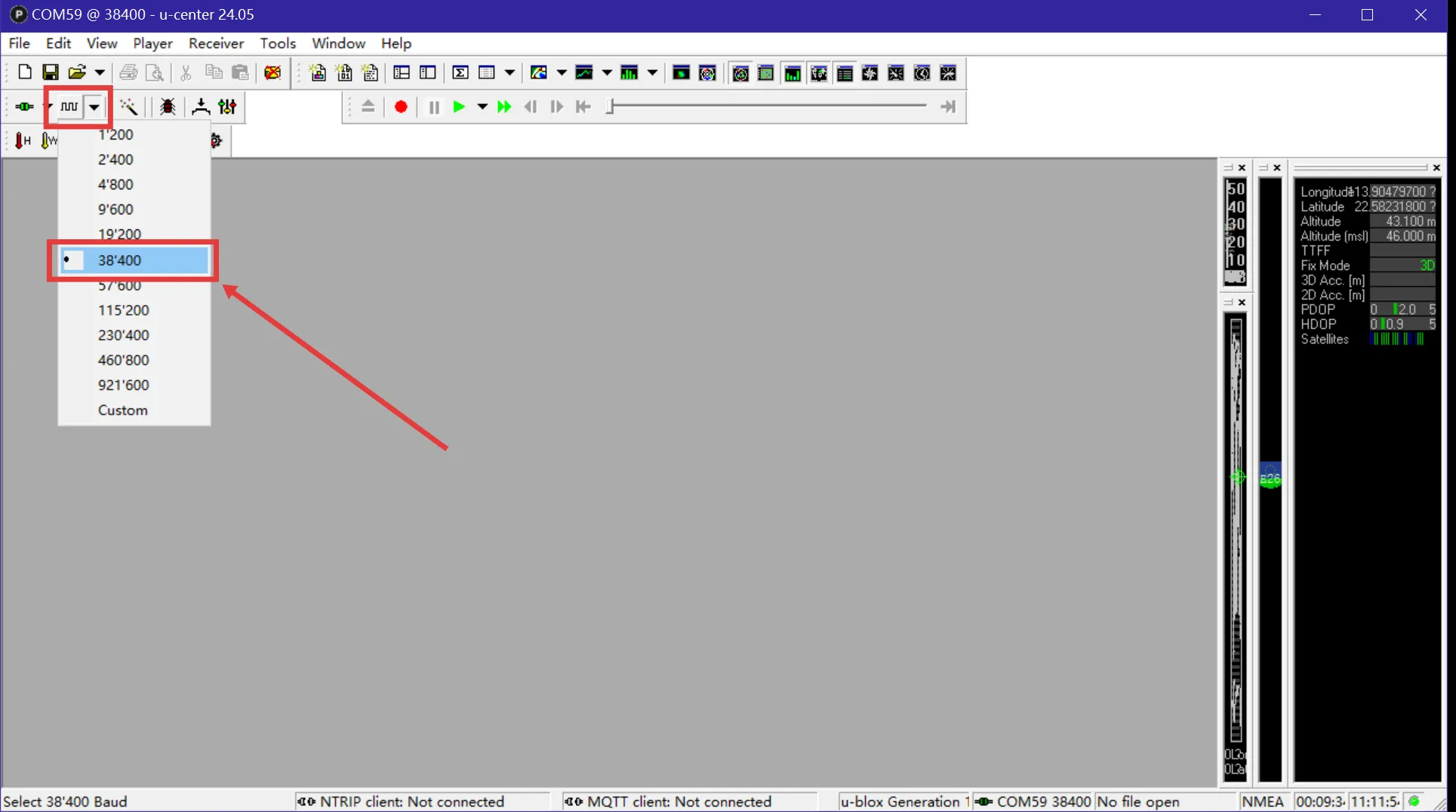
- Select Receiver → Autobauding to disable automatic detection.
- In the baud-rate selector on the toolbar, choose the value read in Step 2, such as 38400.
- Press
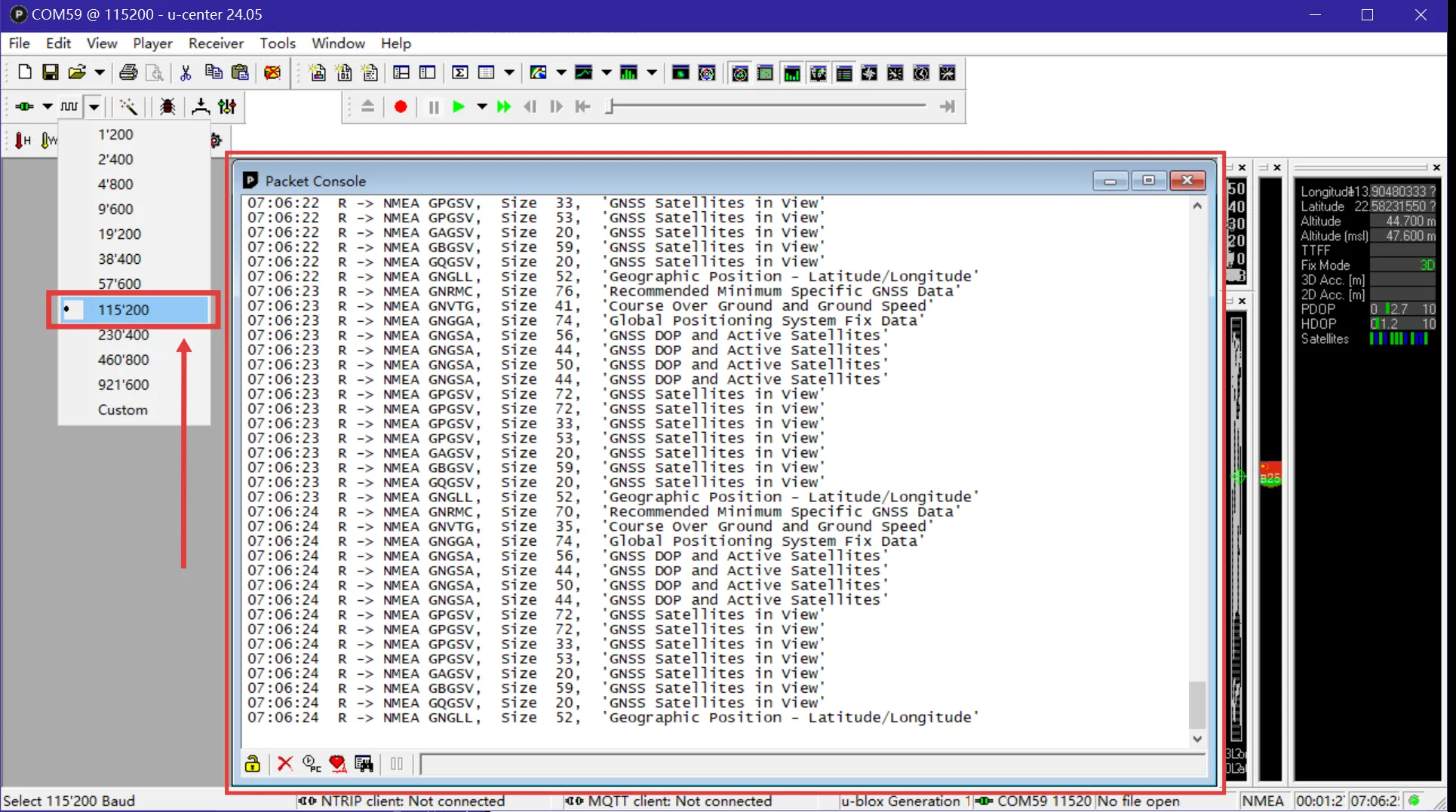
F6to open Packet Console. A continuously updating data stream confirms that communication is working.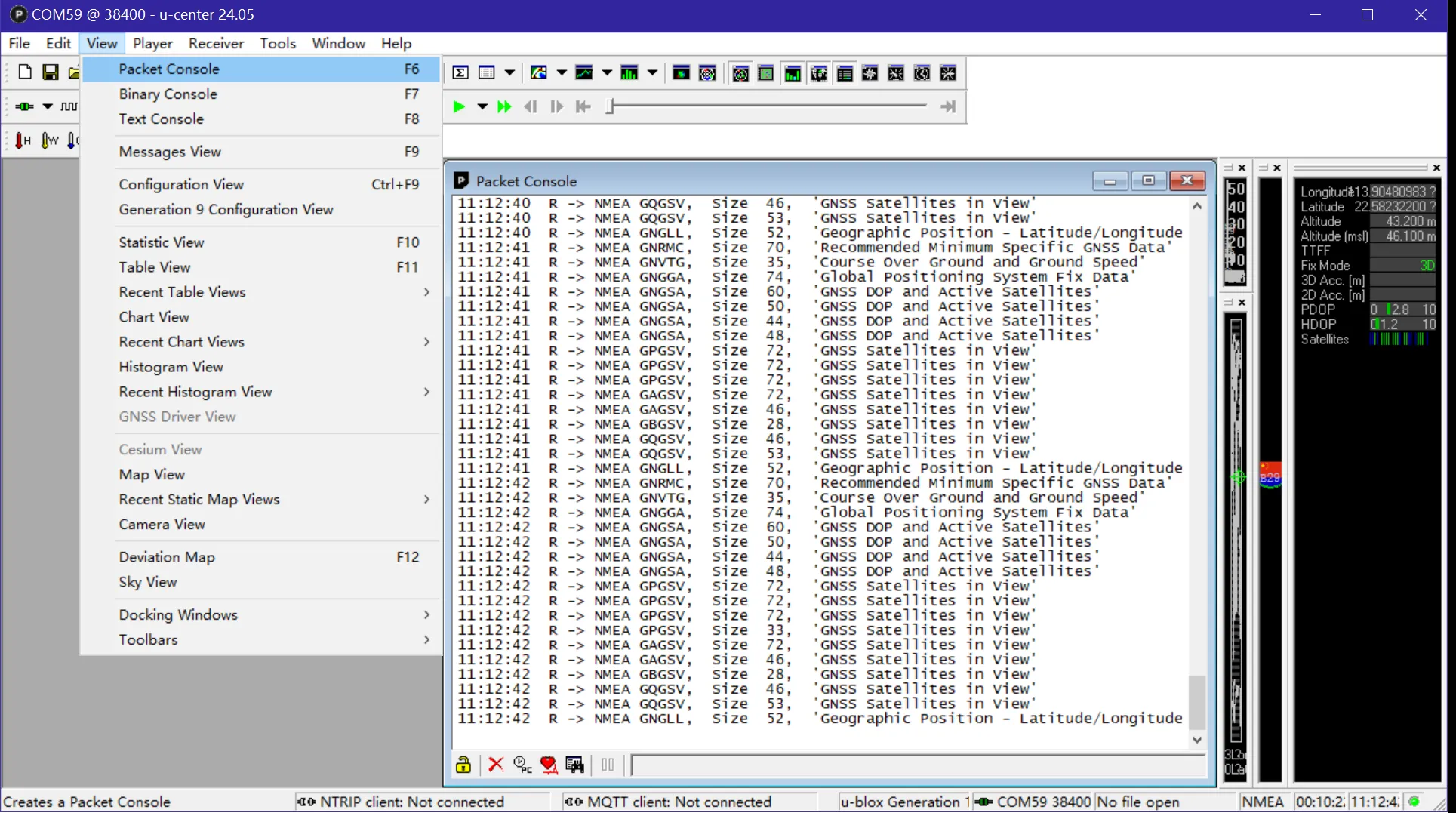
Step 4: Change and Apply the Baud Rate
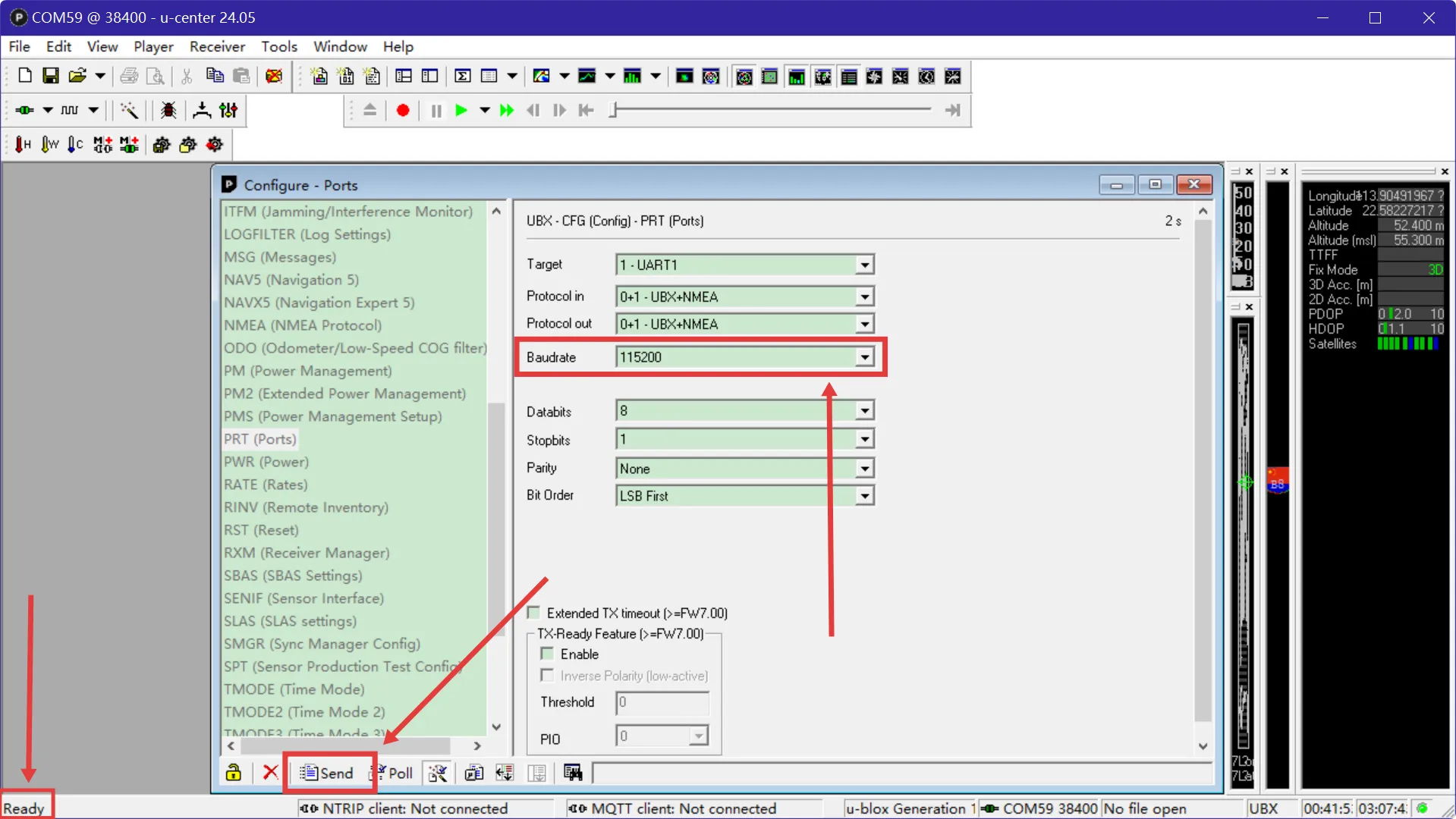
- Return to Configuration View → PRT (Ports).
- Set Baudrate to the target value, 115200.
- Click Send in the lower-left corner.
- Note: Communication stops at this point because the GPS module has switched to the new baud rate while U-Center is still using the old rate.
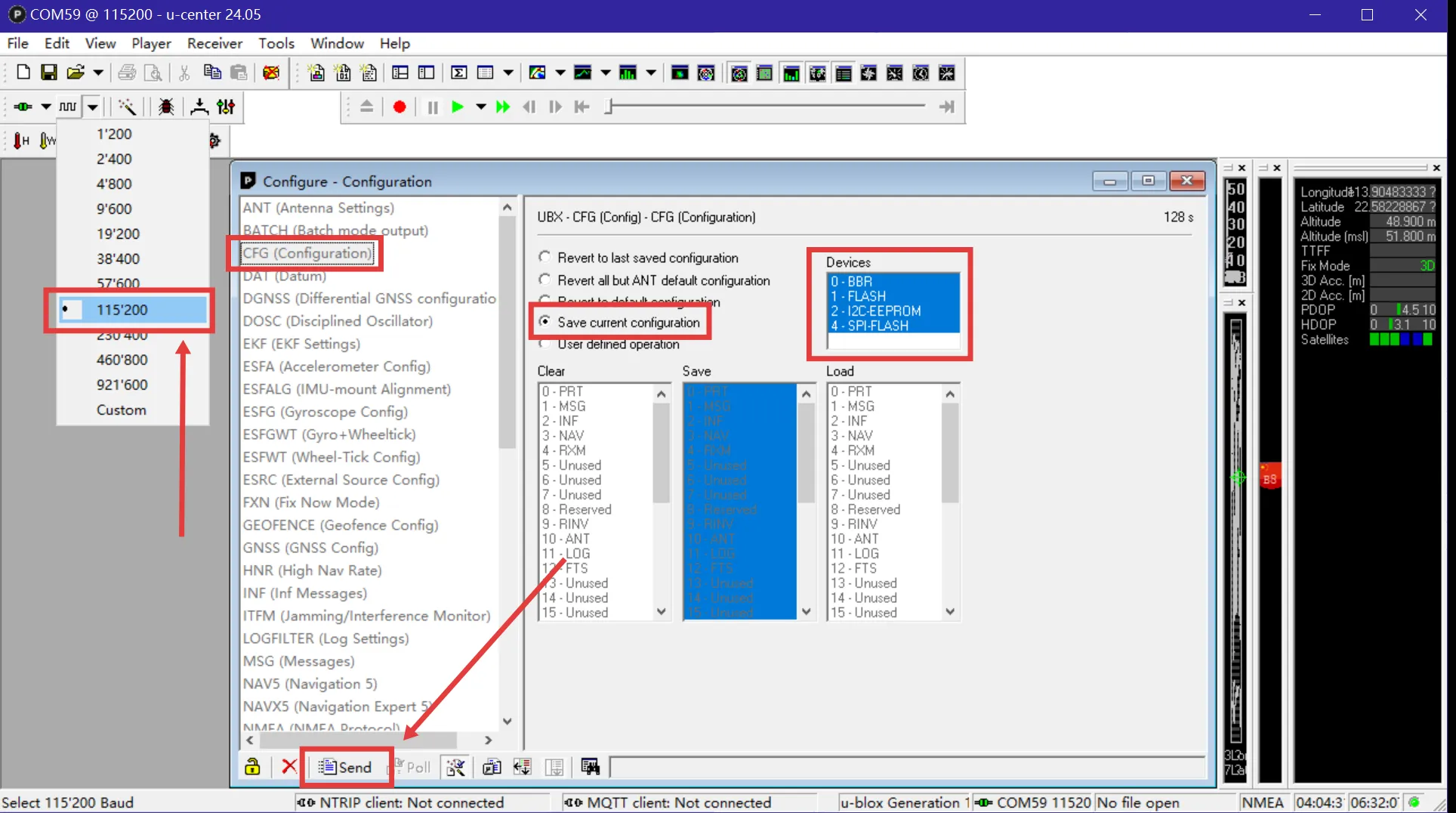
Step 5: Save the Configuration — Required
The new baud rate must be written to nonvolatile memory (Flash/EEPROM); otherwise, it is lost when the GPS module is powered off.
- In the U-Center toolbar, manually change the baud rate to 115200 to restore communication.
- In Configuration View, select CFG (Configuration) in the left pane.
- Save the configuration:
- Select Save current configuration.
- In the Devices list, select every entry from
0through4; selected entries turn blue. - Click Send in the lower-left corner.
Final Verification
Perform a cold-start test to confirm that the new baud rate was saved:
- Close U-Center, disconnect the USB adapter, and completely remove power.
- Reconnect the USB adapter to the computer.
- Open U-Center and set its baud rate directly to 115200.
- Connect to the COM port and open Packet Console with
F6. - If the data stream updates continuously, the 115200 baud setting has been applied and saved successfully.