

Docs directory
Table of contents
MA-RTK-AIR-982 Setup and User Guide
The MA-RTK-AIR-982 is an airborne GNSS receiver. It supports GPS, BeiDou, GLONASS, Galileo, and QZSS, along with signals in the L1, L2, and L5 bands. It can provide standard GNSS positioning on its own. With RTCM correction data from a base station, it can provide RTK positioning with centimeter accuracy.
Connect both the primary and secondary antennas to enable dual antenna heading. This provides heading while the aircraft is stationary or moving slowly, without interference from the aircraft's magnetic field.
Installation and Wiring
Ports and Connectors
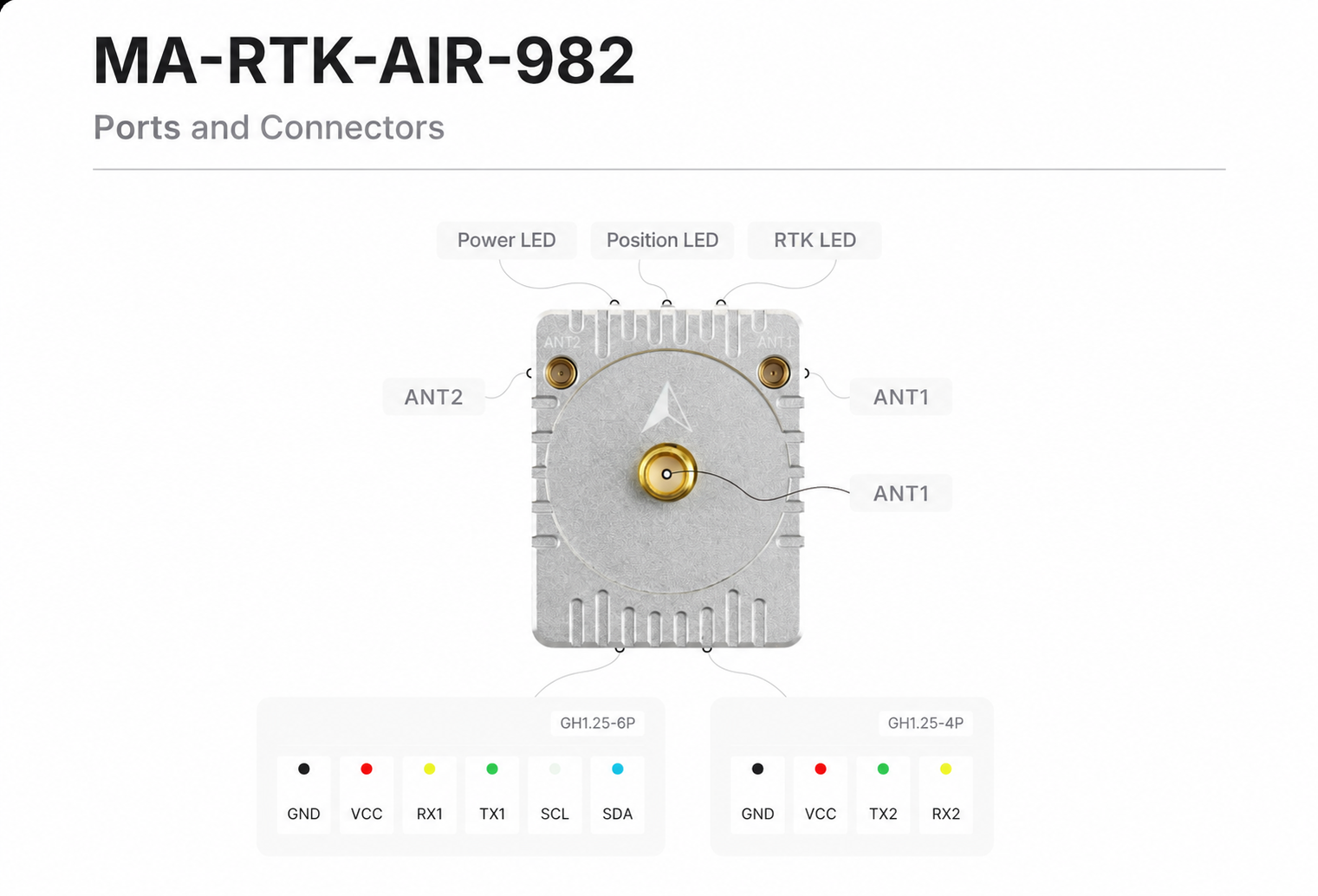
| Connector | Purpose | Instructions |
|---|---|---|
| ANT1 SMA | Primary antenna | Use either this connector or ANT1 MMCX. Do not connect antennas to both. |
| ANT1 MMCX | Primary antenna | Use either this connector or ANT1 SMA. Do not connect antennas to both. |
| ANT2 MMCX | Secondary antenna | Connect an antenna here only when using dual antenna heading. |
| GH1.25-6P | Flight controller connection | Pins: VCC, GND, RX1, TX1, SCL, and SDA. |
| GH1.25-4P | RTCM radio connection | Pins: VCC, GND, TX2, and RX2. Connect an airborne radio such as the LR900 here. |
Connect the Flight Controller
Use the supplied cable to connect the 6P port to the flight controller's GPS1 or GPS port. If you make your own cable, follow this wiring table:
| MA-RTK-AIR-982 6P | Flight Controller | Notes |
|---|---|---|
| VCC | 5V | Keep the supply voltage within the product's allowed range. |
| GND | GND | Both devices must share a common ground. |
| TX1 | UART RX | Connect transmit to receive. |
| RX1 | UART TX | Connect receive to transmit. |
| SCL | I2C SCL | External compass. |
| SDA | I2C SDA | External compass. |
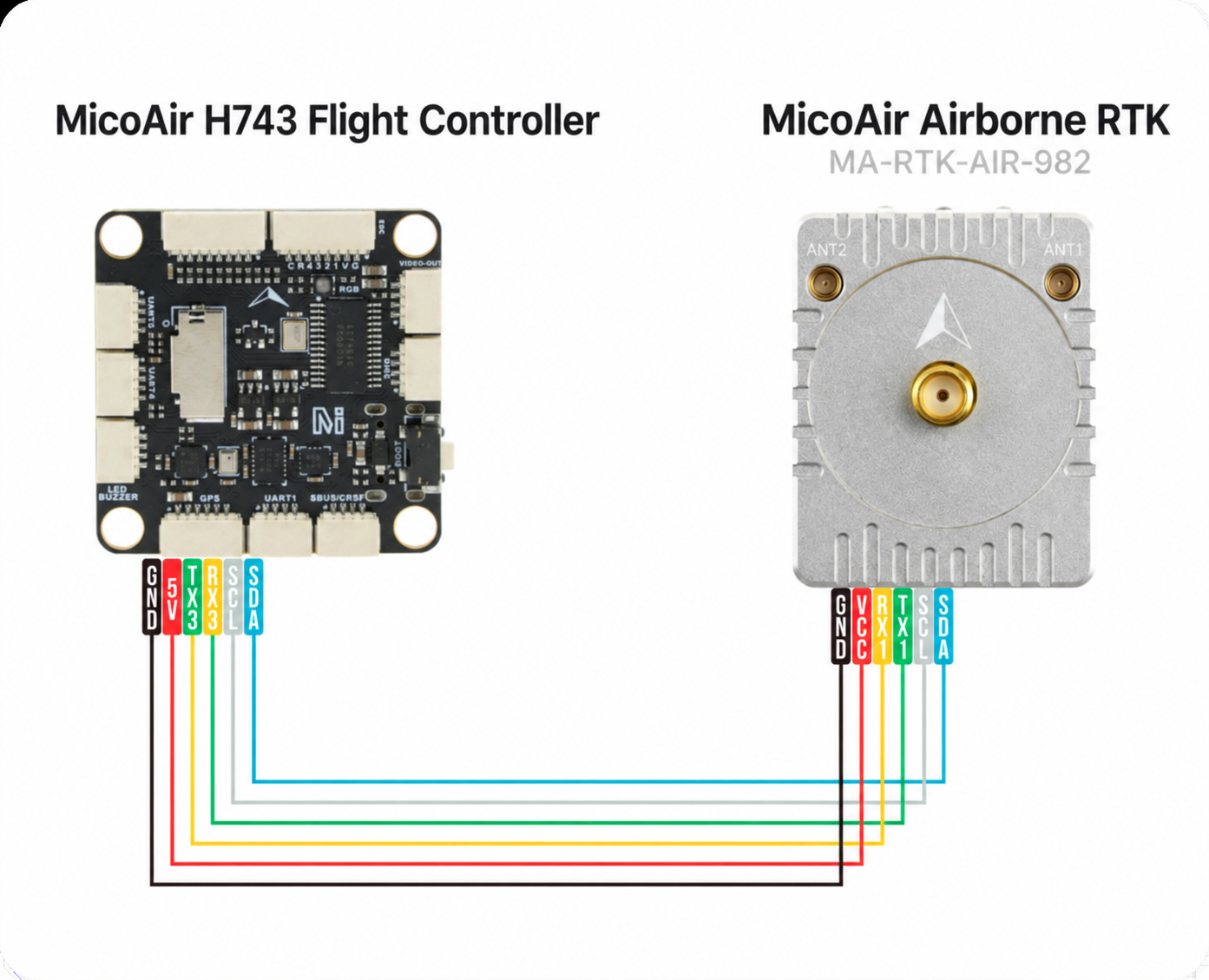
The MA-RTK-AIR-982 uses 3.3 V LVTTL serial signals. Check the connector labels on both devices before wiring. Do not identify pins by wire color alone. Disconnect power before wiring. Check VCC, GND, TX, and RX again before applying power.
Configure the Flight Controller
The MA-RTK-AIR-982 uses the NMEA-0183 protocol. This section covers setups with a single antenna or with dual antenna heading disabled. For heading setup, see "Configure Dual Antenna Heading."
ArduPilot
Set the Parameters
-
Connect the flight controller to MicoConfigurator using USB or a telemetry radio link.
-
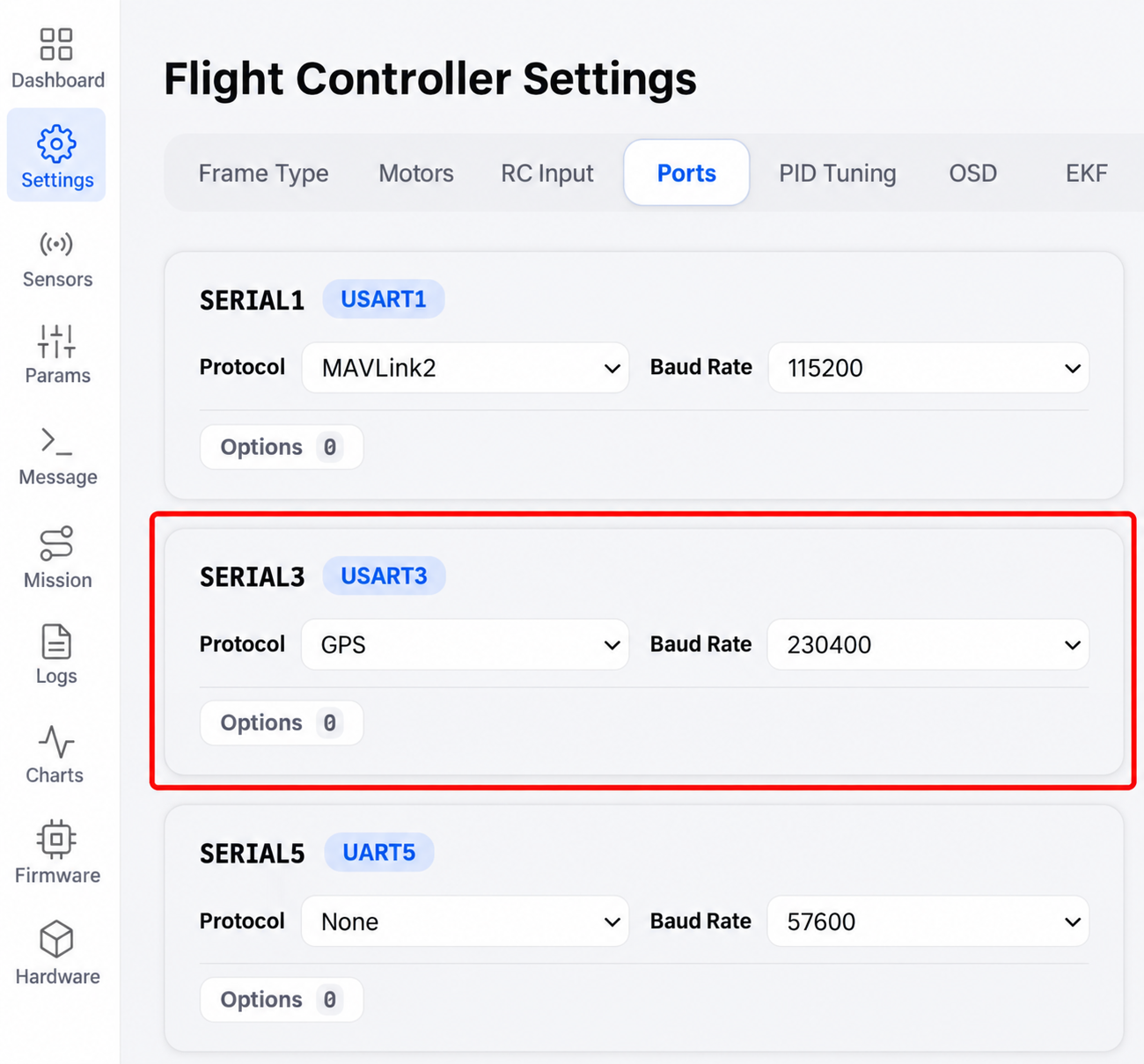
Open Settings → Port Settings. Set the serial port connected to the 982 to GPS. The example uses UART3, the GPS serial port on the 743v2. For other flight controllers, check the board's serial port mapping.
-
Open Sensors → GPS. Enable automatic GPS configuration. Set the GPS type to
UnicoreNMEAand the update rate to10 Hz.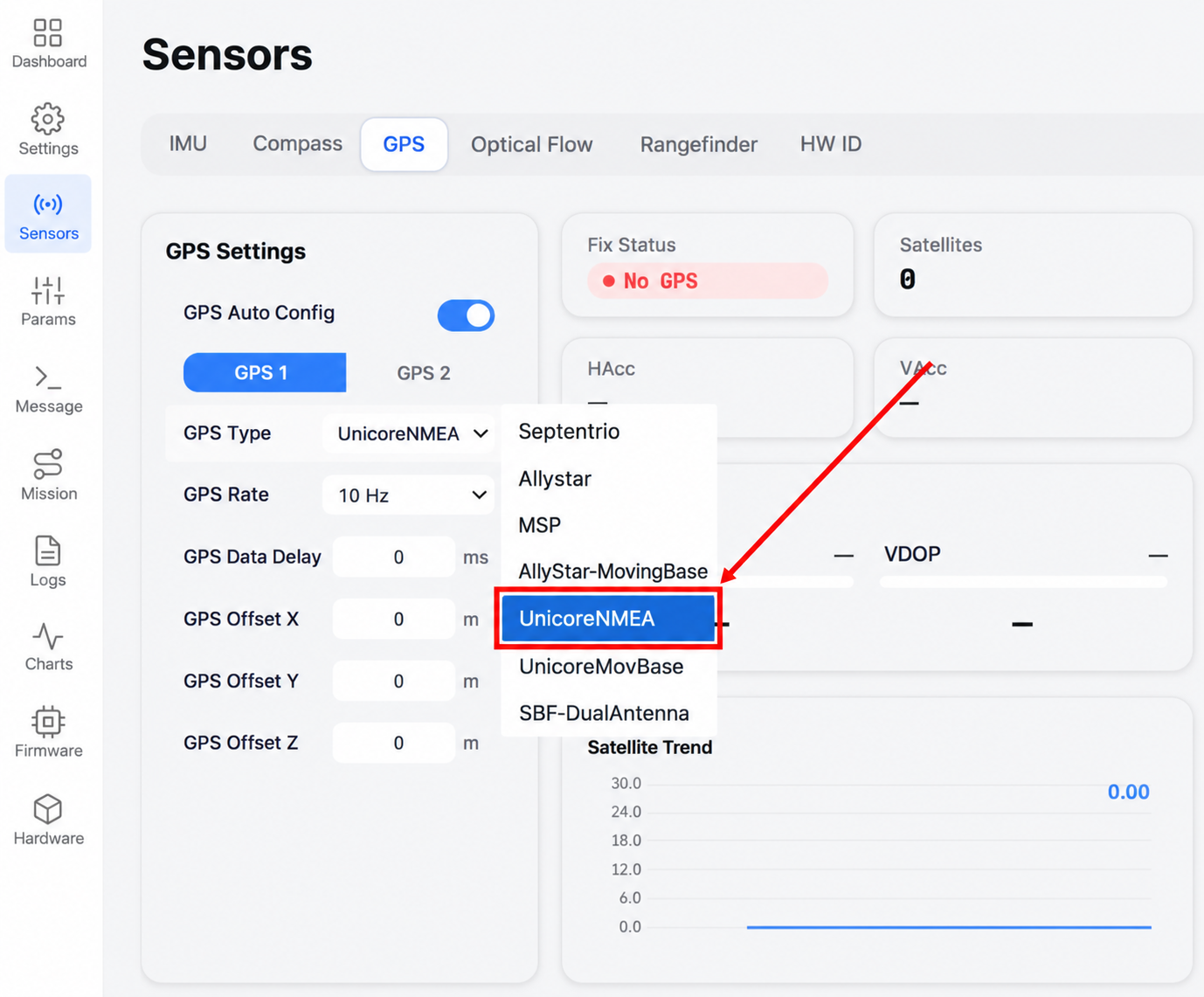
-
Save the parameters and restart the flight controller.
PX4
Set the Parameters
- Connect the flight controller to MicoConfigurator using USB or a telemetry radio link.
- Make sure the primary GPS function is assigned to the port connected to the 982. The default port is GPS1.
- Open Sensors → GPS and enable GPS1. Set the protocol to
NMEA (generic)and the serial baud rate to230400orAuto.
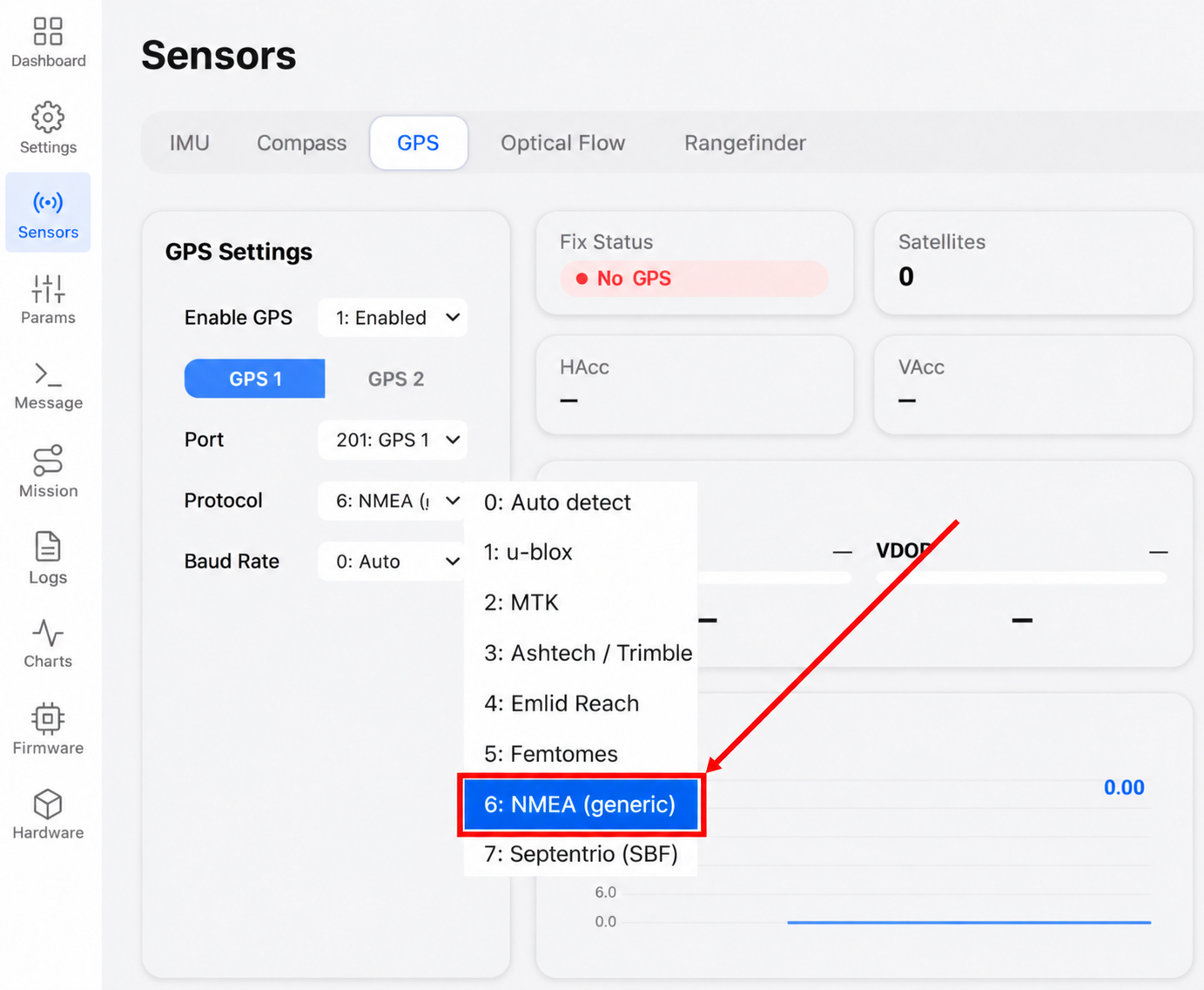
- Save the parameters and restart the flight controller.
These settings correspond to
GPS_1_PROTOCOL = 6andSER_GPS1_BAUD = 230400orAuto. If you use a port other than GPS1, set the parameters for the matching GPS instance and serial port.
Use RTK Positioning
RTK improves the position accuracy of the MA-RTK-AIR-982 with RTCM correction data from a ground base station. This section explains how to set up the RTK data link for ArduPilot and PX4.
Set Up and Start the MicoAir RTK Base Station
- Place the MA-RTK-BASE tripod on stable ground in an open outdoor area.
- Install the base station antenna. Make sure buildings, trees, vehicles, or people do not block its view of the sky for extended periods.
- Secure the tripod. Do not move, tilt, or reposition it once the base station is running.
- Press and hold the power button on the bottom of the base station. Wait for it to start and output RTCM data normally.
The default baud rate is
115200for both the USB Type-C connection and the 4P serial port on the MA-RTK-BASE. The RTCM output rate is1 Hz. The product is already configured for use as a base station. Avoid changing its output commands with other software unless necessary.
MA-RTK-BASE display states:
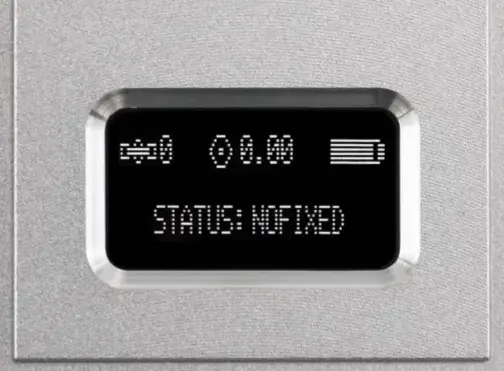
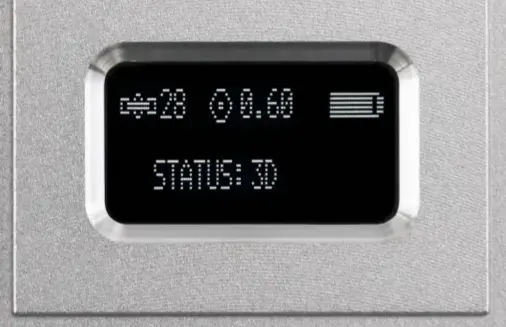
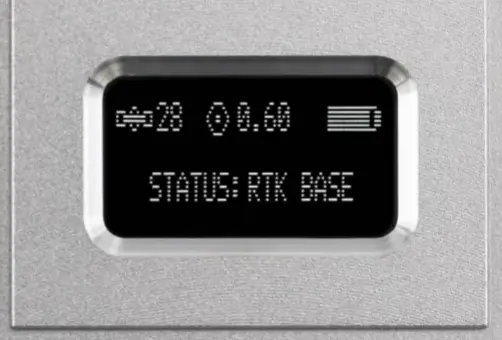
Press and hold the button on the bottom to turn on the base station. It starts automatically and shows its current status on the screen. In an open area with no buildings blocking the sky, it can enter RTK operation within a few minutes. The screen shows one of three states:
-
NO FIXED: The base station is initializing after startup. Leave it in place and wait. Do not move it.
-
3D: The base station has a 3D position fix. The screen shows the satellite count and HDOP.
-
RTK BASE: The base station is in RTK operation and outputs RTCM data.
Choose an RTCM Data Link
Choose one of the following methods to suit your equipment and adjust the setup as needed.
| Method | RTCM Data Path | LR900 Role |
|---|---|---|
| Forward through a ground station | Base station → MicoConfigurator → USB or MAVLink radio link → Flight controller → 982 | Carries MAVLink when a radio link connects to the flight controller. |
| Broadcast through radios | Base station → Ground LR900 → Airborne LR900 → 982 | Carries RTCM directly from the base station. |
Currently, only MicoConfigurator and Mission Planner support this forwarding function. QGC does not support it yet.
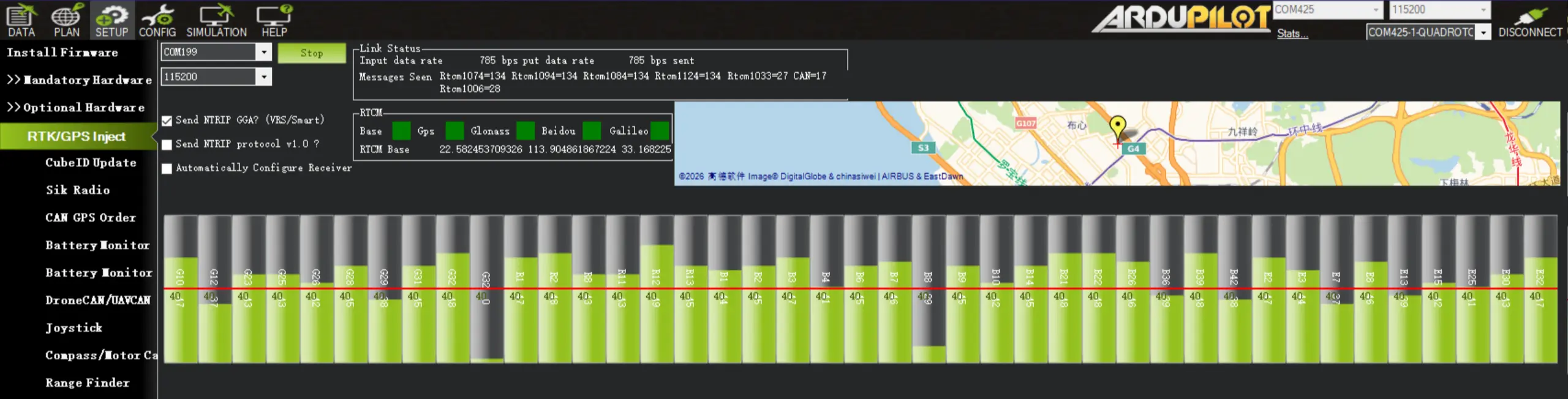
Forwarding RTCM in Mission Planner:
Forward RTCM with MicoConfigurator
MicoConfigurator receives data from the base station. It then sends RTCM to the 982 through the flight controller's MAVLink link. Keep the computer running throughout RTK operation. It must stay connected to both the base station and the flight controller.
Establish the Flight Controller Link
Use a pair of LR900 radios to connect MicoConfigurator to the flight controller over a wireless MAVLink link. For radio setup, see the LR900 Telemetry Radio User Manual.
Before forwarding RTCM, make sure MicoConfigurator can read the flight controller parameters through this link. Also check that incoming messages keep updating. An unstable flight controller link cannot deliver RTCM reliably.
Connect the Base Station and Start Forwarding
- Make sure the 982 has a standard 3D fix. Check that the USB or radio link between MicoConfigurator and the flight controller is working.
- Connect the MA-RTK-BASE to the computer with a USB data cable.
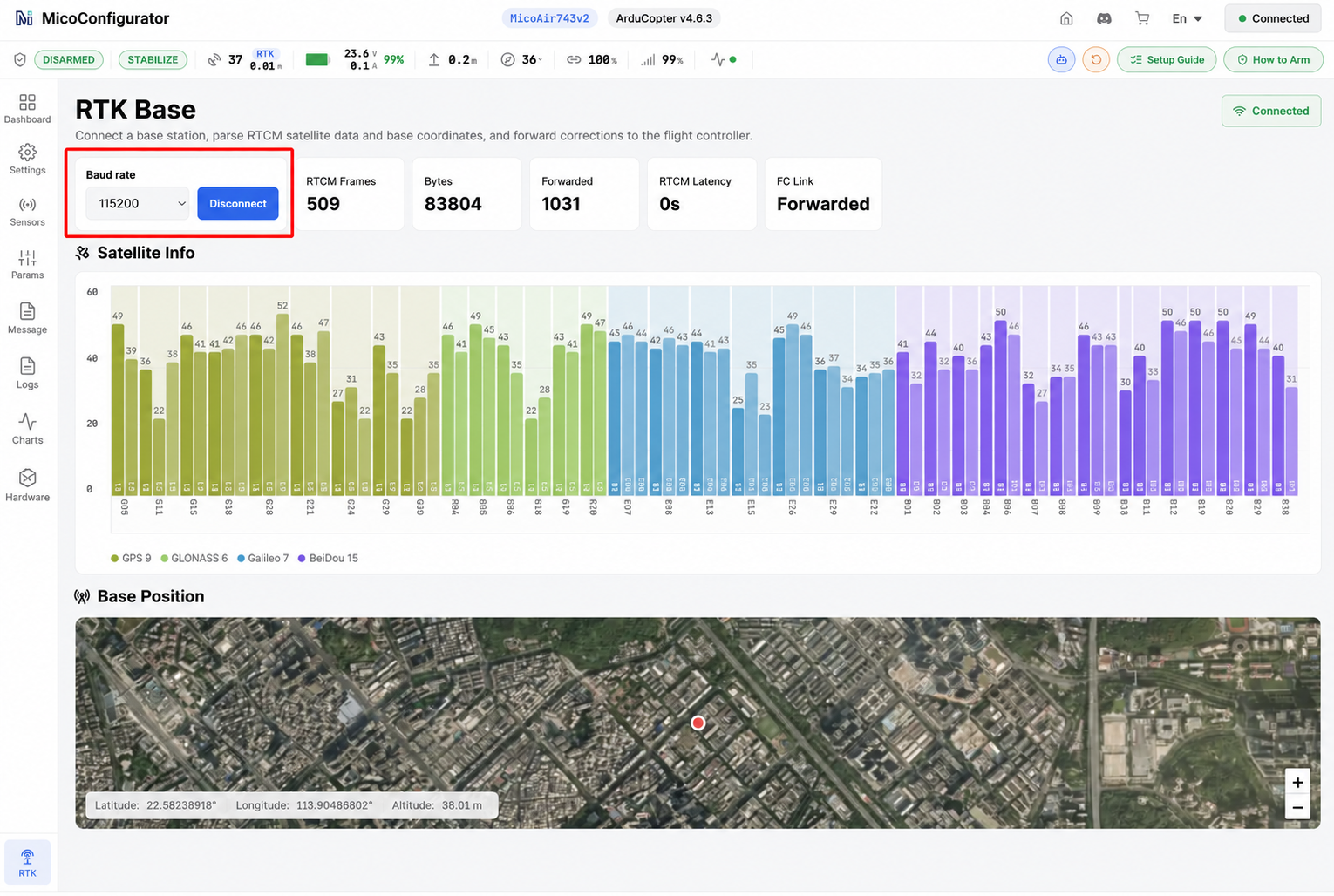
- Open the RTK page in the left sidebar of MicoConfigurator.
- Set the base station serial baud rate to
115200and click Connect. Select the base station's COM port in the dialog and connect. - Wait for the page to decode the RTCM data. It will automatically forward the data to the connected flight controller.
Check the Data Link
Follow the RTCM data path and check each stage:
-
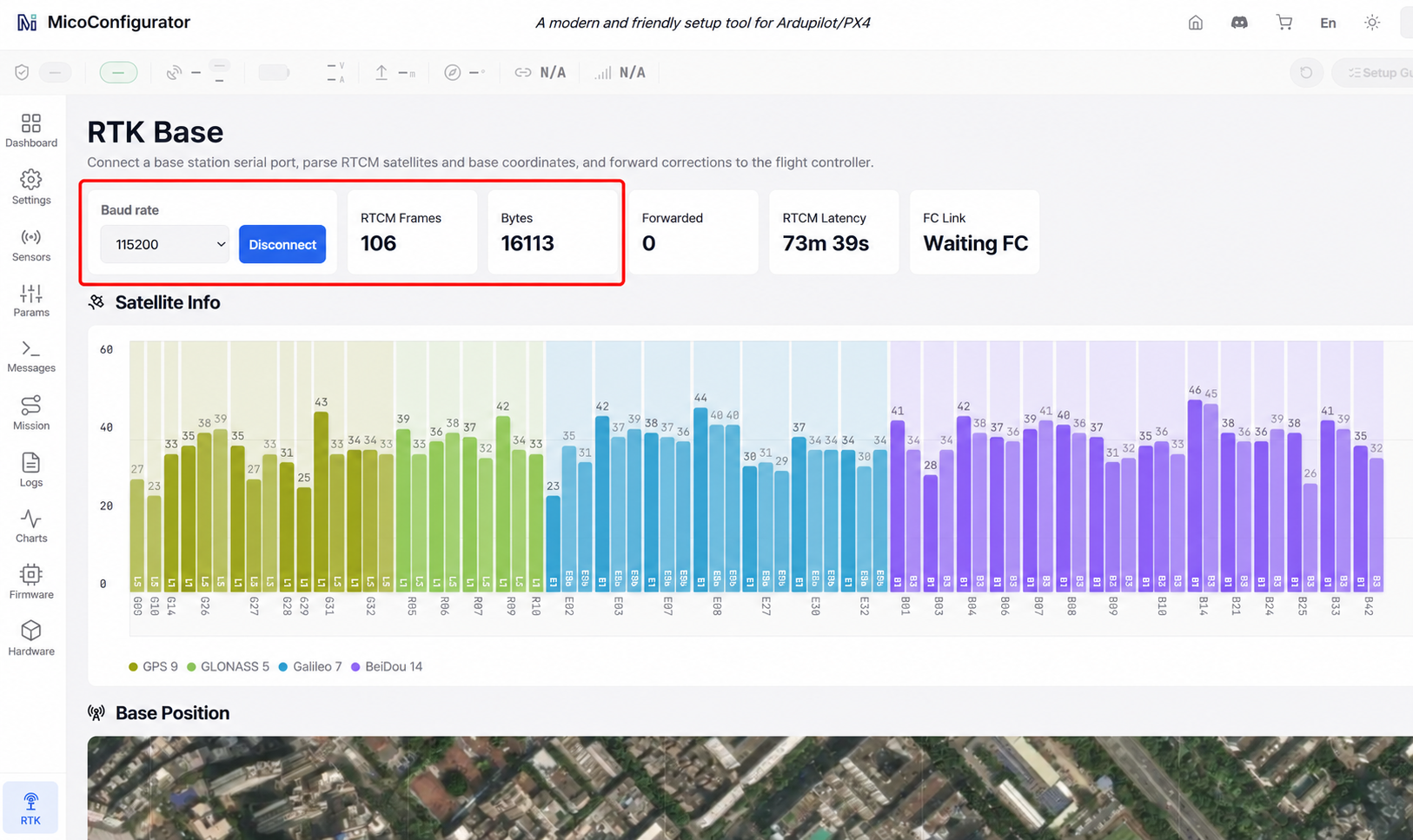
Base station → MicoConfigurator: Check that the RTCM Frames and Received Bytes counters keep increasing. With a direct USB connection between the base station and computer, the RTCM delay should stay at
0. It should not keep increasing. These readings indicate that the computer is continuously receiving RTCM from the base station.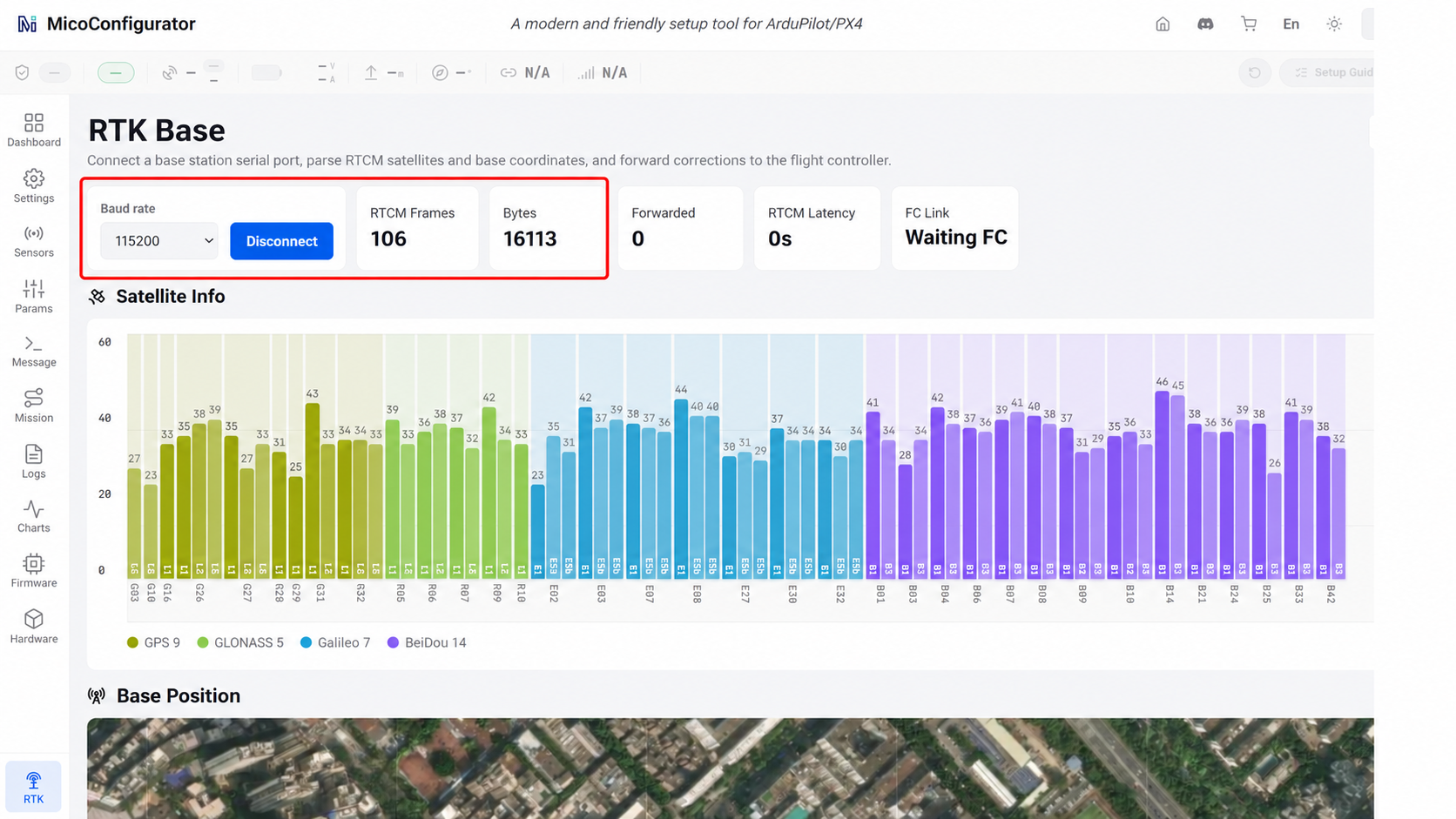
-
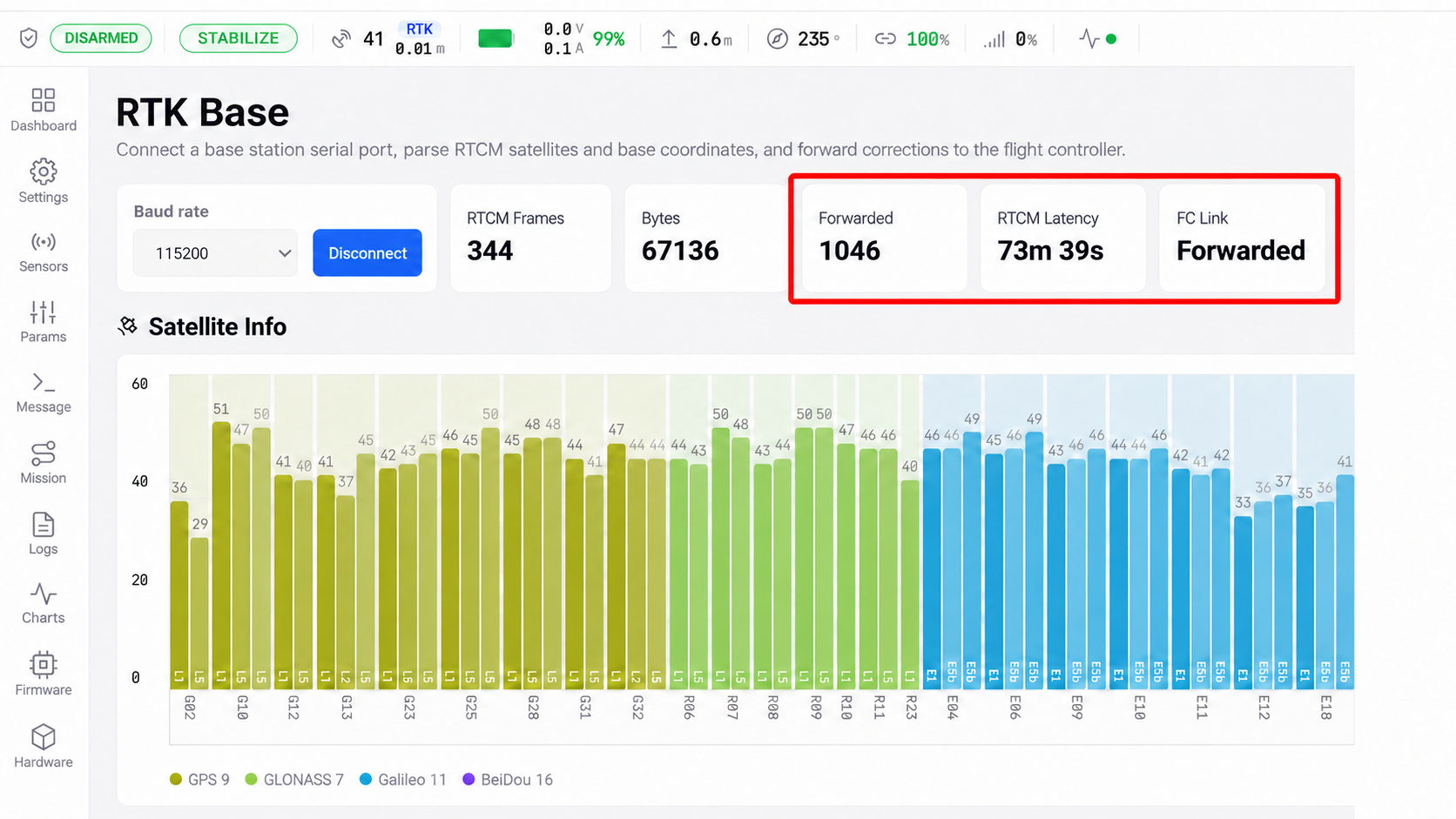
MicoConfigurator → Flight controller: Check that the flight controller link stays connected and the Forwarded counter keeps increasing. This indicates that MicoConfigurator is sending RTCM to the flight controller through the LR900 link. The radio link carries RTCM in MAVLink messages. Delay varies with available bandwidth. If you notice significant delay or packet loss, reduce the rates of nonessential telemetry messages.
-
Flight controller → 982: Check
GPS_RAW_INT.fix_type. A change from3(3D Fix) to5(RTK Float) indicates that the 982 is receiving and using RTCM. Under good conditions, it should reach6(RTK Fixed).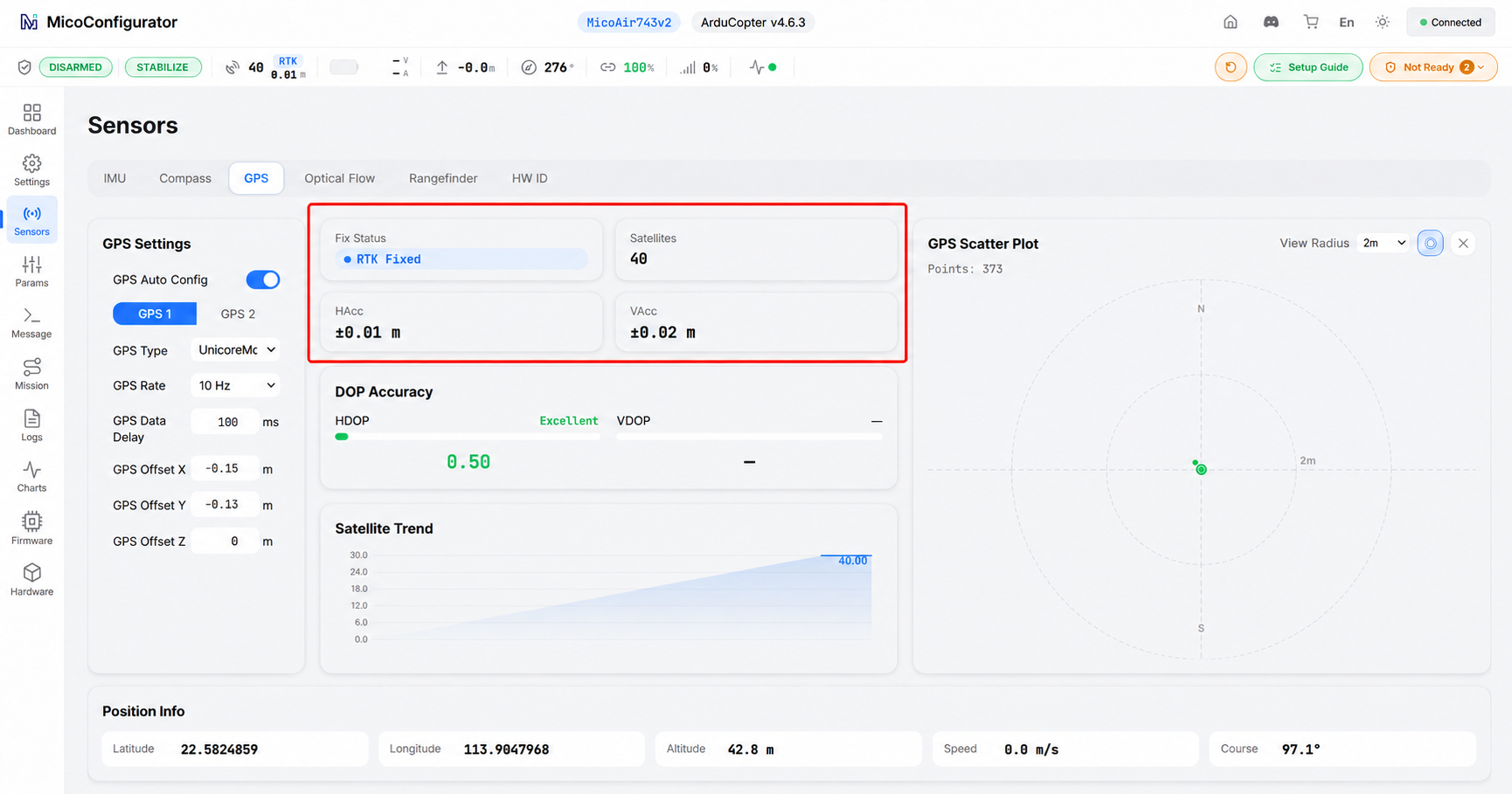
-
Check the complete data path: Pause RTCM forwarding in MicoConfigurator. Keep the base station, flight controller, and 982 powered on. Wait for the fix type to leave RTK, then resume forwarding. If the fix type returns to
5or6, the complete data path is working.
| Problem | What to Check |
|---|---|
| The RTCM receive counter does not increase. | Base station status, USB data cable, CH340 serial port, and a connection baud rate of 115200. |
| The receive counter increases, but the Forwarded counter does not. | The LR900 MAVLink link between MicoConfigurator and the flight controller. |
Both counters increase, but the fix type stays at 3. | Wiring between the flight controller and 982, normal operation of the 982, and satellite information on the base station display. |
Broadcast RTCM with LR900 Radios
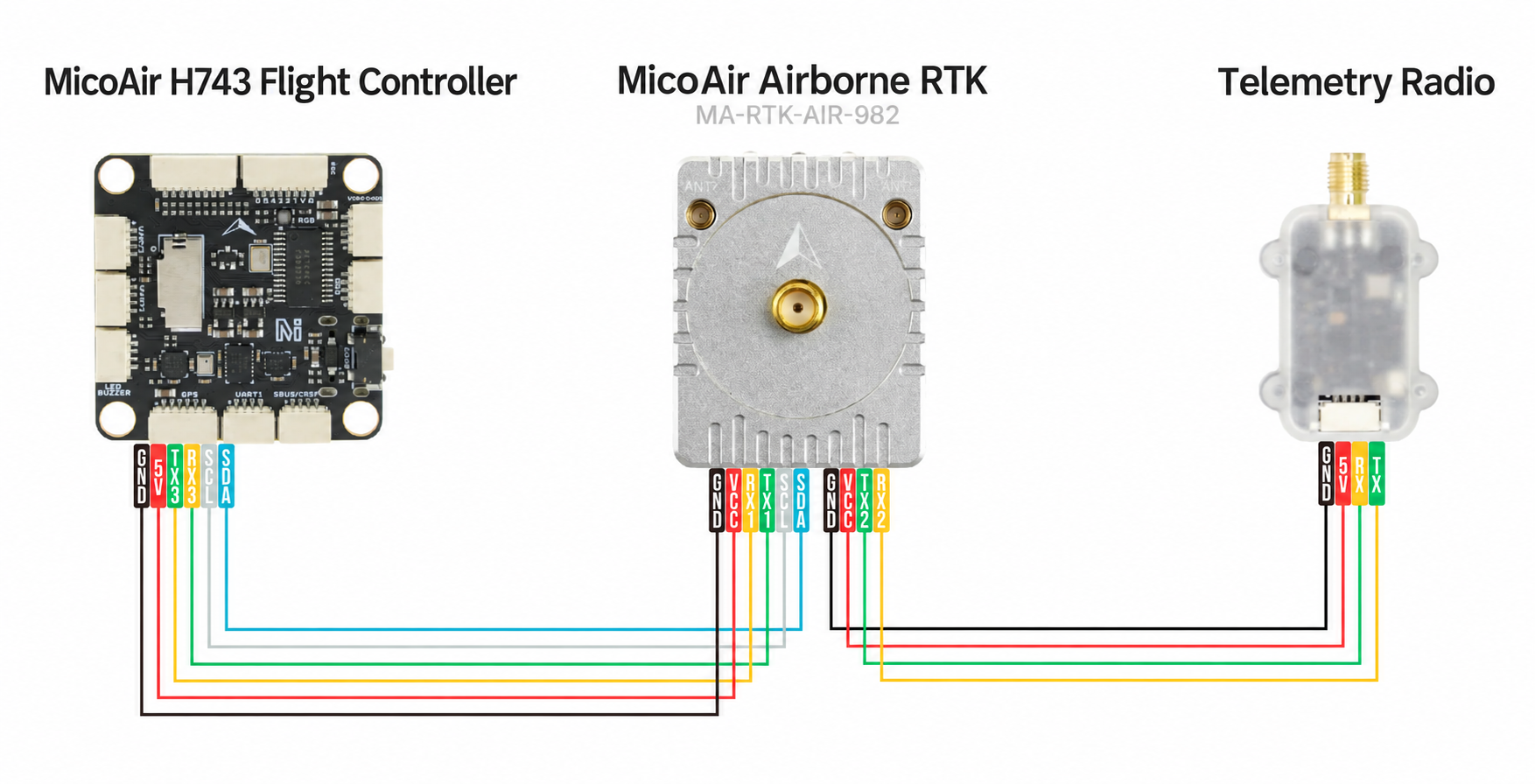
A pair of LR900 radios sends raw RTCM from the base station directly to the 982. RTCM bypasses the computer and flight controller. The flight controller receives only the position solution calculated by the 982.
Configure the LR900 Radios
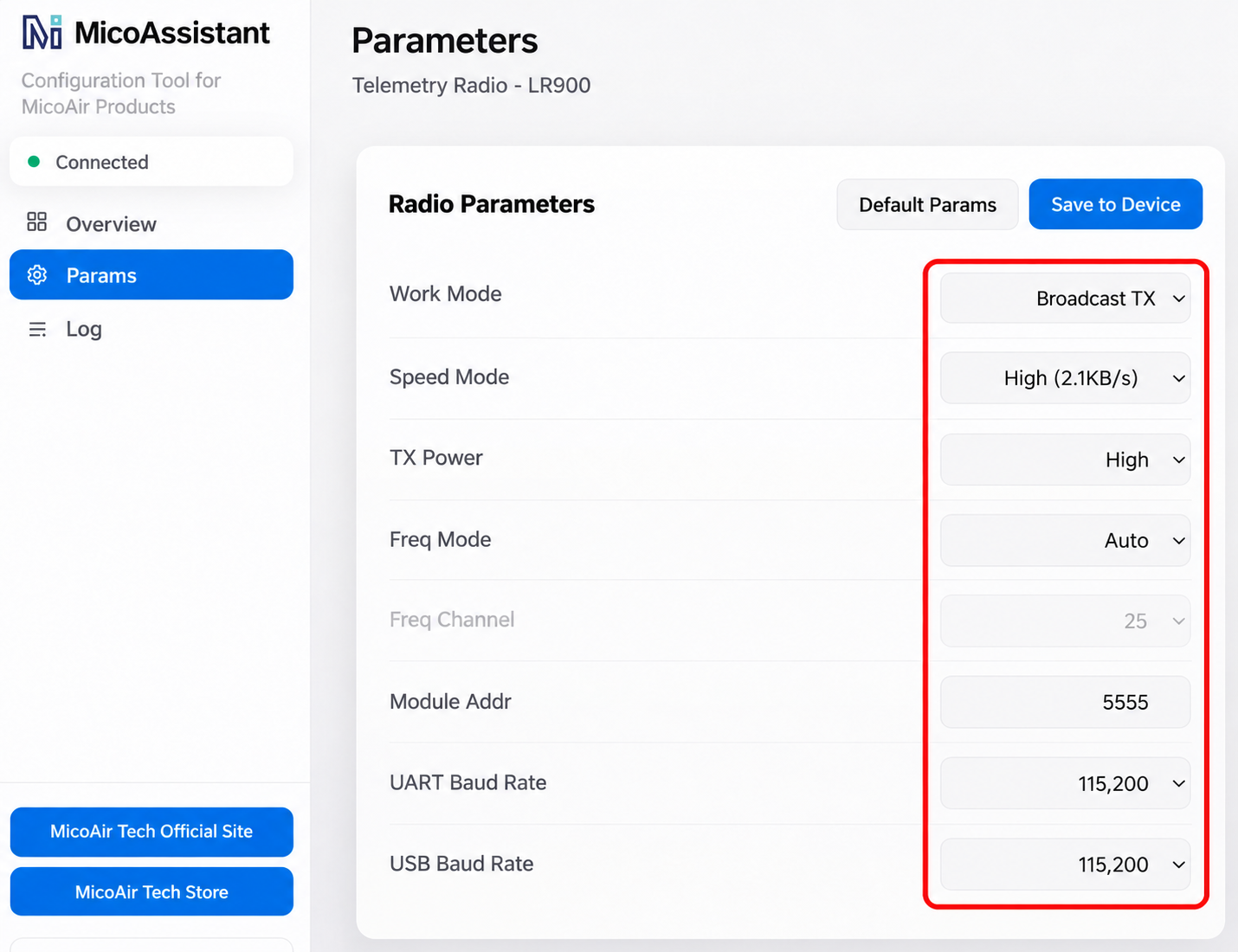
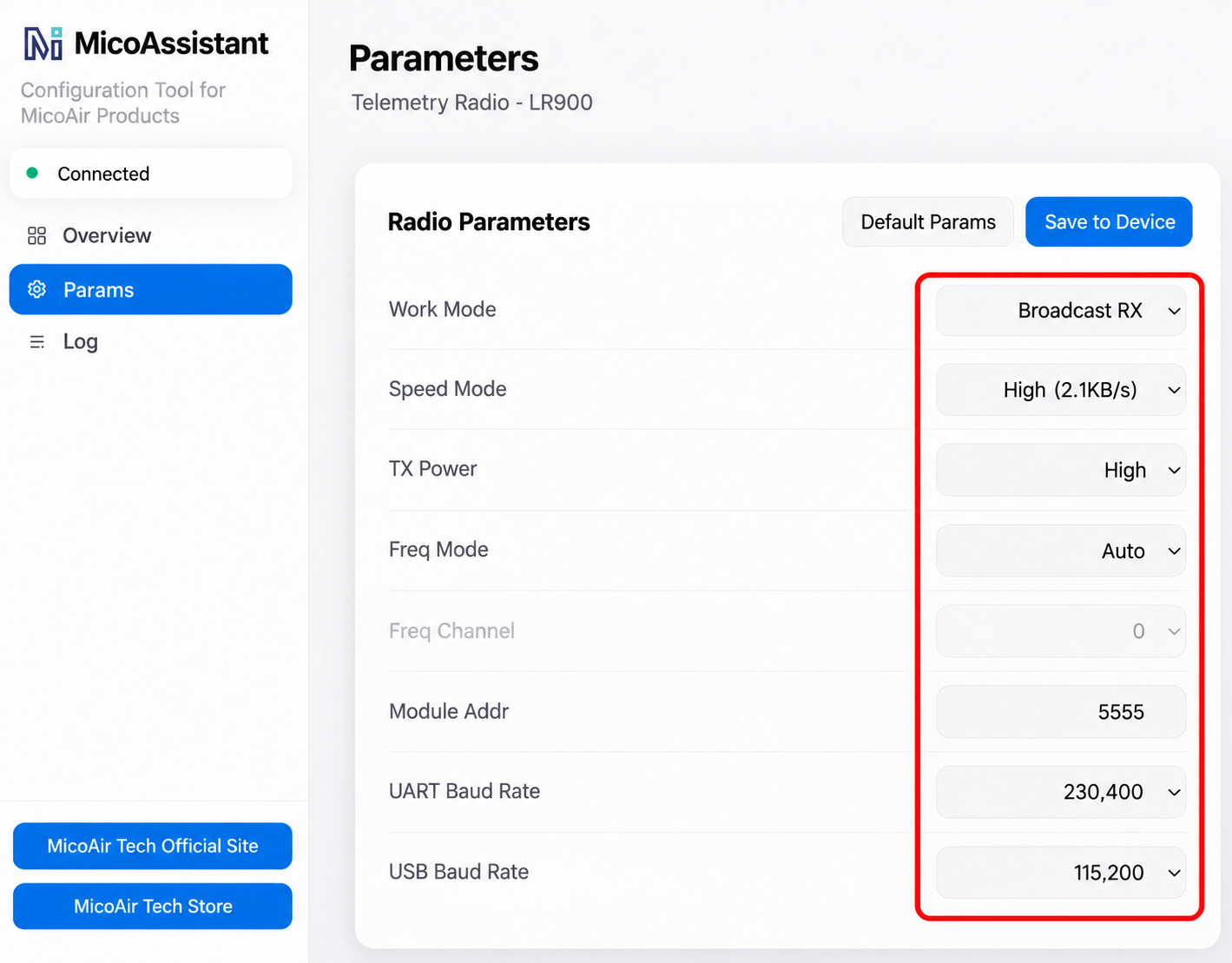
The standard LR900 defaults to duplex mode with a serial baud rate of 57600. Use MicoAssistant to configure each radio for the MA-RTK-BASE and 982. For parameter details, see the LR900 Telemetry Radio User Manual.
| Parameter | Ground LR900 | Airborne LR900 |
|---|---|---|
| Operating mode | Broadcast transmit | Broadcast receive |
| Serial baud rate | 115200 | 230400 |
| Module address | Same on both radios | Same on both radios |
| Radio frequency and air data rate | Same on both radios | Same on both radios |
The two LR900 radios can use different serial baud rates. The ground radio uses
115200to match the base station. The airborne radio uses230400to match the 982.
Connect the Ground Radio
- Connect the MA-RTK-BASE to the ground LR900 with the supplied cable. The cable has a GH1.25-4P connector at each end.
- Make sure the ground LR900 is in Broadcast transmit mode with a serial baud rate of
115200. - Install the LR900 antenna.
Connect the Airborne Radio
- Connect the 982 to the airborne LR900 with the supplied cable. The cable has a GH1.25-4P connector at each end.
- Make sure the airborne LR900 is in Broadcast receive mode with a serial baud rate of
230400. - Install the LR900 antenna.
Check the Data Link
Follow the RTCM data path and check each stage:
-
Base station → Ground LR900: Make sure the base station is in RTK operation and displays
STATUS:RTK BASE. Check the pin order of the 4P connection between the base station and radio. The radios must be paired, the green indicator must stay on, and the ground radio's serial baud rate must be115200. -
Ground LR900 → Airborne LR900: Connect the receiving radio directly to the computer with a USB Type-C cable. Open the RTK page in MicoConfigurator to check whether RTCM is reaching the radio. The RTCM Frames and Received Bytes counters should keep increasing.
-
Airborne LR900 → 982: Make sure the airborne radio connects to the 982's 4P RTCM port, not a flight controller serial port. Set the airborne radio's serial baud rate to
230400to match the 982. -
RTCM use by the 982: In MicoConfigurator, check the
GPS_RAW_INT.fix_typevalue reported by the flight controller. A change from3(3D Fix) to5(RTK Float) indicates that RTCM has reached the 982 and is being used. Under good conditions, it should reach6(RTK Fixed).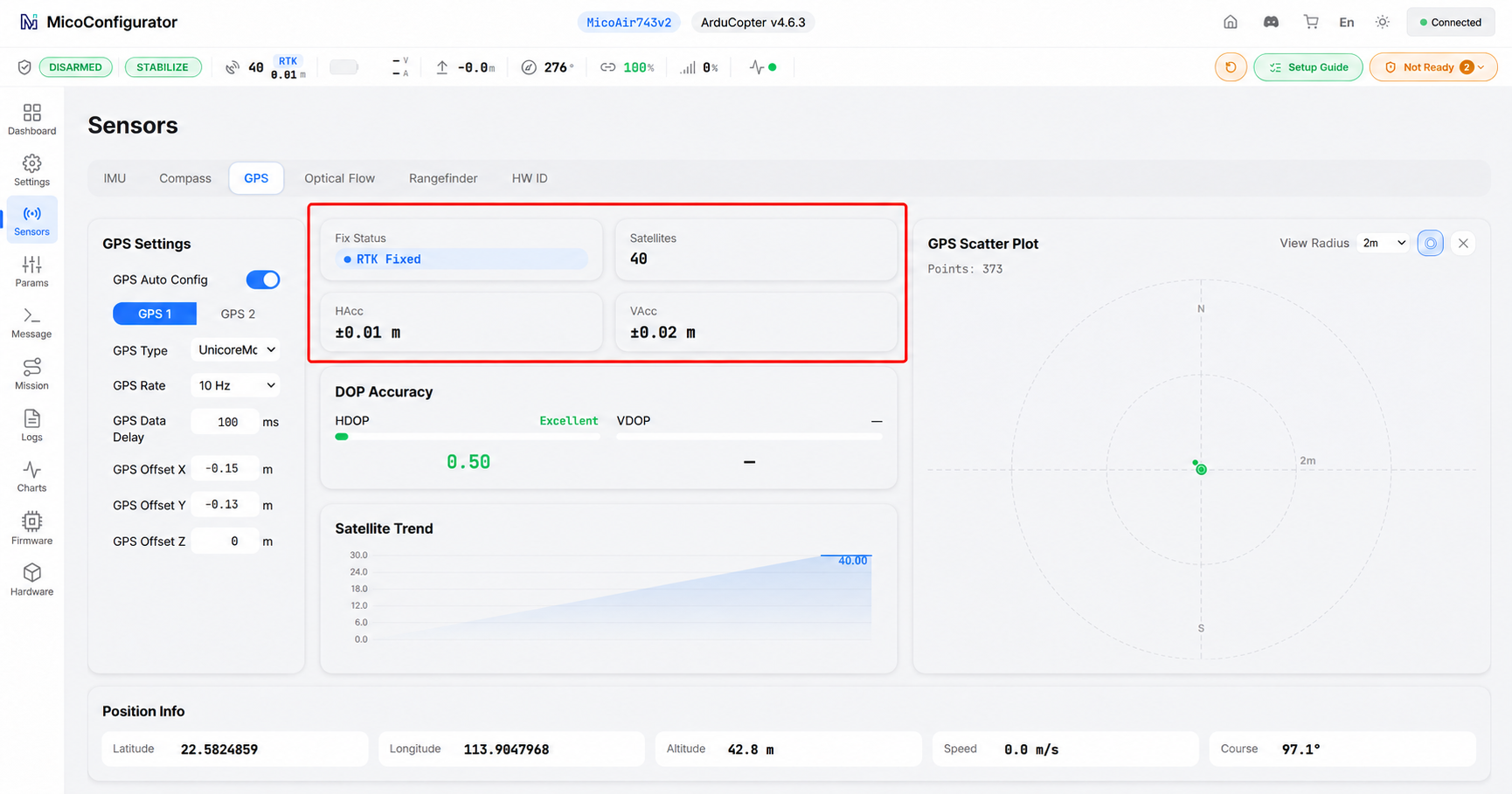
-
Check the complete data path: Turn off the ground LR900 or disconnect its serial link to the base station. Keep the 982 operating with a normal position fix. Wait for the fix type to leave RTK, then restore the link. If the fix type returns to
5or6, the broadcast data path is working.
Configure Dual Antenna Heading
The MA-RTK-AIR-982 calculates heading from the moving baseline between ANT1 and ANT2. Here, "moving baseline" refers to the fixed baseline between the two antennas mounted on the aircraft.
In ArduPilot, enter the baseline's direction and length in three dimensions. Then set the EKF heading source to GPS. PX4 does not require the baseline length. Enter the baseline angle relative to the aircraft's nose, then enable GPS heading fusion.
Install Dual Antennas
ANT1 is the primary antenna, and ANT2 is the secondary antenna. Mount both antennas rigidly to suit the airframe. The example below uses an X quadcopter frame. Both antennas are mounted at the rear, symmetrically on either side of the frame's centerline.
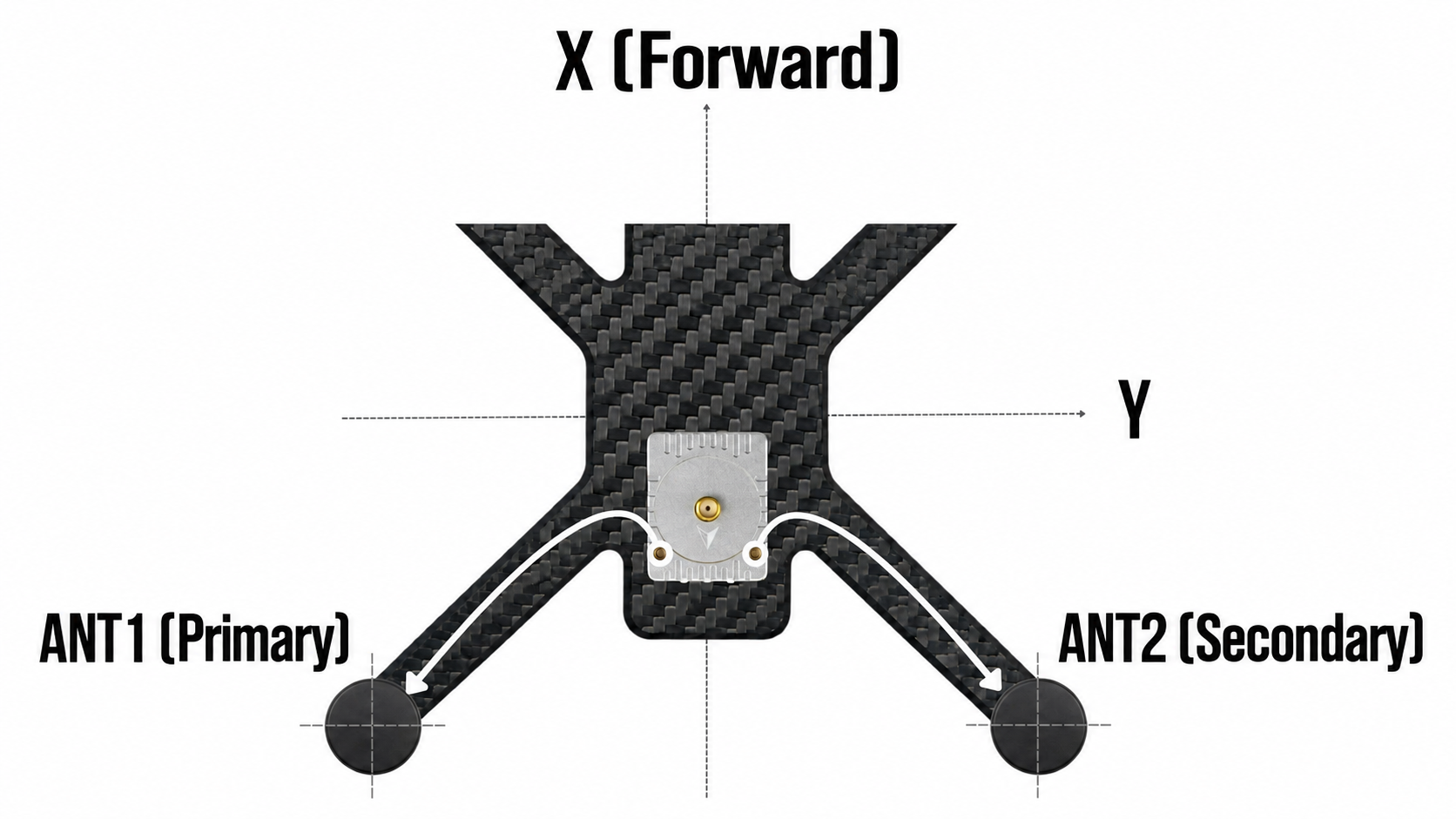
ArduPilot and PX4 both use a forward, right, down body coordinate system:
- Positive X points forward, toward the nose.
- Positive Y points to the aircraft's right.
- Positive Z points down.
Check the following during installation:
- ANT1 and ANT2 are both connected correctly to the 982.
- The antennas are at least
20 cmapart, as recommended. - Both antennas are at the same height whenever possible.
- Both antennas have a clear view of the sky.
- Both antennas are mounted rigidly. Their relative positions must not change during operation.
- You have measured the X, Y, and Z displacement from ANT2 to ANT1.
- The antenna cables are secured so they cannot pull on the antennas or shift their positions.
ArduPilot
Set the GPS Type and Basic Parameters
Open Sensors → GPS in MicoConfigurator and set the following:
| Setting | Value or Instructions |
|---|---|
| GPS type | 25, UnicoreMovingBaselineNMEA. |
| GPS update rate | 100, equivalent to 10 Hz. |
| GPS data delay | Leave at the default of 0 for automatic detection, or enter the actual delay. |
| GPS position offset X | ANT1's distance forward or backward from the aircraft's center of gravity, in meters. Forward is positive. |
| GPS position offset Y | ANT1's distance right or left from the aircraft's center of gravity, in meters. Right is positive. |
| GPS position offset Z | ANT1's distance down or up from the aircraft's center of gravity, in meters. Down is positive. |
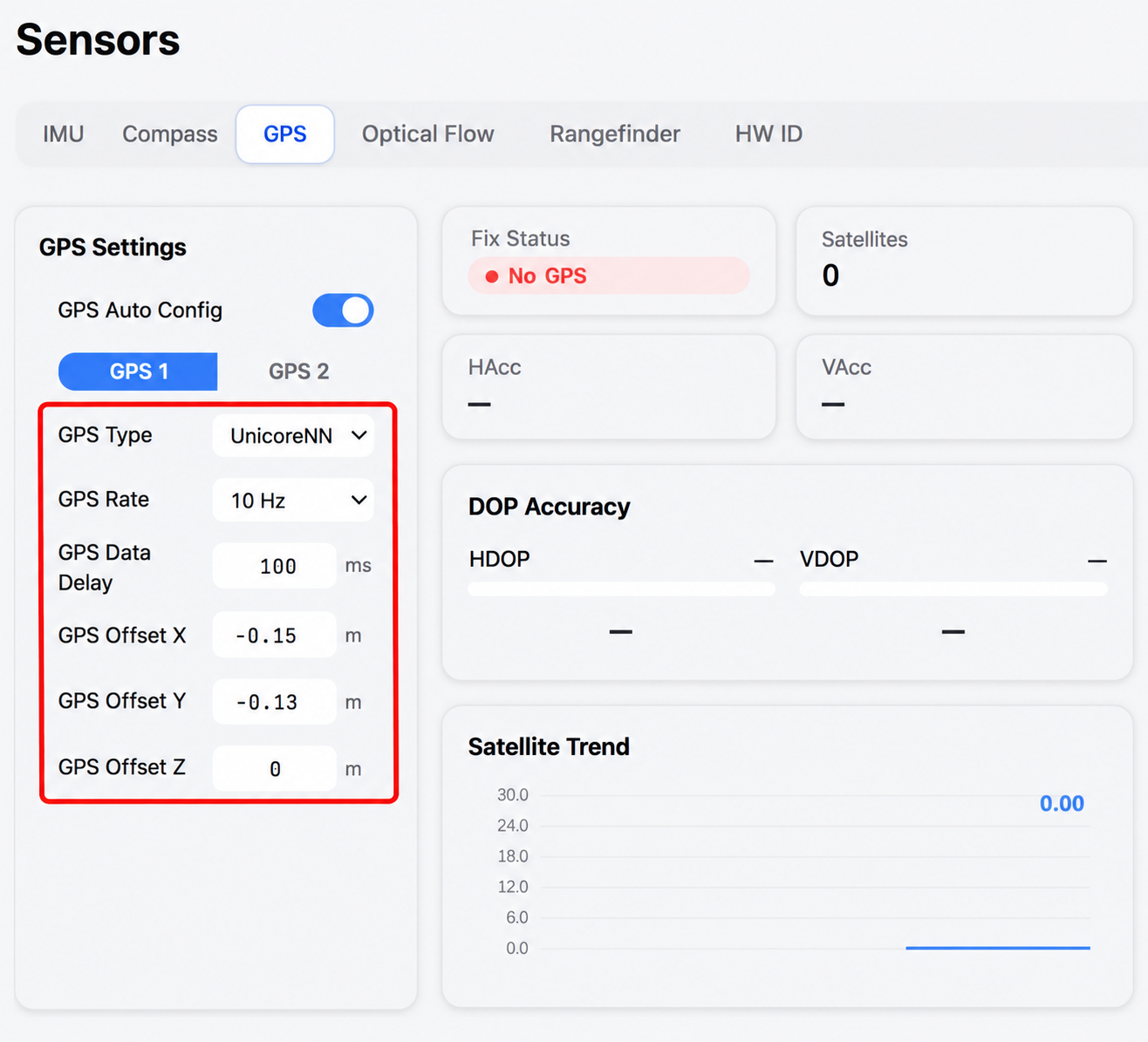
GPS position offsets correspond to
GPS1_POS_X/Y/Z. Measure from the aircraft's center of gravity to ANT1's antenna phase center. These parameters compensate for the antenna's offset from the body origin. They do not define the dual antenna baseline. You can leave them at0if ANT1 is near the center of gravity or you cannot measure the offsets accurately yet.
Set the Dual Antenna Baseline
-
Find
GPS1_MB_TYPEin the full parameter list. Set it to1, orRelativeToCustomBase.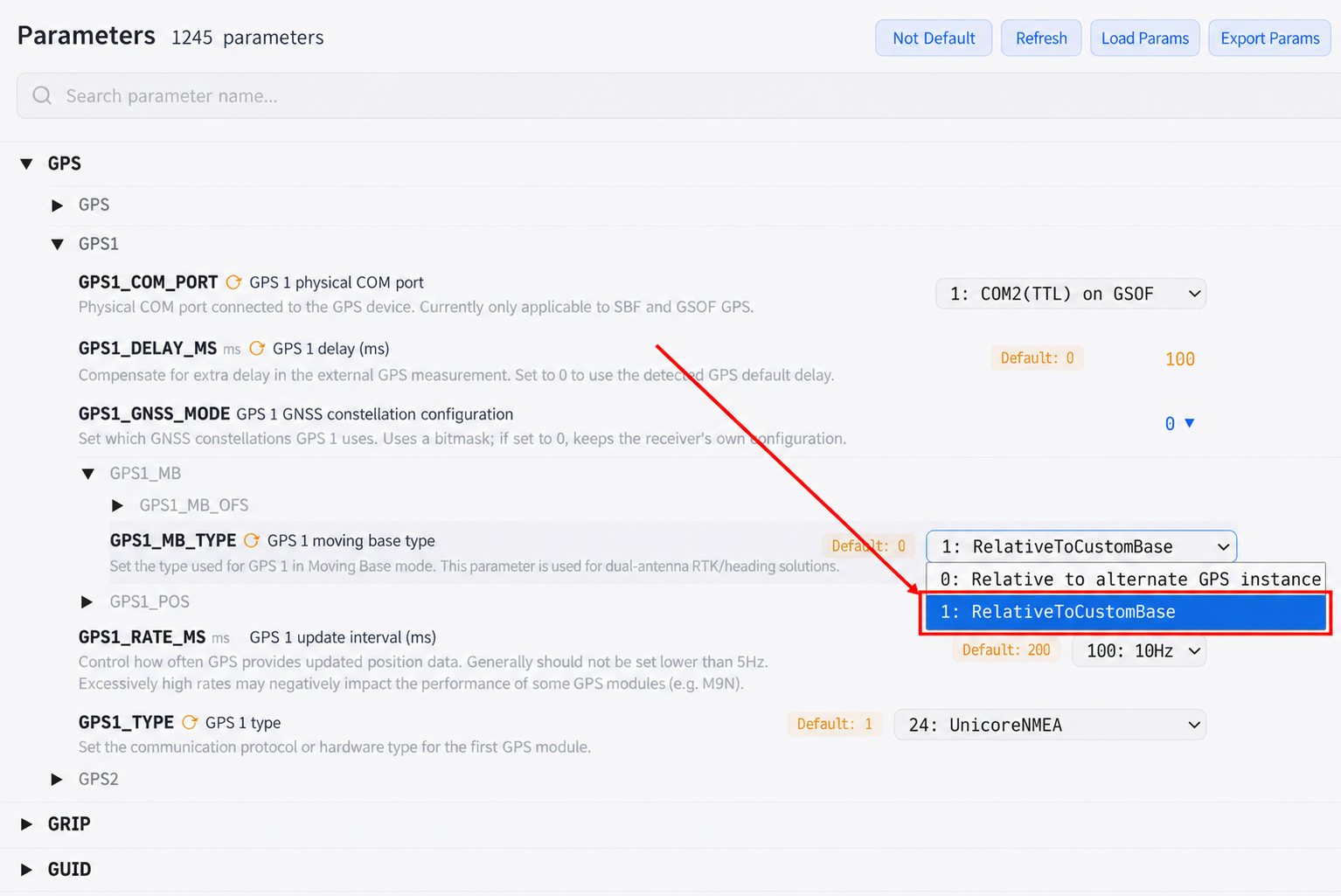
ArduPilot 4.6 and later use
GPS1_MB_TYPEandGPS1_MB_OFS_X/Y/Z. Earlier versions may showGPS_MB1_TYPEandGPS_MB1_OFS_X/Y/Z. If the offset parameters do not appear after you set the type, refresh the parameters, reconnect, or restart the flight controller. -
Measure the displacement from ANT2 to ANT1 and set these parameters:
| Parameter | Instructions |
|---|---|
GPS1_MB_OFS_X | ANT1's distance forward or backward from ANT2, in meters. Forward is positive. |
GPS1_MB_OFS_Y | ANT1's distance right or left from ANT2, in meters. Right is positive. |
GPS1_MB_OFS_Z | ANT1's distance down or up from ANT2, in meters. Down is positive. |
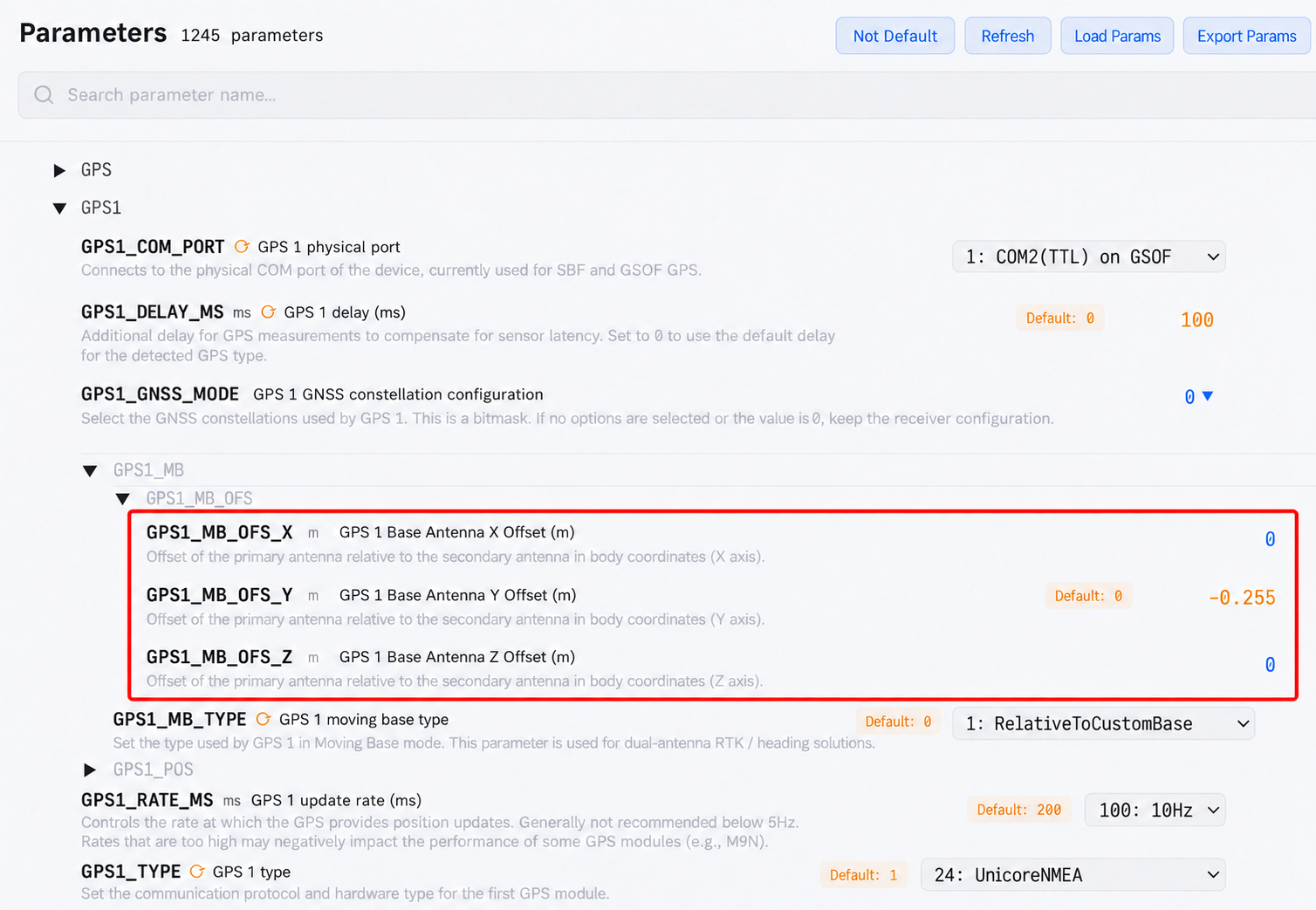
Think of an arrow that starts at ANT2 and ends at ANT1. Its X, Y, and Z components are the offsets to enter. Use a positive value when a component points along the positive axis. Use a negative value when it points the other way.
For example, if the antennas are at the same height and 0.30 m apart:
| ANT1 Position Relative to ANT2 | X | Y | Z |
|---|---|---|---|
| Directly ahead | 0.30 | 0 | 0 |
| Directly behind | -0.30 | 0 | 0 |
| Directly to the right | 0 | 0.30 | 0 |
| Directly to the left | 0 | -0.30 | 0 |
If the antennas are mounted diagonally, measure the displacement along each axis separately. Do not enter the straight line distance between the antennas as a single axis offset.
Select the EKF Heading Source
-
Make sure the flight controller is using EKF3.
-
Set
EK3_SRC1_YAWto2, or GPS.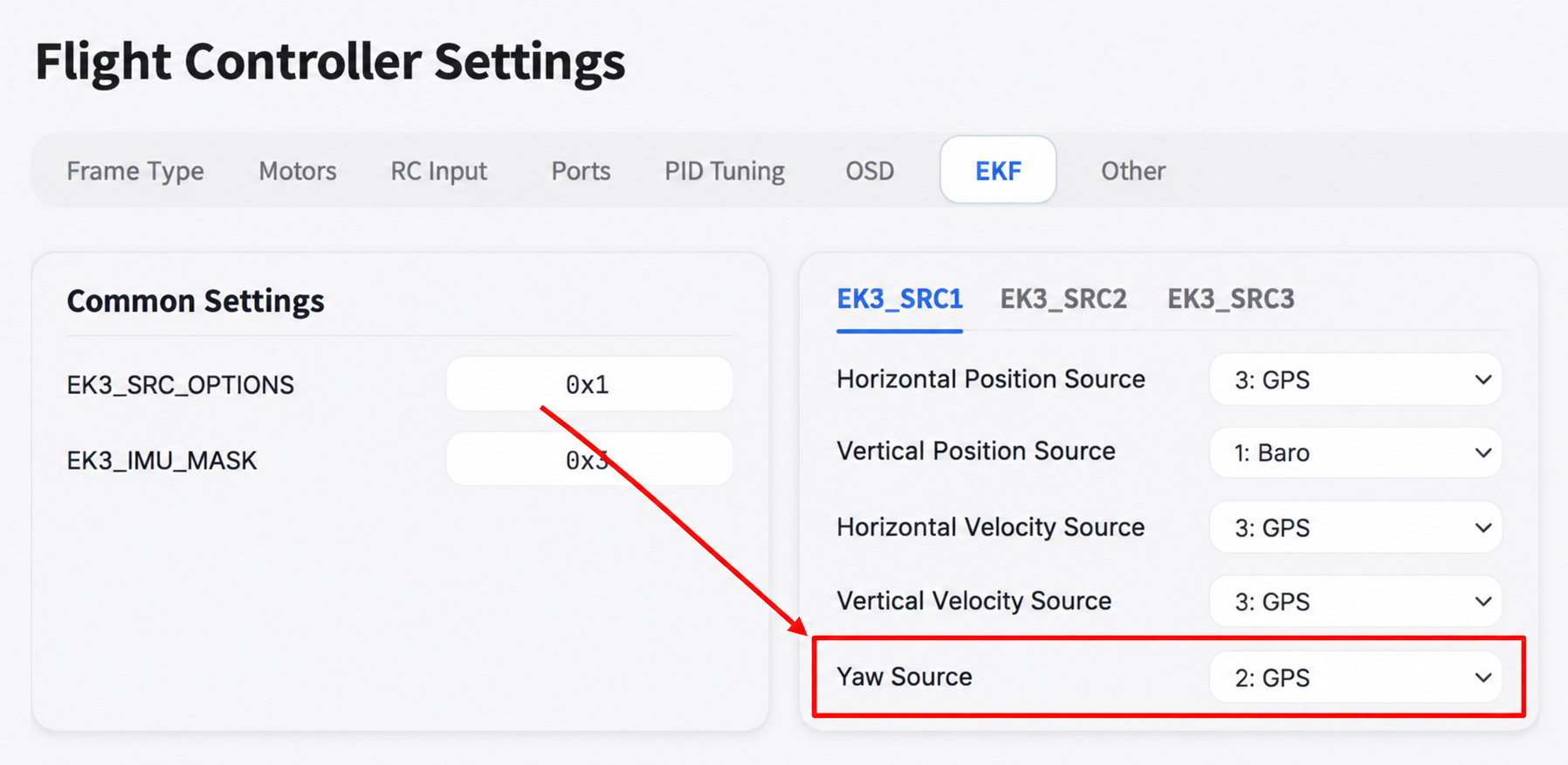
-
Save all parameters and restart the flight controller.
PX4
Set the GPS Protocol
-
Open Sensors → GPS in MicoConfigurator. Set the GPS1 protocol to
NMEA (generic)and the baud rate to230400orAuto.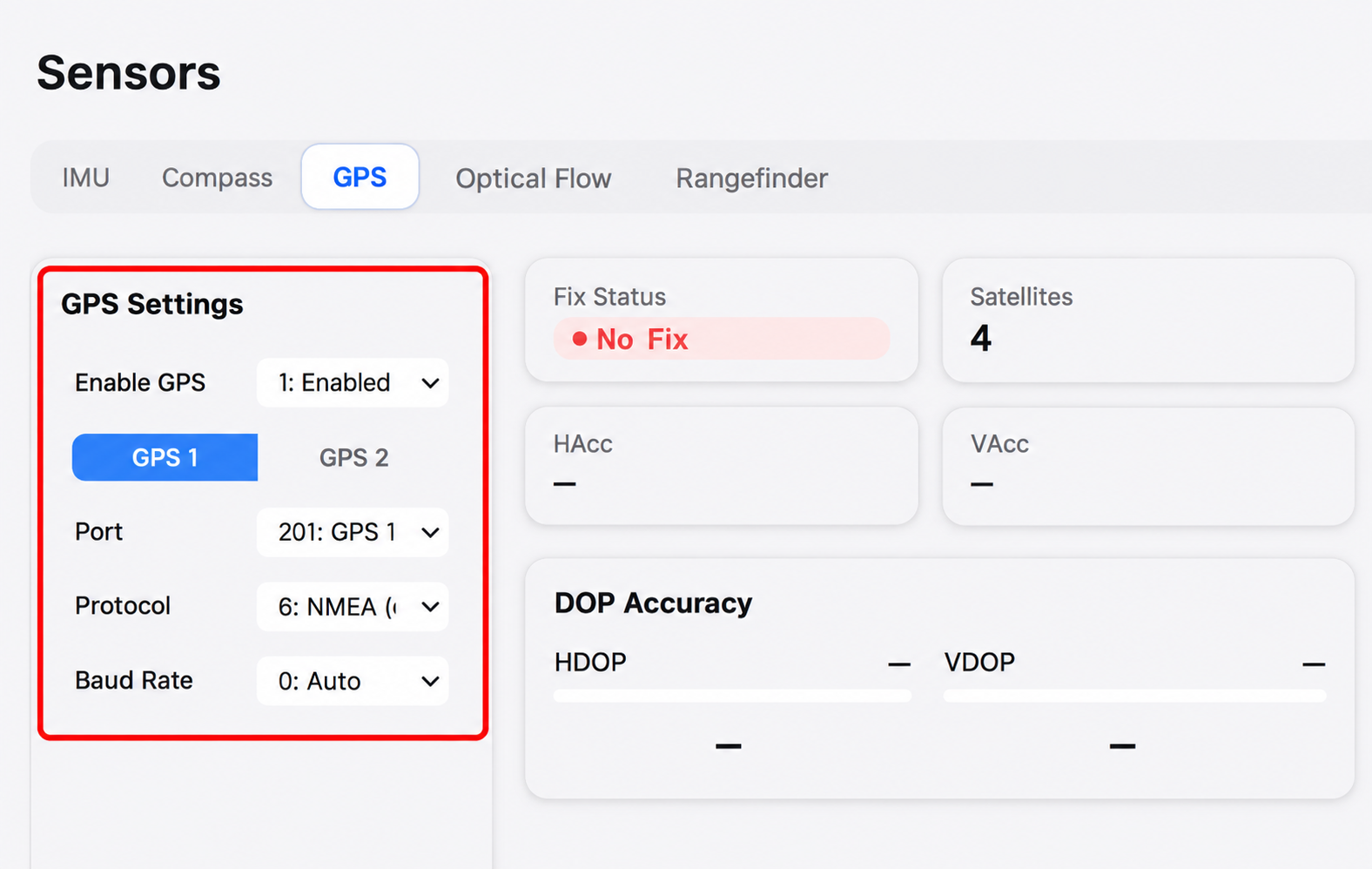
-
Save the parameters and restart the flight controller.
Enable Dual Antenna Heading Fusion
-
Find
EKF2_GPS_CTRLin the full parameter list. SelectBit 3 Dual antenna heading.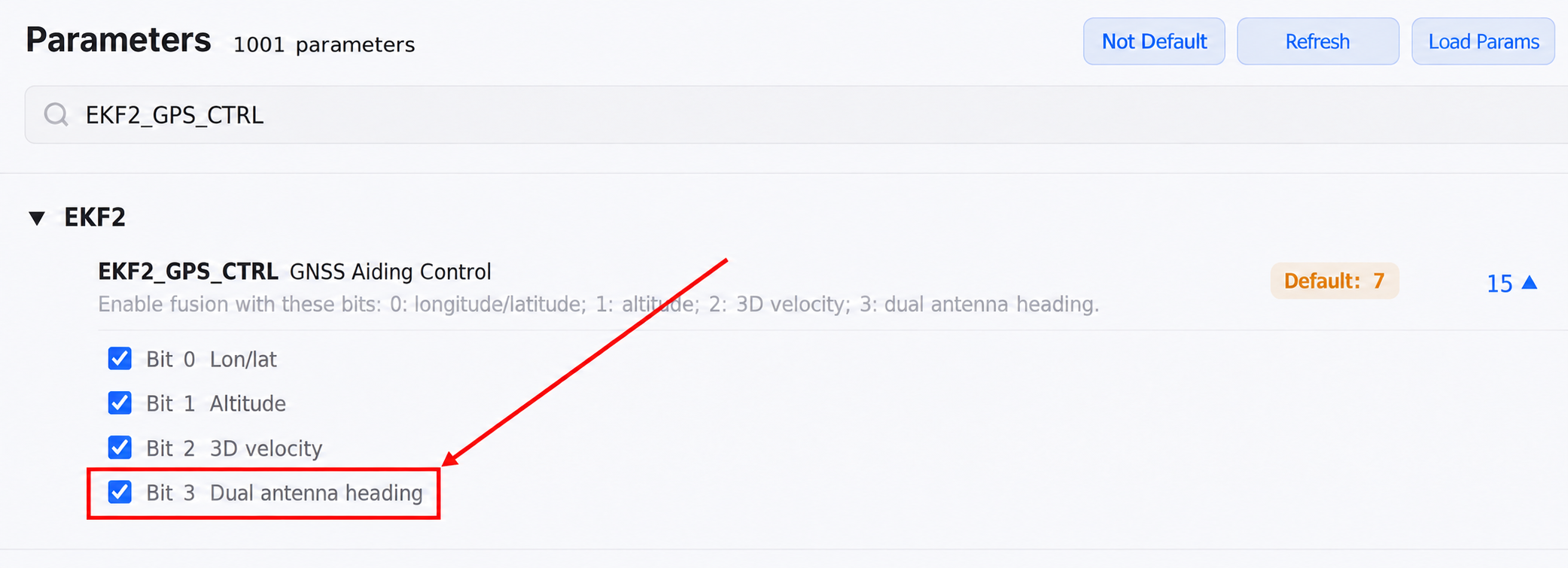
-
Find
GPS_YAW_OFFSET. Enter the angle that matches the antenna installation.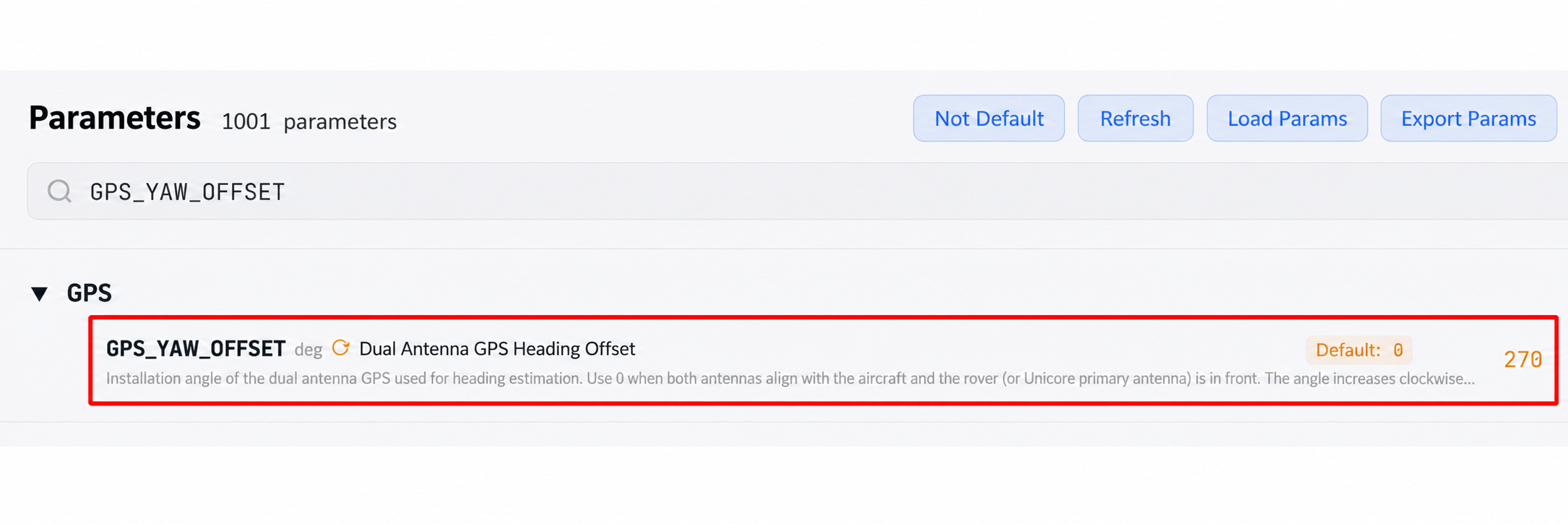
GPS_YAW_OFFSETis the angle of the baseline from ANT2 to ANT1 relative to the nose. Viewed from above, straight ahead is0°. The angle increases clockwise.ANT1 Position Relative to ANT2 GPS_YAW_OFFSETDirectly ahead 0Directly to the right 90Directly behind 180Directly to the left 270 -
Save the parameters and restart the flight controller.
Verify Dual Antenna Heading
Check these three points to confirm that dual antenna heading is configured and working:
- The 982 is outputting dual antenna heading.
- The reported heading matches the direction of the aircraft's nose.
- The flight controller's EKF is using this heading.
Use the following checks:
Check the raw dual antenna heading
In an open outdoor area, wait for both antennas to acquire satellites. Open the messages page in MicoConfigurator and check GPS_RAW_INT.yaw:
yaw = 65535: No dual antenna heading is currently available.- Valid yaw values are reported continuously: The 982 has calculated a dual antenna heading.
This field uses units of 0.01°. For example, 9000 means 90°, and 18000 means 180°.
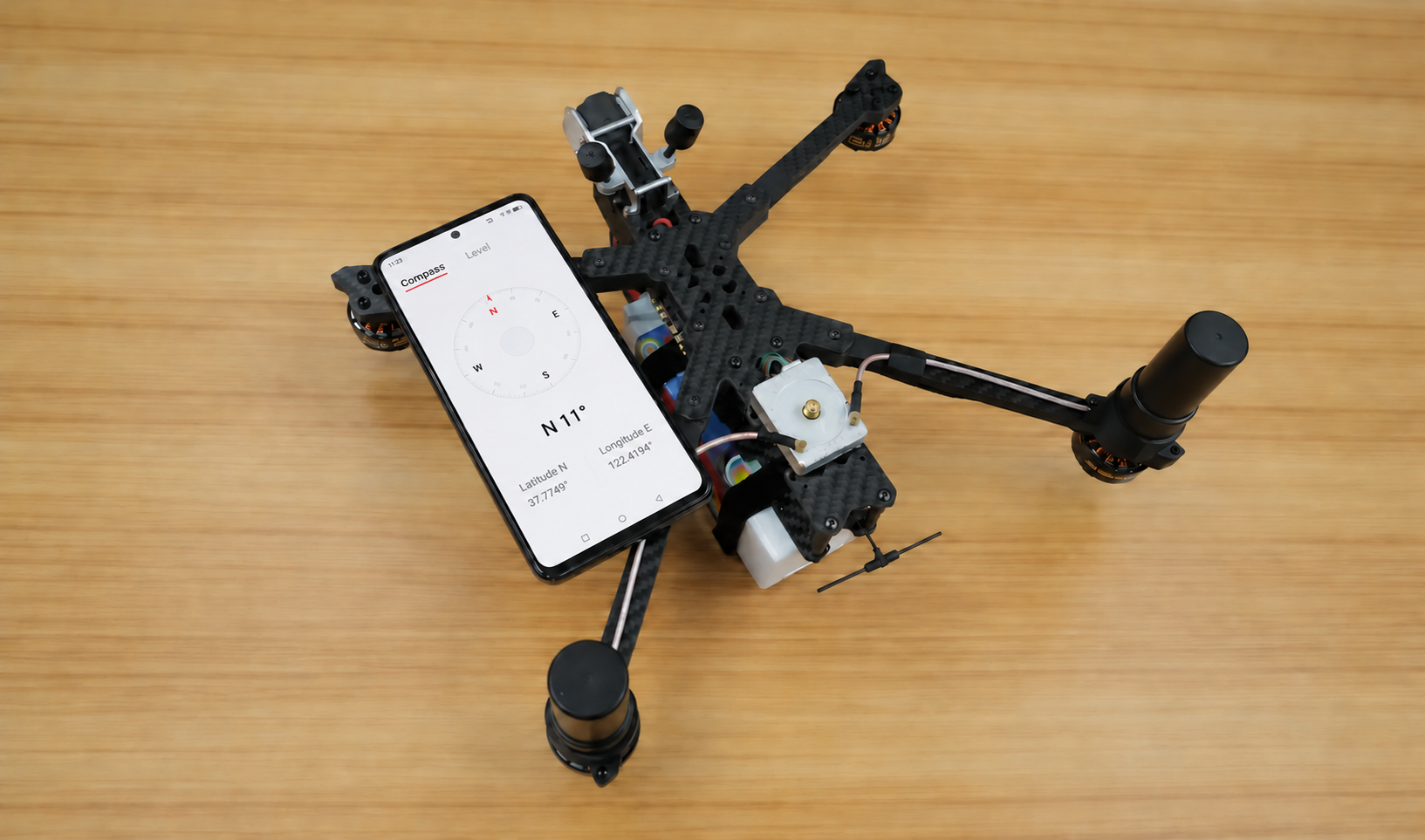
Check the heading direction
Point the nose toward a fixed reference with a known direction. Then check the heading shown in the ground station:
- Open the compass on your phone. Point the top of the phone in the same direction as the nose. Compare the displayed heading with the actual direction.
- Rotate the aircraft about 90° clockwise. The displayed heading should also increase by about 90°.
- Check headings near 0°, 90°, 180°, and 270°.
- Return the aircraft to its original direction. The heading should return to its original value and remain stable while the aircraft is stationary.
Troubleshooting
Installation Issues
MicoConfigurator Shows No GPS
Check the following in order:
- The 982 is receiving power normally.
- The 6P connector orientation and pin order are correct.
- TX1 connects to the flight controller's RX, and RX1 connects to its TX.
- You have identified the GPS port or UART that is physically connected.
- In ArduPilot, that port is set to GPS. In PX4, the GPS port is assigned correctly.
- The GPS type, protocol, and baud rate match this guide.
- The flight controller was restarted after the parameter changes.
GPS Is Detected but Has No Fix
This usually means serial communication is working. Satellite reception is the likely issue. Move the equipment to an open outdoor area with a clear view of the sky. Make sure the antenna is connected to ANT1 and the connector is secure. Keep it away from video transmitters, telemetry radios, and wiring that carries high current. The first fix may take longer after a cold start or an extended period without power.
The Satellite Count Is High, but the Position Is Unstable
Satellite count alone does not indicate position quality. Also check the fix type, HDOP, horizontal accuracy, vertical accuracy, and speed accuracy. Check ground speed while stationary, position jumps on the map, and EKF status. Radio interference from sources such as powerful video transmitters can reduce position quality even when the satellite count looks normal.
Configuration Issues
MicoConfigurator Receives RTCM, but the Status Stays at 3D Fix
If the RTCM receive counter increases but the Forwarded counter does not, check the flight controller connection to MicoConfigurator.
If both counters increase, check the 982's GPS serial port settings and RTCM injection from the flight controller to the 982. Also check the reception conditions around the base station and airborne antennas, along with the distance between them.
The LR900 Link Is Connected, but the Fix Type Does Not Change
Set the ground radio to Broadcast transmit and the airborne radio to Broadcast receive. The ground radio's serial baud rate must be 115200 to match the base station. The airborne radio's serial baud rate must be 230400 to match the 982. Both radios must use matching module addresses, radio frequencies, and air data rates.
Then check the connections. The ground radio must connect to the base station's RTCM output port. The airborne radio must connect to the 982's 4P port. TX and RX must be crossed at both connections.
GPS_RAW_INT.yaw Stays at 65535
A value of 65535 means no dual antenna heading is currently available. Check the following in order:
- ANT1 and ANT2 are both connected.
- Both antennas are in an open outdoor area.
- The baseline is long enough. At least
20 cmis recommended. - The antennas are secured so their relative positions cannot change.
- In ArduPilot,
GPS1_TYPE = 25, the moving base type is set, and the baseline offsets are correct. - In PX4, the NMEA protocol and a baud rate of
230400are selected, and Bit 3 ofEKF2_GPS_CTRLis enabled. - The parameters were saved and the flight controller was restarted.
The Heading Is Off by 90°, 180°, or 270°
This usually means the baseline direction is configured incorrectly. In ArduPilot, check the X, Y, and Z offsets from ANT2 to ANT1. In PX4, check GPS_YAW_OFFSET.
A Heading Is Available, but It Changes in the Wrong Direction
First, check whether ANT1 and ANT2 have been mixed up. Then check whether the baseline vector was entered from ANT1 to ANT2. The correct direction is always from the secondary antenna, ANT2, to the primary antenna, ANT1.
RTK Issues
The GPS Status Does Not Reach RTK
Check the following:
- The base station is in RTK operation and displays
STATUS:RTK BASE. - The two radios are paired, their green indicators stay on, and both have antennas installed.
- The pin order is correct between the base station and ground radio, and between the airborne radio and 982.
- The RTK page in MicoConfigurator can receive the forwarded RTCM data.
- The 982 has its antenna installed, and its PVT and RTK indicators are on.
- The serial baud rate is
115200between the base station and ground radio, and230400between the airborne radio and 982.
The Status Frequently Switches Between RTK Fixed and RTK Float
Check RTCM delay and packet loss on the radio link. Make sure the base station, 982, and LR900 have stable power. Check for interference sources near the antennas, such as video transmitters that could affect the data link.