
Docs directory
Table of contents
MicoAir405v2 Beginner Configuration Tutorial for ArduPilot Firmware
MicoAir405v2 has been included in ArduPilot's official support list since version 4.5.0. Firmware can be downloaded directly from the official website or upgraded through the Mission Planner ground-control software.
Official firmware download: ArduPilot Firmware Download Online custom firmware: ArduPilot Custom Firmware Builder Legacy firmware download: MicoAir405v2/Firmware/ArduPilot (v4.4.4)
Official Mission Planner Ground Station Download
Set the Frame Type
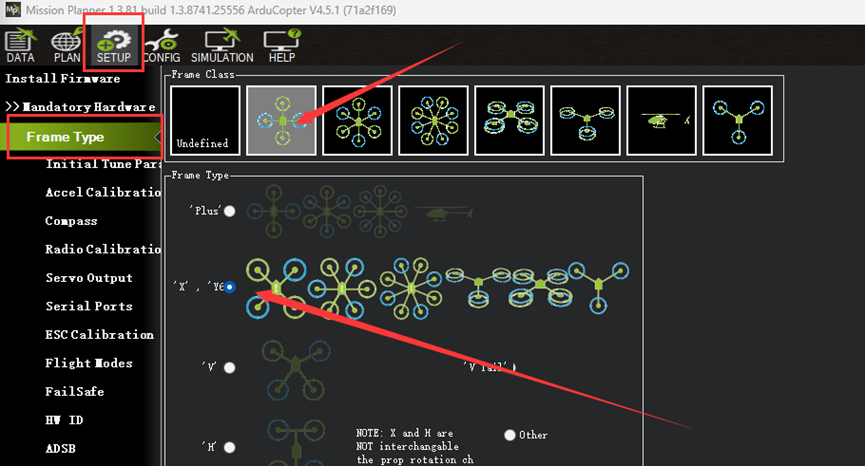
- When the MicoAir405v2 flight controller is used for the first time, its frame type must be configured because it is undefined by default.
- Open Mission Planner on the computer and connect the flight controller via USB. On the Frame Type page, first select the Frame Class, such as quadcopter, hexacopter, or octocopter, and then select the Frame Type, such as Plus, X, or H. Quad X is the most commonly used configuration, as shown below:
Set the ESC Signal Type
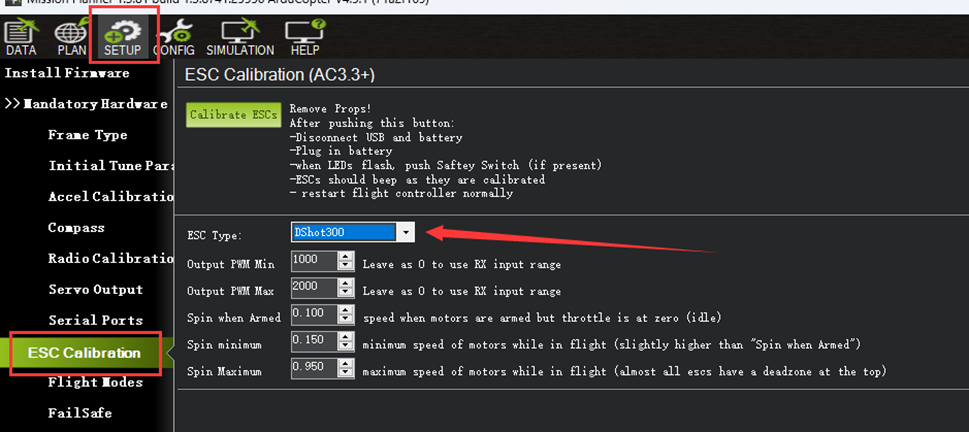
ArduPilot firmware supports multiple ESC communication protocols, including PWM (default), OneShot, and DShot. DShot300 is recommended. DShot is a digital signaling protocol that transmits control commands accurately and does not require ESC signal calibration.
If you are using the Bluejay ESC included in a flight stack kit, you must select DShot300/600; otherwise, the motors cannot be driven.
Set the Motor Order
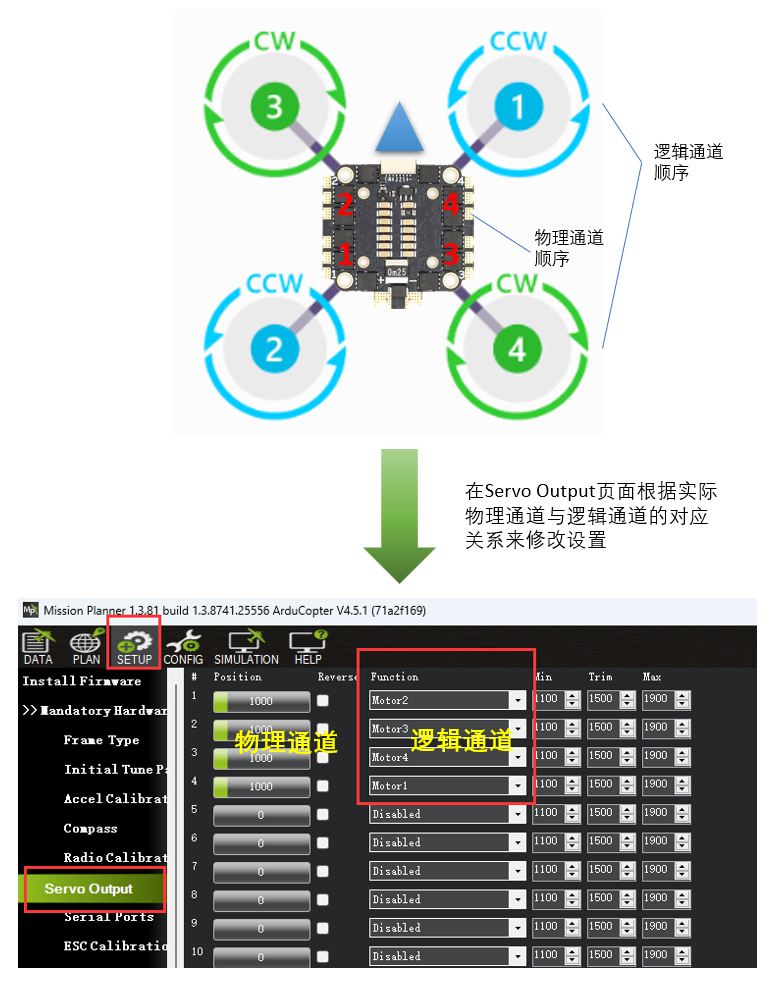
Adjust the Order
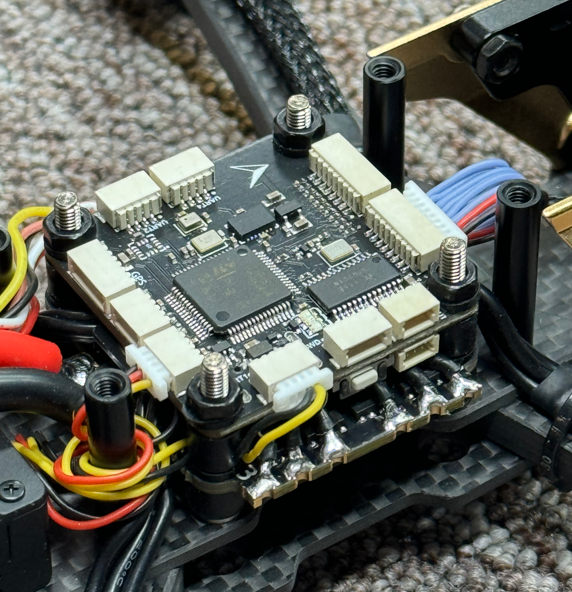
For each frame type, the flight controller strictly defines how output signal channels correspond to the physical motors. During installation, adjust the motor order according to the selected frame type and the ESC wiring. For details, see the official ArduPilot Wiki.
Verify the Order
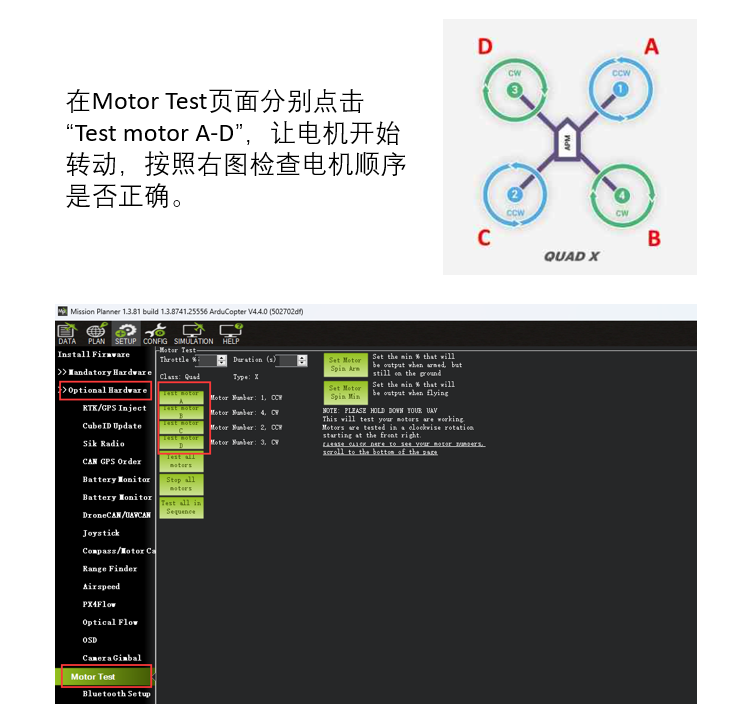
- After adjusting the motor order, use the motor test function in Mission Planner to verify that the order is correct.
- Always remove the propellers before testing.
Change Motor Direction
While verifying the motor order, also check whether each motor rotates in the correct direction. During the motor-order test, confirm that the directions match the diagram: motors 1 and 2 rotate counterclockwise, while motors 3 and 4 rotate clockwise. If any motor rotates in the opposite direction, it must be corrected.
-
There are two ways to reverse a motor. Physically, swap any two of the three wires between the motor and ESC. Alternatively, change the motor direction setting in the ESC software.
-
Set
SERVO_BLH_AUTOto 1 (Enabled), and setSERVO_BLH_MASKto 15 (enable Channel1-4). Write the parameters and restart the flight controller. After changing the ESC direction, restore both parameters to their default values; otherwise, the ESCs cannot be driven normally.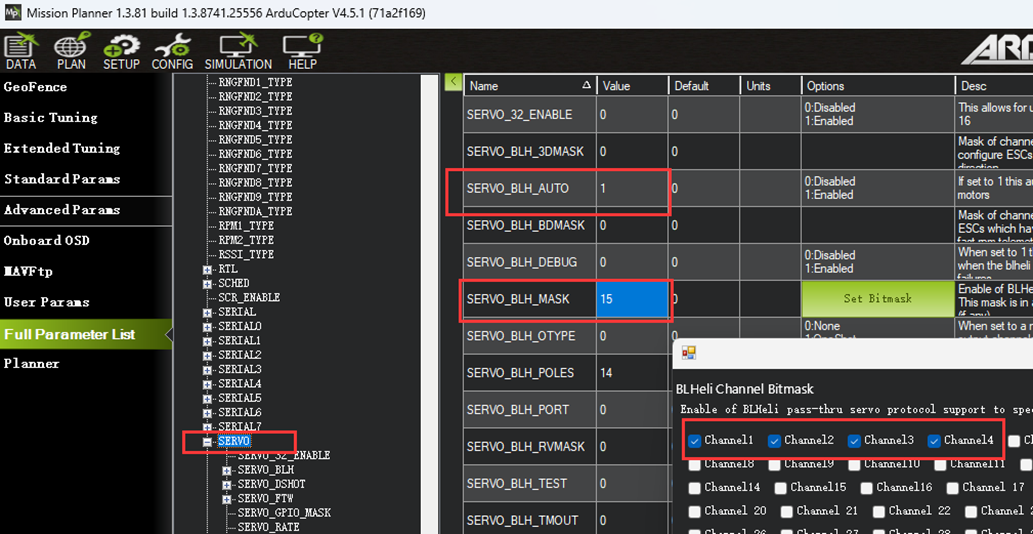
-
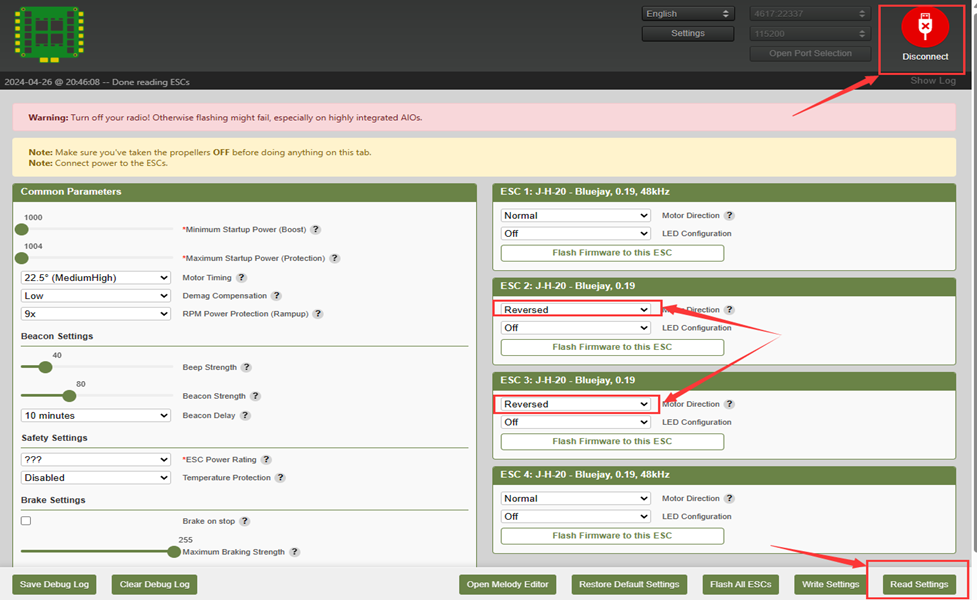
Enter esc-configurator.com in a computer browser to open the web-based ESC configuration tool.
-
Click Open Port Selection in the upper-right corner, select “MicoAir405,” and then click Connect.
-
After connecting successfully, click Read Settings in the lower-right corner to read the settings of all four ESCs. You can then change the rotation direction under Motor Direction.
Receiver Connection and Configuration
SBUS
- Connect the receiver to the RC interface (UART6). Connect only SBUS (Rx6); Tx6 is not required.
- Set SERIAL6_Protocol to 23 (RCIN). This is normally the default setting.
ELRS
- Connect the receiver to UART1. Cross-connect Tx and Rx with the flight controller.
- Set
SERIAL1_Protocolto 23 (RCIN), and also setSERIAL5_ProtocolandSERIAL6_Protocolto None (disable their functions).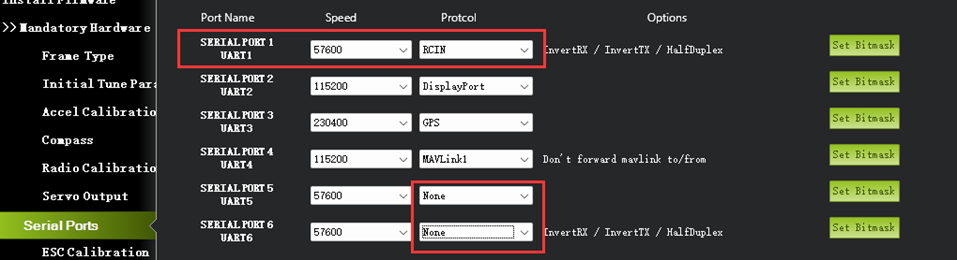
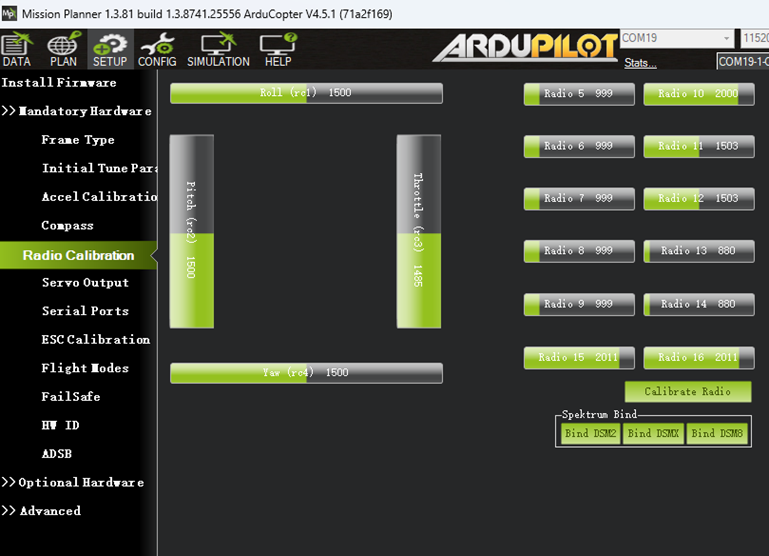
When the wiring and settings are correct and the receiver has been bound to the transmitter, the stick channel data will be displayed normally.
Initialize PID Parameters
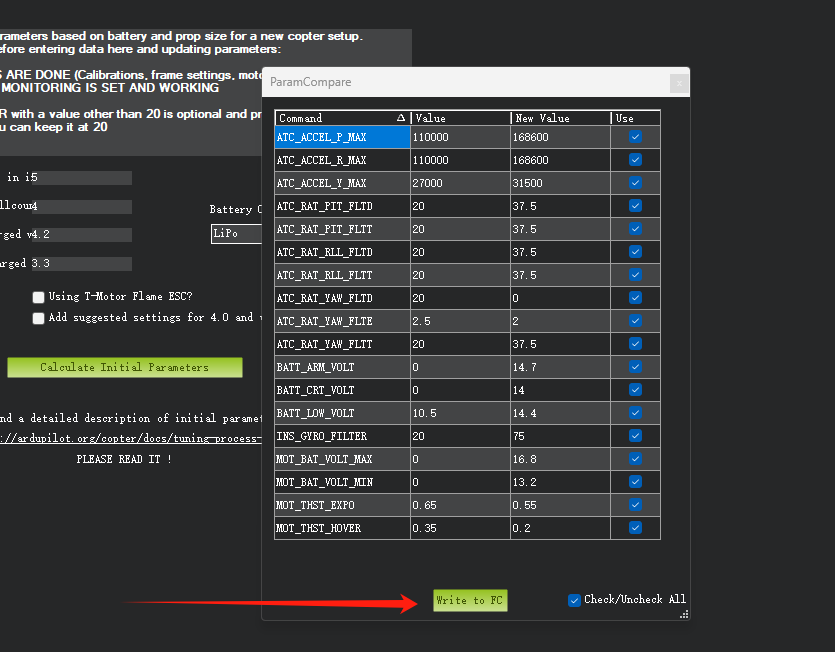
Mission Planner 1.3.81 and later include a convenient feature that generates preset PID, filter, and related parameters from the frame size and battery specifications, avoiding a complicated initial tuning process.
Go to the Initial Tune Parameter page. In most cases, only two parameters need to be set:
Airscrew size in inch: Propeller size. For example, a common 5-inch FPV frame uses 5-inch propellers, so enter 5. Enter 7 for a 7-inch setup, and so on.Battery cellcount: Number of battery cells. Enter 4 for a 4S battery or 6 for a 6S battery.
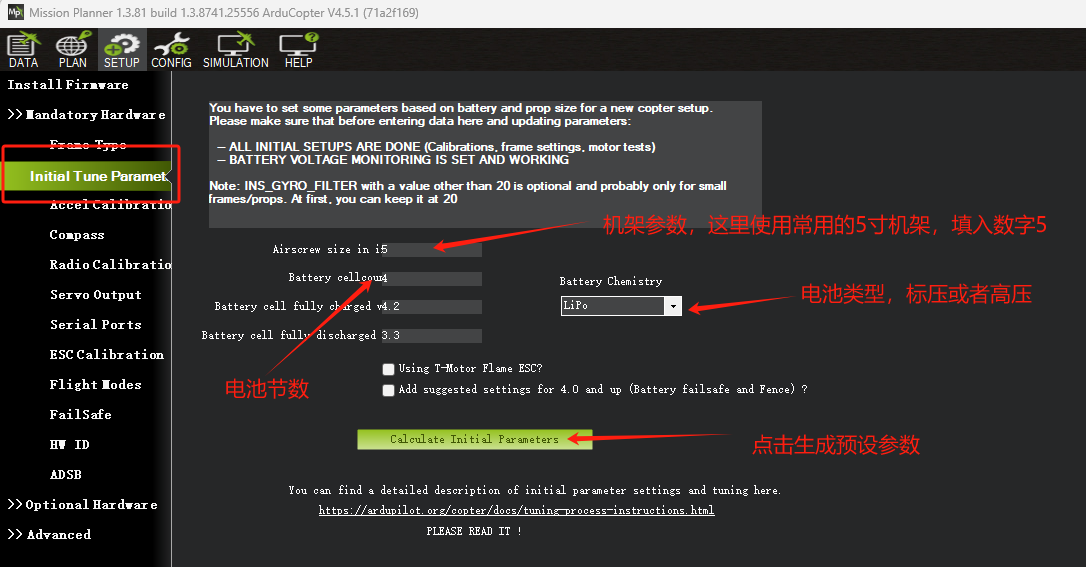
Click Calculate Initial Parameters to generate the preset parameters, most of which are filter parameters, and then click Write to FC to write them to the flight controller.
Calibrate the Sensors
Calibrate the Accelerometer
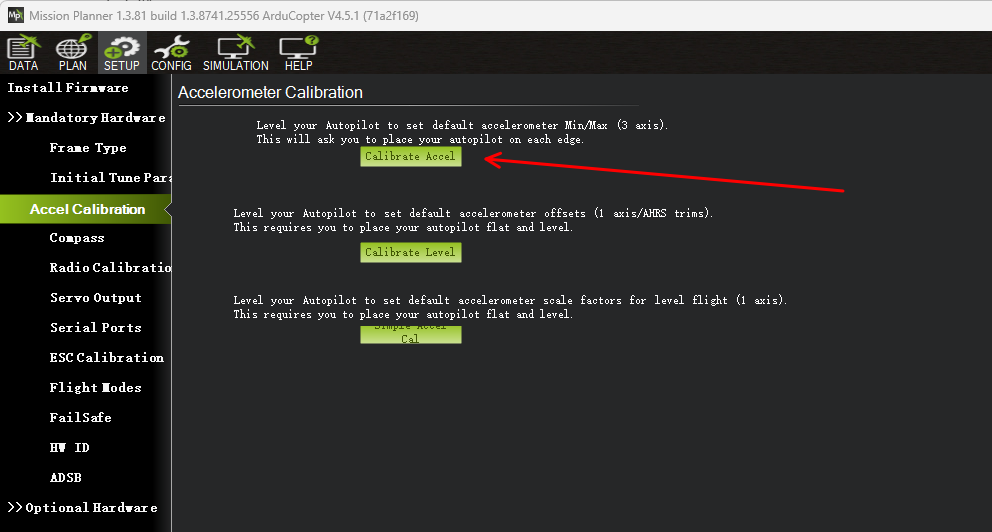
Open the accelerometer calibration page in Mission Planner and click Calibrate Accel:
Place the aircraft level and click Click when Done:
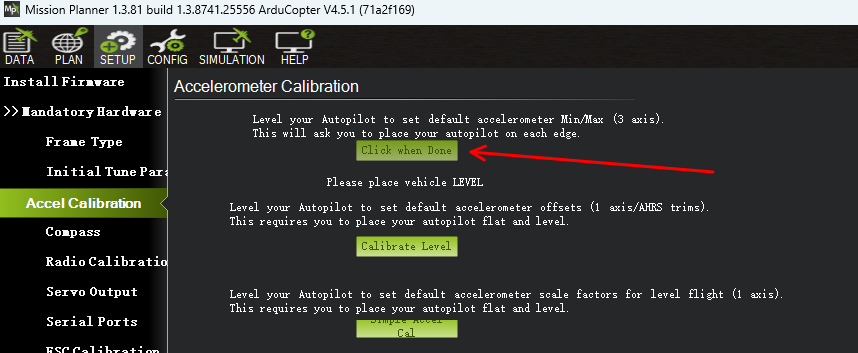
Then follow the on-screen prompts and hold the aircraft still in each remaining orientation: left side down, right side down, nose down, tail down, and upside down. Click Click when Done after each position. When calibration is complete, the interface displays Calibration successful.
The following image provides a clearer reference for this procedure:
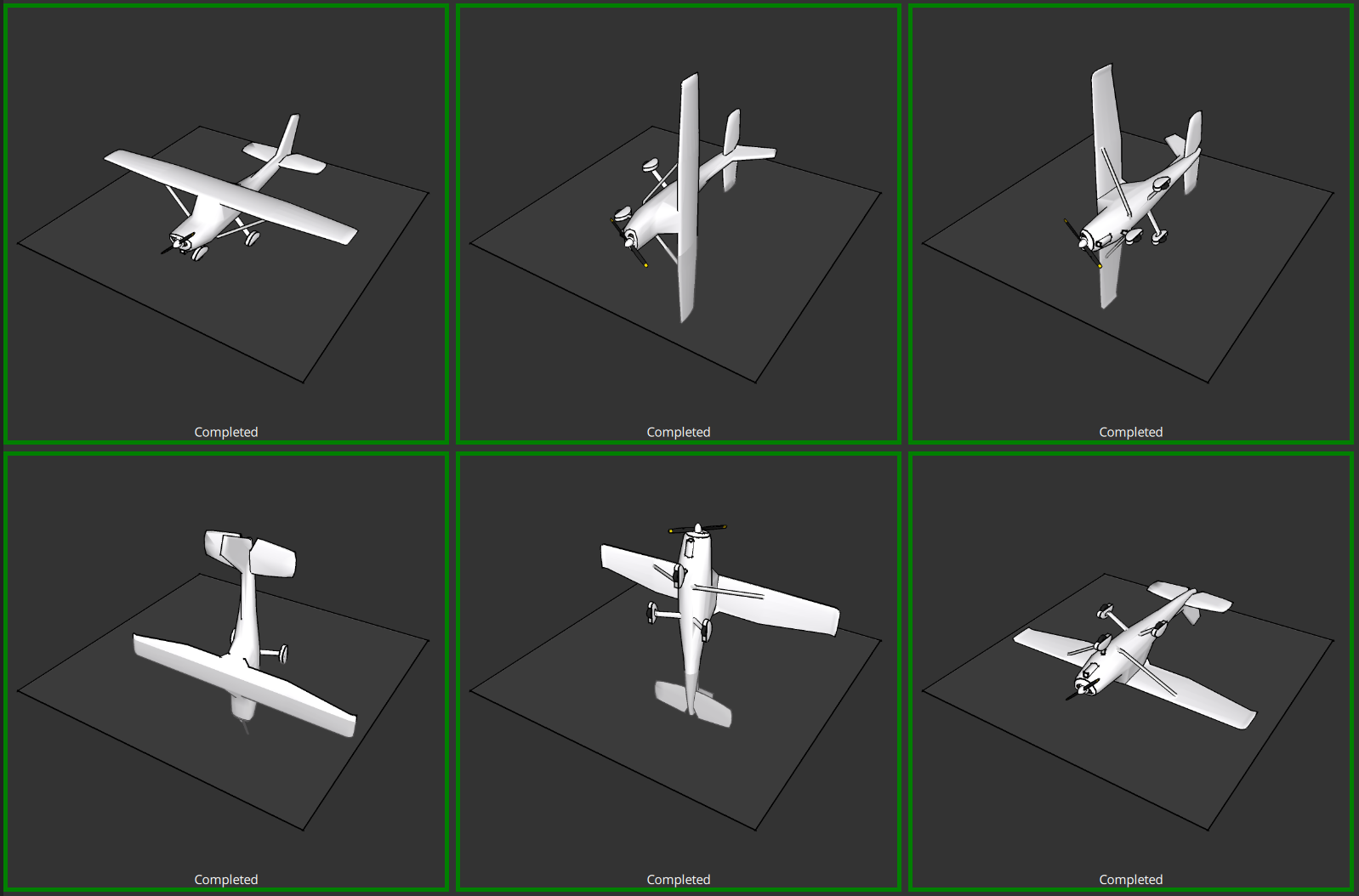
Because the aircraft is held still in 6 orientations during this process, it is also called six-position accelerometer calibration.
Calibrate the Compass
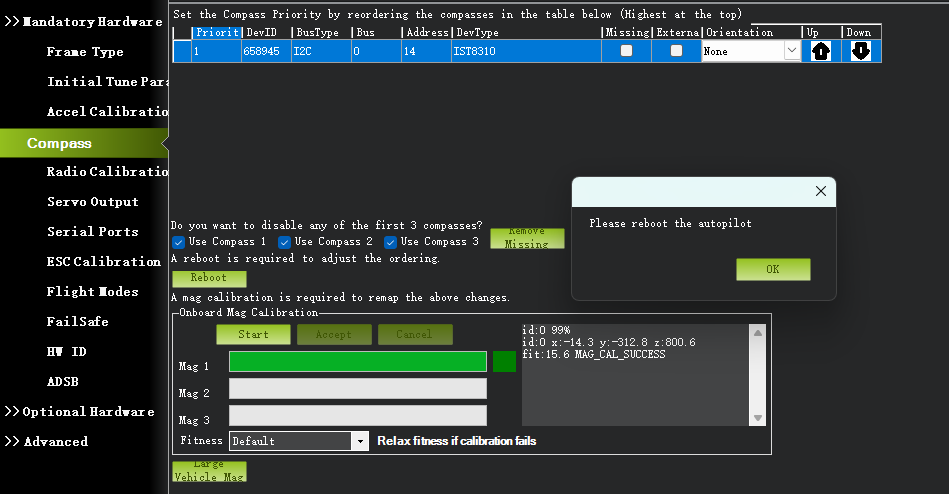
Open the compass calibration page in Mission Planner and click Start in the lower-left corner to begin compass calibration.
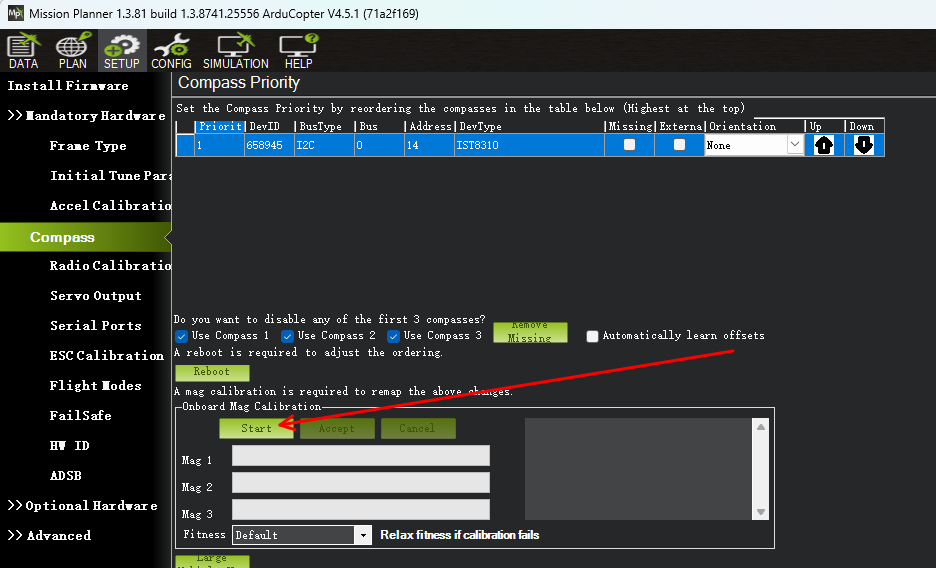
During compass calibration, move away from interference sources such as metal objects and magnets. Continuously rotate the aircraft around each axis, or move it through a figure-eight pattern in the air. The compass calibration progress bar updates in real time. When it reaches 100%, a successful calibration normally displays MAG_CAL_SUCCESS, and a message prompts you to restart the flight controller.
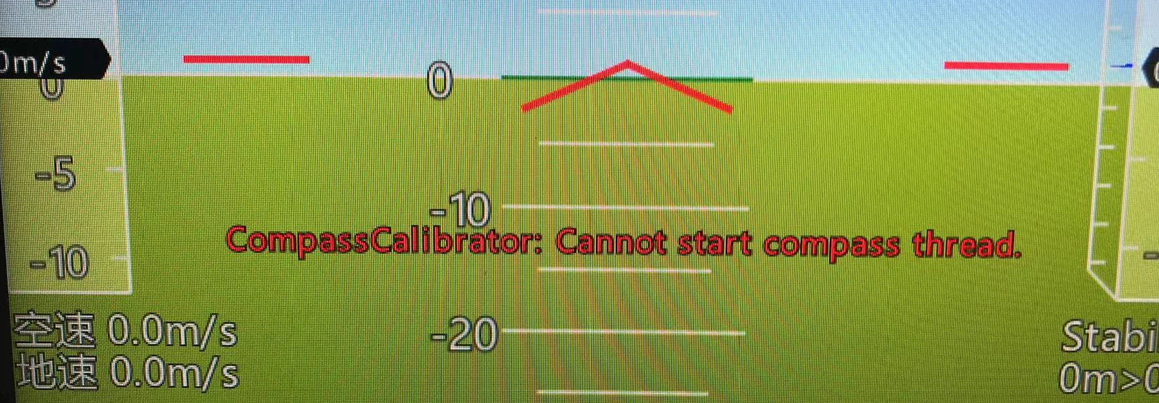
If clicking Start has no effect and the Mission Planner main window displays the message “CompassCalibrator: Cannot start compass thread,” set LOG_FILE_BUFSIZE = 8 in the parameter list, restart the flight controller, and run the compass calibration again.
Calibrate the Transmitter
First make sure the transmitter is powered on and properly bound to the receiver, and that the flight controller can detect the receiver signal correctly.
Reverse PITCH
Before calibration, verify that the PITCH channel is configured correctly. Move the PITCH stick fully down; the PITCH value in Mission Planner should reach its maximum, as shown below:
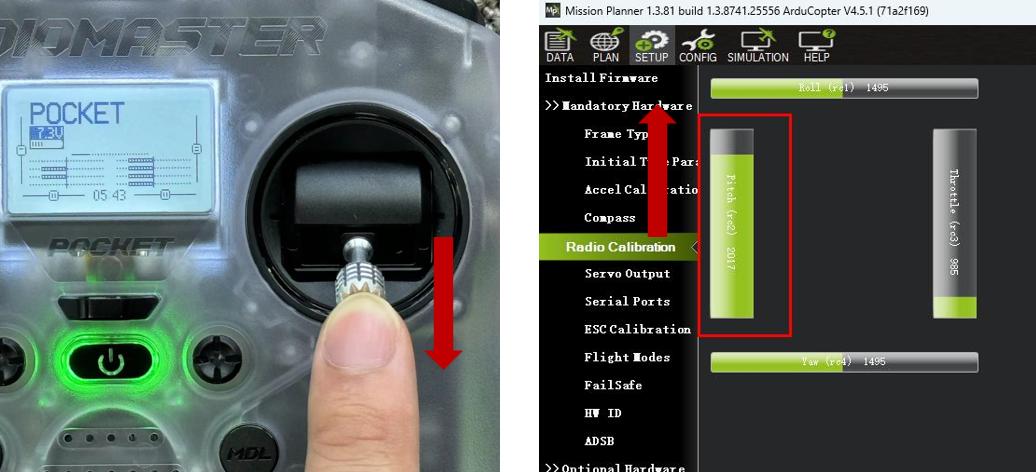
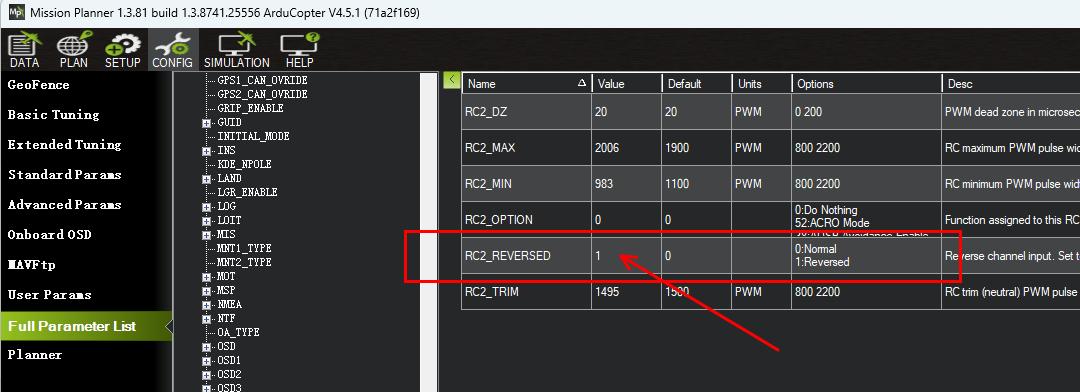
If it does not, reverse the PITCH (RC2) channel first: RC2_REVERSED = 1
Calibrate the Channels
On the Radio Calibration page, click Calibrate Radio to start transmitter channel calibration.
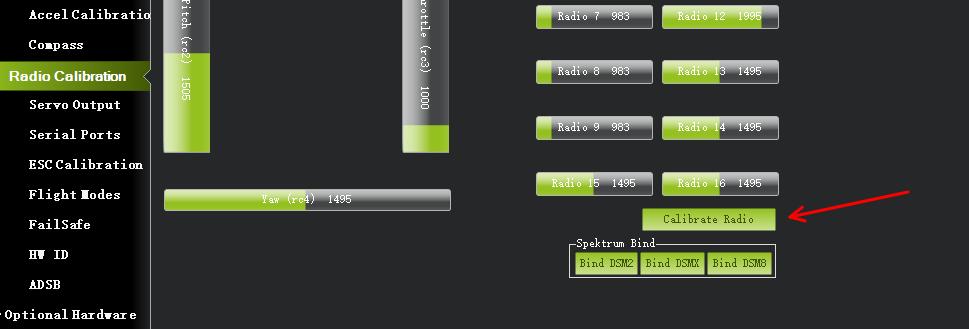
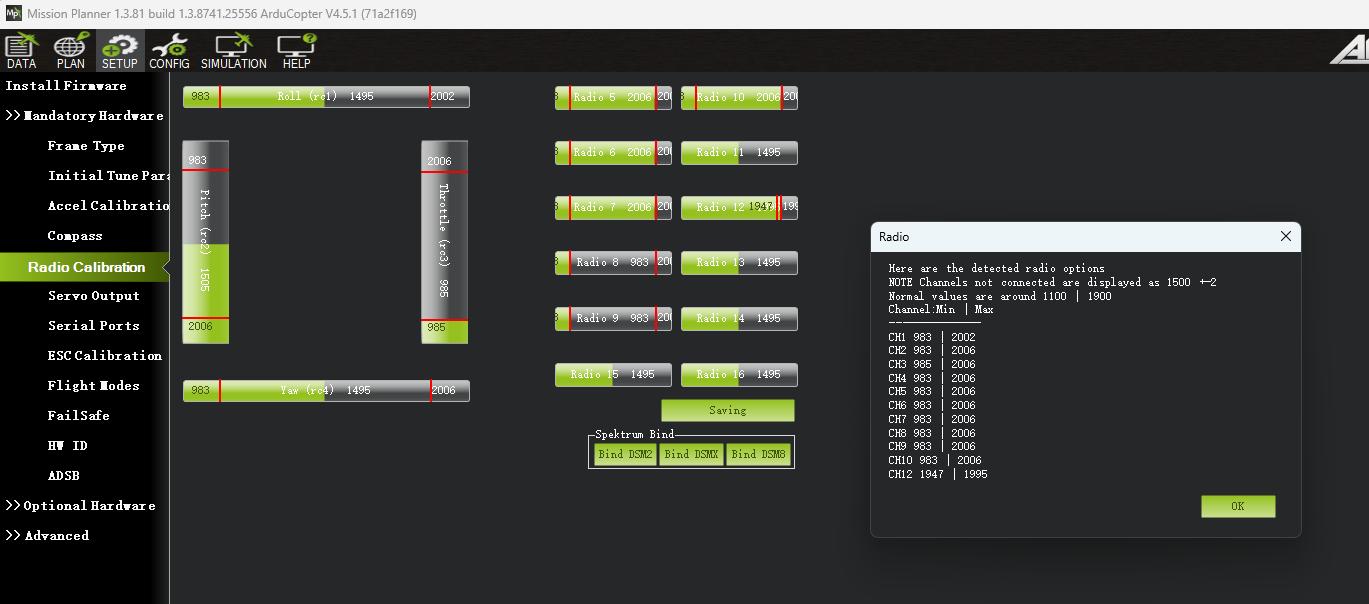
After calibration starts, move the transmitter sticks and channel controls to their full limits several times in every direction. When finished, click the completion button to end calibration.
Set Flight Modes
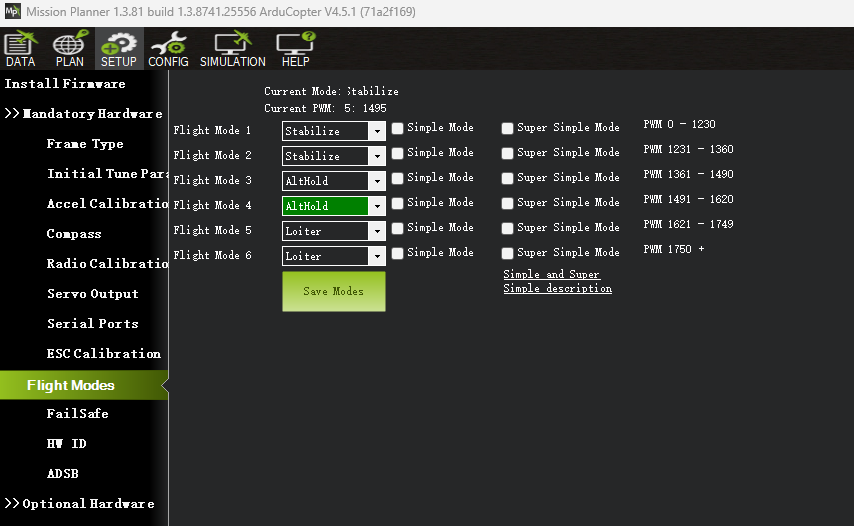
ArduPilot firmware uses Channel 5 to switch flight modes by default. Change the FLTMODE_CH parameter if you want to use another channel.
Open the Flight Modes setup page in Mission Planner. Here, you can assign flight modes to different channel values. A transmitter switch commonly has 3 positions, so three corresponding modes are generally configured.
Common flight modes:
- Stabilize: The basic self-leveling flight mode.
- AltHold: Altitude-hold mode. The throttle stick directly controls altitude, and the aircraft maintains its altitude when the throttle stick is centered.
- Loiter: A position-hold mode that requires a sensor capable of providing horizontal-position information, such as GPS, optical flow, or vision.
- PosHold: Another position-hold mode.
- Acro: Manual mode. The pilot directly controls the aircraft's angular rates, and the attitude does not automatically return to level. This mode requires advanced piloting skills.
Arming Checks
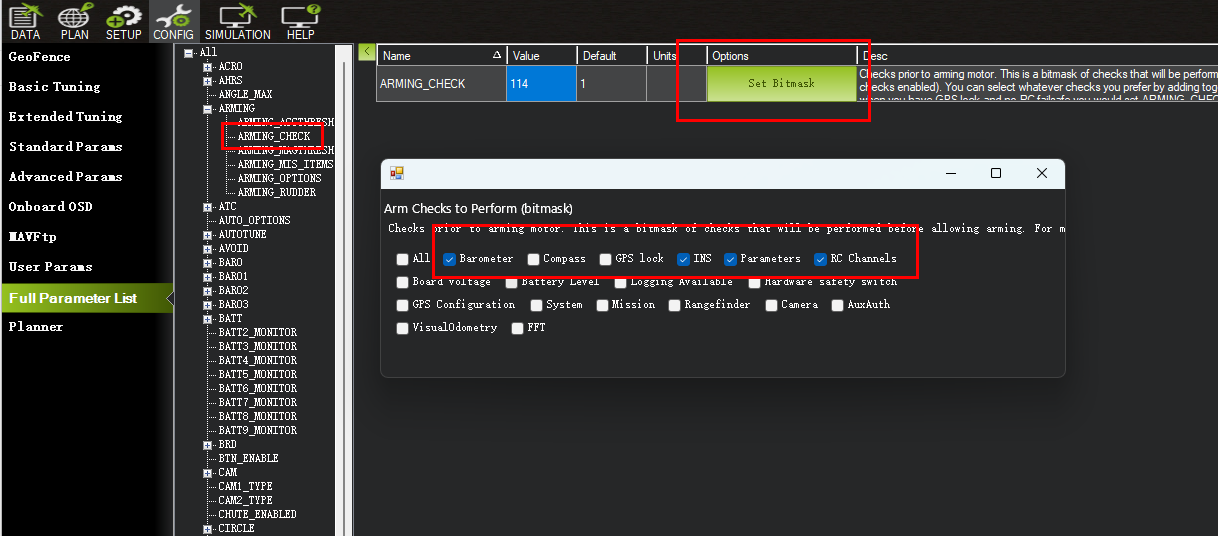
Before the first flight, configure the arming-check parameters. During testing, the flight controller will otherwise be very likely to refuse arming. All arming checks are enabled by default, and satisfying every check at once can be difficult.
Find the ARMING_CHECK parameter in Mission Planner's full parameter list and click Set Bitmask to configure it.
It is generally recommended to select only the essential checks, such as Barometer and INS.
Arm and Fly
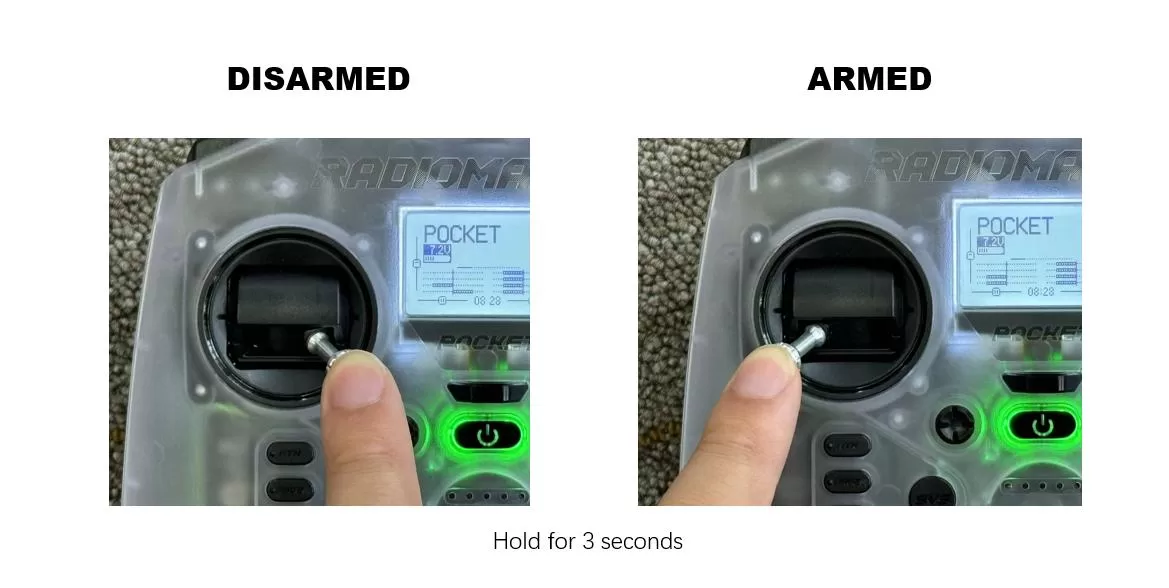
By default, ArduPilot arms when the throttle stick is held in the lower-right corner for 3 seconds. Likewise, it disarms when the throttle stick is held in the lower-left corner for 3 seconds, provided that the aircraft is on the ground.