
Docs directory
Table of contents
Changing PX4 MAVROS Topic Message Rates
Method 1: Change a MAVROS Topic Rate with a Live Command
1. Connect the Flight Controller
Connect the MicoAir743 flight controller to the computer over USB.
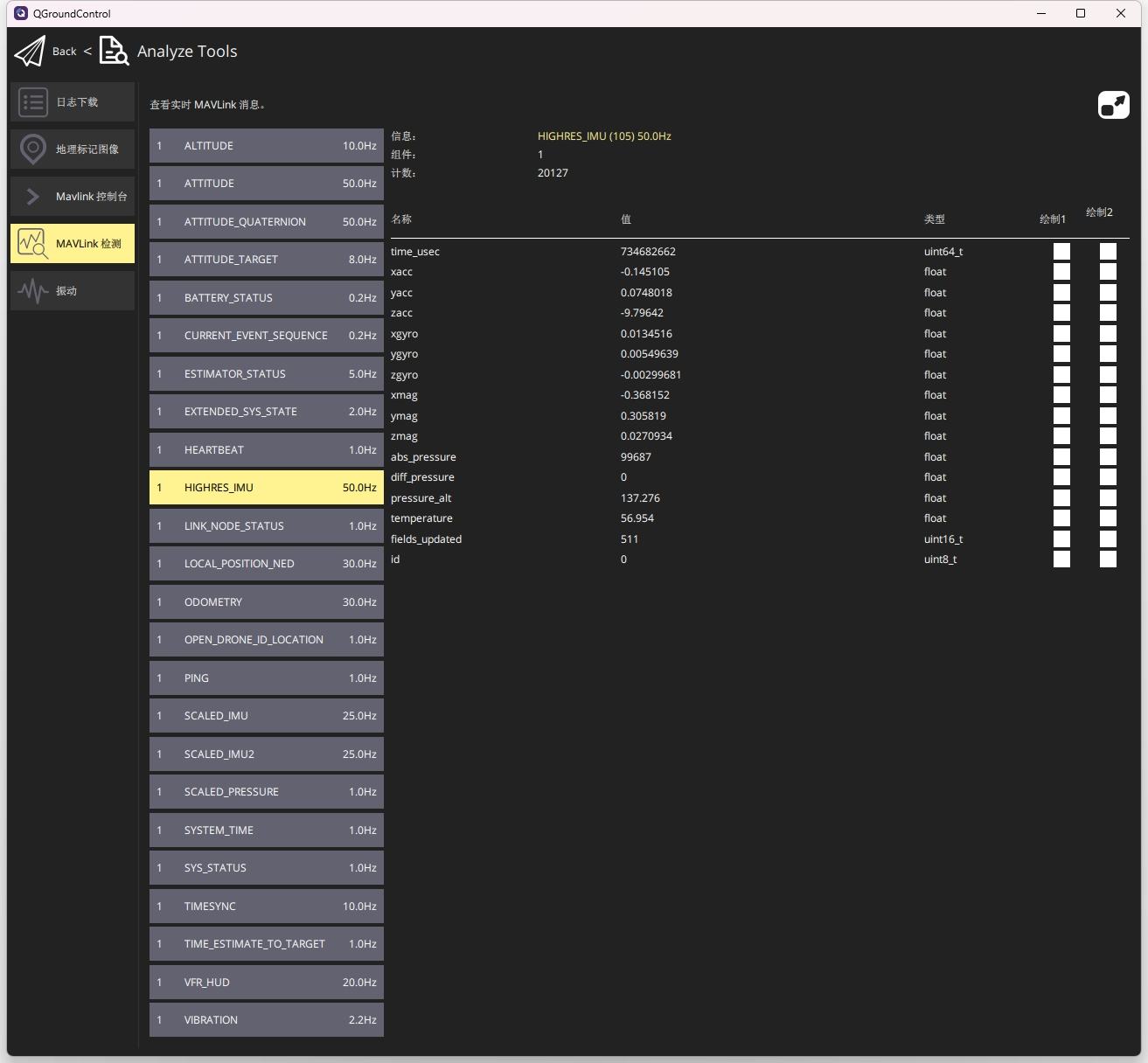
2. Check the Current MAVROS Topic Rate
In QGroundControl, open Analyze Tools → MAVLink Inspector.
3. Enter the Rate Command
Open Analyze Tools → MAVLink Console in QGroundControl and enter:
mavlink stream -d /dev/ttyACM0 -s HIGHRES_IMU -r 100
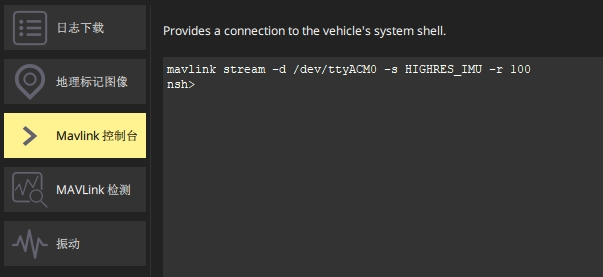
ttyACM0identifies the USB port.HIGHRES_IMUidentifies the MAVROS topic whose rate will be changed.100specifies the transmission rate.- The command configures
HIGHRES_IMUdata to be sent through USB at 100 Hz.
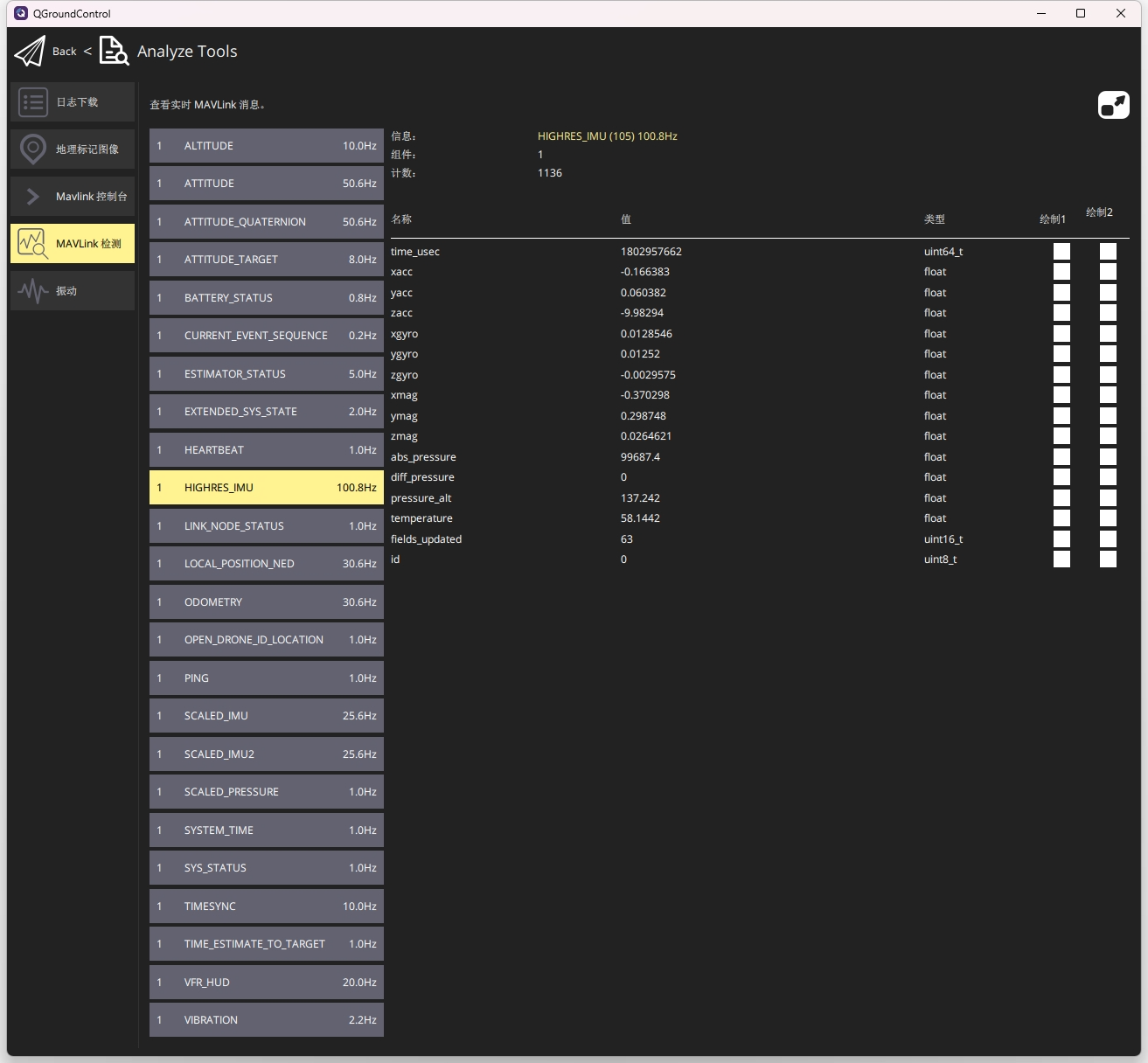
4. Verify the New Topic Rate
Notes:
- Refer to the flight-controller manual for hardware serial-port numbering. For example,
TELEM1isttyS0on MicoAir743 andttyS1on NxtPX4v2. - When using a serial port, configure that port for
Onboardmode. - The actual transmission rate is limited by flight-controller performance and data-link bandwidth and may be lower than the requested rate. If the measured rate does not reach the configured value, reducing
IMU_GYRO_RATEMAXmay improve the achievable output rate. - Settings applied with Method 1 return to the default rate after the flight controller restarts and must then be entered again.
- The specified port must already be running. The command fails if the port has not started.

Method 2: Set a MAVROS Topic Rate Offline with a microSD Card
1. Add a File to the Flight Controller's microSD Card
Create /etc/extras.txt on the card and add:
mavlink start -d /dev/ttyACM0 -b 921600
mavlink stream -d /dev/ttyACM0 -s HIGHRES_IMU -r 200
2. Reinsert the microSD Card
The flight controller executes the commands in this file once during startup.
3. Verify the Result
In QGroundControl, open Analyze Tools → MAVLink Inspector.
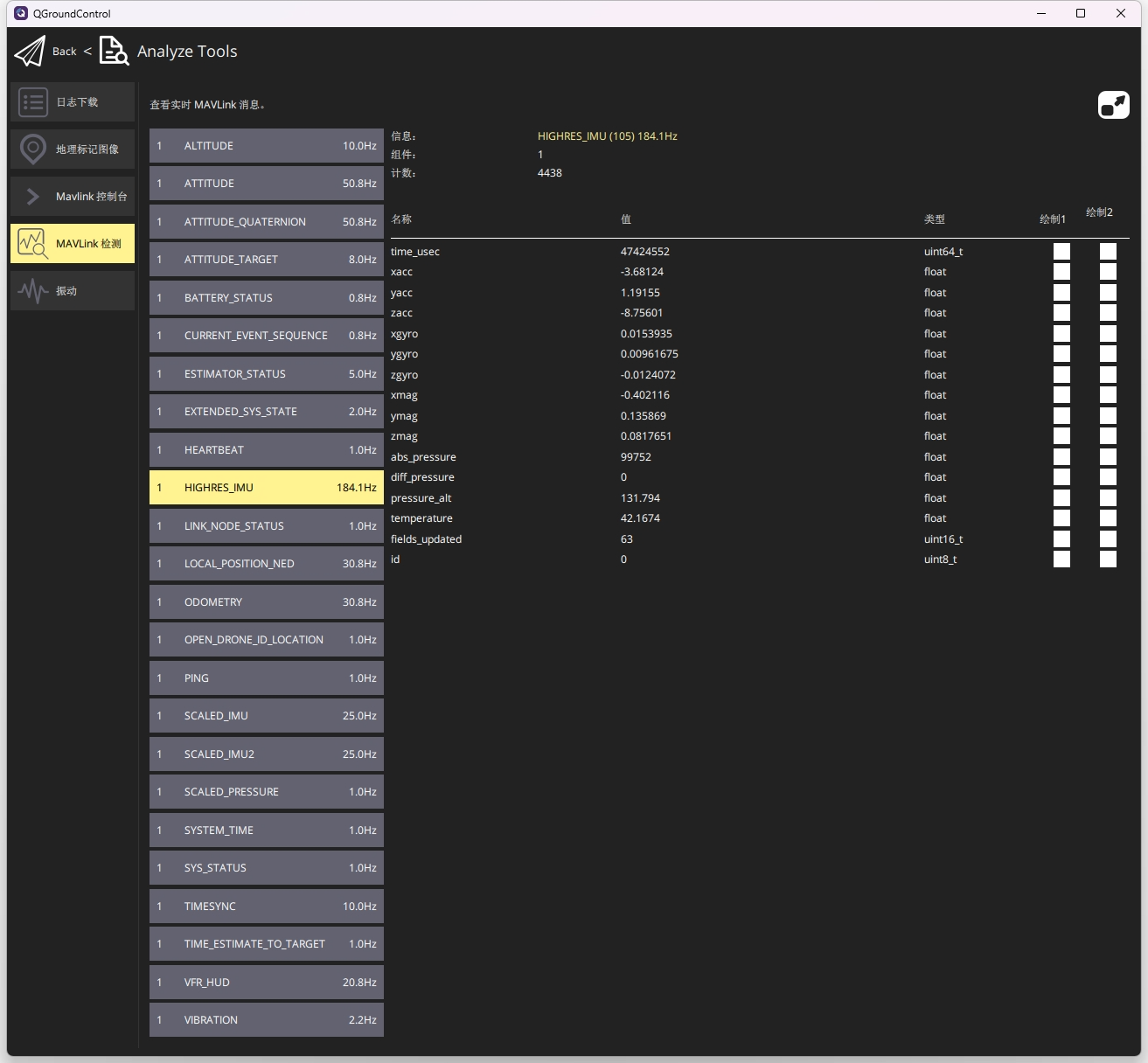
The setting is active in this example, but the flight-controller hardware limits the actual HIGHRES_IMU rate to approximately 185 Hz. In normal use, select a rate that the hardware and link can sustain. If the actual rate remains below the requested value, reducing IMU_GYRO_RATEMAX may improve the achievable output rate.
Notes:
- After power-up, the USB port starts only when a computer or onboard computer is connected. If the flight controller starts before USB is connected, the command can fail when the startup file is executed, and the topic rate will not be applied.
- A configured serial port starts when the flight controller powers up, whether or not an external device is connected, allowing the command to run during startup.
Method 3: Change the Default MAVROS Topic Rate in PX4 Source
The board configurations for MicoAir743 and NxtPX4v2 are included in the official PX4-Autopilot repository, so their firmware can be customized and rebuilt.
1. Download the Source and Prepare the Build Environment
See the official PX4 development guide: https://docs.px4.io/main/en/development/development.html
2. Modify the Source
Edit mavlink_main.cpp under /src/modules/mavlink.
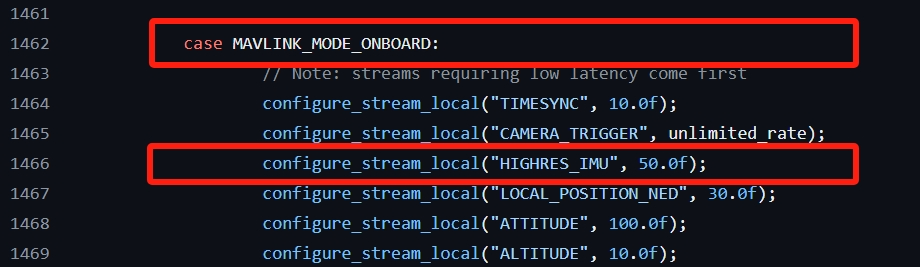
- To receive MAVROS topic data over a serial port, edit the relevant topic entry under
MAVLINK_MODE_ONBOARD. The number after the topic specifies its default transmission rate.
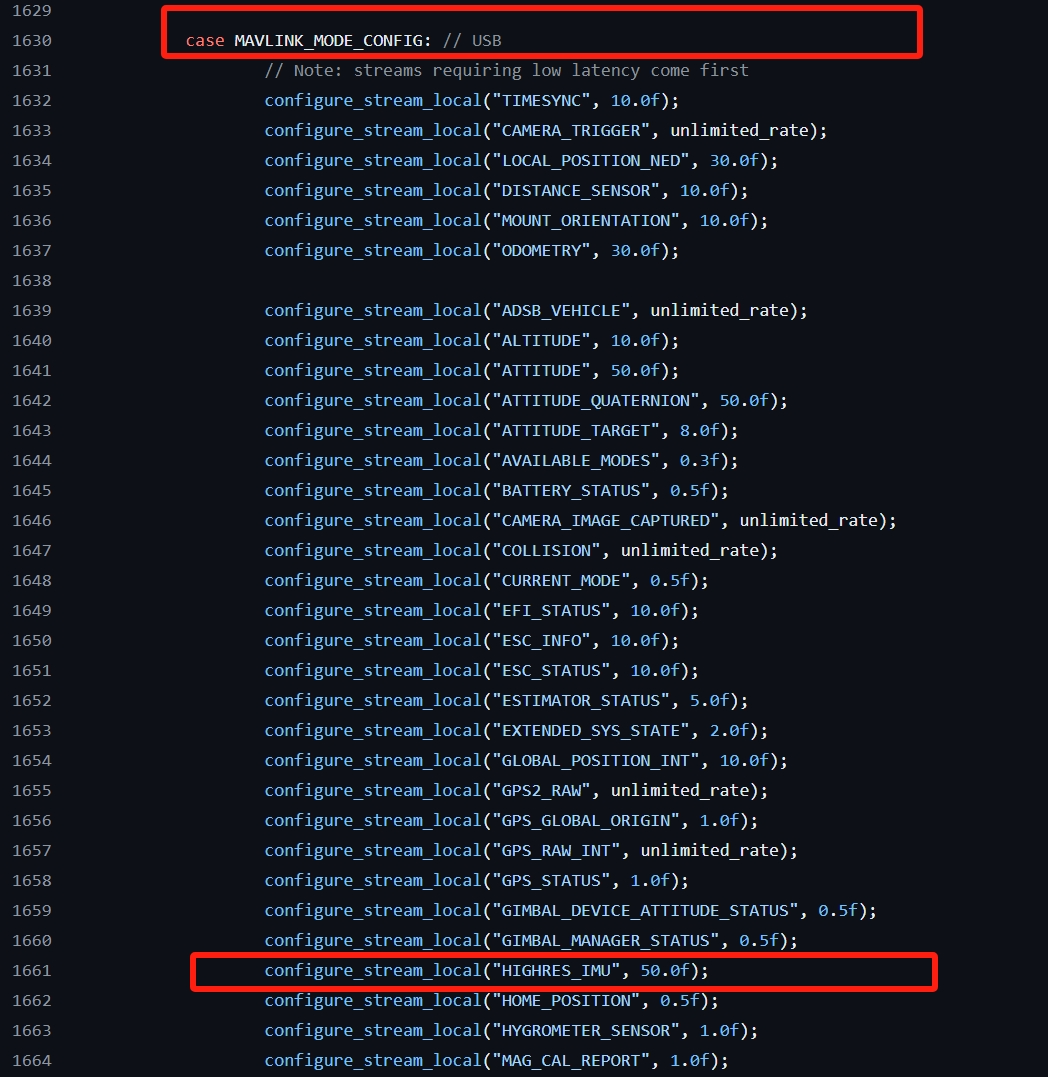
- To receive MAVROS topic data over USB, edit the relevant topic entry under
MAVLINK_MODE_CONFIG. The number after the topic specifies its default transmission rate.
3. Build the Required Firmware
Build PX4 firmware for MicoAir743:
make micoair_h743_default
Build PX4 firmware for NxtPX4v2:
make hkust_nxt-dual_default
4. Flash the Rebuilt Firmware with QGroundControl
5. Set HIGHRES_IMU to the Required Rate and Verify It
The following example sets the rate to 150 Hz in the source and verifies the result in QGroundControl.