

Docs directory
Table of contents
Configuring MicoAir Telemetry Radios for ArduPilot
The following instructions assume the default MicoAir telemetry-radio configuration: 57600 baud, full-duplex operation, and automatic pairing at power-up. A solid green LED indicates that the two radios are linked.
Download Mission Planner from the official website
Step 1: Connect the Telemetry Radio to the Flight Controller
Connect one MicoAir telemetry radio to a telemetry port on the ArduPilot flight controller, normally TELEM1/SERIAL1. Another available serial port may also be used because ArduPilot allows the function of each serial port to be configured. Cross the data lines: connect telemetry-radio RX to flight-controller TX, and telemetry-radio TX to flight-controller RX.
On a Pixhawk 2.4.8 or Pixhawk 6 flight controller, the cable supplied with the telemetry radio can be connected directly.
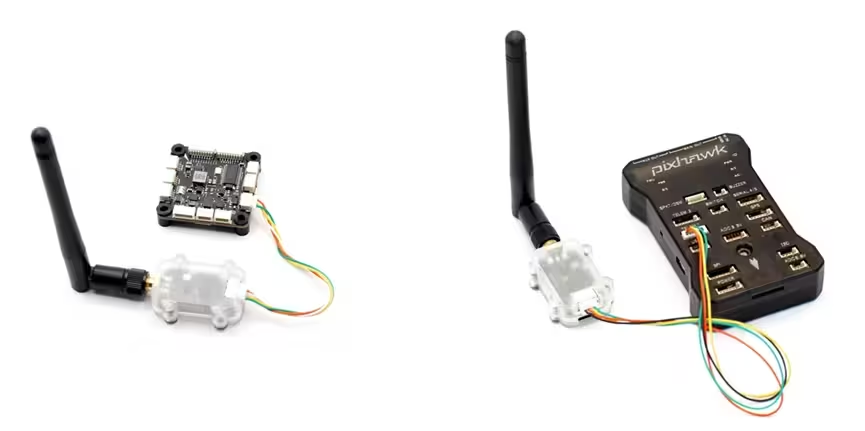
Important: The connector pinouts of the LR900 and LR24 series are different. Confirm the pinout in the relevant product manual before connecting the radio:
Step 2: Configure the Flight Controller
Connect the flight controller to the computer over USB, open Mission Planner, and connect to the flight controller.
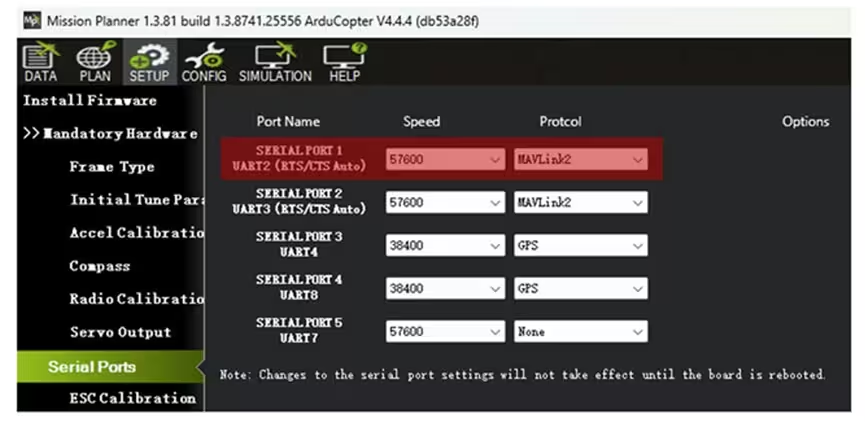
When the telemetry radio is connected to TELEM1/SERIAL1, open Full Parameter Tree, find the SERIAL1 parameters, and set:
SERIAL1_BAUD = 57(57600 baud)SERIAL1_PROTOCOL = 2(MAVLink 2)
Mission Planner 1.3.81 or later also allows these port parameters to be configured directly under SETUP → SerialPorts.
Step 3: Connect the Other Telemetry Radio to the Computer
Connect the second telemetry radio to the computer with a USB Type-C data cable. In their default configurations, LR900 and LR24 radios do not have separate air-side and ground-side roles.
A driver must be installed before first use. For CP2102 driver installation on Windows, see:
CP2102 Driver Installation Guide (Windows)
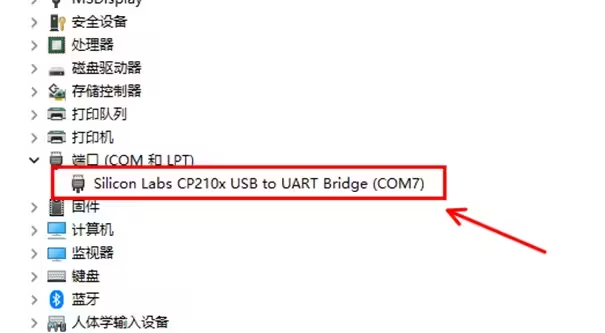
After the driver is installed, Windows Device Manager displays the CP210x device and its assigned port under Ports (COM & LPT). The example below uses COM7.
Step 4: Connect Mission Planner through the Telemetry Link
Open Mission Planner. In the upper-right corner, select the telemetry radio's COM port, choose 57600 as the baud rate, and click CONNECT.
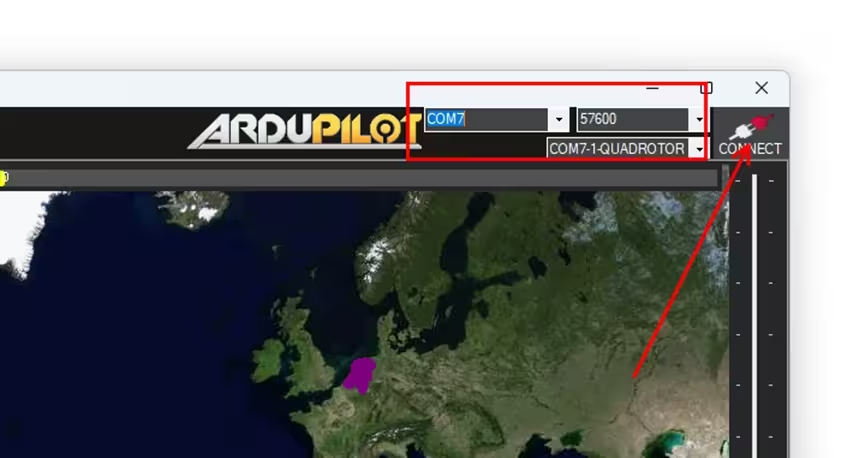
If the configuration is correct, Mission Planner connects and begins loading flight-controller parameters. This normally completes within a few seconds.
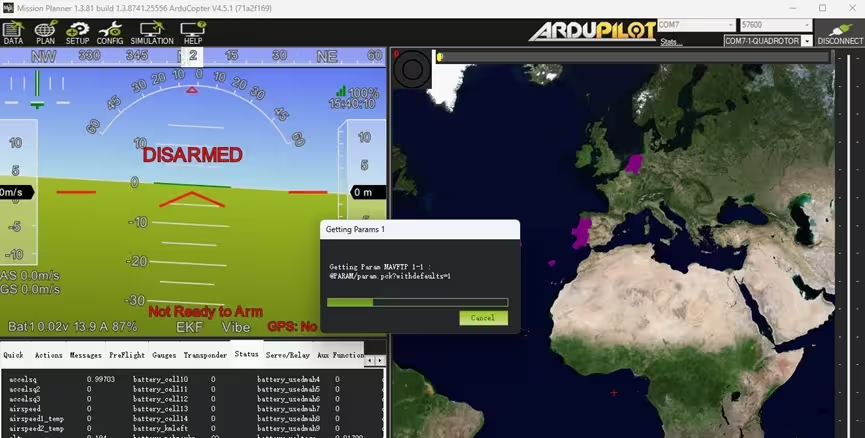
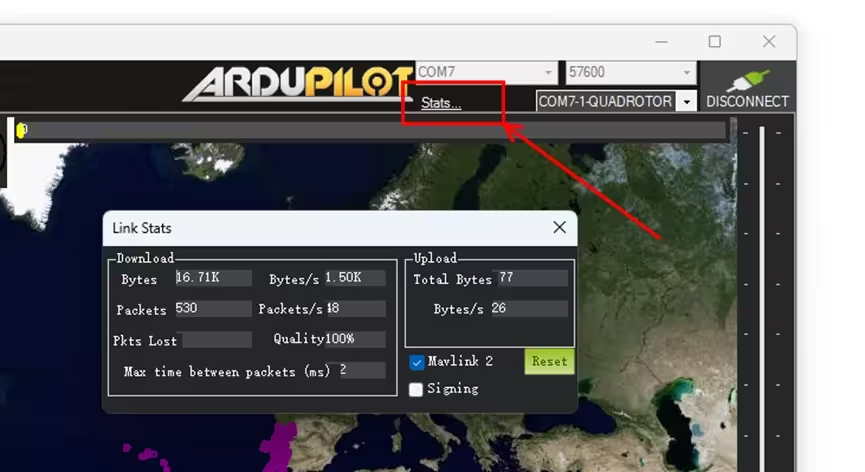
After the connection is established, click Link Status in the upper-right corner to inspect the downlink data rate—normally about 1–2 KB/s with default parameters—and communication quality, including packet loss.
Troubleshooting
1. The Telemetry Link Is Slow or Has High Latency
A typical symptom is that the attitude indicator responds several seconds after the aircraft is moved. This occurs when the flight controller sends more data than the telemetry link can carry.
In its default mode, the LR900-F supports an uplink rate of up to 2.1 KB/s; in FHSS mode, its downlink rate can reach 3.2 KB/s. A typical ArduPilot flight controller with Mission Planner sends about 1 KB/s under default settings, which is within this limit. Some flight controllers with three onboard IMUs can generate considerably more telemetry and may therefore overload the link.
To reduce the telemetry load, open CONFIG → Planner in Mission Planner and change the Sensor telemetry-rate setting from the default value of 2 to 1.
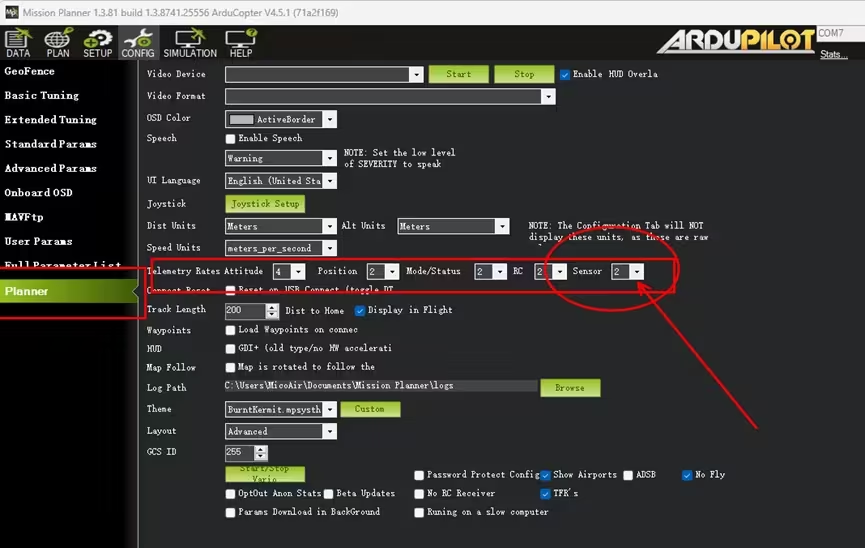
MAVLink routing can also increase the transmitted data volume. If another MAVLink device is connected to a different flight-controller serial port and routing is enabled, disable forwarding on that port by setting SERIALx_OPTIONS = 1024 (Don't forward).
2. Mission Planner Reports Low Link Quality at Short Range
This usually indicates congestion and packet loss because the telemetry volume exceeds the link bandwidth; it does not necessarily indicate weak radio signal strength. Apply the changes described above, or use MicoAssistant to select a higher-rate radio mode. For example, the LR24 ships in a low-rate mode optimized for longer range and can be changed to a medium-rate mode.
3. Mission Planner Receives Attitude Data but Stalls While Loading Parameters
If the parameter-loading progress bar does not move at all, the telemetry-radio TX to flight-controller RX path is not working. Check the wiring and the relevant flight-controller connector pins.
If the progress bar advances but does so very slowly, the data link is congested. Apply the bandwidth-reduction measures described in the first troubleshooting section.