

Docs directory
Table of contents
PX4 Configuration Guide
Introduction
The NxtPX4v2 is a compact, high-performance open-source flight controller based on an STM32H743VIH6 main processor and dual BMI088 IMUs. Its standard 20 × 20 mm mounting pattern fits most small FPV frames, making it well suited to research and university education.
PX4 officially supports the NxtPX4v2 under the board target hkust_nxt-dual.
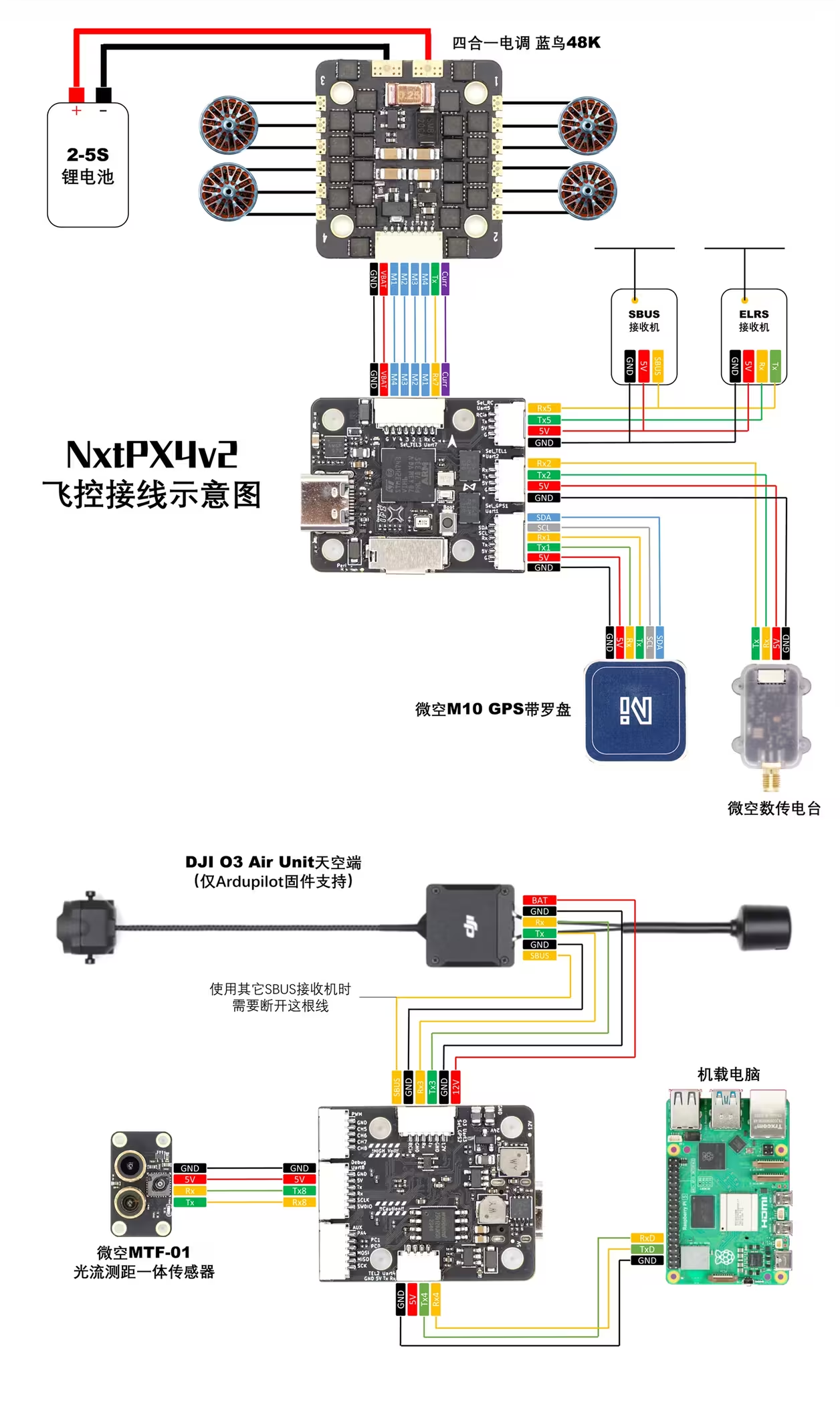
This guide uses the flight controller in a 3.5-inch ducted-frame build to show new users the complete process from wiring and assembly through PX4 parameter configuration, arming, and first flight.
Assembly
Build list
-
NxtPX4v2 flight controller (PX4 1.14.0 firmware)
-
MicoAir 6S 50 A 4-in-1 ESC (Bluejay 48K firmware)
-
3.5-inch frame
-
2004 1750 KV brushless motors
-
3.5-inch DT90 3-blade propellers
-
6S1P 3000 mAh VTC6 18650 battery pack
-
MicoAir TRS 2.4 GHz combined RC and telemetry receiver
-
MicoAir M10 GPS module with compass (M10G-5883)
Install the Motors and ESC
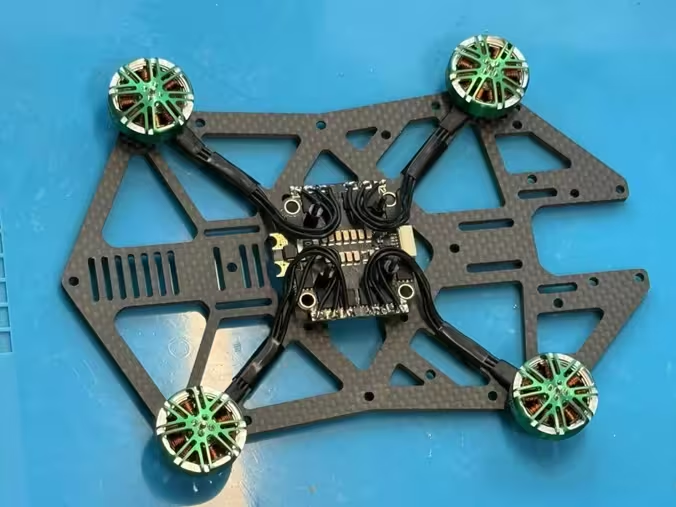
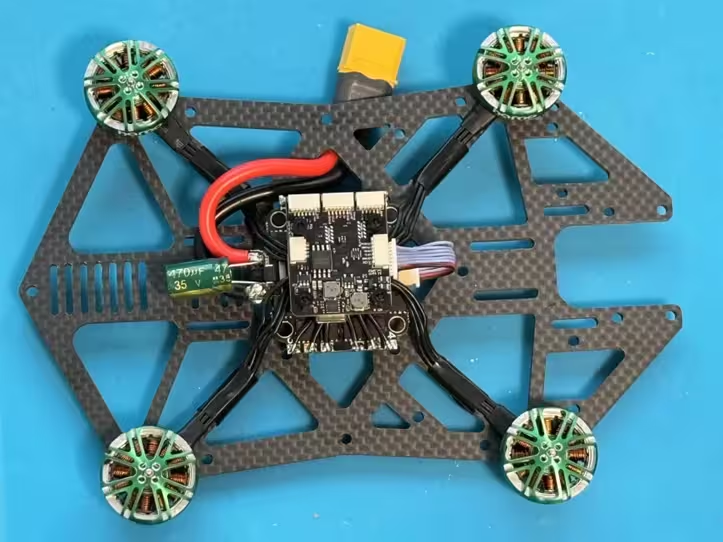
Secure the four motors in their corresponding positions on the frame, with all motor wires routed toward the center. Mount the 4-in-1 ESC using its 20 mm mounting holes. Orient the ESC so that its 8-pin connector faces the nose.
The ESC can be mounted with nylon standoffs or long M2 screws and M3-to-M2 rubber vibration dampers. After securing the motors and ESC, trim the motor wires to a suitable length and solder them to the ESC. The phase-wire order can be arbitrary because motor direction will be checked and corrected later.
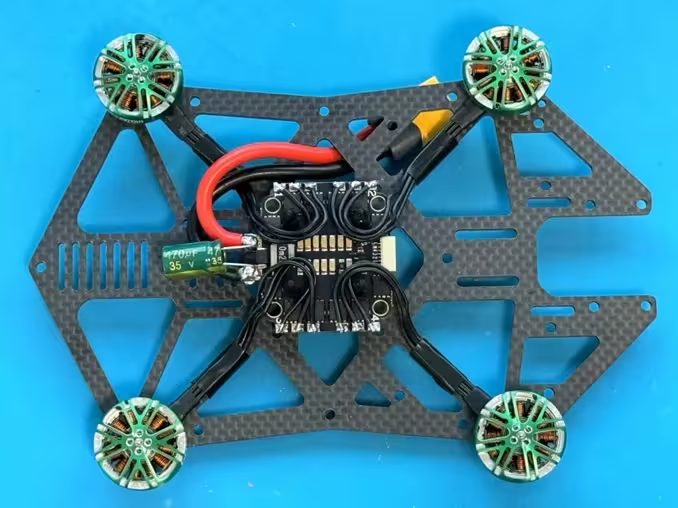
Solder the filter capacitor and power leads to the ESC.
Install the Flight Controller
Use the 8-pin cable supplied with the ESC to connect it to the NxtPX4v2 8-pin port. Important: The pin order differs between 4-in-1 ESC brands. When using another ESC, rearrange the cable to match both pin definitions. Incorrect wiring can place battery voltage directly on an I/O pin and immediately damage the flight controller.
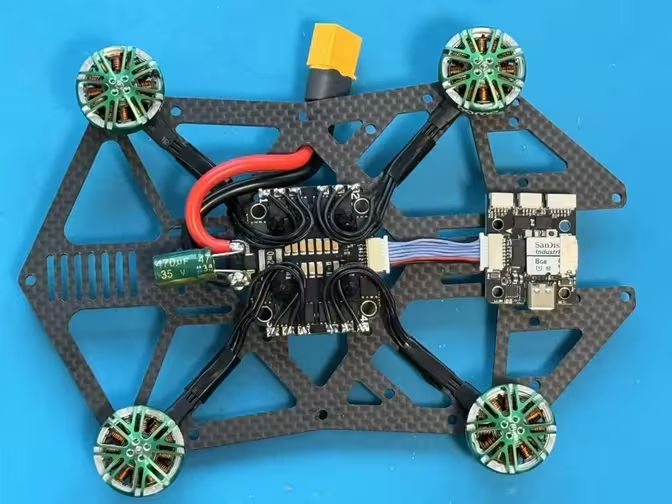
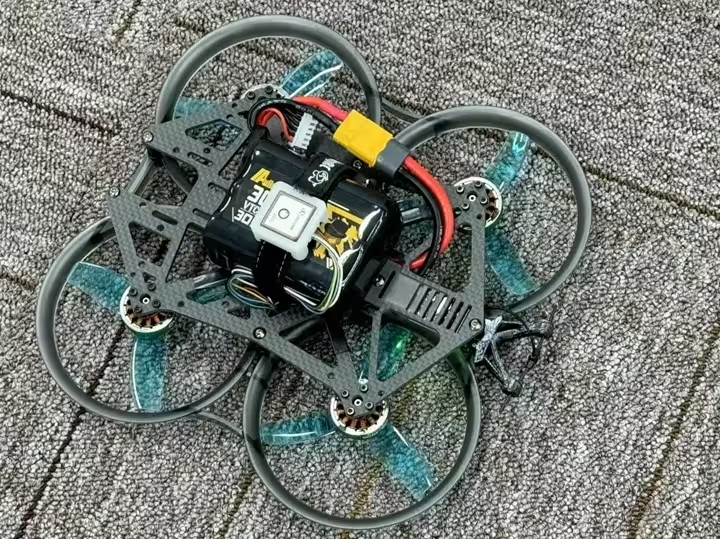
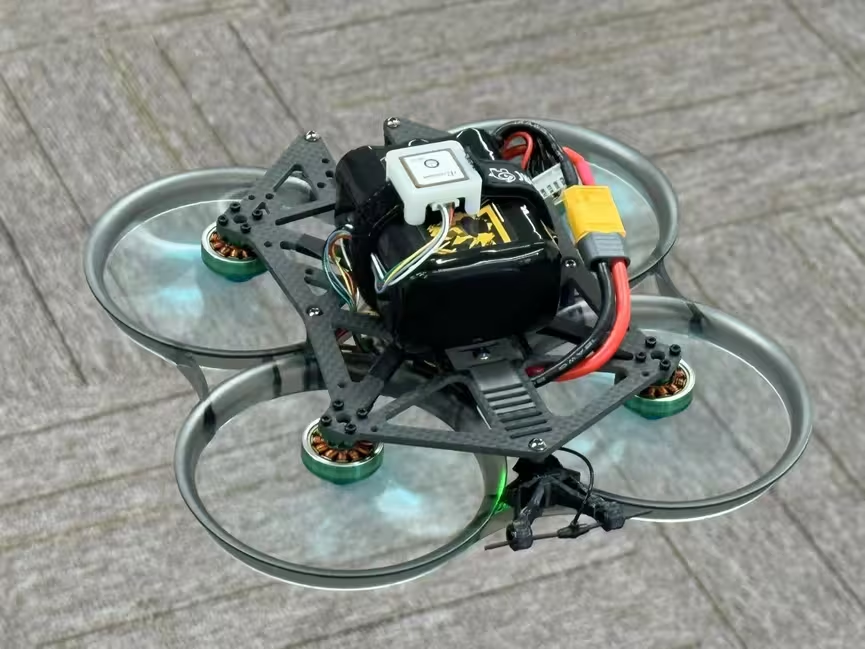
Mount the flight controller above the ESC using nylon standoffs or M3-to-M2 vibration dampers. The default orientation places the ESC connector toward the nose. Because this frame uses inverted motors, the flight controller appears reversed in the photograph.
A flight controller can be installed in any orientation if the board rotation is configured later in the ground station. New users should use the default orientation to avoid unnecessary configuration.
Test Motor Direction and Correct the Phase Wiring
Connect the battery, connect the flight controller to the computer over USB, and open QGroundControl. It should connect automatically. Open Vehicle Setup and use the Actuators page to configure and test the motors and ESCs.
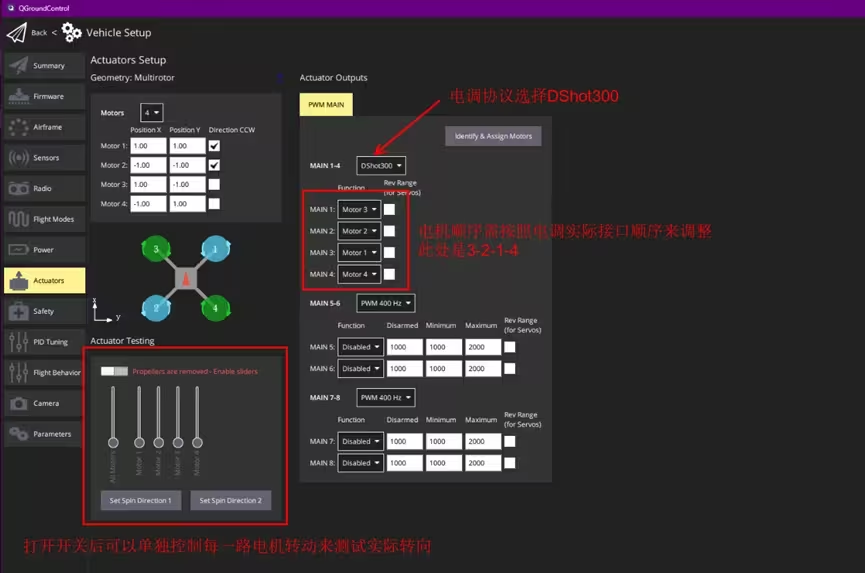
Select DShot300 as the ESC protocol. BLS, BL32, Bluejay, and similar ESC firmware support DShot300; BLS does not support DShot600. This protocol is therefore recommended.
DShot is a digital protocol and transfers values precisely. Unlike traditional analog PWM, it does not require ESC calibration. The flight controller may need to be restarted after changing the protocol.
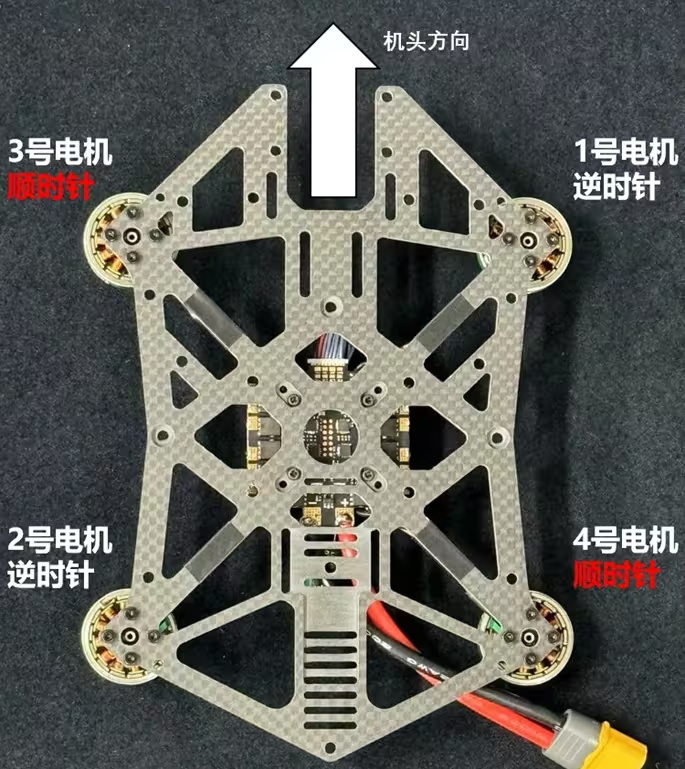
Map the physical ESC outputs to the logical motor order. This build uses 3-2-1-4, but the required order varies by ESC and wiring.
The lower-left area of the Actuators page can run each motor individually to verify order and direction.
Remove all propellers before enabling motor testing. After enabling the safety switch, test motors 1–4 individually. If a motor turns in the wrong direction, disconnect power and swap any two of its three phase wires at the ESC.
Install the Receiver and GPS
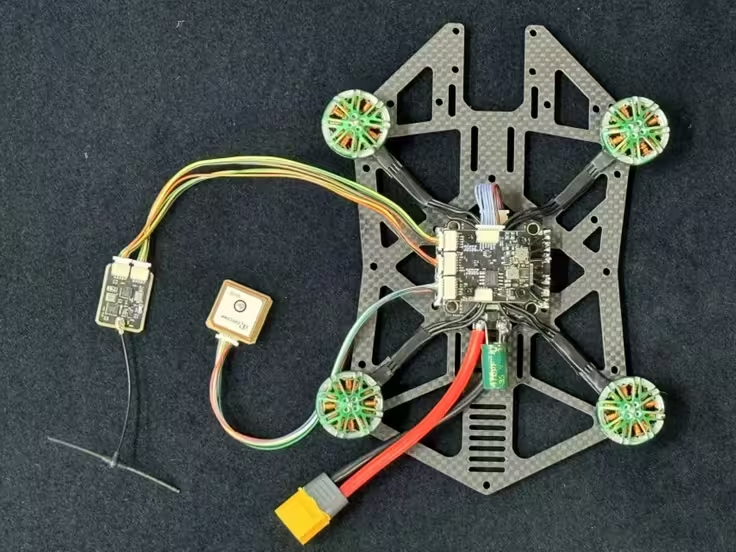
Use the supplied 6-pin cable to connect the GPS module to the flight controller's 6-pin GPS connector. Use the supplied 4-pin cable to connect the TRS receiver's SBUS output to the RC connector. Because the TRS combines RC and telemetry, use another 4-pin cable to connect its telemetry port to TELEM1 or TELEM2.
Install the Frame Duct and Propellers
Install the outer duct, then secure the receiver and GPS in suitable locations. This example uses custom-designed printed mounts.
Place the battery on the top of the frame and secure it with a strap. Additional equipment such as an onboard computer can also be installed above the frame.
Propellers are made for clockwise or counterclockwise rotation. Install each one on the matching motor so that airflow is always directed downward.
Basic PX4 Configuration
When configuring external sensors, including the receiver, connect the aircraft battery first. Otherwise, the flight controller may not provide 5 V power to the external modules.
Receiver and Channel Configuration
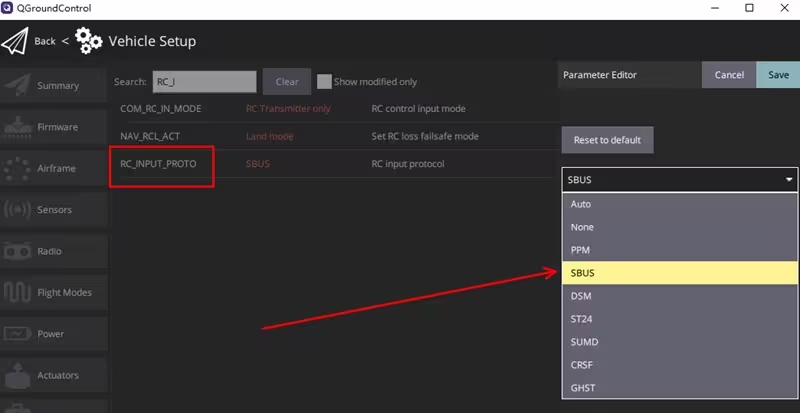
Find RC_INPUT_PROTO on the QGroundControl Parameters page and set it to SBUS. For another receiver type such as ELRS, select CRSF. AUTO can also be used to let the flight controller detect the receiver protocol.
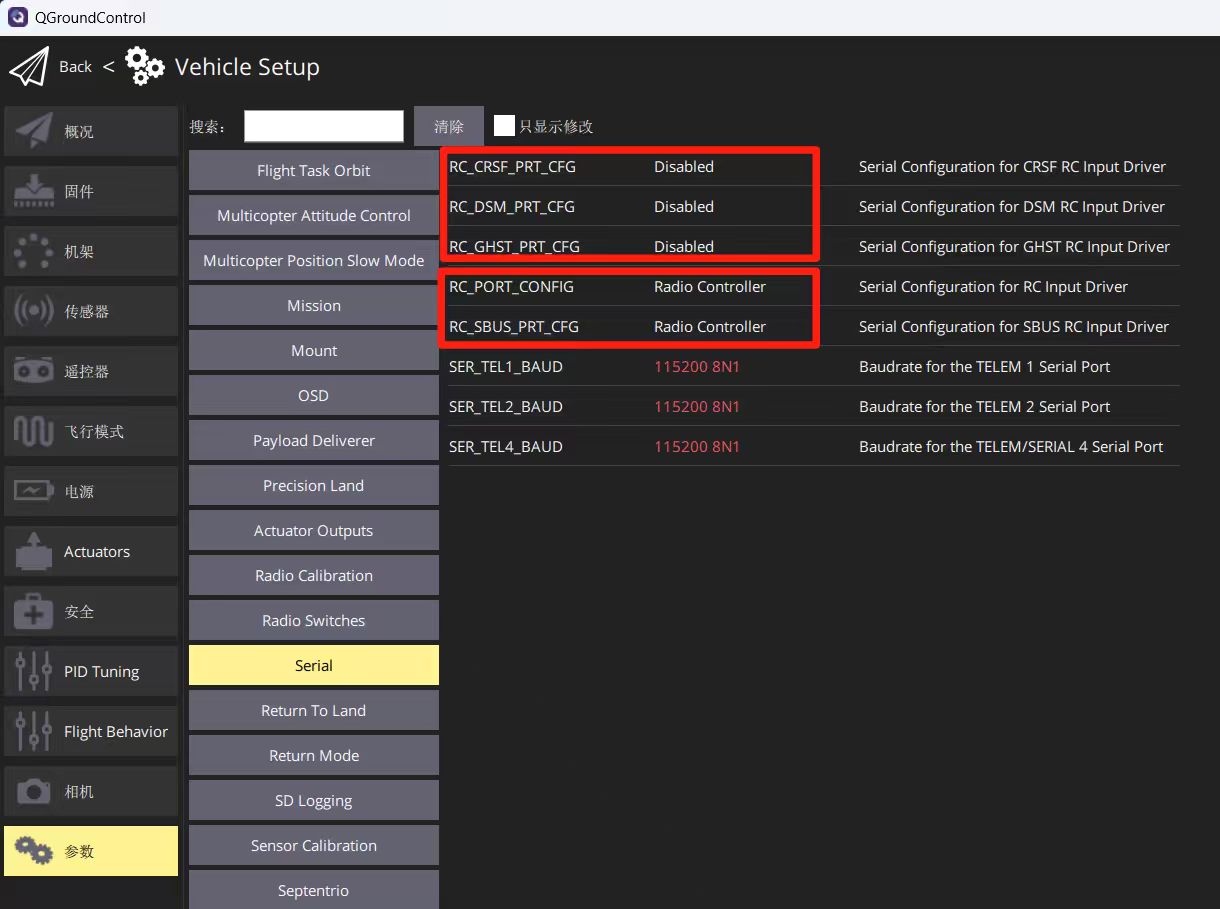
In PX4 1.15.x and later, also assign RC_SBUS_PRT_CFG or RC_CRSF_PRT_CFG to the applicable port, normally the default Radio Controller. Only one may be assigned; set the others to Disabled, as shown below.
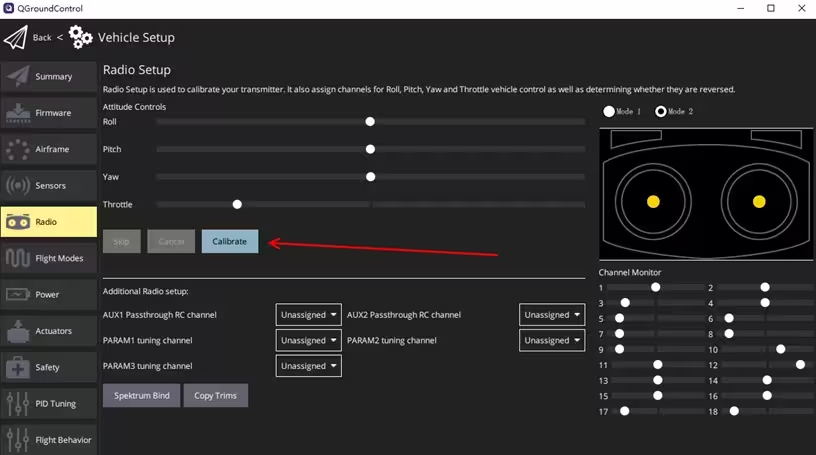
Restart the flight controller. When the receiver is powered and bound to the transmitter, channel values should appear on the Radio page. On first use, click Calibrate and follow the ground-station instructions to calibrate the radio.
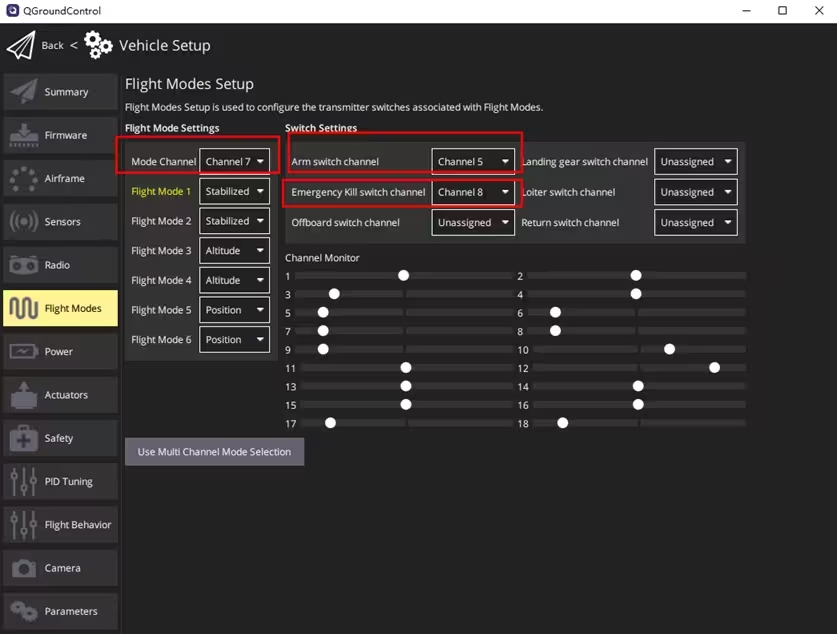
On the Flight Modes page, map Mode Channel to a three-position switch. The switch can then select 3 flight modes such as Stabilized, Altitude, and Position.
Map Arm switch channel to a two-position switch for arming and disarming. For initial testing, also configure Emergency Kill switch channel so the flight controller can be forced to disarm in an emergency.
GPS and Compass Configuration
The NxtPX4v2 factory defaults enable GPS. PX4 normally detects the sensor automatically when the GPS is connected and powered correctly.
Enable the compass manually:
-
SYS_HAS_MAG = 1 -
EKF2_MAG_TYPE = Automatic
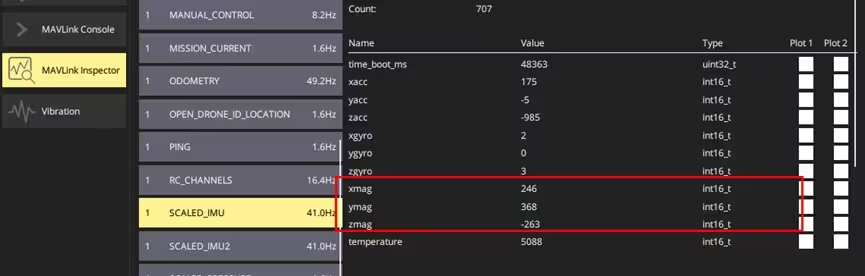
Open Analyze Tools → MAVLink Inspector. Three-axis compass data should update in the SCALED_IMU message.
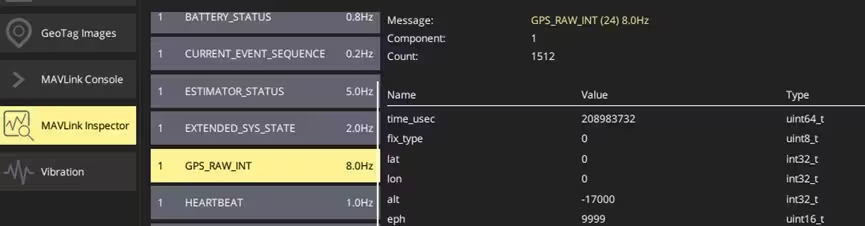
A GPS_RAW_INT message indicates that the GPS has also been detected.
When factory defaults are not in use, verify these parameters:
-
SYS_HAS_GPS = Enabled -
SYS_HAS_MAG = 1 -
EKF2_MAG_TYPE = Automatic -
GPS_1_CONFIG = GPS 1 -
GPS_1_PROTOCOL = u-blox -
SER_GPS1_BAUD = Auto
Flight Controller and Compass Orientation
On the QGroundControl Sensors page, select Orientations to configure flight-controller and external-compass orientation. Onboard-compass orientation cannot be changed.
This build uses the default flight-controller orientation, so retain ROTATION_NONE. If the board was installed in another orientation, select the corresponding rotation.
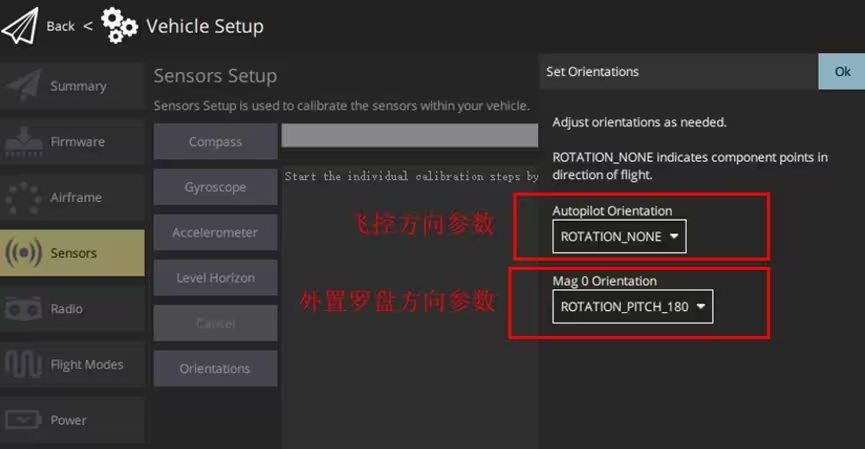
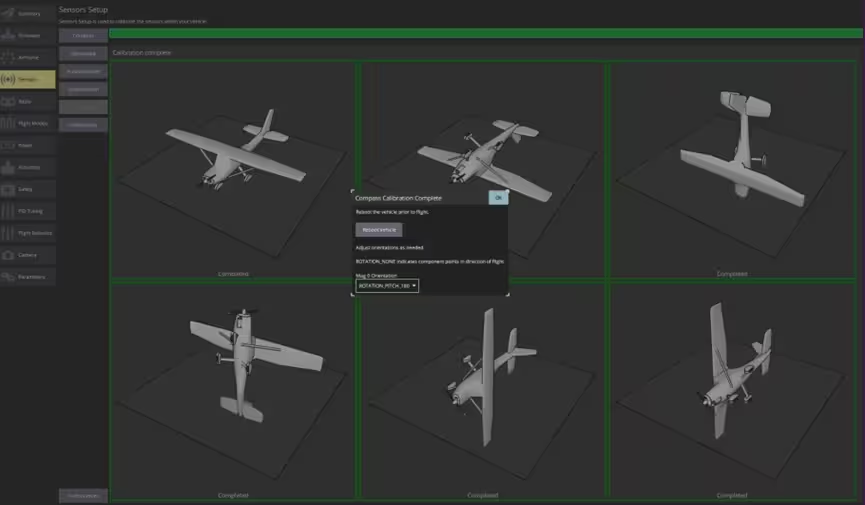
After an external compass is connected and detected, configure Mag 0 Orientation correctly. The value depends on the compass model and mounting orientation. This build uses an M10G-5883 GPS/compass module and requires ROTATION_PITCH_180 for the illustrated mounting orientation.
Gyroscope and Accelerometer Calibration
Place the aircraft still on a stable surface. Select Gyroscope and click OK to calibrate gyro bias. This normally completes within several seconds.
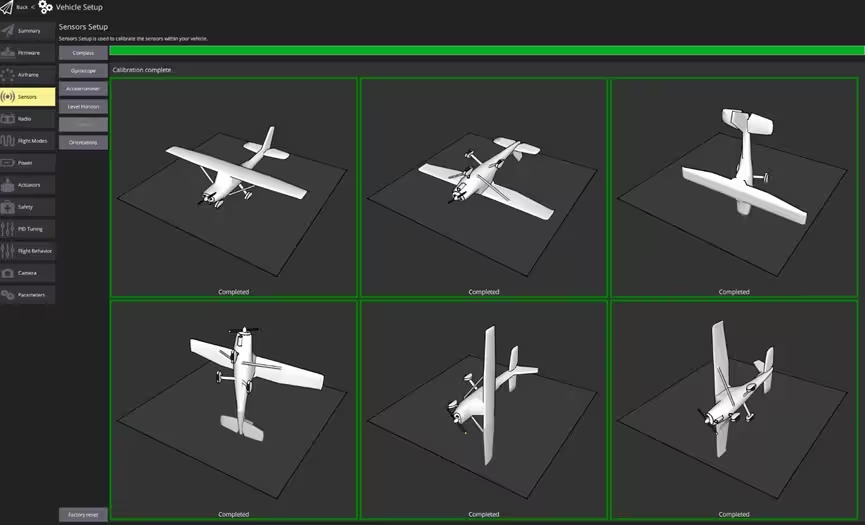
Select Accelerometer and click OK to begin six-side calibration. Hold the aircraft still in each requested orientation until its image turns green. Calibration is complete when all six images are green.
Compass Calibration
Hold the aircraft away from the ground to reduce magnetic interference. On the Compass page, click OK and rotate the aircraft continuously through each of the six requested orientations until each image turns green. A success message appears after all six orientations are complete. Install the compass securely and configure its orientation before calibration.
Arming and First Flight
Use Stabilized mode for the first flight so the pilot can take direct control at any time.
After completing the configuration and calibration, power-cycle the aircraft. In Stabilized mode it should be ready to arm, and QGroundControl should display Ready to Fly in the upper-left corner.
Move to an open area, lower the throttle completely, and enable the arm switch. The motors enter idle within several seconds. Raise the throttle to take off. In Stabilized mode, both attitude and throttle require continuous manual control; remain focused throughout the flight.
Additional PX4 Configuration
Telemetry
This build uses the MicoAir TRS combined RC and telemetry receiver. After the serial-port function is configured, the ground station can connect wirelessly without USB, which is useful for sensor calibration and live parameter tuning.
PX4 telemetry configuration requires the UART function to be MAVLink and the UART baud rate to match the telemetry radio.
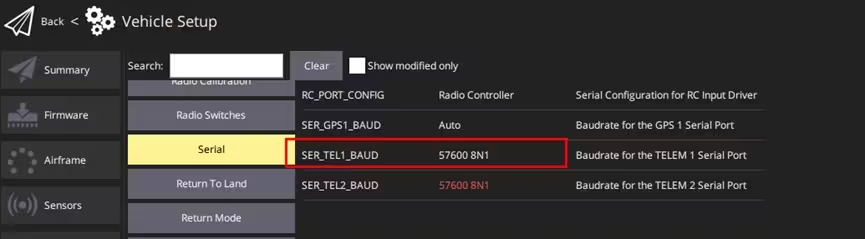
In the QGroundControl parameter list, open MAVLink and set MAV_0_CONFIG = TELEM1 because the telemetry connection in this build uses TELEM1. Set MAV_0_FORWARD = Disabled, MAV_0_MODE = Normal, and MAV_0_RATE = 1200. Choose the rate according to link capacity; for the TRS receiver, 2400 or 0 can also be used, where 0 selects the maximum rate allowed by the baud rate.
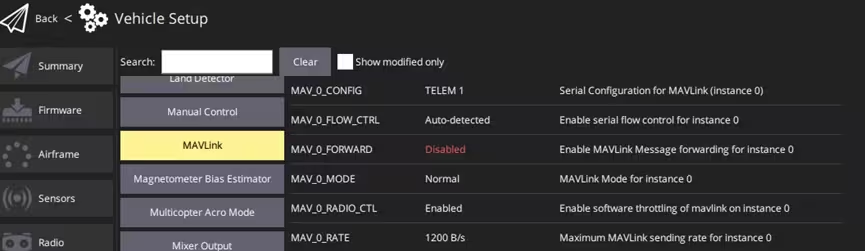
Restart the flight controller after changing these parameters. The TELEM1 baud-rate parameter then becomes available.
Set SER_TEL1_BAUD to 57600 and restart again.
Connect the TRS transmitter module to the computer over USB. If the CP2102 driver is installed, QGroundControl should detect the telemetry link automatically and normally load the flight-controller parameters within 2 seconds.
RSSI
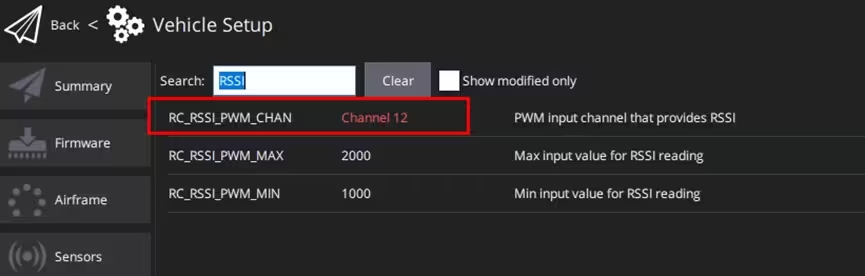
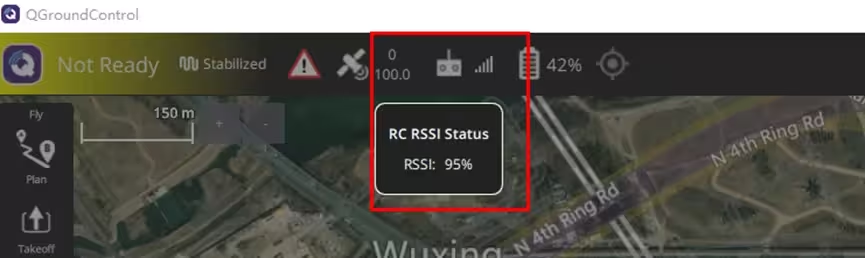
Channel 12 from the TRS receiver carries RSSI. After configuration, QGroundControl can display signal strength in real time.
Find RC_RSSI_PWM_CHAN and set it to Channel12.
When the radio link is active, signal strength appears at the top of the main page.
Voltage and Current Sensing
On the NxtPX4v2, voltage is measured through the onboard resistor divider. Current is normally measured by the current-sensor output on the 4-in-1 ESC.
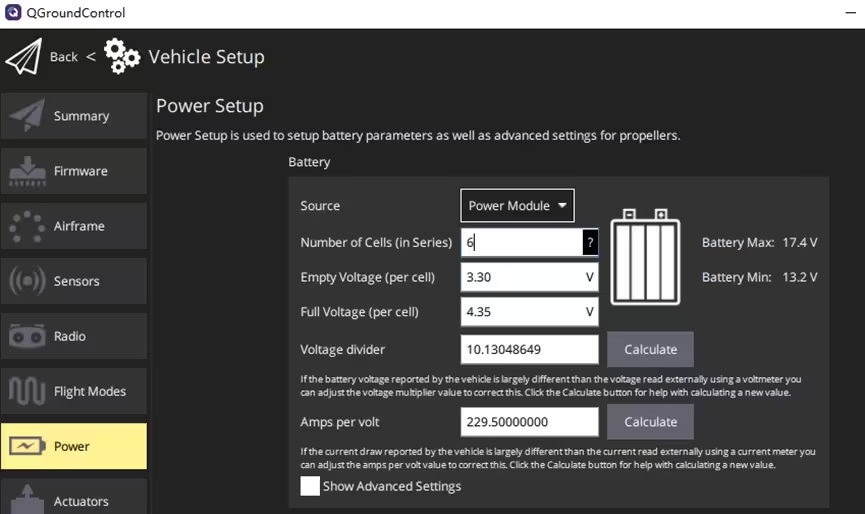
Open Power in QGroundControl, set Source to Power Module, and select the actual cell count. This build uses a 6S battery, so the value is 6.
Voltage divider is the voltage-scaling factor. The Calculate button can derive a calibrated value from an actual voltage measurement.
Amps per volt is the current-scaling factor and depends on the current sensor in the 4-in-1 ESC. It can likewise be calibrated from an actual current measurement.
Optical Flow and Rangefinder Configuration
For indoor position holding in PosHold mode, external sensors such as optical flow and a laser rangefinder can provide position and altitude assistance. This build uses the MicoAir MTF-01 integrated optical-flow rangefinder. Configure PX4 according to the MTF-01 user manual: MTF-01 Optical Flow and Rangefinder Sensor User Manual