
Docs directory
Table of contents
Setting Flight Controller Orientation in ArduPilot, PX4, INAV, and Betaflight
ArduPilot
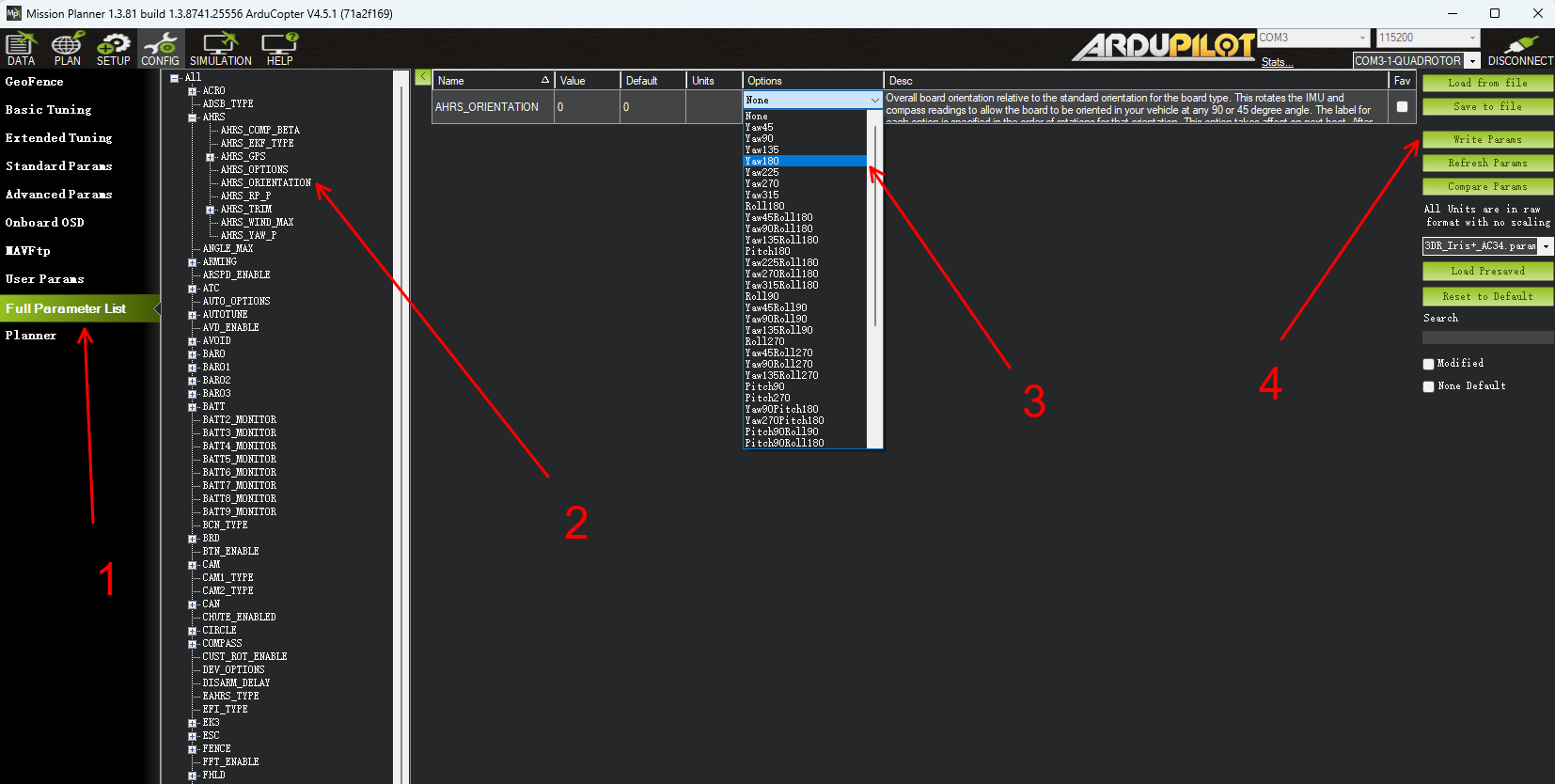
Step 1: Open Mission Planner and connect the flight controller.
Step 2: Open Full Parameter List, find AHRS_ORIENTATION, and select the value that matches the physical mounting orientation.
Step 3: Click Write Params on the right to save the parameter to the flight controller.
Step 4: Power-cycle and reconnect the flight controller.
PX4
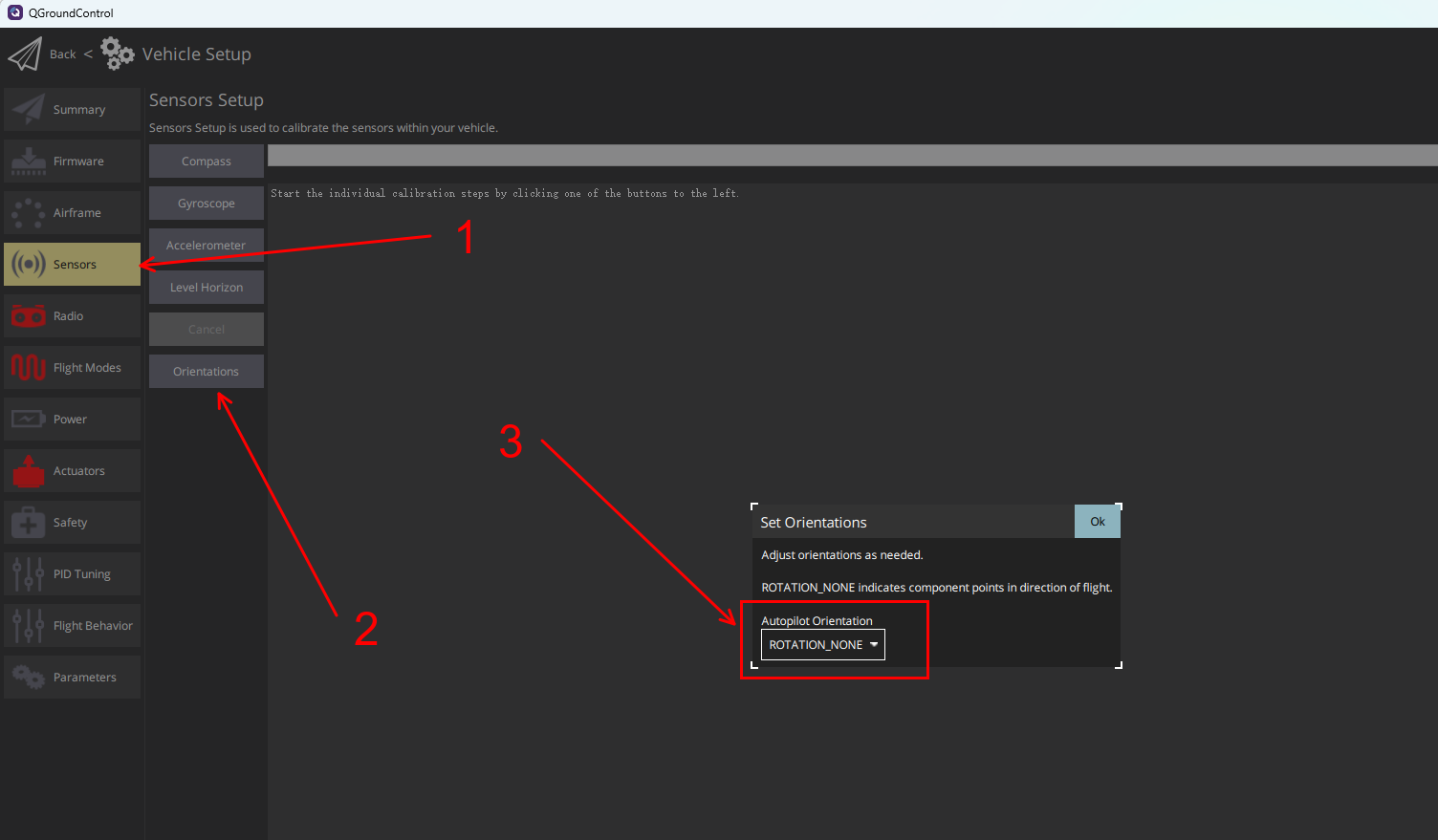
Step 1: Open QGroundControl and connect the flight controller.
Step 2: Click the icon in the upper-left corner and open Vehicle Setup.
Step 3: Open Sensors, select Orientation at the bottom, choose the Autopilot orientation value that matches the physical installation, and click OK.
Note: Autopilot orientation configures the flight controller (IMU) orientation, whereas Mag orientation configures an external compass. These are different settings. Mag orientation is absent from the screenshot because no external compass is connected.
INAV
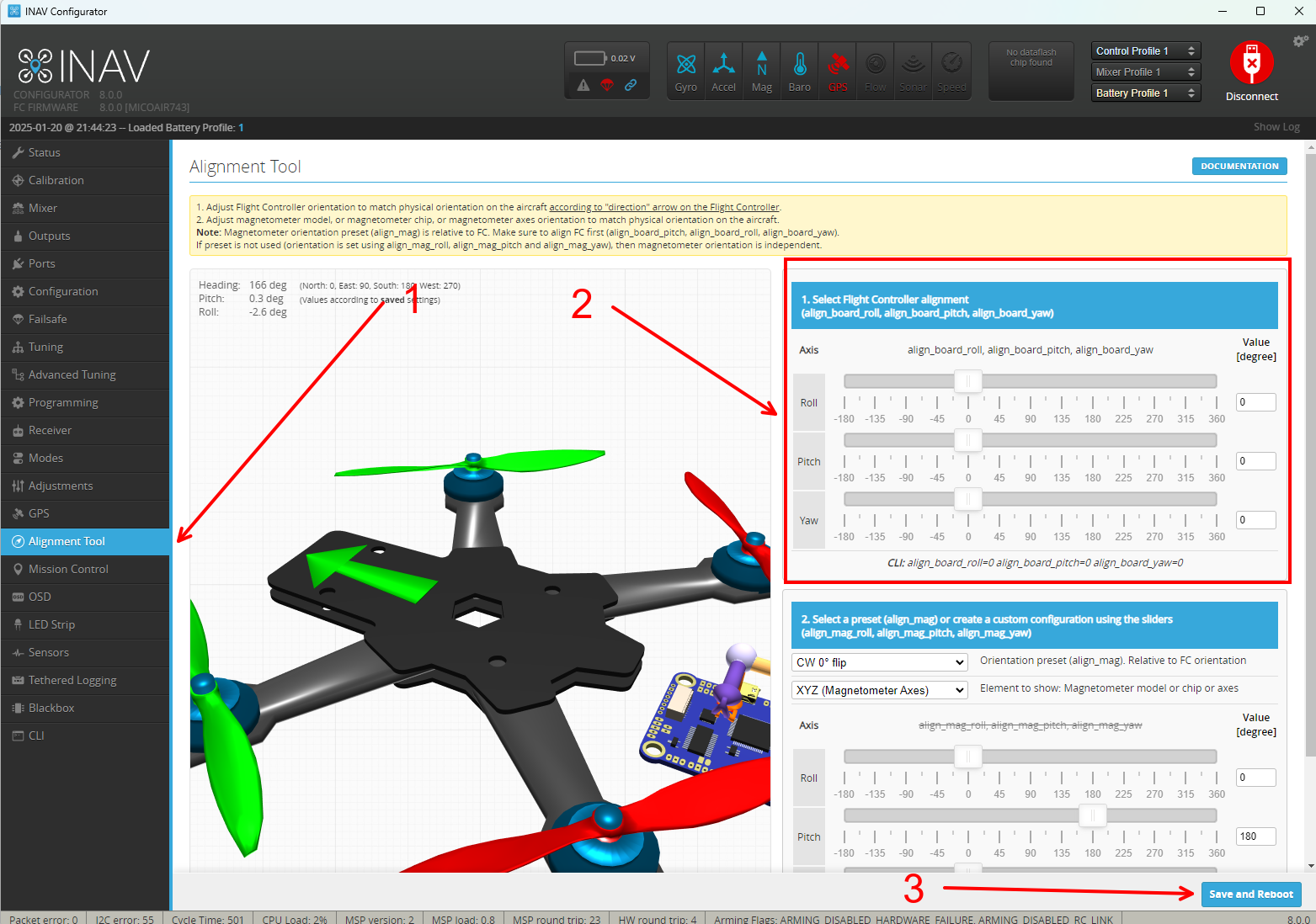
Step 1: Open INAV Configurator and connect the flight controller.
Step 2: Open Alignment Tool and use the controls on the right, or enter rotation values directly, to match the physical mounting orientation.
Step 3: Click Save and Reboot in the lower-right corner.
Betaflight
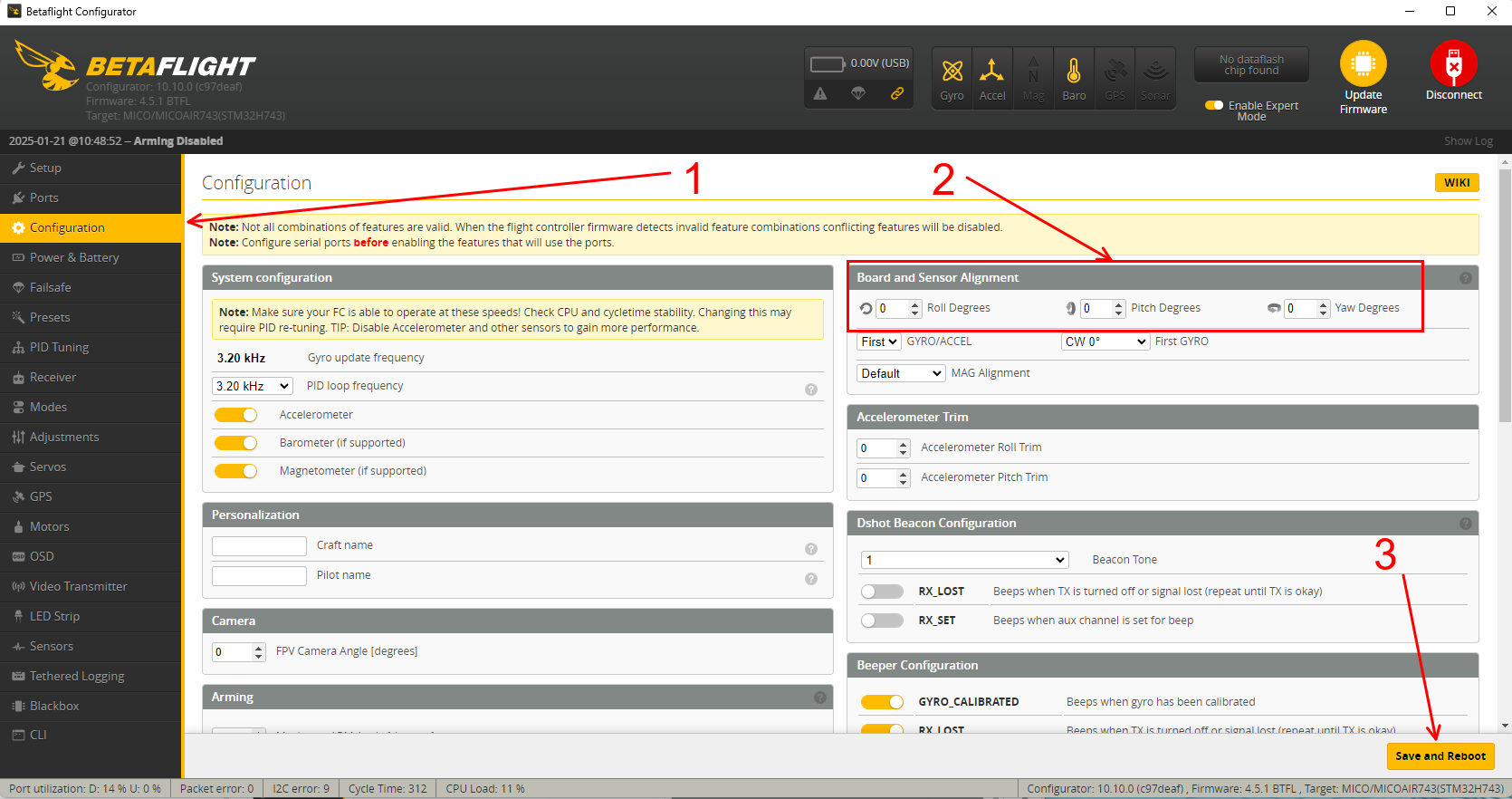
Step 1: Open Betaflight Configurator and connect the flight controller.
Step 2: Open Configuration and enter the orientation values on the right to match the physical installation.
Step 3: Click Save and Reboot in the lower-right corner.