
Docs directory
Table of contents
PX4 FAQ
Using an ELRS Receiver with PX4 Firmware
ELRS receivers use the CRSF protocol. To use an ELRS receiver with the open-source PX4-Autopilot firmware, complete the hardware connection and parameter configuration described below.
1. Connect the Flight Controller and Receiver
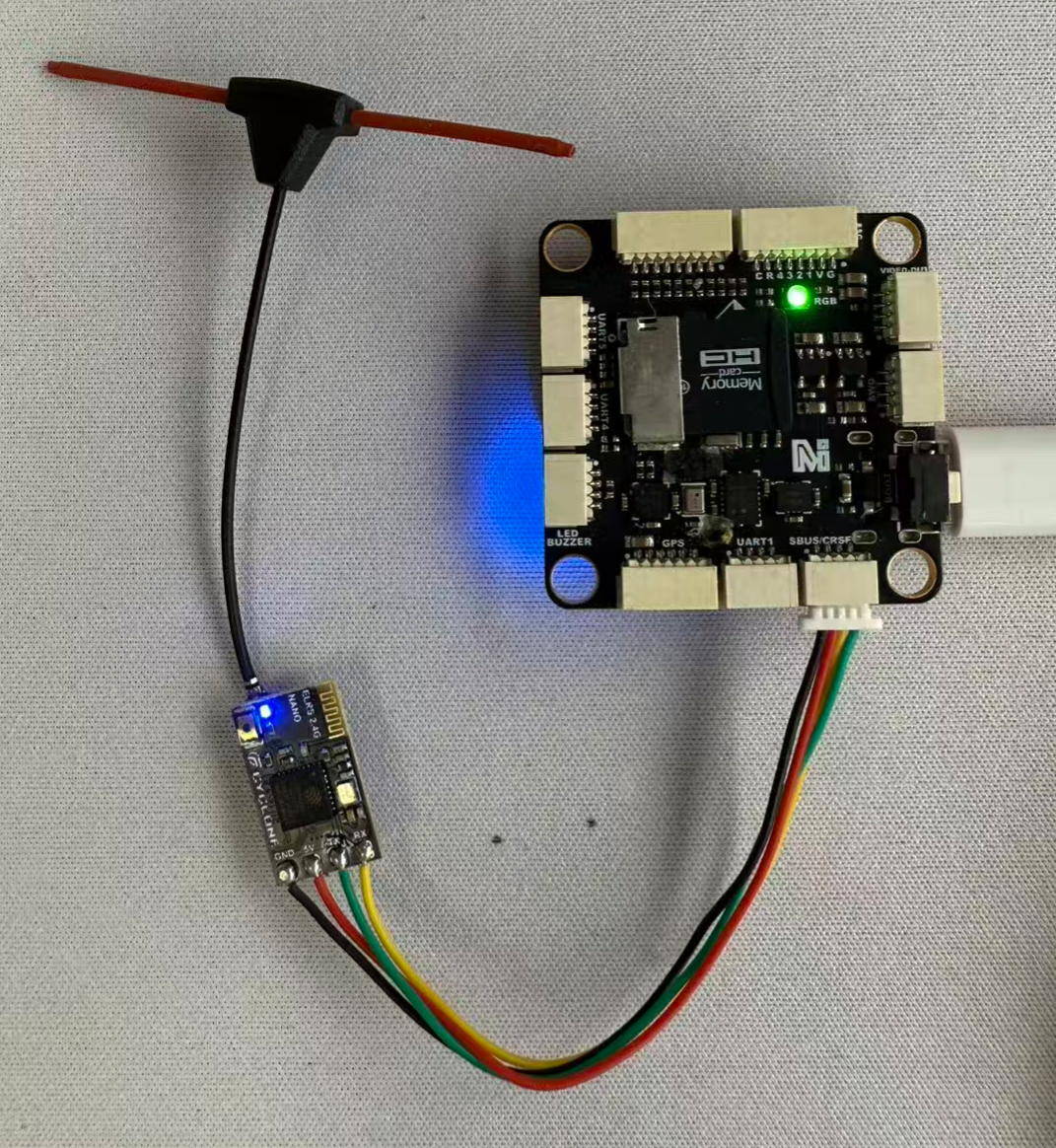
- An ELRS receiver normally requires four wires: GND, 5V, Tx, and Rx. Connect the corresponding pads or connector on the receiver to the flight controller's RC port.
Notes
-
- Cross-connect Tx and Rx between the flight controller and receiver.
-
- Insert and remove connectors vertically to avoid bending the contacts. If the wires are soldered, verify that every joint is secure and insulate the connections with heat-shrink tubing to prevent short circuits.
-
- Some receiver manuals label Tx and Rx from the perspective of the connected device, so the markings may appear reversed. If the receiver is not detected, try swapping Tx and Rx.
2. Bind the Radio Transmitter and Receiver
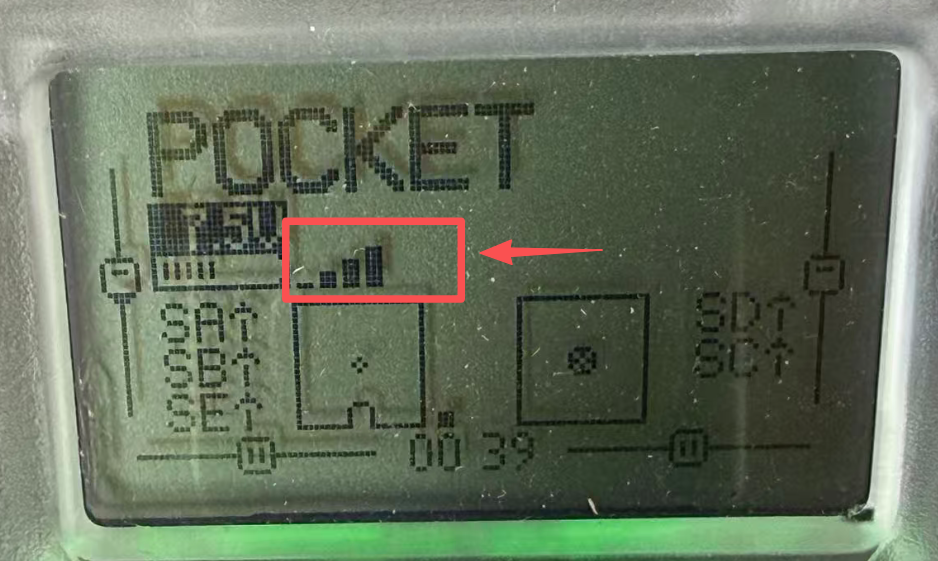
- Follow the instructions supplied with the transmitter and receiver to bind them. After a successful connection, the receiver indicator remains solid and the transmitter displays the receiver's returned signal strength.
3. Configure PX4 Parameters
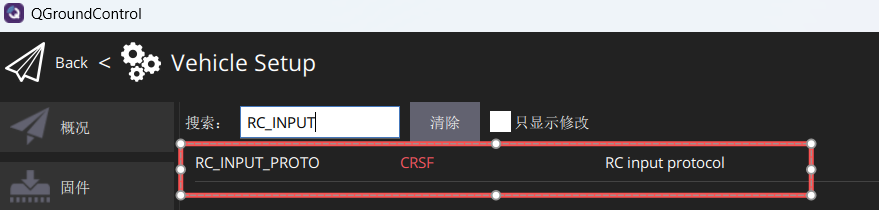
- Search for
RC_INPUT_PROTOon the PX4 Parameters page and set it toCRSF.
- Clear the parameter search. Under the Serial parameter group, set
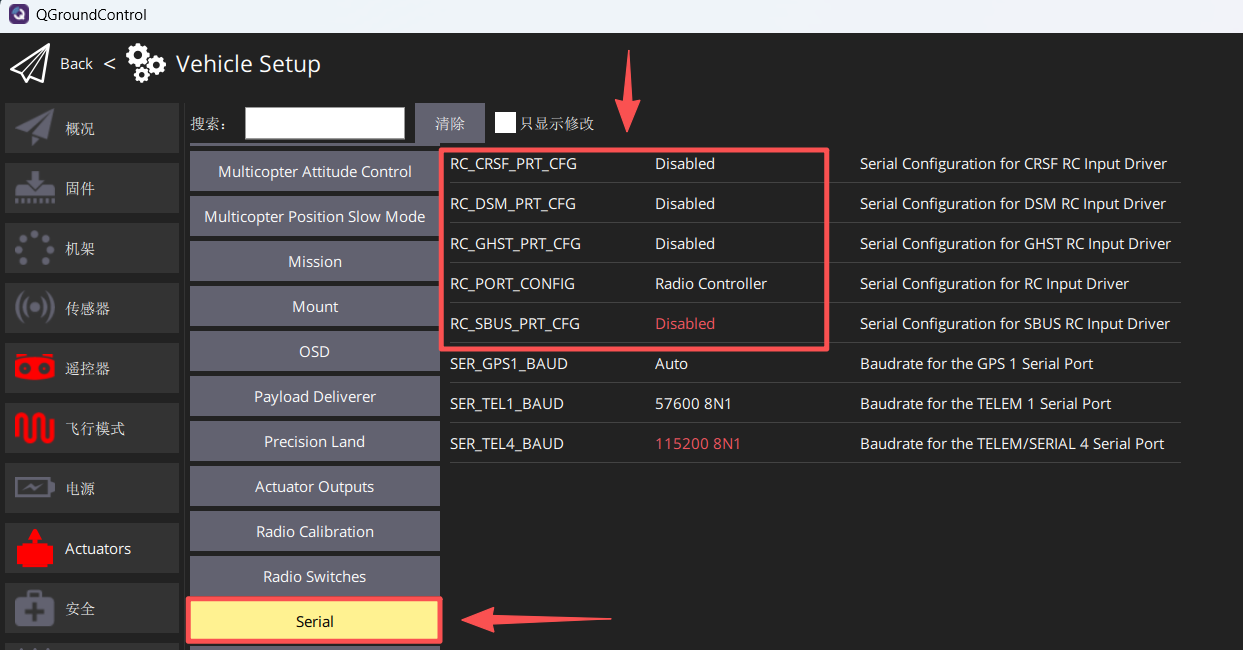
RC_PORT_CONFIGtoRadio Controller. Set all otherRC_XXX_PRT_CFGparameters (XXXrepresents the individual protocol) toDisabled. Even when CRSF is used,RC_CRSF_PRT_CFGmust be set toDisabled; otherwise, the radio signal cannot be detected. Match the parameters outlined in red in the following image. Parameter availability varies by firmware version, so parameters that are not present can be ignored.
4. Calibrate the Radio
-
Restart the flight controller after changing the parameters.
-
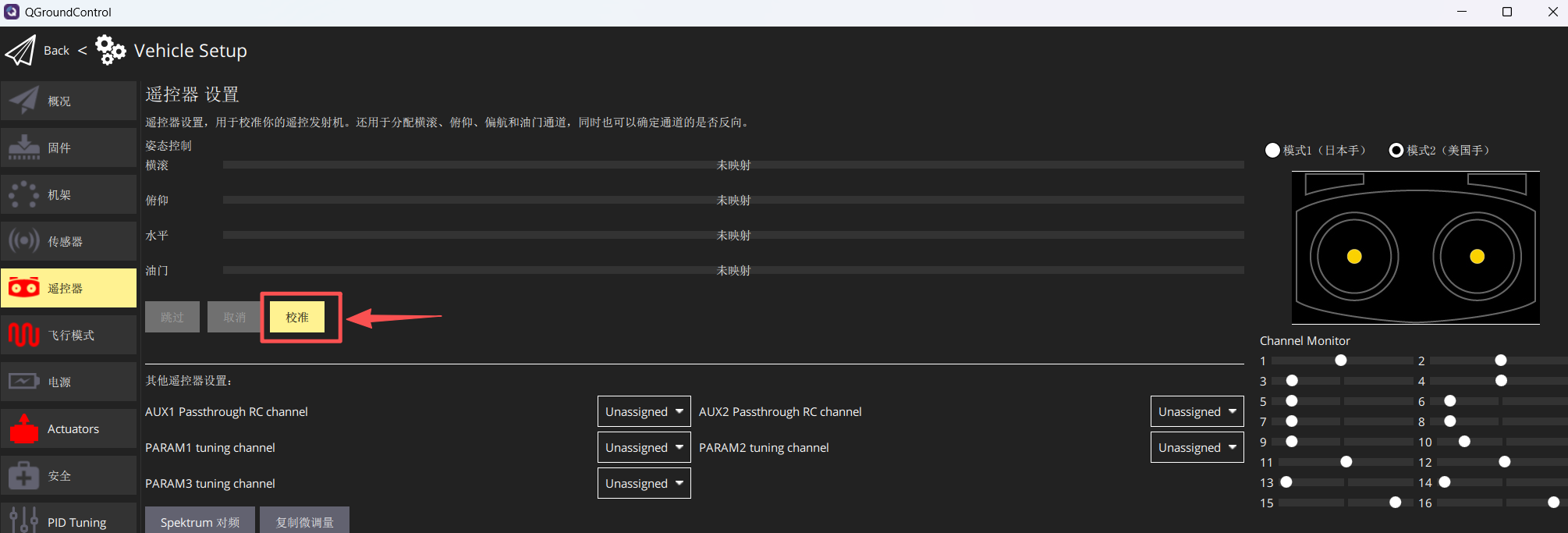
Open the Radio page and move the sticks and switches. The corresponding values in the Channel Monitor should change with each control input.
-
Click Calibrate and follow the on-screen instructions.