
Docs directory
Table of contents
Installation Guide for CP2102 Driver Step By Step
The CP2102 is a USB-to-UART bridge from Silicon Labs. It is used in several MicoAir products, including the LR900-F/P and LR24-F/P.
When connecting a CP2102-based device to a Windows PC for the first time, you may need to install its driver. Download and extract the driver package before following the steps below.
Driver Download
Driver for CP2102 (WIN7/10/11)
Install the Driver Step By Step
Step1
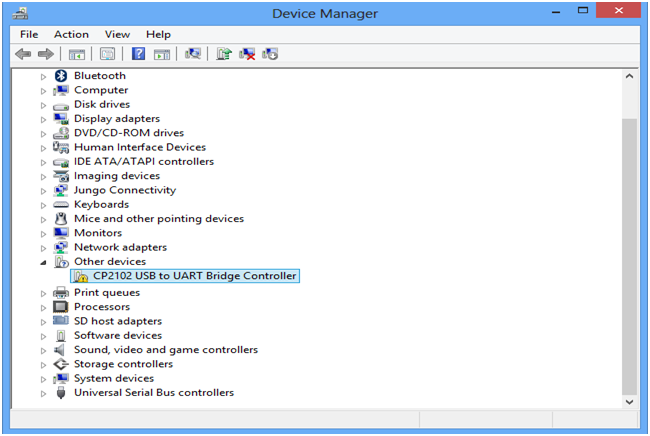
Connect the product to your PC with a USB data cable, then open Device Manager. If the driver is missing, the device will usually appear under Other devices.
Step2
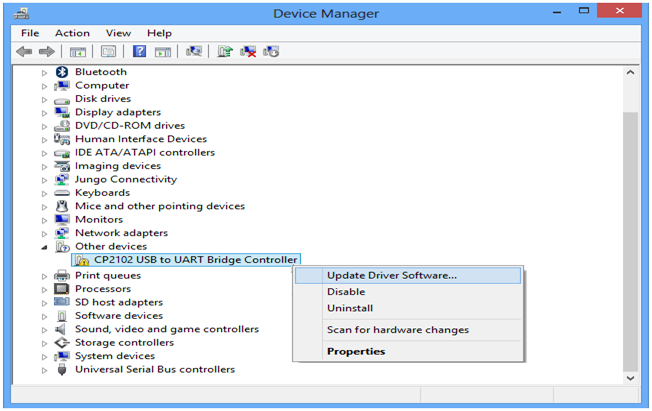
Right-click “CP2102 Usb to UART Bridge Controller” and select “Update Driver Software” (or “Update driver”, depending on your Windows version).
Step3
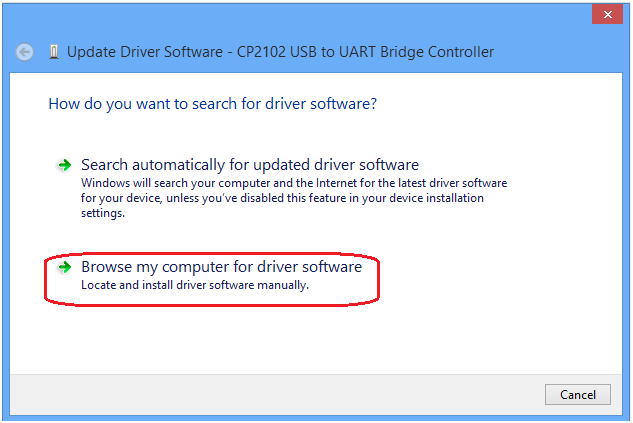
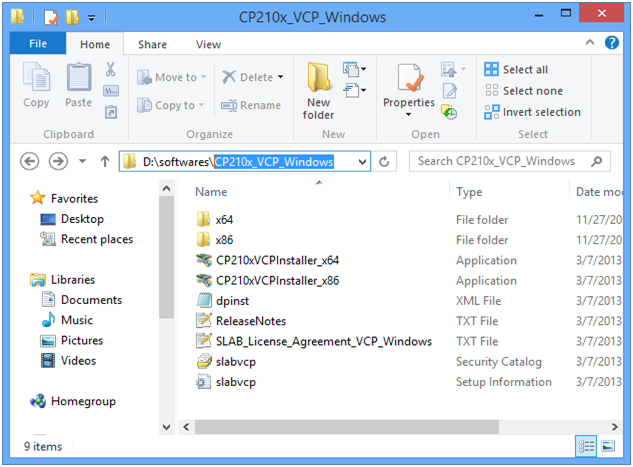
Browse to the folder where you extracted the driver files.
Step4
Select the extracted driver folder and follow the on-screen instructions to complete installation.
Step5
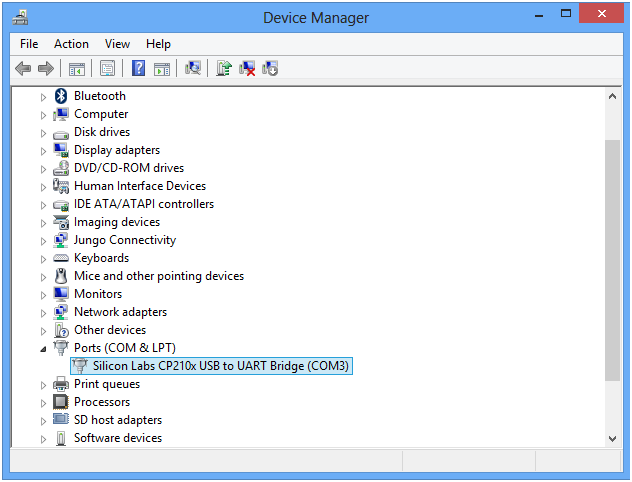
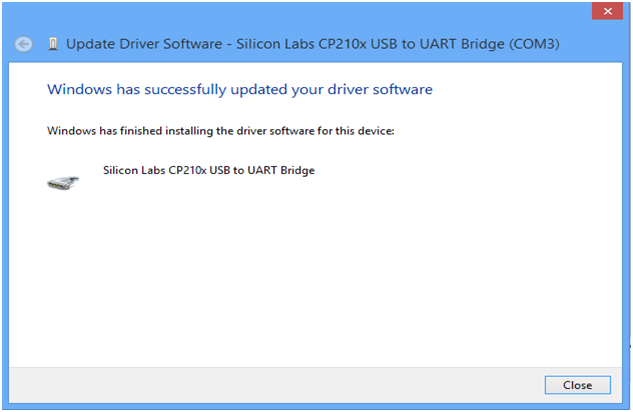
The screenshot below shows a successful driver installation.
Step6
The device should now appear under Ports (COM & LPT) with an assigned COM port number. Use this port when connecting to the device in your configuration software.