
Docs directory
Table of contents
ArduPilot FAQ
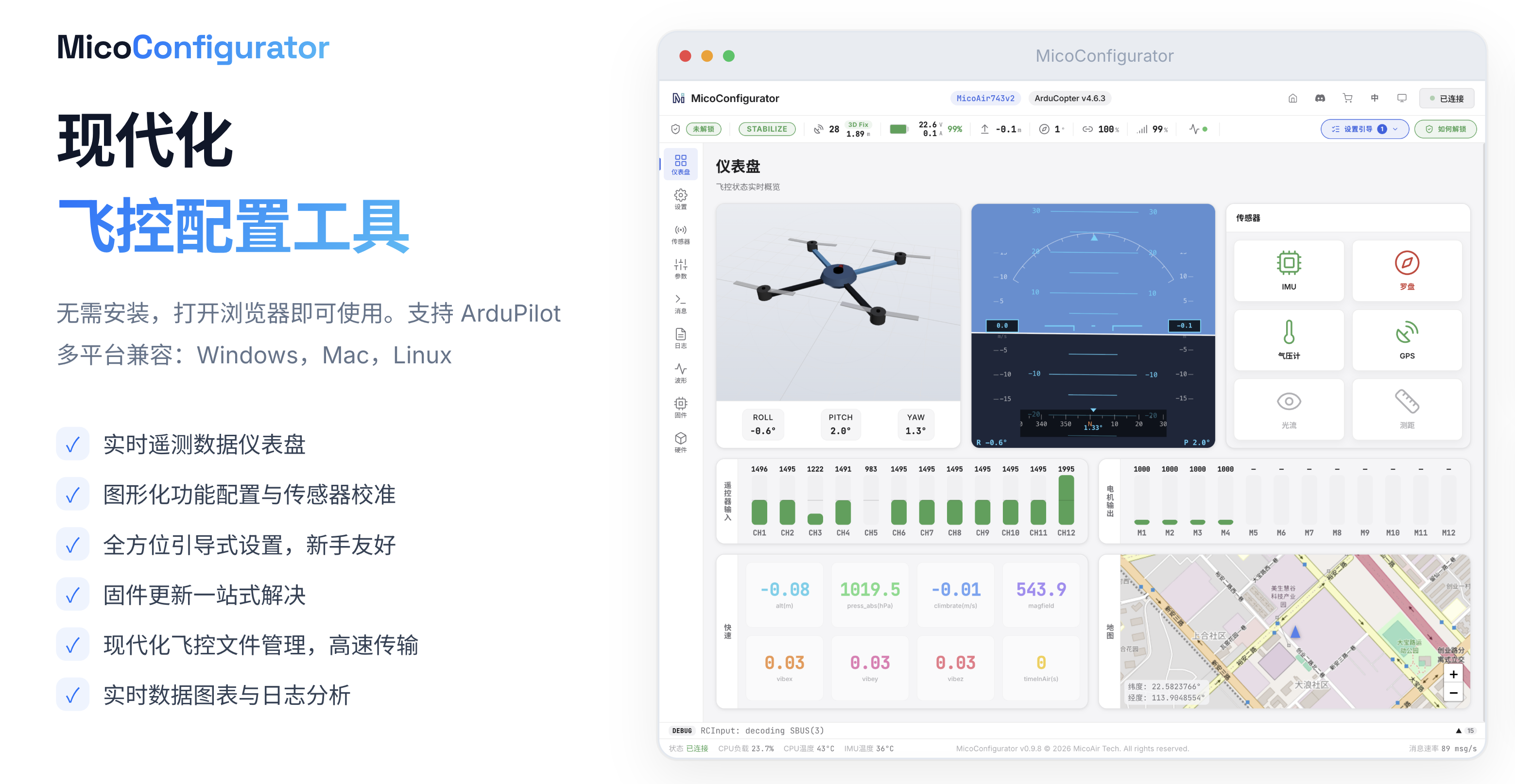
Use MicoConfigurator for Modern ArduPilot Configuration
MicoConfigurator No installation is required. It supports Windows, macOS, and Linux.
- Real-time data dashboard
- Graphical function configuration and sensor calibration
- Comprehensive guided setup for new users
- Integrated firmware updates
- Modern flight-controller file management with high-speed transfer
- Real-time data plots and log analysis
Exporting, Loading, and Saving Flight Controller Parameters
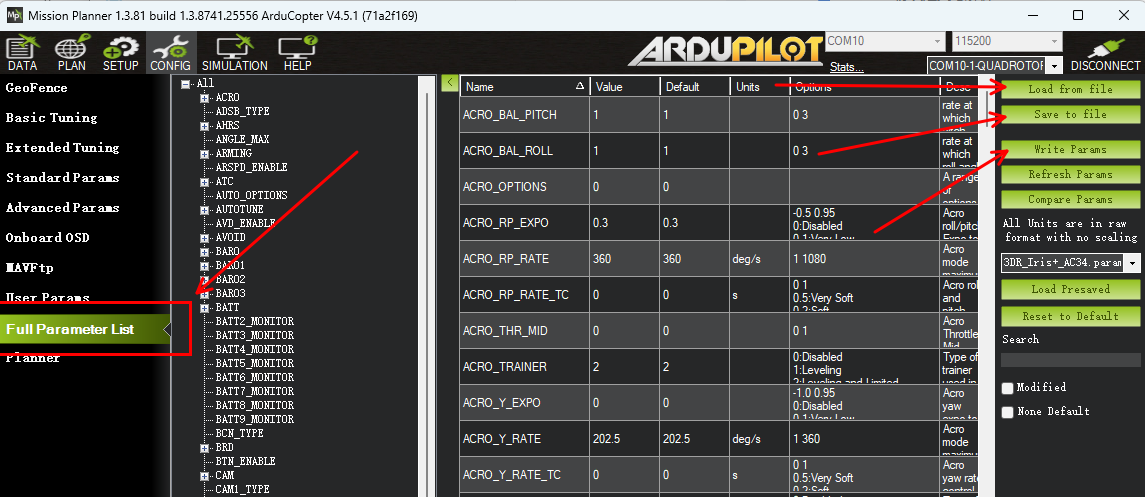
Open Mission Planner and go to CONFIG → Full Parameter List. Use the buttons on the right:
Save to file: Export the current flight-controller parameters to a file on the computerLoad from file: Load a parameter file from the computer into the flight controllerWrite Params: Write and save modified parameters to the flight controller
Disabling Arming Checks
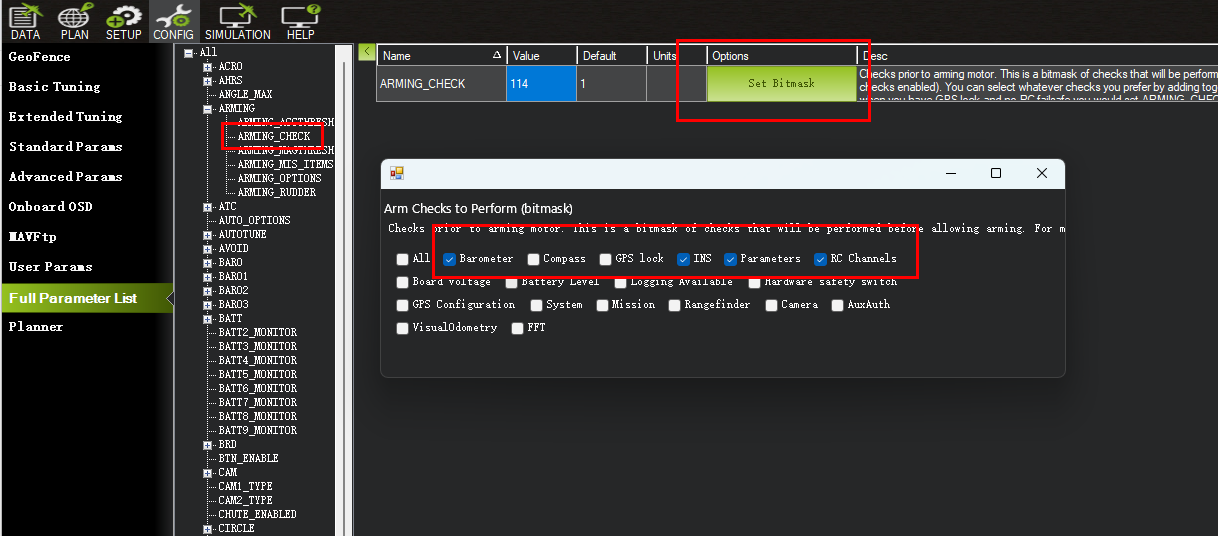
ArduPilot enables most arming checks by default. Under some operating conditions, these checks can prevent the flight controller from arming. Individual checks can be disabled when appropriate.
Find ARMING_CHECK in Mission Planner's Full Parameter List and click Set Bitmask.
Normally, retain essential checks such as Barometer and INS.
Flight Controller Will Not Arm
When an arming action or command is issued from the radio or ground station but the flight controller does not arm, the Messages page and HUD show a message beginning with PreArm:, as illustrated below.
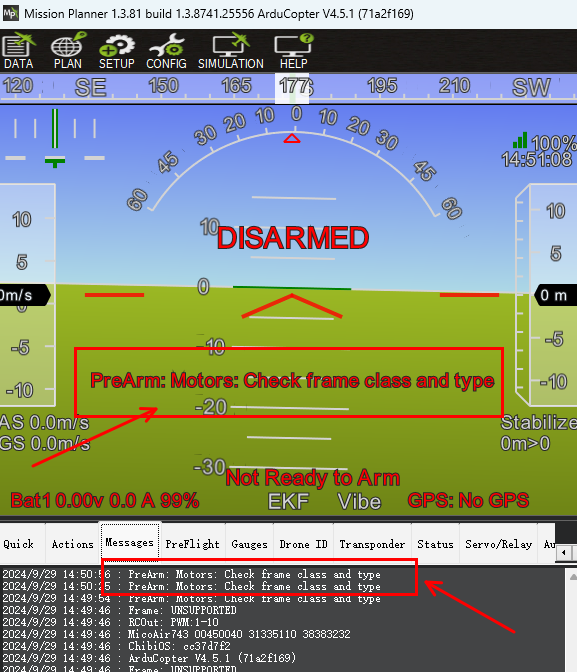
If no such message appears, the flight controller has not received an arming command. Check the radio operation first.
Common PreArm messages, causes, and solutions include:
-
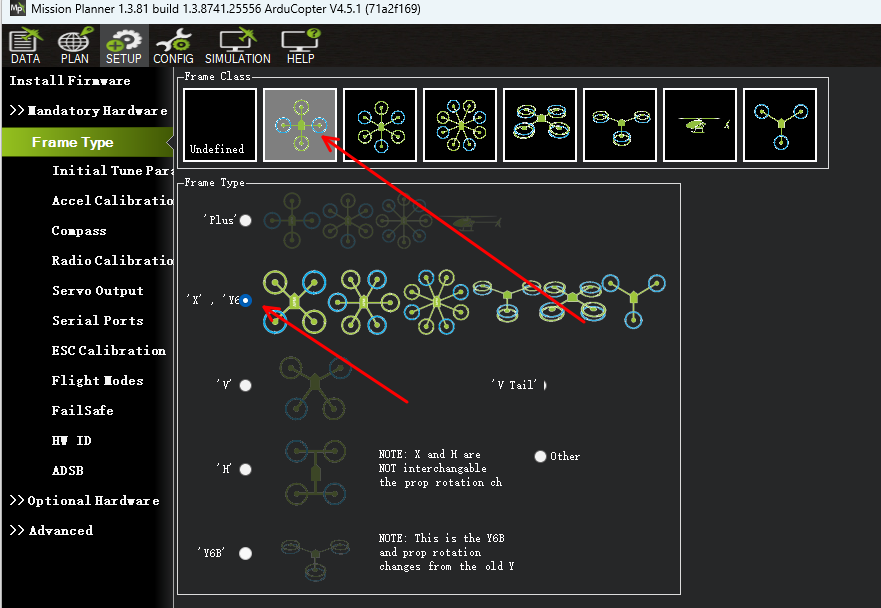
PreArm: Motors: Check frame class and type Cause: The frame type has not been configured. Solution: Configure the frame type on the Mission Planner Setup page.
-
PreArm: GPS1: Bad fix Cause: GPS checks are enabled, but the GPS has no fix or is not present when arming is attempted. Solution: 1. Move outdoors to an open area and wait for a fix before arming. 2. Disable the GPS arming check.
-
PreArm: Need Position Estimate Cause: Arming was attempted in a position-control mode such as Loiter or PosHold, but the flight controller has no valid position data source. For example, GPS may not have a fix, an EKF source may reference a sensor that is not installed, or the source configuration may be incorrect. Solution: If a MicoAir optical-flow sensor such as the MTF-01 is installed, first verify that the flight controller receives sensor data, then confirm that the
EK3_SRCparameters are correct. If EKF source switching was configured according to a MicoAir guide, confirm that the optical-flow source is currently selected; Mission Planner reports the active source in Messages. -
PreArm: AHRS: EK3 sources require GPS Cause: An EK3 source is configured to use GPS, normally by default, but no GPS is connected. Solution: 1. Connect and configure a GPS correctly. 2. If no GPS will be used and position-mode arming is required with another sensor such as optical flow, change the
EK3_SRCparameters so GPS is no longer selected as an EK3 source.
Flight Controller Is Armed but the Motors Do Not Run
This is normally caused by an ESC that does not recognize the flight controller's output protocol.
For a Bluejay ESC, set the flight-controller ESC protocol to DShot300 first:
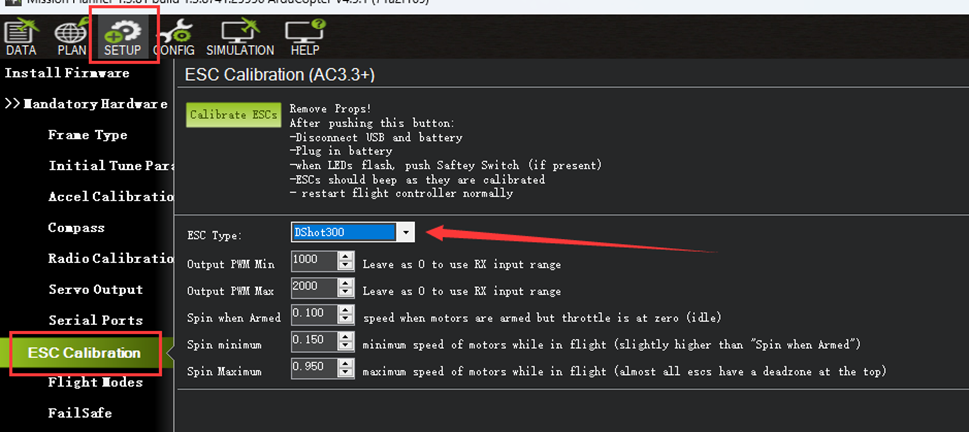
Traditional ESCs often accept only PWM. In that case, confirm that the output protocol is set to Standard(PWM).
Configuring DJI Air Unit OSD (O3/Vista/O4)
OSD_TYPE = 5
Serialn_Baud = 115200
Serialn_Protocol = 42 (MSP_DisplayPort)
MSP_OPTIONS = 4 (Enable_BTFLFonts)
n depends on the UART connected to the DJI air unit. For example, the air-unit connector on the MicoAir743 uses Serial2, so configure the Serial2 parameters.
Enabling Bidirectional DShot in ArduPilot
Bidirectional DShot is disabled by default. When enabled, it allows the flight controller to receive real-time ESC RPM data for RPM filtering. The ESC must also support bidirectional DShot. BL32, AM32, and Bluejay firmware support it; BLS and most closed-source ESC firmware do not.
-
Confirm that the ESC protocol is DShot300 or DShot600; DShot300 is recommended. Find
MOT_PWM_TYPEand set it to DShot300. -
Find
SERVO_BLH_BDMASKand enable the required channels, normally 1–4. Channels 1–8 on MicoAir743 flight controllers support bidirectional DShot.
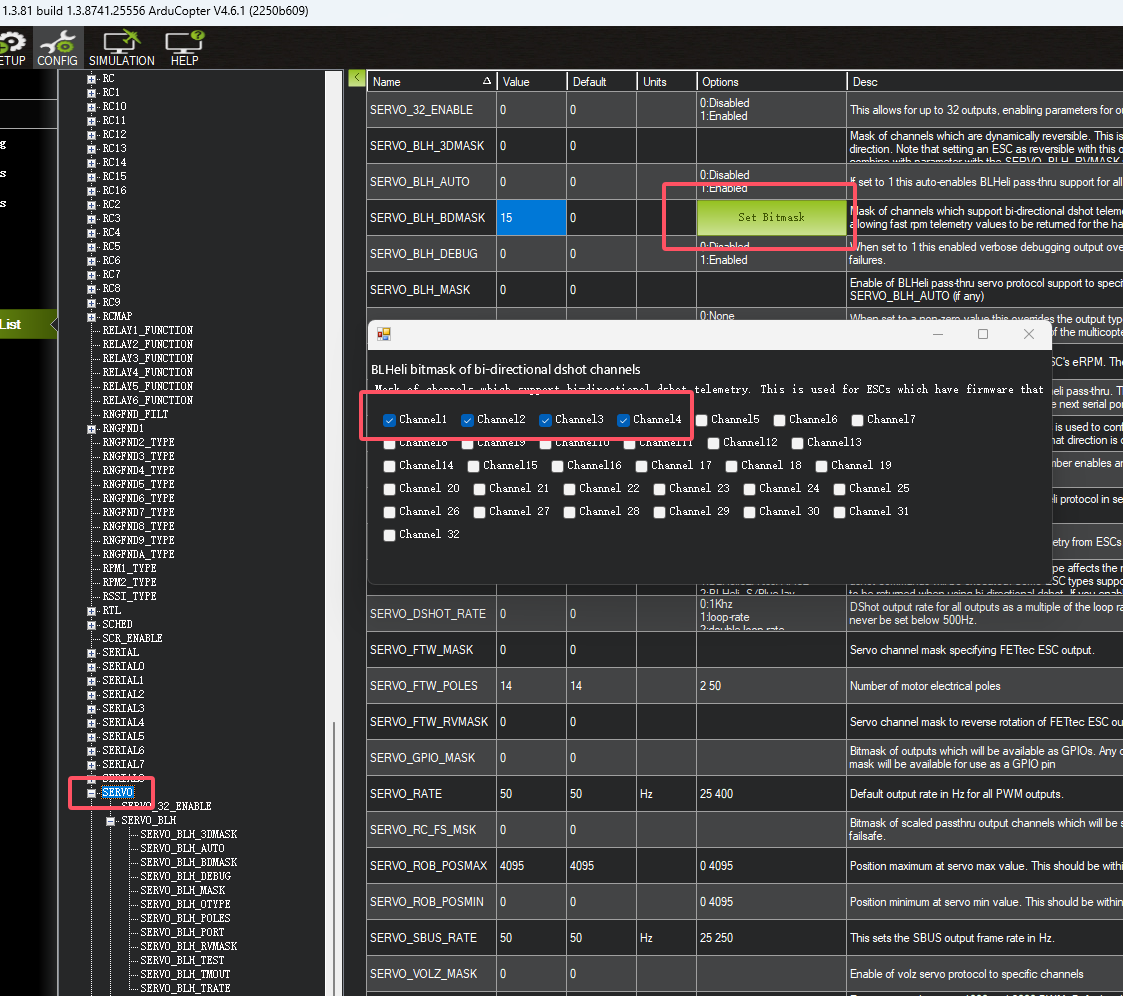
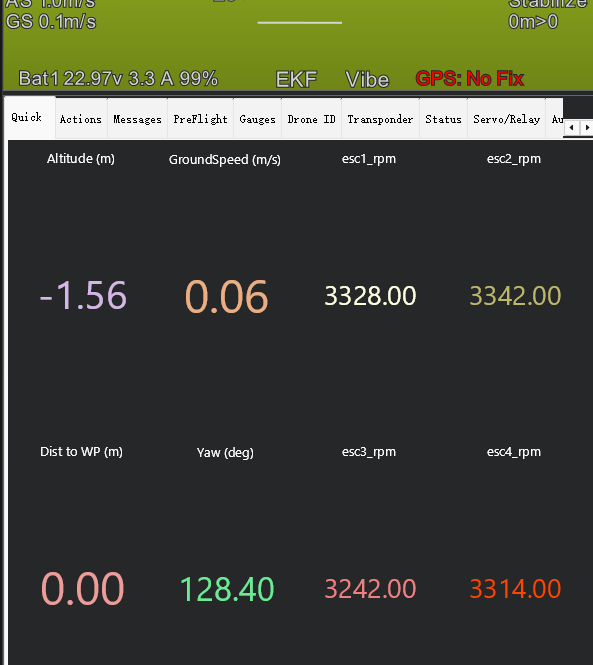
- Power-cycle the aircraft or flight controller. Arm it and raise the throttle slightly; Mission Planner should display real-time ESC RPM values.
Controlling an RGB LED Strip with an ArduPilot Lua Script
Video tutorial: https://www.bilibili.com/video/BV1mz4tzCEaW
Enabling ArduPilot Serial Passthrough
Official ArduPilot documentation: https://ardupilot.org/copter/docs/common-serial-passthrough.html#serial-passthrough
The flight controller normally parses protocol data received over a serial port. With serial passthrough enabled, it forwards the data directly without parsing it. The flight controller can then act as a bridge between computer software and a GPS, optical-flow sensor, rangefinder, or another peripheral. The following example uses ArduPilot Copter 4.6.3 to connect to an optical-flow rangefinder through serial passthrough.
-
Connect the flight controller to Mission Planner over USB and select CONFIG → Full Parameter List.
-
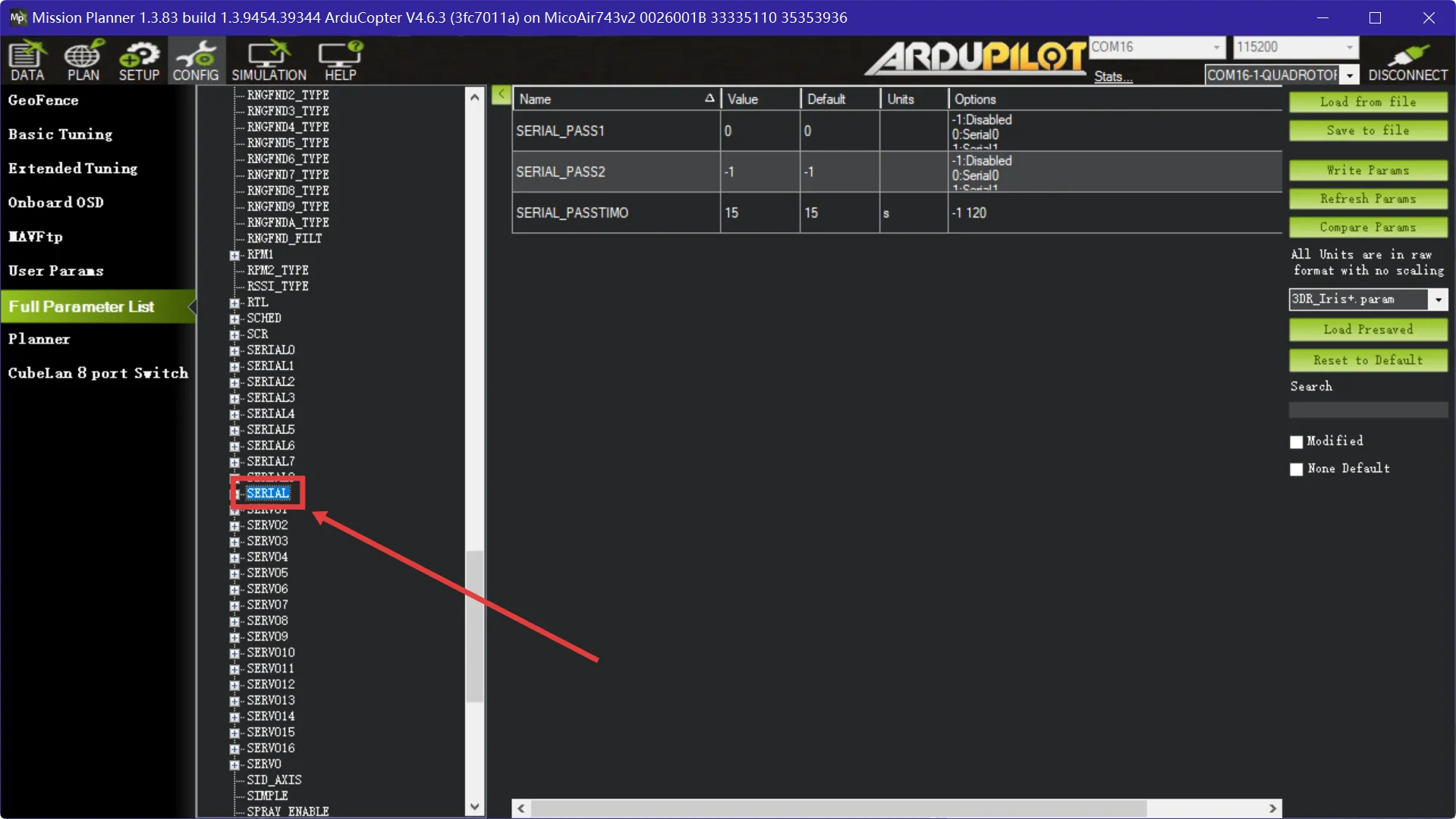
Find and open SERIAL in the parameter list.
-
The value of SERIAL_PASS2 is the serial-port number physically connected to the peripheral.
-
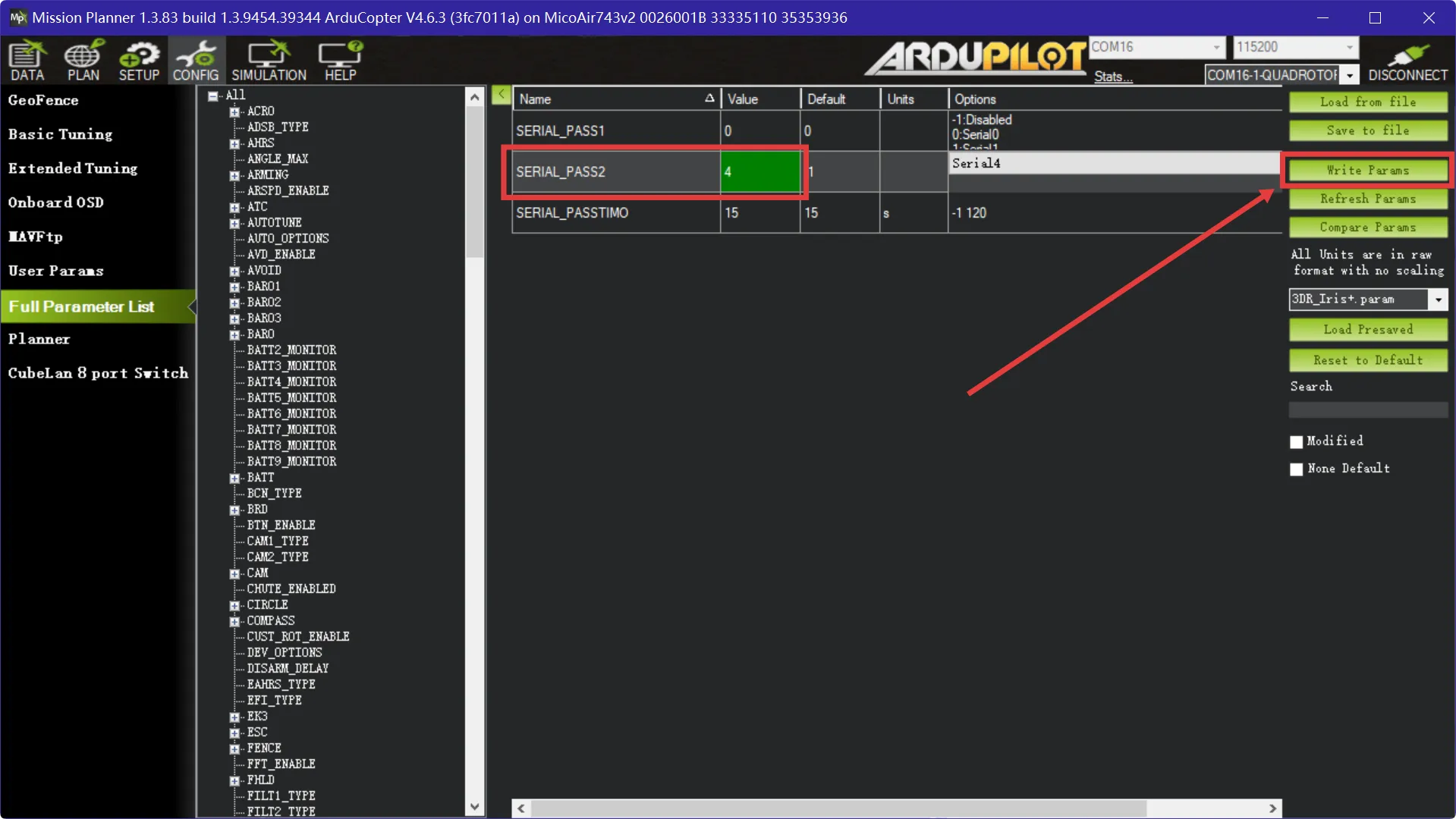
Set SERIAL_PASS2 to 4. In this example, the flight controller is a MicoAir743v2-AIO-45A, and an MTF-02 optical-flow rangefinder is connected to Serial4.
-
Click Write Params, then click DISCONNECT in the upper-right corner. Do not disconnect the cable between the flight controller and computer.
-
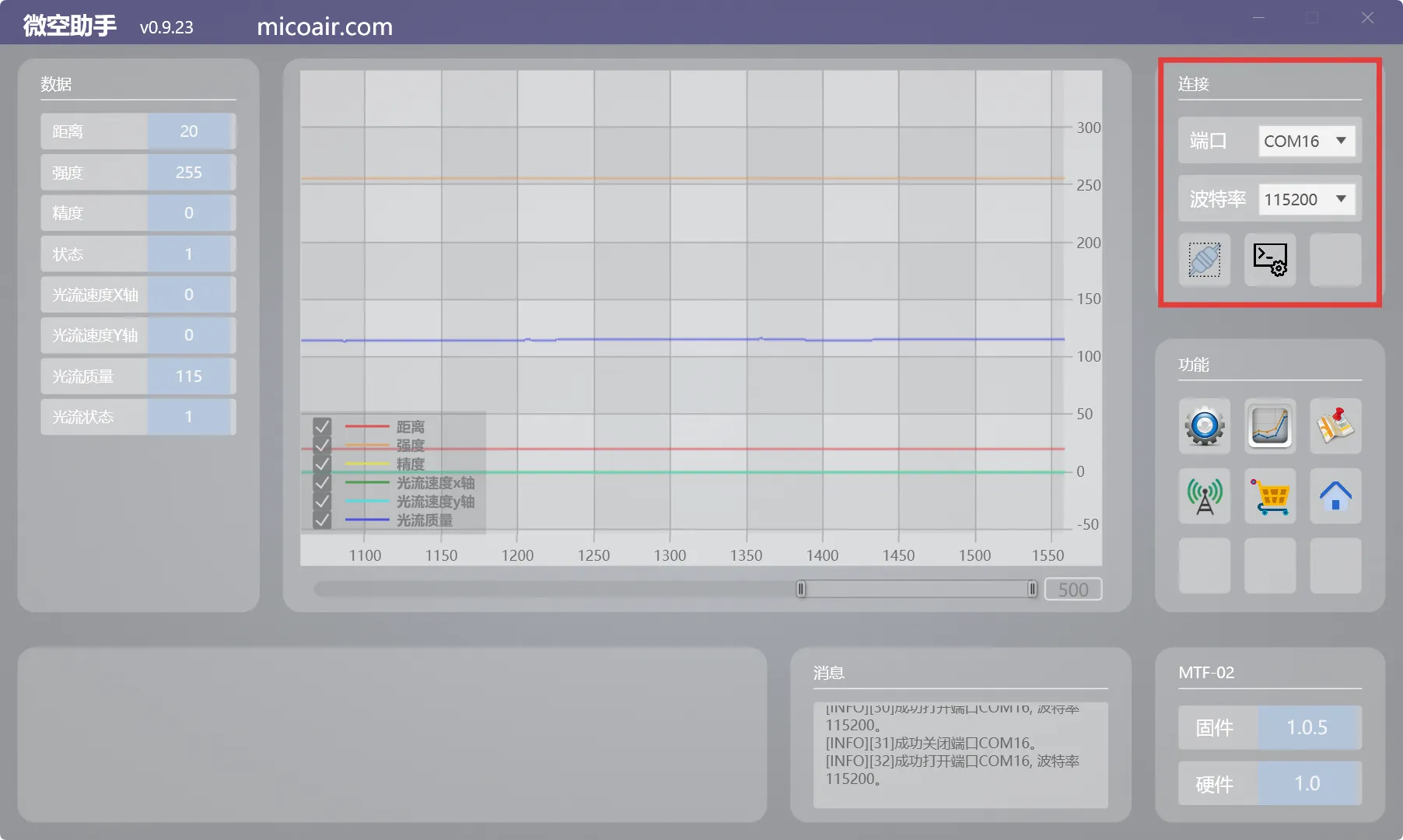
Open MicoAssistant, select the ArduPilot COM port (COM16 in this example), set the correct baud rate, and click Connect. MicoAssistant identifies the MTF-02, confirming that serial passthrough is working.
Enabling ArduPilot ESC Passthrough
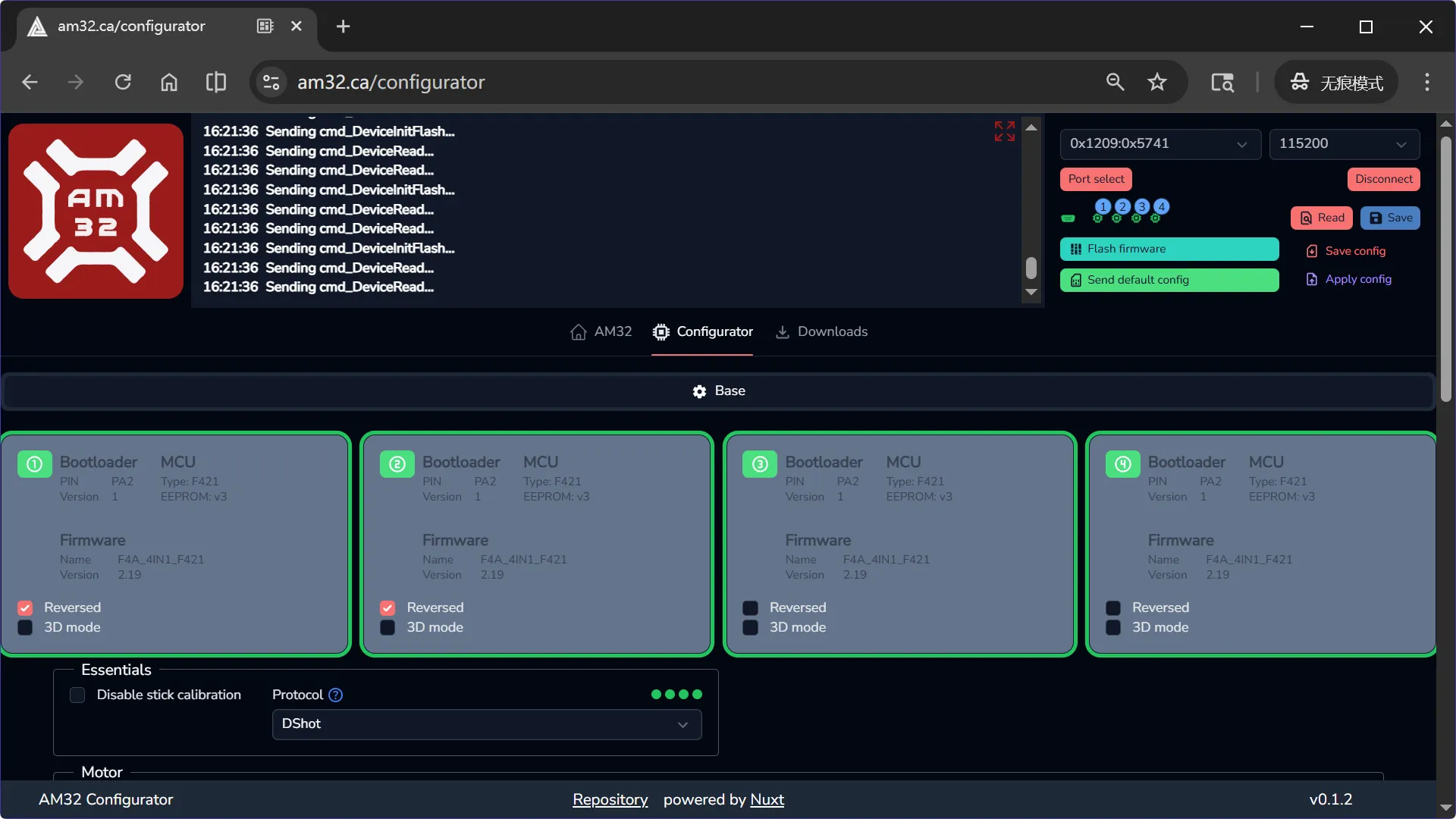
Official ArduPilot documentation: https://ardupilot.org/copter/docs/common-blheli32-passthru.html ESC passthrough allows a compatible BLS/AM32 configurator on the computer to configure BLS, AM32, Bluejay, and other supported ESCs while they remain connected to the flight controller. The following example uses ArduPilot Copter 4.6.3 to bridge an AM32 ESC to its web configurator.
-
Connect the flight controller to Mission Planner over USB and select CONFIG → Full Parameter List.
-
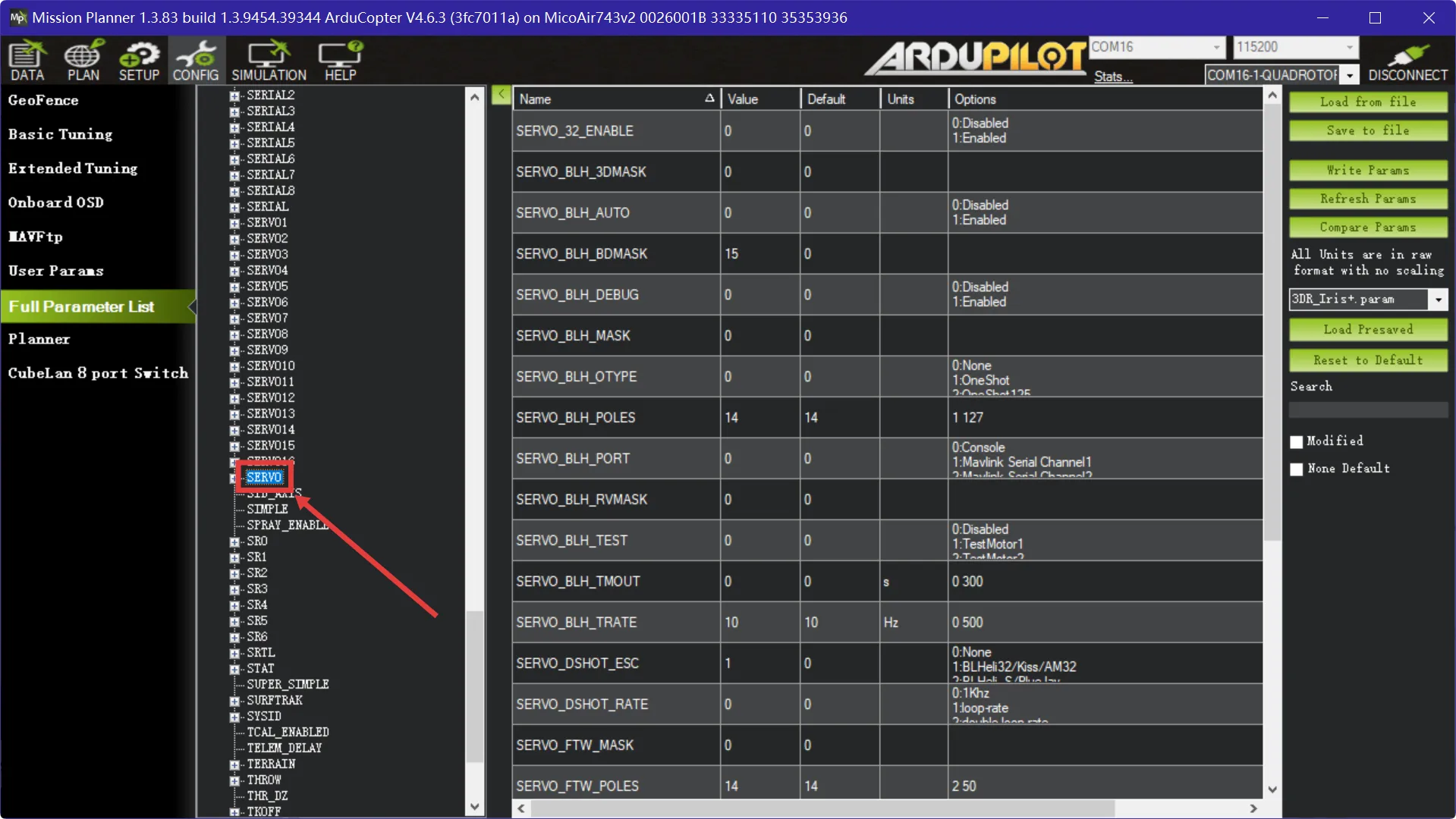
Find and open SERVO in the parameter list.
-
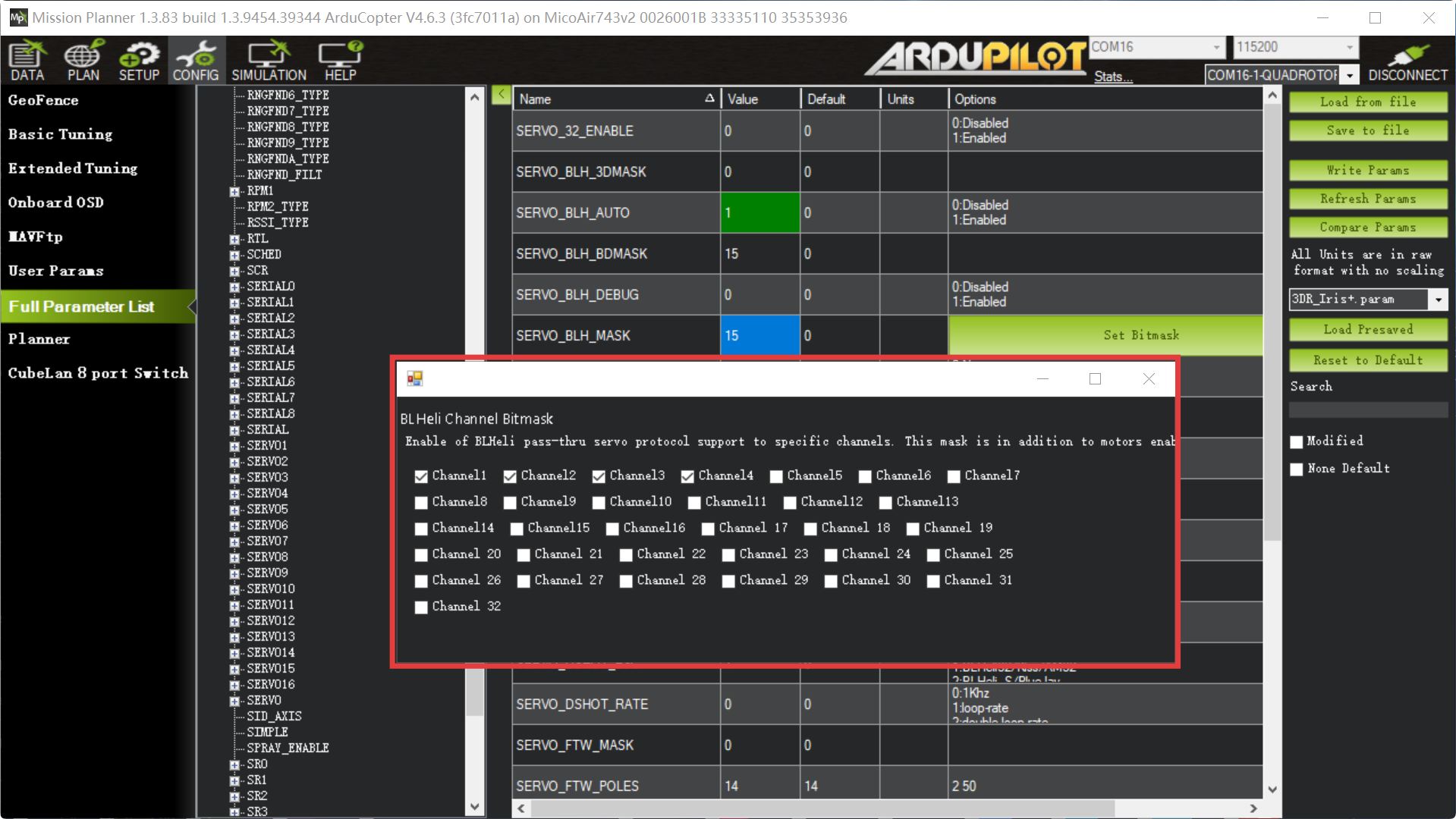
Set SERVO_BLH_AUTO to 1 and SERVO_BLH_MASK to 15. This example is a quadrotor, so channels 1–4 are the four motor outputs. Click Write Params.
-
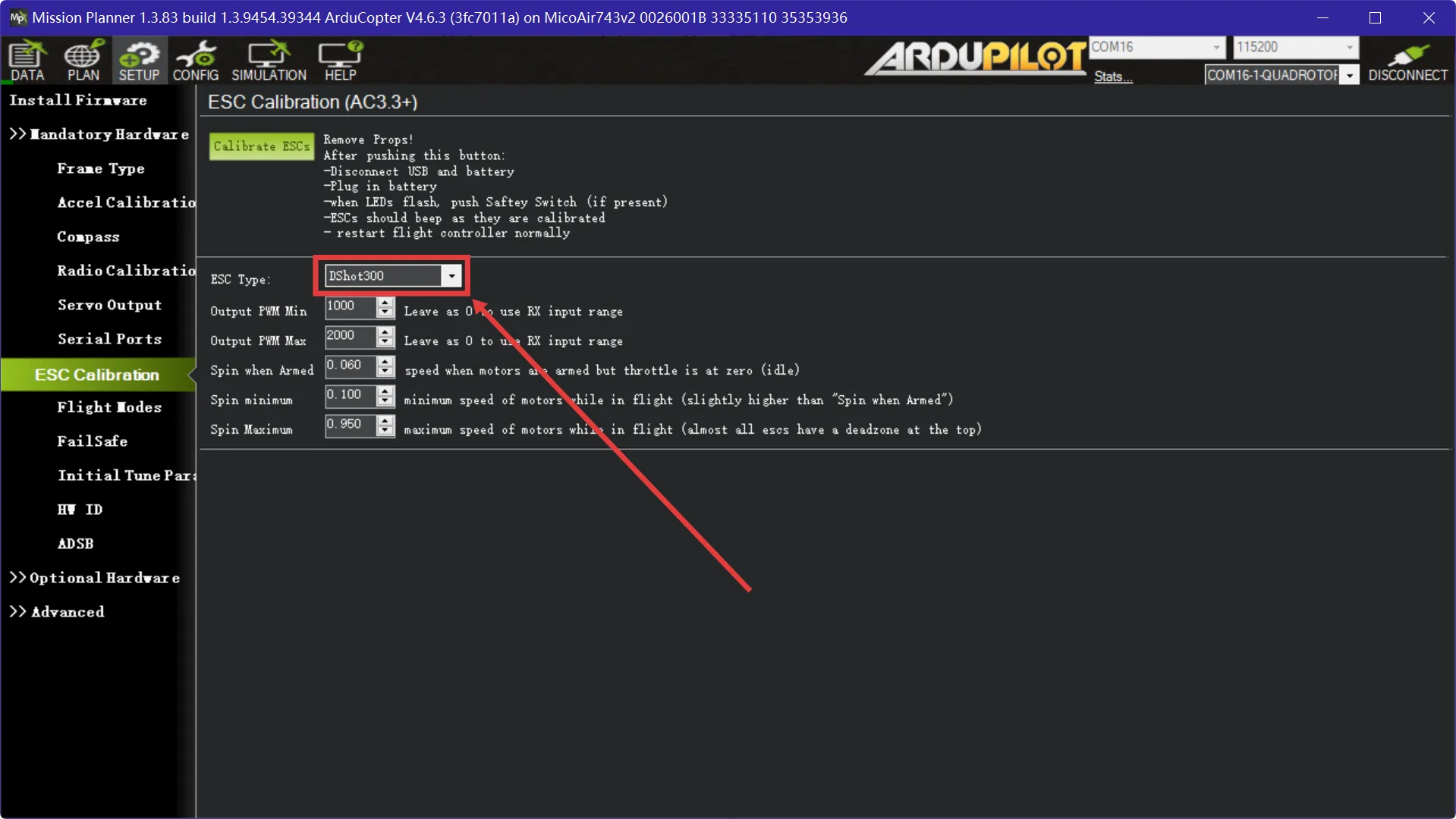
Select SETUP → Mandatory Hardware → ESC Calibration.
-
Set the ESC protocol to DShot300. A DShot protocol is required.
-
Restart the flight controller and close Mission Planner. Power the ESC from a battery. A MicoAir AIO can complete this procedure from USB power alone.
-
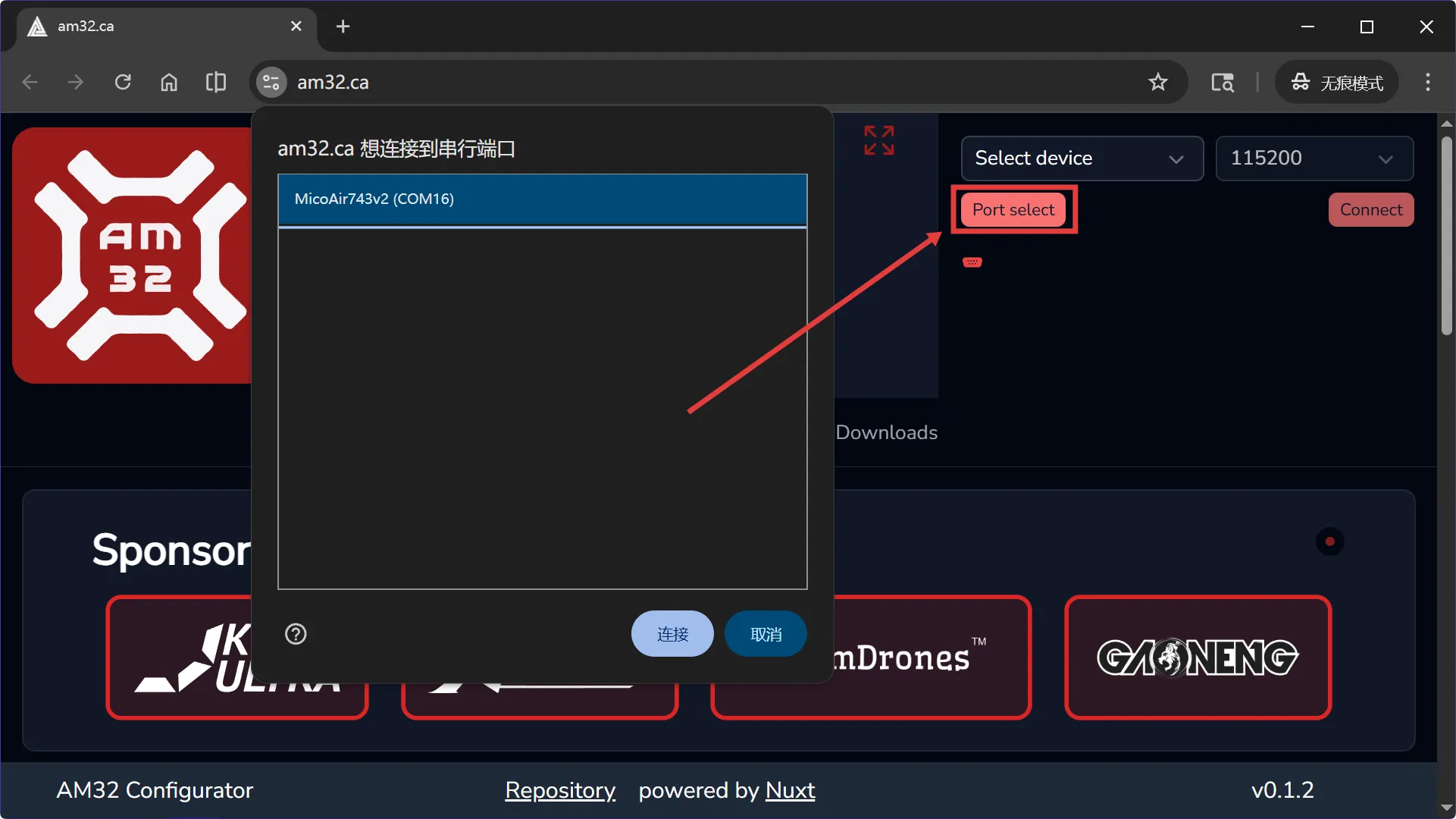
Connect the flight controller over USB Type-C and open a local or web-based ESC configurator. This example uses the AM32 web configurator.
-
Click Port select and select the flight-controller port (COM16 in this example).
-
Click CONNECT. The web configurator detects the ESCs, confirming that passthrough is working.